Photo Search
What is the New Photo Search?
Our new Photo Search allows you to conduct searches and create listing alerts using “photo tags” in your search criteria, in additional to traditional search fields such as listing status, price, etc. Photo tags are automatically applied to listing photos that are uploaded using our Photo Intelligence Tool, as photos are “tagged” based on characteristics that are identified in the photos through the use of photo recognition technology.
Photo tag searching is particularly useful in cases where the MLS does not have a designated field for a certain characteristic and where such information has traditionally been found in the remarks on a listing only.
For example, you can run a search for properties with a “Floor to Ceiling Windows,” that has a “Mountain View,” and an “Outdoor Kitchen.”
Where Can the New Photo Search Be Found?
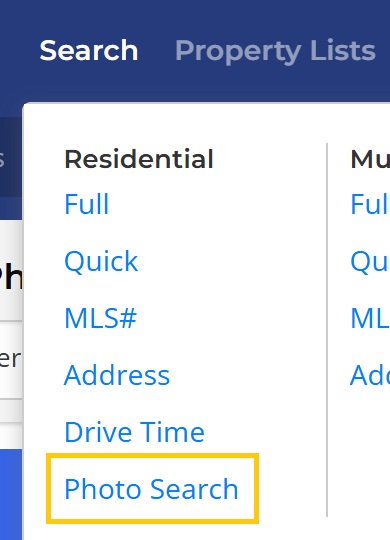
Under the main navigation menu, select Search and you will see the Photo Search option.
How Do I Use This Search?
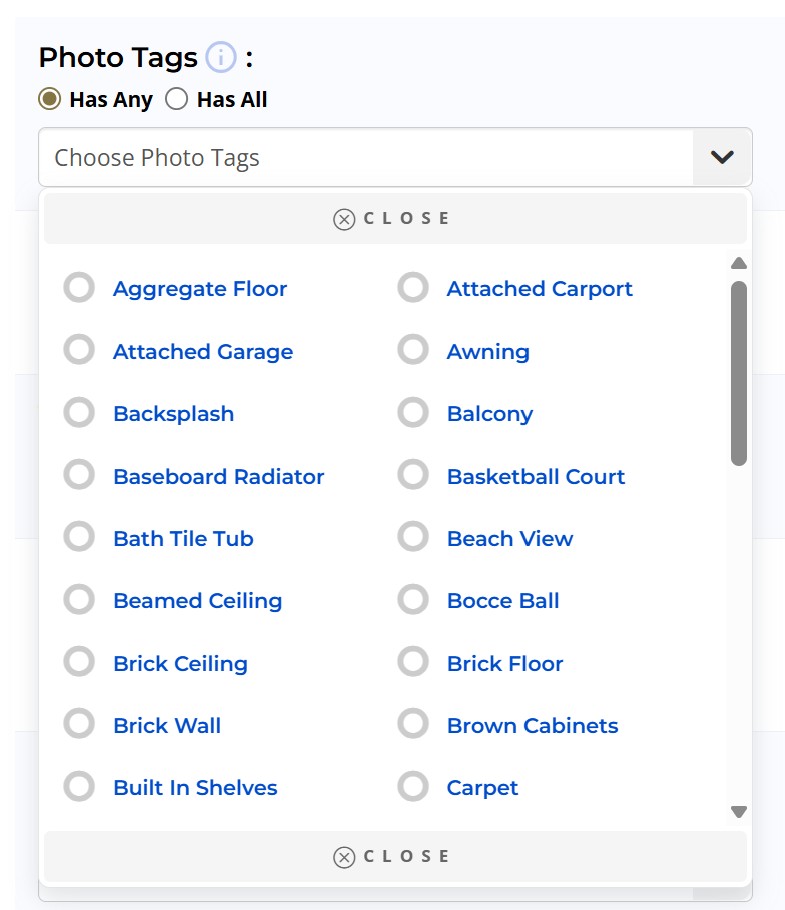
The Photo Search page works identical to the other search pages available in the MLS, however, you will see a new search field called Photo Tags. This search field is where you can specify the photos tags you want to include in your search.
If you have enabled Advanced Search filters (under the setting wheel on the right side of the page), you will see options for Has Any and Has All. “Has Any” will search for listings with one or more of the tags you specify in your search, where “Has All” will only return search results with listings that have all tags specified in your search.
Can I Add This Search Field to My Custom Searches?
Yes! To add this field to your custom searches, open a search page (such as the Residential – Full search), and click on Create Custom Search. The new field is called Photo Tags.
Click here to read more about creating custom searches.
Click here to read more about the new Photo Intelligence Tool.


