New Photo Viewer
The new Photo Viewer shows listing photos in a gallery view, with options to filter the photos you are viewing by location (Level 1, Basement, Exterior, etc.) and room type (Bedroom, Kitchen, Bathroom, etc.). It’s important to know that these photo filter options will generally only be visible if listing photos were added to the MLS using the Photo Intelligence Tool.
Using the New Photo Viewer
To access the new Photo Viewer, click on a photo from a listing report. You will then see a tile view of all photos on the listing. You can enlarge any photo and launch a full screen slide show view of the photos (the traditional photo viewer) by clicking on any image.
Viewing Photos by Room Type
Select a room category at the top of the new photo viewer to narrow the photos you would like to view by a specific room. For example, to view all photos of the kitchen, select “Kitchen” (as shown below).
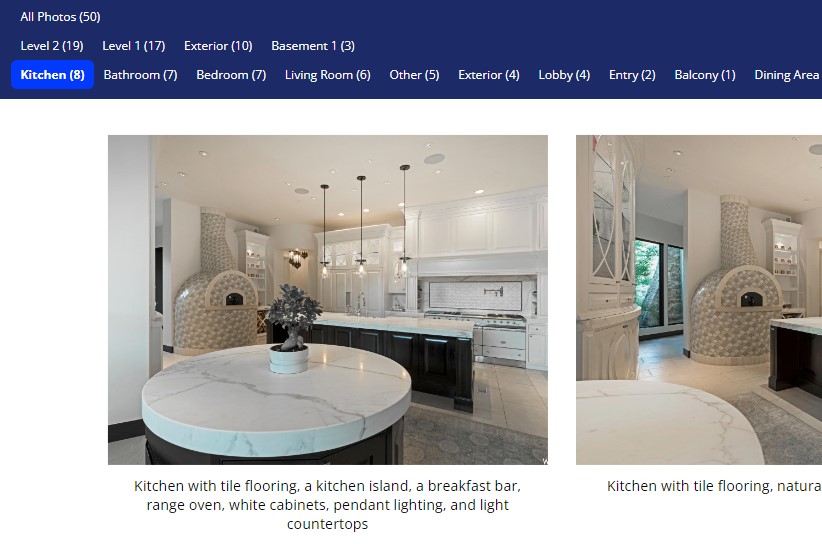
Viewing Photos by Level
Select a level at the top of the new photo viewer to narrow the photos you would like to view by a specific level (Level 1, Basement Level 1, Exterior, Etc.). For example, to view all photos on the second level of the home, you would select “Level 2” (as shown below).
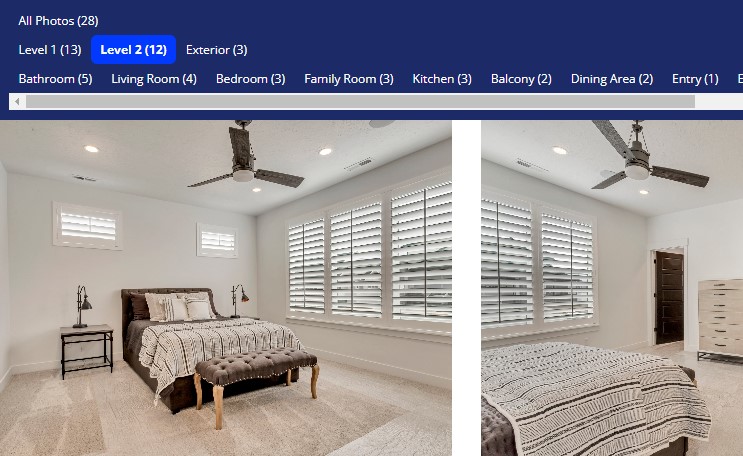
Where Are the Photo Descriptions Shown?
Photo descriptions are shown under each photo on both the photo tile view, as well as when viewing a photo in full screen using the slide show view.
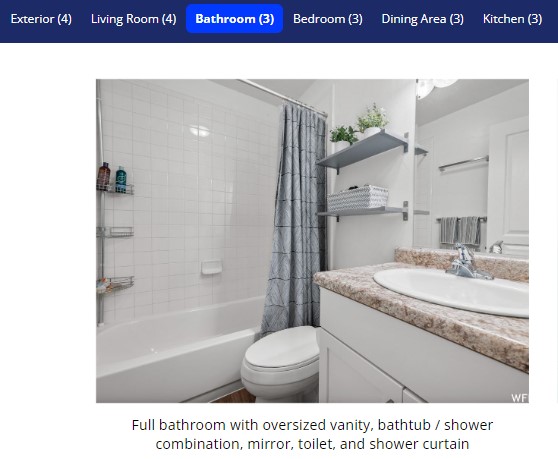
We encourage you to check out our new Photo Intelligence Tool that can be used to automatically generate a description of each photo, will automatically identify the room type of each photo, and which will automatically apply photo tags or identifiable characteristics found in each photo.


