Listing Alert FAQs
What is a Listing Alert?
A Listing Alert (Formerly referred to as a Hotsheet) is a tool where you can set custom listing search criteria, and then send your client automated, recurring emails that include listings which match that search criteria.
Listing Alerts are sent on an ongoing basis, which means that you and/or your client will receive emails (Example below) every time new listings that meet your search criteria are added to the MLS, as well as when listings that meet your search criteria have a status or price change.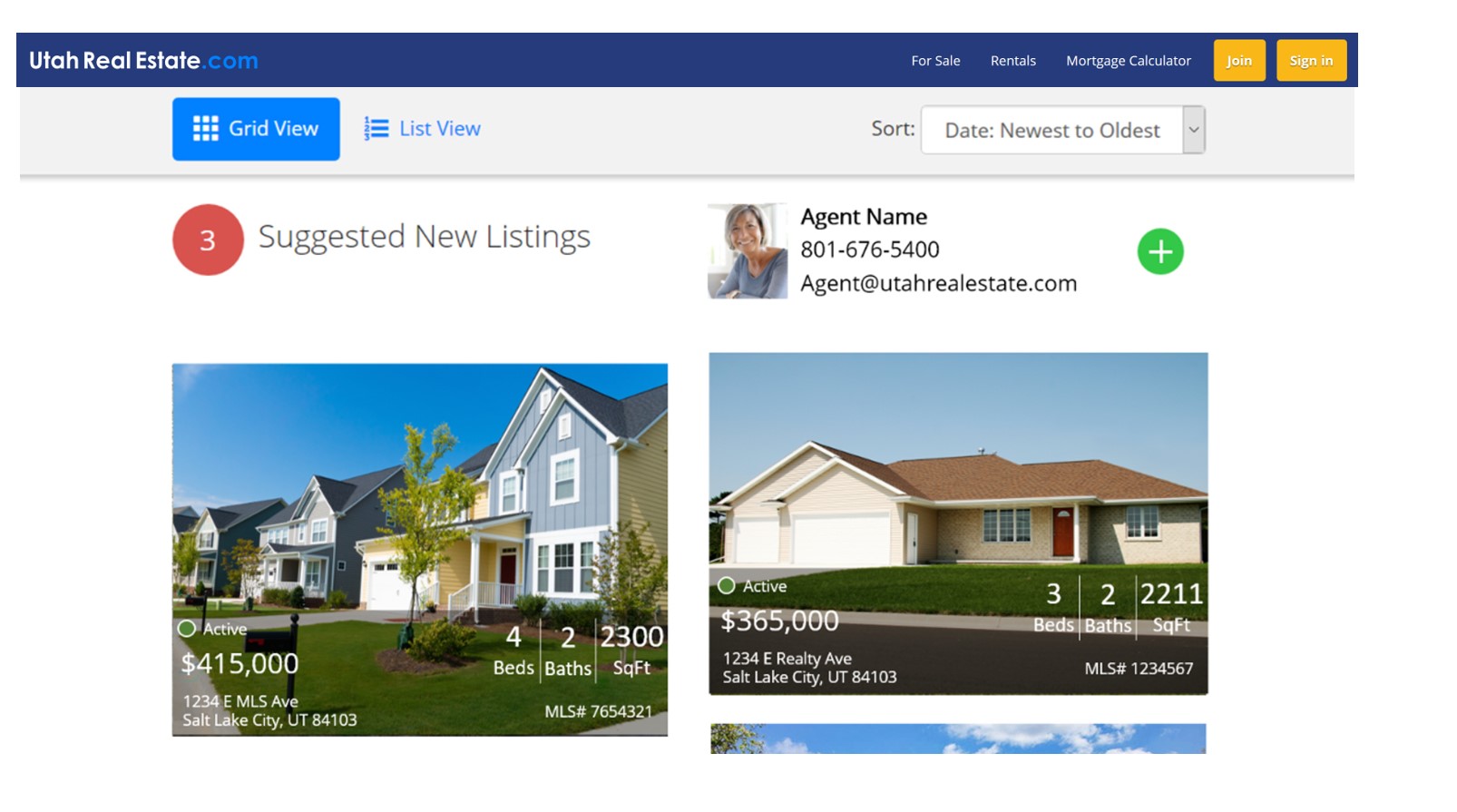
Who Can Receive Listing Alerts?
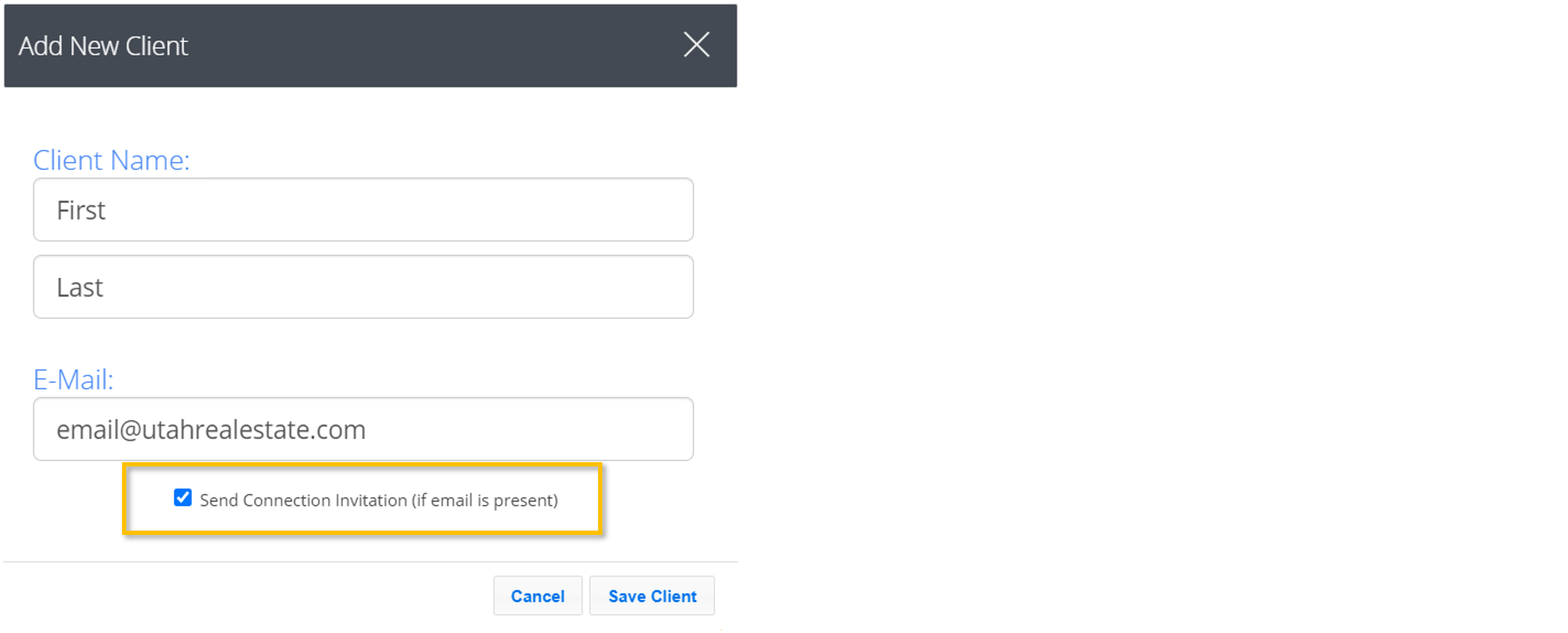
- Clients: When you create a Listing Alert, you have the option of sending the Listing Alert to one or more clients with whom you have established a Client Connection. A Client Connection can be requested by sending a Client Invitation to an individual from either the Client Manager in the MLS or during the process of creating a Listing Alert. Once your client accepts your Client Invitation request, they become a Client Connection, which means that your client has “opted-in” or otherwise agreed to receive your Listing Alert emails. Tip: Click here for more information about Client Connections.
- Agents: An agent can send themselves a copy of Listing Alert emails that are sent to the agent’s clients, or an agent can simply create a Listing Alert that is only sent to the agent.
How do I send a Listing Alert to Myself?
To receive a copy of Listing Alert emails, select the Me checkbox under the Email Options section when creating or editing a Listing Alert. Please note, if you are only wanting to send a Listing Alert to yourself and not to any clients, all you would need to do is make sure the Me box is checked (as seen below) when creating the Listing Alert. You would not need to add yourself to the Selected Clients section.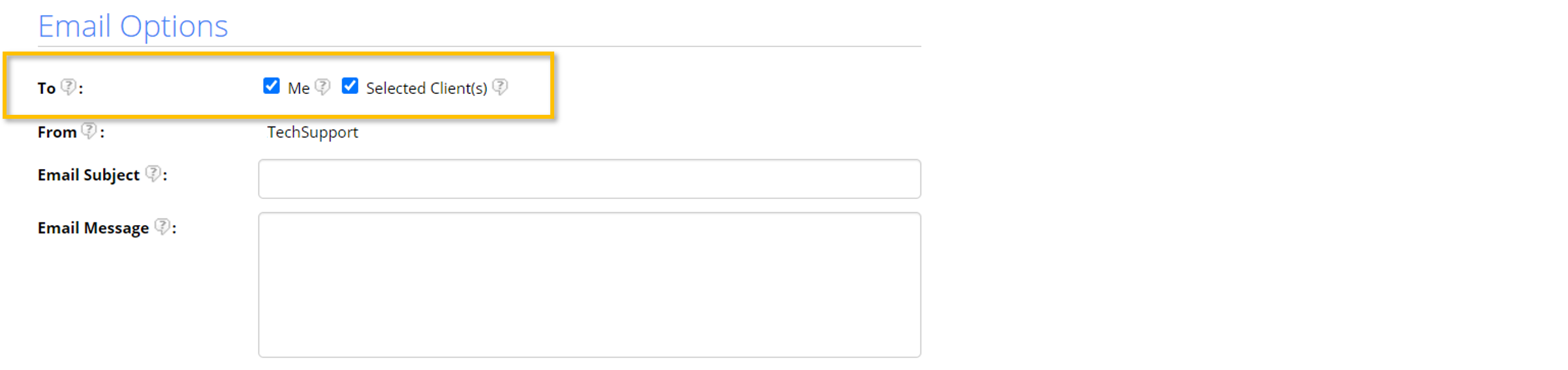
When are Listing Alerts Sent?
Listing Alerts are sent in two types of scenarios:
- New Listings: A Listing Alert is sent when a new listing is added to the MLS and that listing meets the search criteria associated with your Listing Alert.
- Updated Listings: A Listing Alert will also be sent whenever a listing that meets your search criteria has either a status change or a price change.
Listing Alerts are designed to only send new or changed listings since the last time the Listing Alert ran, eliminating duplicates no matter how frequently you have scheduled the Listing Alert to run.
Tip: As an example, if you have a Listing Alert scheduled to run at 10:00 AM and 2:00 PM every day, and a listing that meets your search criteria is added at 8:00 AM, that listing would only appear in your 10:00 AM Listing Alert and not both scheduled alerts.
What is an Express Listing Alert?
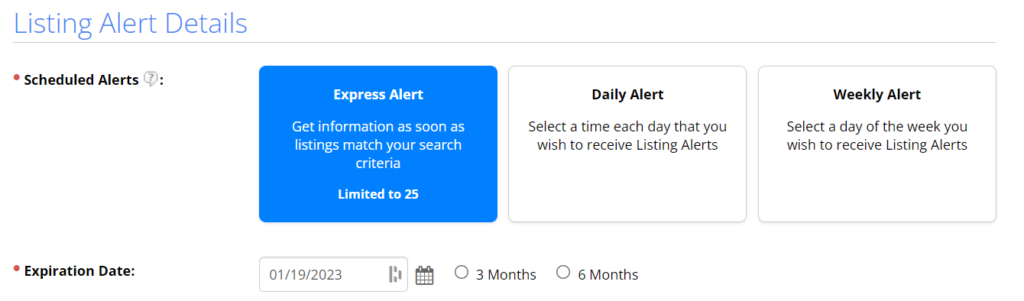
Express Listing Alerts are designed to send new and updated listings that meet your search criteria in more of a real time manner. Compared to a Daily Listing Alert that waits to send a Listing Alert email until a certain time of day or a Weekly Listing Alert, that will send an email on the designated day of the week.
How Often Are Express Listing Alerts Sent?
With the Express Alert option, the MLS will regularly scan for listings across the system. The time for an Express Alert scan to find a match is very fast and ranges from one minute to no more than 10 minutes.
Are the Initial Search Results/Matches Sent When a Listing Alert is First Created?
When you create a Listing Alert, the system will not automatically send the search results that are associated with that initial search in the form of a Listing Alert. In other words, once you create a Listing Alert and save the alert, the system will only send future new listings and listing changes that meet your search criteria, not the initial set of listings that met your search criteria when the Listing Alert was initially created. If you are setting up a listing alert, and want to send the initial search results that are associated with your Listing Alert criteria to your client, we recommend using the Send Listings feature after you have setup your Listing Alert.
Can I Create a Listing Alert to Track One Property?
Yes, Listing Alerts can be created using any criteria. If you want to track one particular property in a Listing Alert, we recommend using the property address or Tax ID number of the property as the search criteria for that Listing Alert.
How do I see the Listing Alerts I have Sent to my Clients?
Here is how to see information about Listing Alert emails that have been sent to your clients within the last 90 days:
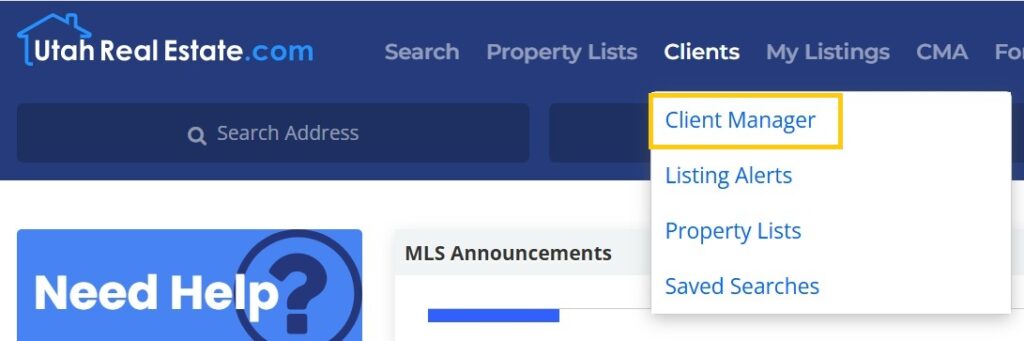
1. Click on the Clients option from the main navigation menu in the MLS, then select Client Manager.
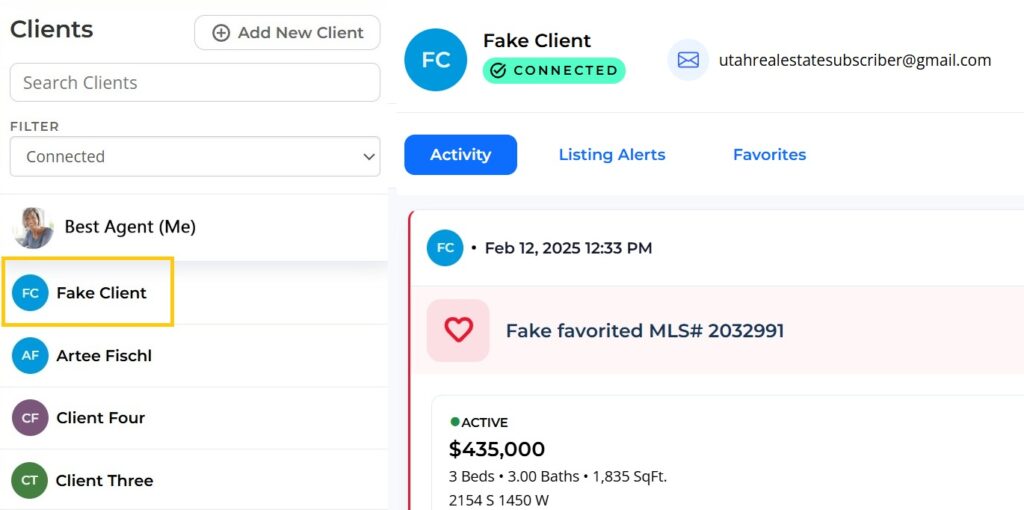
2. Select your client’s name from the menu on the left.
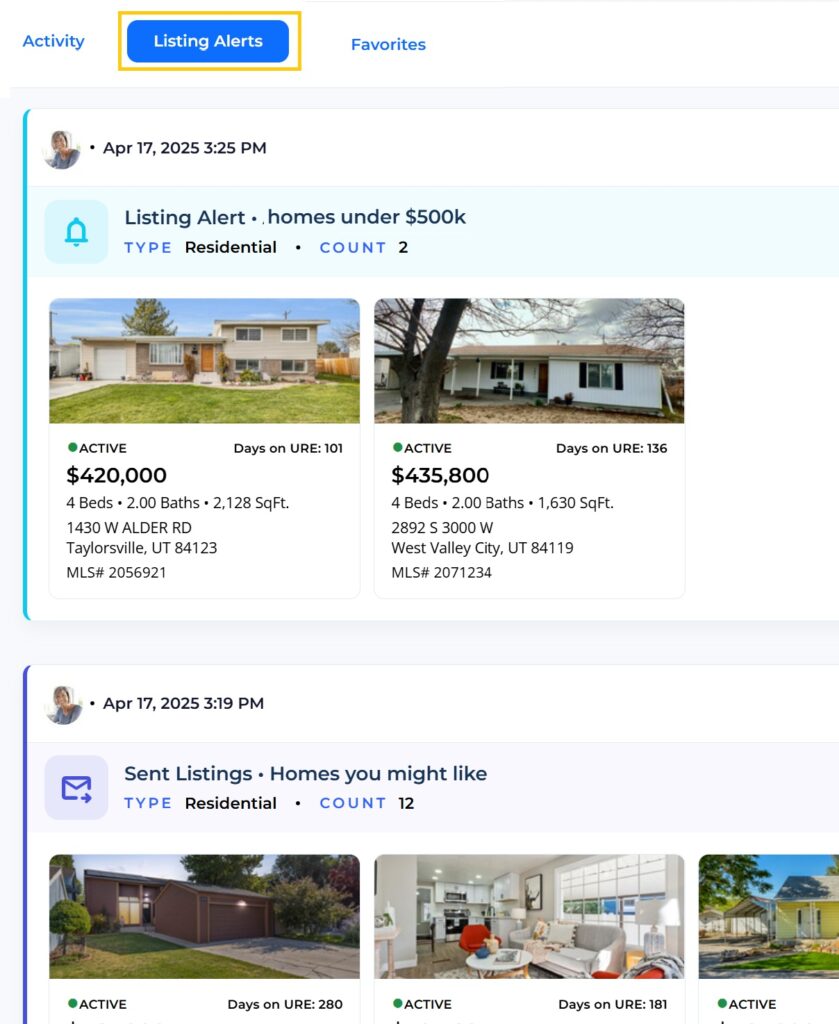
3. You will see the recent activity on the Activity page, including Listing Alerts (and directly sent listings) that you have sent to them. You will also see the listing alerts on the Listing Alert tab.
What Should I do if My Client Isn’t Receiving Listing Alerts?
The first step in troubleshooting this issue is to make sure your client has accepted the Client Invitation request (i.e. established a Client Connection) with you.
Tip: Click here for more information about Client Connections, including information about re-sending a Client Invitation request.
If a client has already accepted the Client Invitation request and established a Client Connection with you, it is recommended to have your client check their spam or junk email folder. If your client finds that Listing Alert emails have been going to their spam/junk folder, your client should mark those emails as Not Spam to help ensure successful delivery of future Listing Alerts emails. If your client is having issues with Listing Alert emails going to junk/spam, it is also recommended that they add info@utahrealestate.com to their “safe sender” or “approved sender” email list in their email settings (which will vary depending on the email provider).
How do I Change or Edit a Listing Alert?
Click here to view instructions.
How do I See When a Listing Alert Was Created?
There are two ways to see when a Listing Alert was created.
1. From the main Listing Alerts overview page, which shows all of your Listing Alerts in a grid view, there is a Created column which shows the date each Listing Alert was created. Please note that you can click the column header to sort by date created.
Do Listing Alerts Expire?
Yes. By default, all Listing Alerts have a one year expiration date. This means that Listing Alert emails will automatically stop being sent one year from the date the Listing Alert was created, unless you manually extend the expiration date of the Listing Alert, which can be done by following these steps:
1. Visit the main Listing Alerts overview page by selecting Listing Alerts under the Clients tab. On this page there is an Expires column which shows the date each Listing Alert is set to expire. Please note that you can click the column header to sort by date created.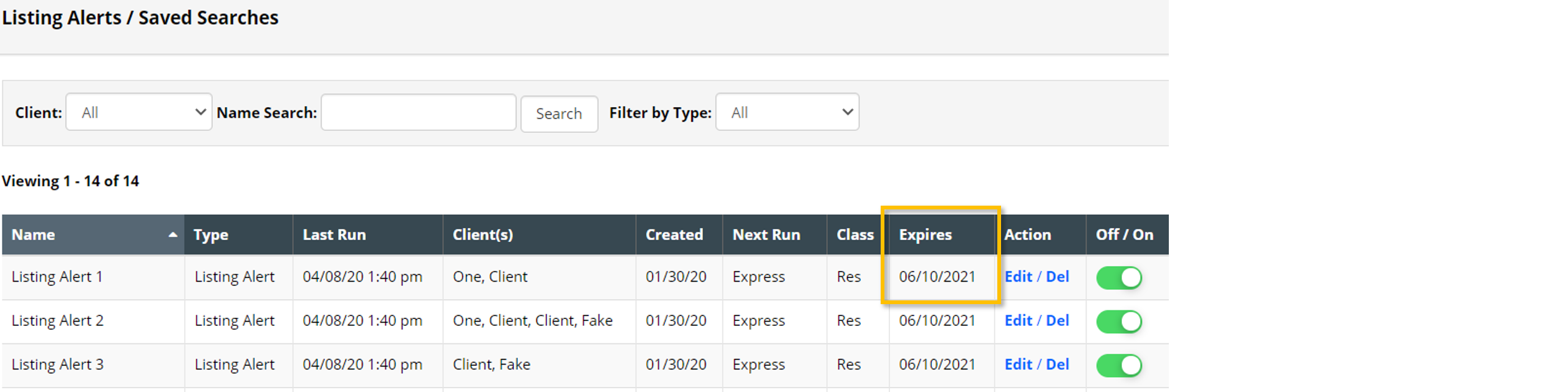
Tip: From the Listing Alerts overview page, you can quickly extend the expiration date of a Listing Alert by one year by toggling the Listing Alert off and then back on, using the “Off/On” button.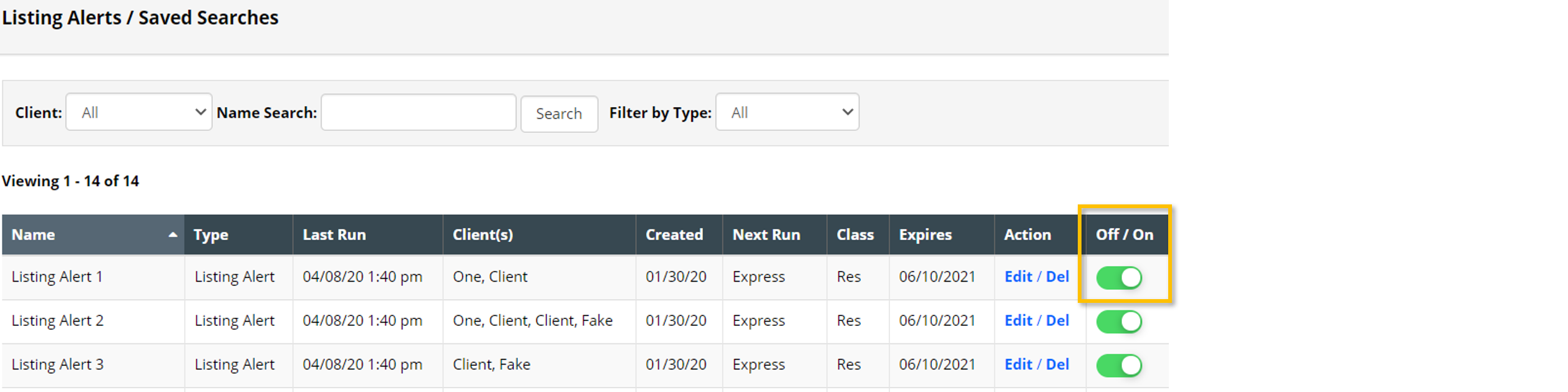
2. Click the Edit button associated with the Listing Alert in question.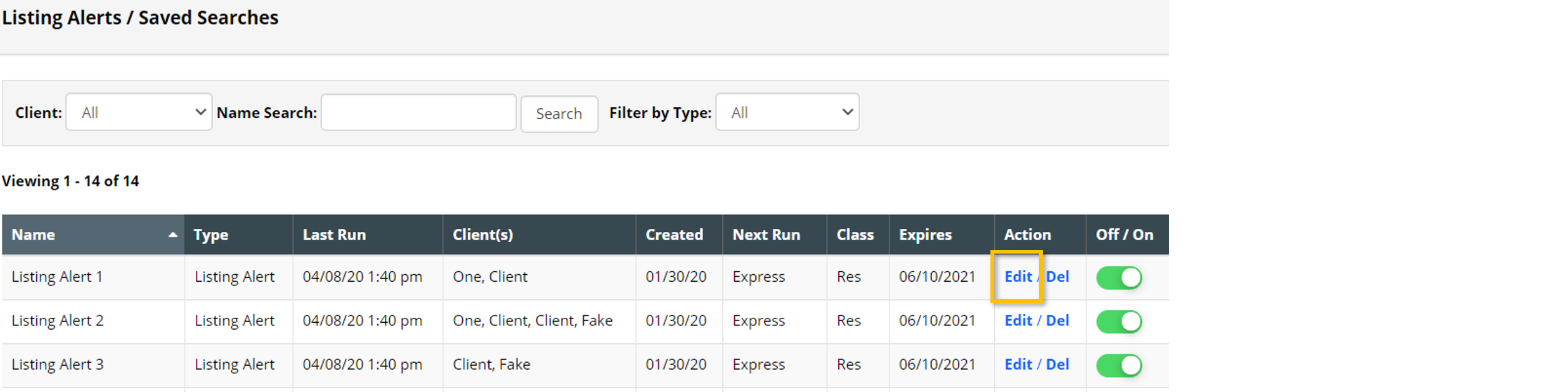
3. Scroll down to Listing Alert Details and next to the Expiration Date field, use either the calendar tool or one of the 3 month or 6 month quick toggle options to set a new expiration date.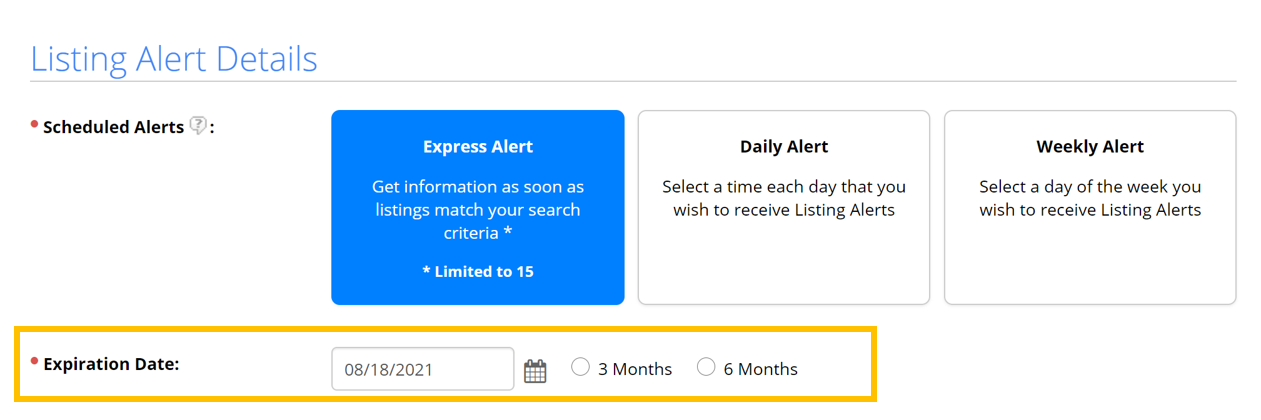
4. Last, make sure to save your changes using the Save option at the top of the screen.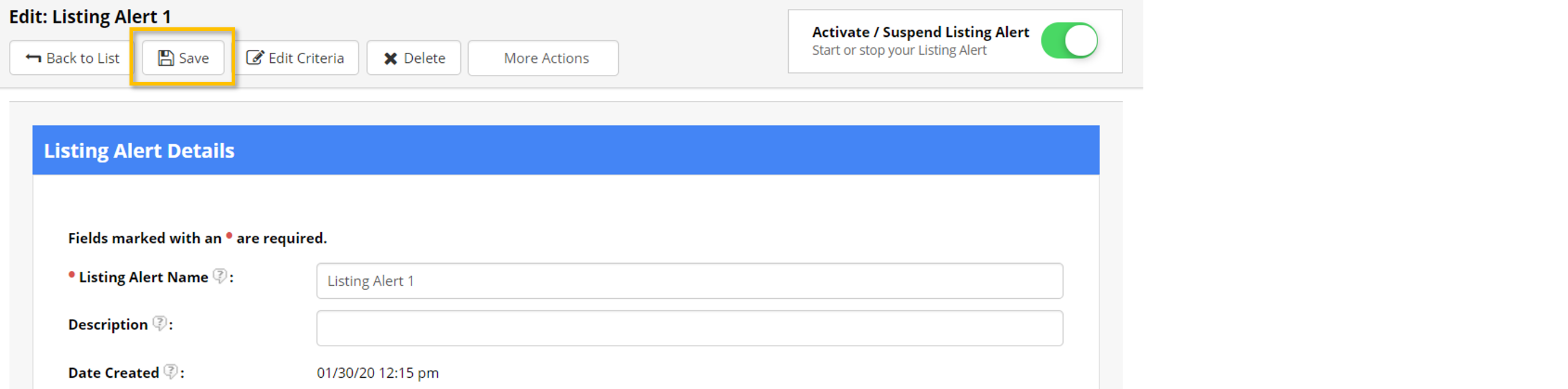
How do I Turn a Listing Alert Off? How do I Turn a Listing Alert On?
The quickest way to turn a Listing Alert off or on, is to use the “Off/On” toggle option that appears on the main Listing Alerts overview page, which shows all of your Listing Alerts in a grid view. Simply use the button that appears in the “Off/On” column to quickly turn a Listing Alert off or on. Please note that you can also sort using this column.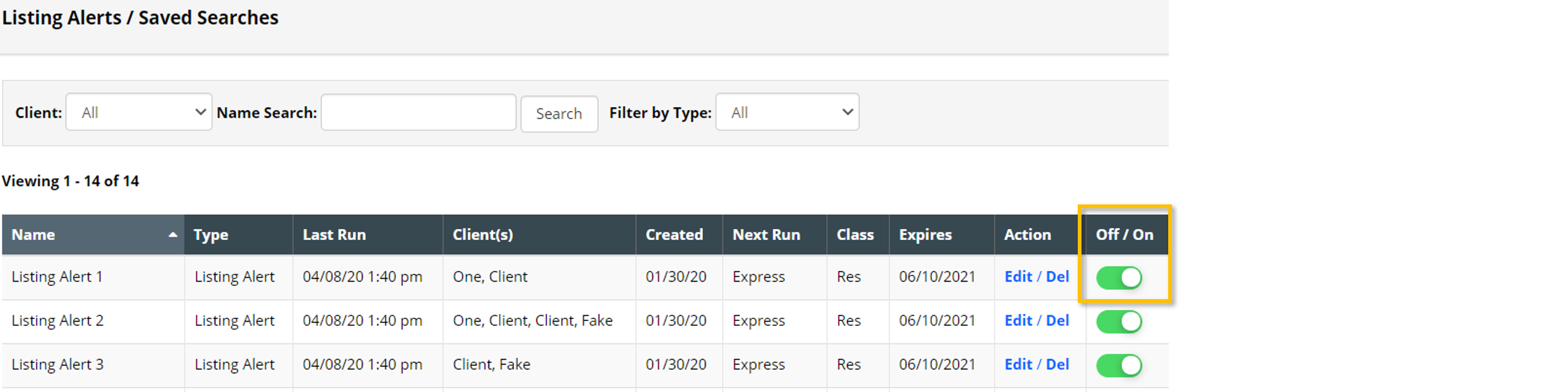
If you need any assistance, please contact us at 801-676-5400 or support@utahrealestate.com.


