Editing Listing Alerts
How Do I Edit A Listing Alert?
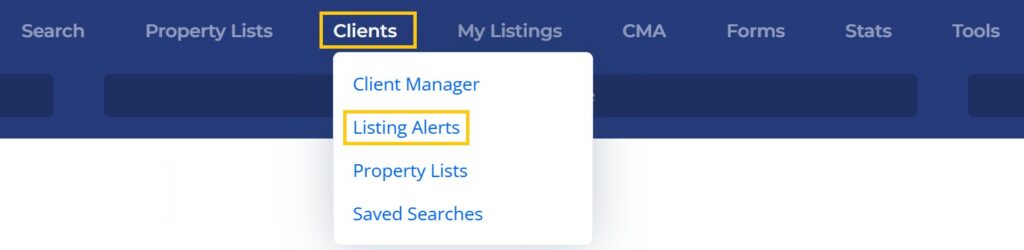
Step 1. Select Clients from the main navigation menu in the MLS, then select Listing Alerts.
Step 2. From the grid, find the Listing Alert you would like to modify and select the Edit Icon next to that Listing Alert, under the Action Column.
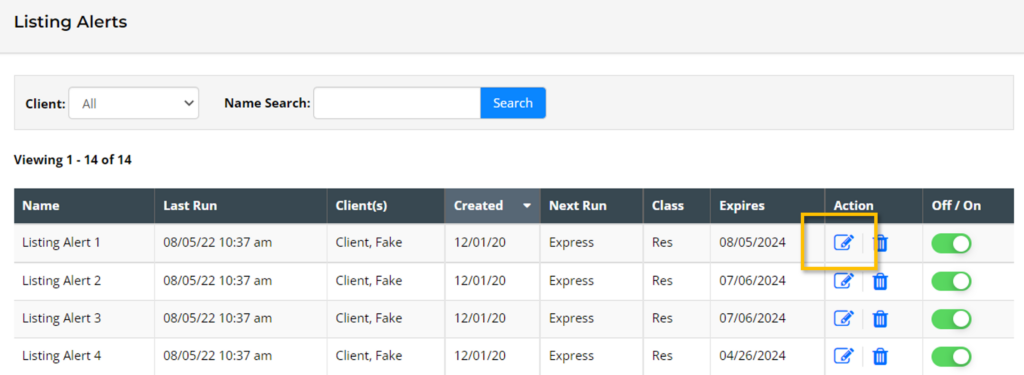
Tip: This table view of Listing Alerts can be sorted by clicking on any column (i.e. The “Name” column, the “Created Date” column, the “Off/On” column, etc., etc.).
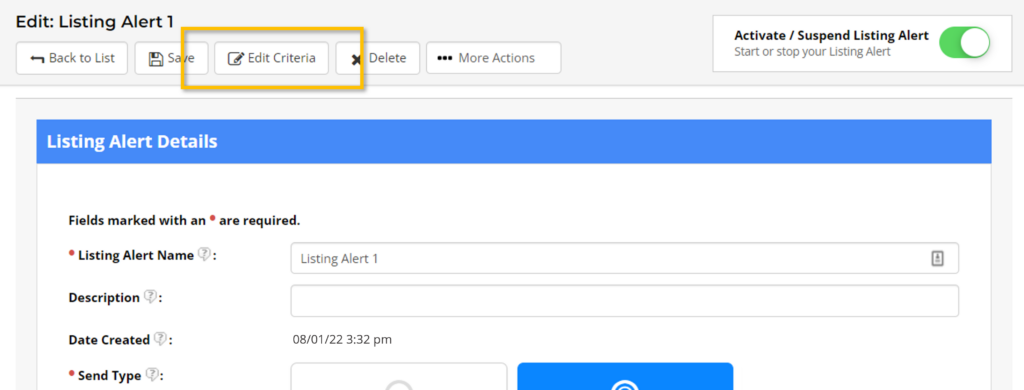
Step 3. Make the modifications you need to make to the Listing Alert settings (such as the alert type, expiration date, etc.). If you need to change the search criteria or type of listings being sent to your client, select the Edit Criteria option, change the search criteria, and click Save to be taken back to the main edit page for that Listing Alert.
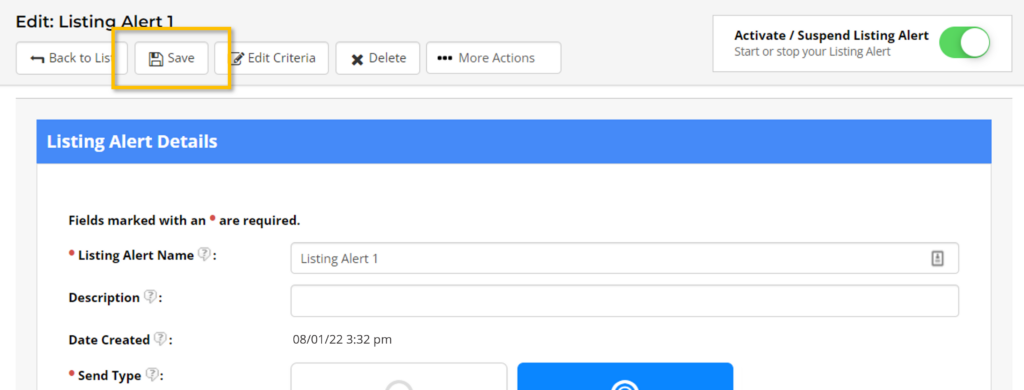
Step 4. Last, once all necessary changes have been made, click the Save option at the top of the screen.
How Do I Change the Search Criteria for an Existing Listing Alert?
The search criteria associated with a Listing Alert can be changed at any time.
Step 1. Select Clients from the main navigation menu in the MLS, then select Listing Alerts.
Step 2. From the grid, find the Listing Alert you would like to modify and select the Edit Icon that appears next to that Listing Alert under the Action Column.
Step 3. At the top of the Listing Alert edit page, click on Edit Criteria.
Step 4. Make any changes needed, then select Save from the search page.
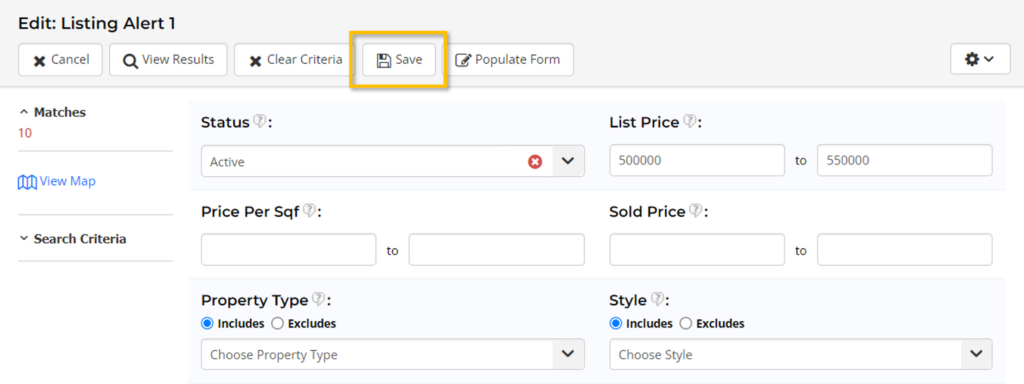
Step 3. Make sure to click the second Save option at the top of the screen on the Listing Alert edit page for the Listing Alert that you are changing.