Adding Multiple (3 or More) Signers in SkySlope
Did you know that you can add any number of signatories or signers, either on the seller or buyer side, to a file in SkySlope?
SkySlope automatically adds the signature and initial lines for the first two signers (seller or buyer) when you create a file in SkySlope. For additional signers, the signatures and initials must be added manually. Here is a quick guide to adding additional signers to a file in SkySlope.
How to Add More Additional Signers (3 or More) to a File in SkySlope
1. Select and complete the forms needed within SkySlope.
Please note, you can find help getting started in SkySlope here
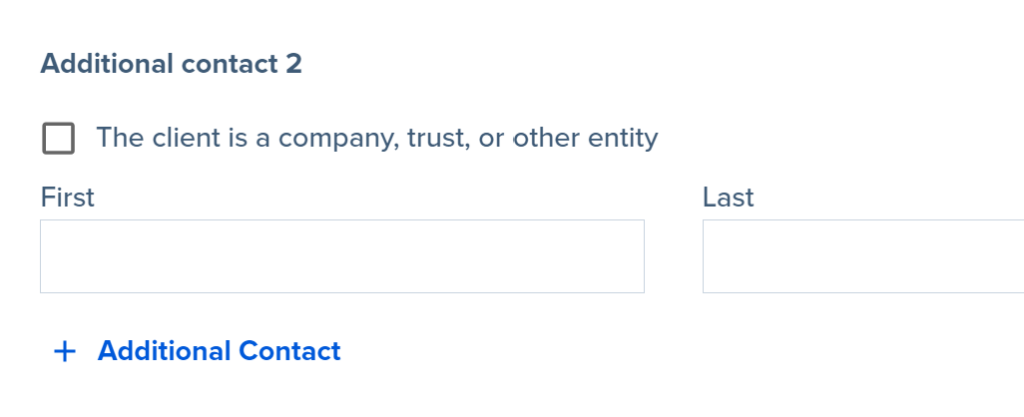
2. When creating a file, be sure to add all clients that need to either sign or be sent a copy of the signed documents. Add additional clients by clicking on +Additional Contact.
3. Once the forms are ready to be signed, click Prepare Signature at the bottom right.

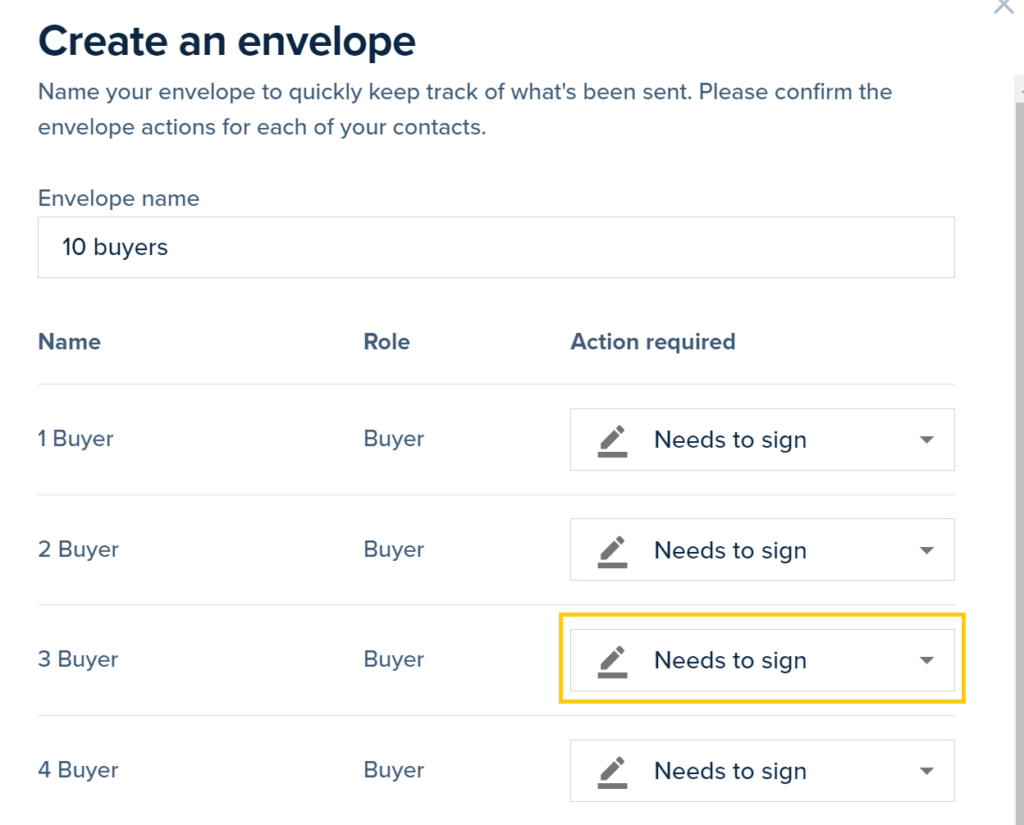
4. Make sure to select the “Needs to sign” option for all people from the client list who need to sign the document[s], and click Next.
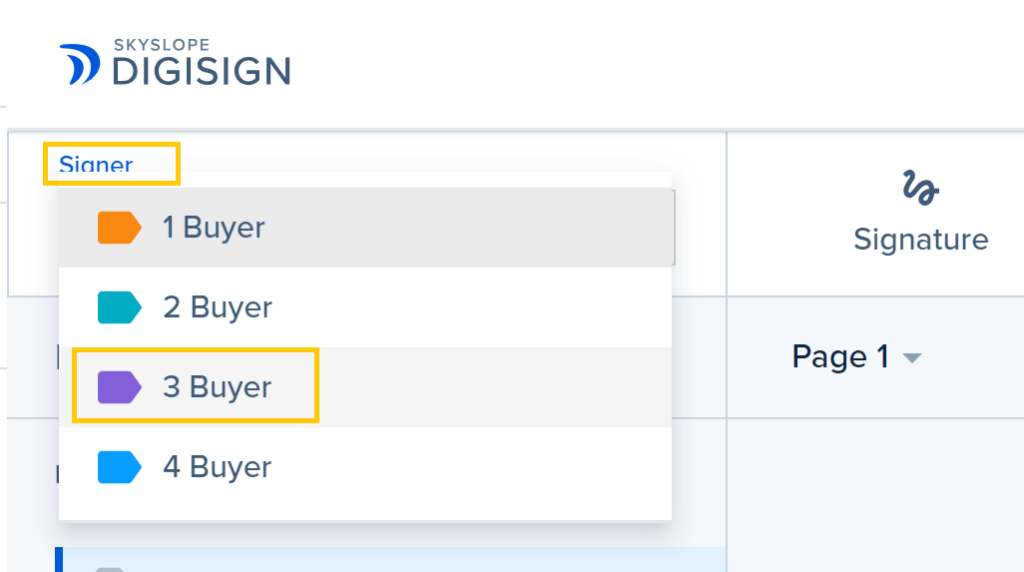
5. The signatures and initials for the first two signers should automatically be added to all forms within the file. To add additional signatures or initial blocks, select the name of the signer at the top left corner.
6. Scroll down to the section where the additional selected signer[s] needs to take action. Click on Signature to add a signature block for this signer. Once selected, draw a box where the selected signer should sign on the page. Repeat this process for every additional signature line needed.
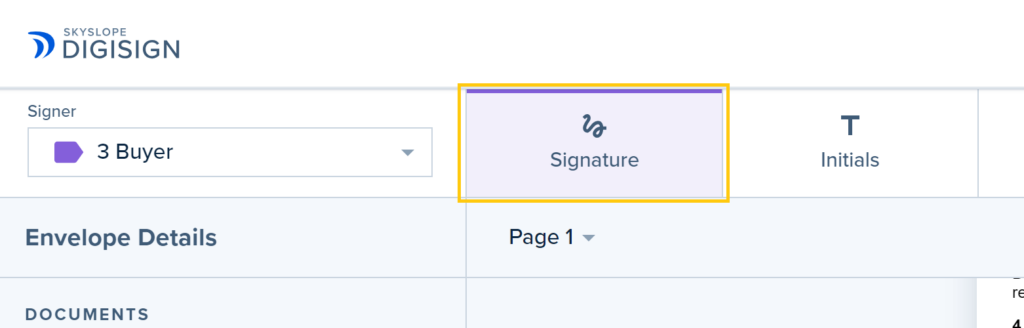
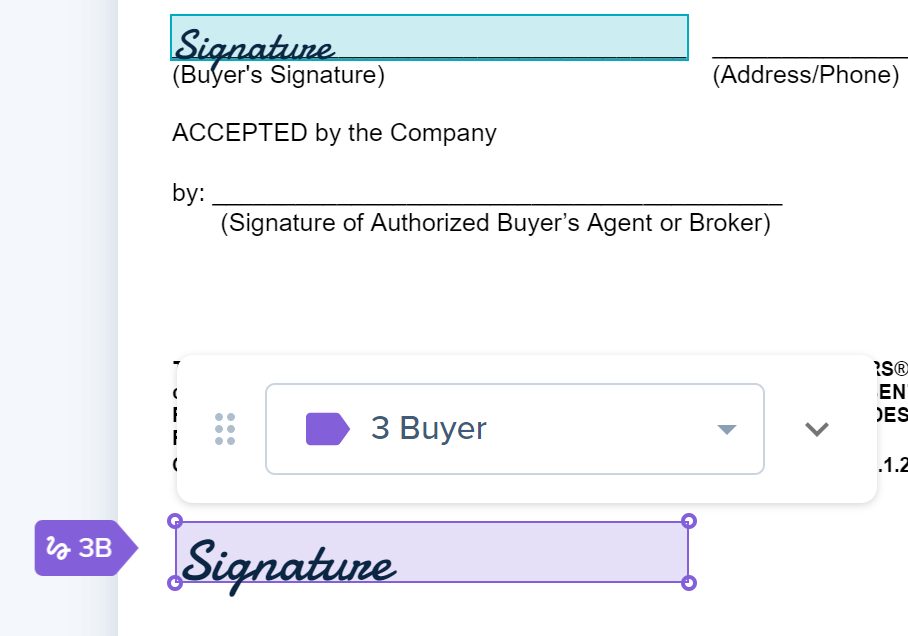
7. Repeat these steps using the Initials block, on every page that initials are needed by this signer.
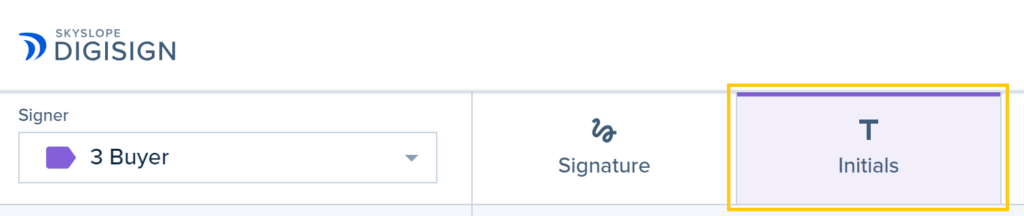

8. Finally, repeat these steps to any additional signers for the document(s).
Advanced Tips and Tricks – Adding Multiple Signature or Initial Blocks
When adding signature or initial blocks for more than one signer, you can create the first set of signature or initial blocks, then copy and paste them to another page.
- To do this, add all of your signature or initial blocks.

2. Then press and hold the SHIFT key (or the Command key for Mac computers), and click on each of the initial blocks to select the group.
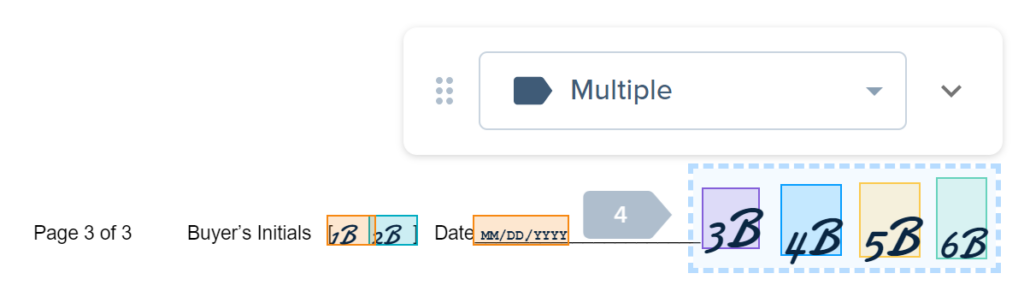
3. Click on the down arrow in the box, and select Copy.
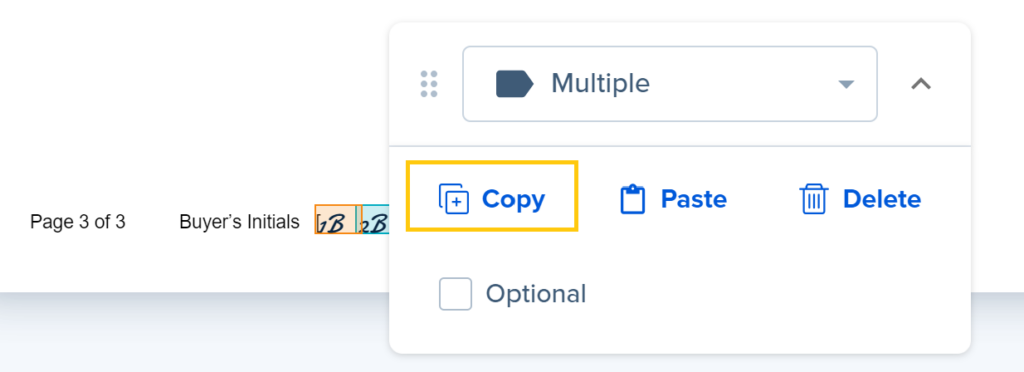
4. Scroll down to the section of the form where you need another set of initials, and paste the copied group (press CTRL-P on a PC/windows computer, or Command-P on a Mac computer). This will paste the entire group.
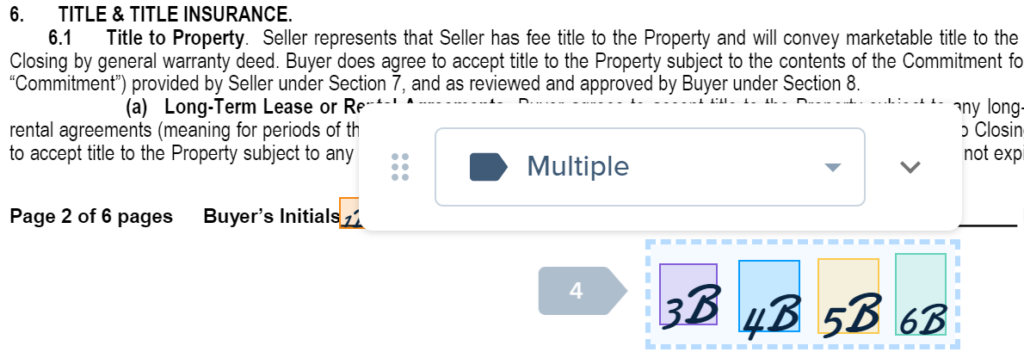
The group can then be moved around, as needed.
5. Repeat the last step on every page where initials and/or signatures are needed.
If you need any assistance, please contact us at 801-676-5400 or support@utahrealestate.com.


