Supra Integration with ShowingTime
What Are the Benefits of Integrating a Supra Lockbox with ShowingTime?
ShowingTime has an integration with Supra that enables MLS members to view lockbox activity from within ShowingTime. With this integration, you can track when a property has been accessed using a Supra key and can ensure that the access correlates to a scheduled showing.
How do I Set Up Supra with ShowingTime?
In order to associate a Supra lockbox with a listing in ShowingTime, all you have to do is login to your Supra account and make sure your MLS listing is assigned to the applicable lockbox. Here are the setup steps:
1. Login to your Supra account on www.supraekey.com
2. Once logged in, click the Assign Listing option from the main menu.
Note: If your lockbox was previously assigned to another listing in Supra, you will first have to modify the settings of that lockbox in Supra and un-assign the prior listing from that lockbox .
3. Enter the MLS number of the listing being assigned in the MLS# field, and click the Assign option.
Here is a link to instructions on Supra’s website if additional assistance is needed: http://www.supraekey.com/CustomerSupport/Pages/Support/SupraWEB/ListingAndKeyboxQuestions.aspx
Can I View Supra Access Information within ShowingTime?
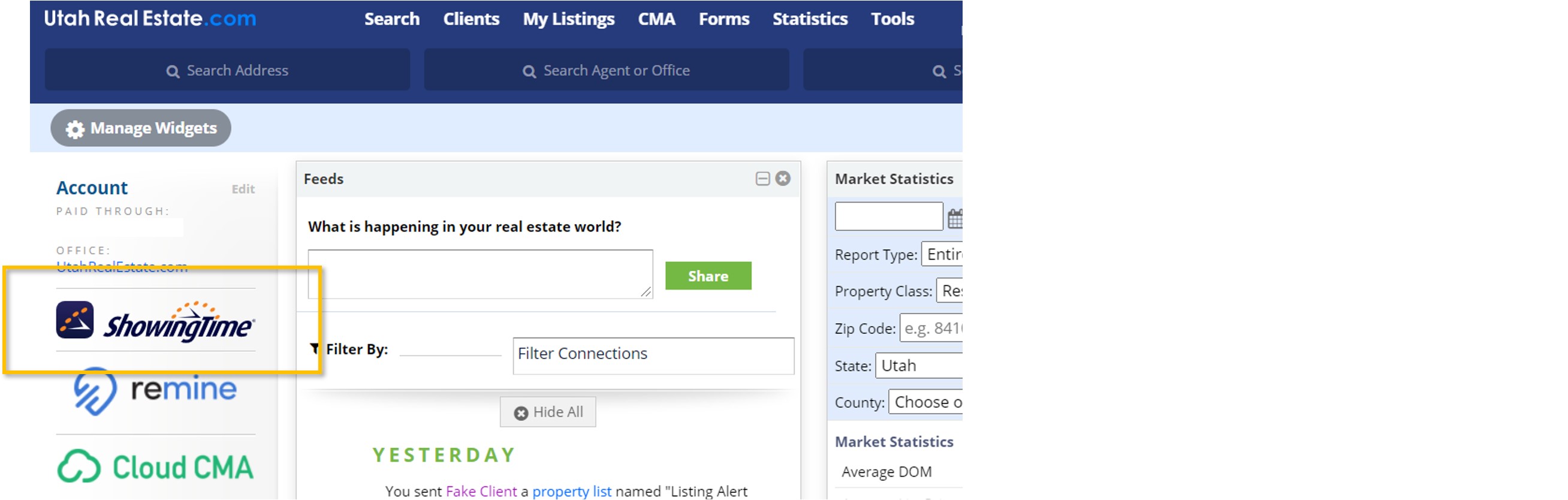
1. From the UtahRealEstate.com homepage, click the ShowingTime icon on the left side of the page.
2. Go to the Listing Activity Report for the listing in question (Click here for instructions to view the ShowingTime Listing Activity Report.)
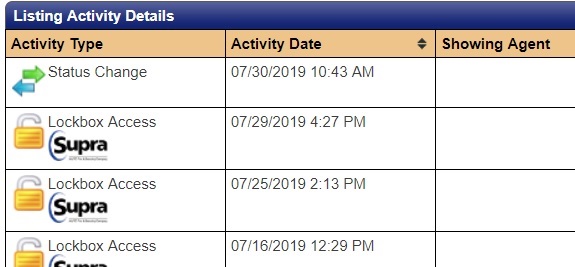
3. On the Listing Activity Report, you will see a section called Listing Activity Details, which will show all ShowingTime showing activity associated with the listing, including Supra lockbox access history.
If you need any assistance, please contact us at 801-676-5400 or support@utahrealestate.com.


