How to Disable ShowingTime on My Listing
How Do I Remove or Disable the “Request Showing” ShowingTime Option on My Listing?
There are several different types of settings that can be adjusted in order to disable ShowingTime’s “Request Showing” feature from your listing or listings.
For Listing Agents – Disable ShowingTime for a Select Listing
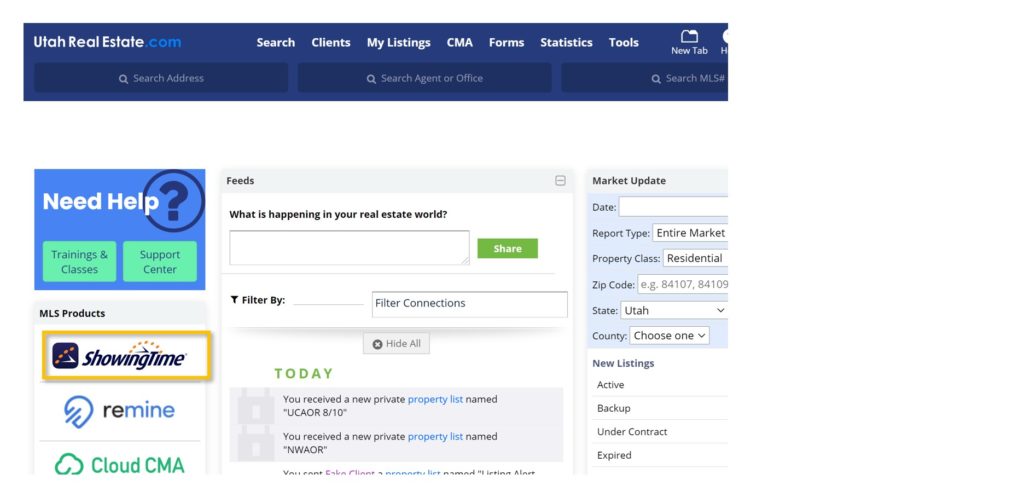
1. From the UtahRealEstate.com homepage, click the ShowingTime icon on the left side of the page.
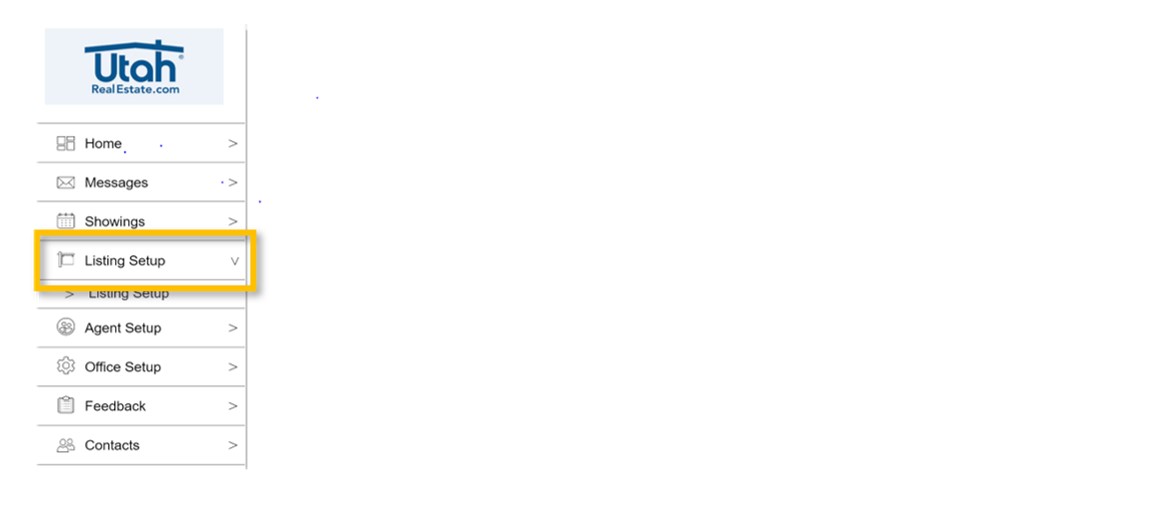
2. Click the Listing Setup option on the left side of the page.
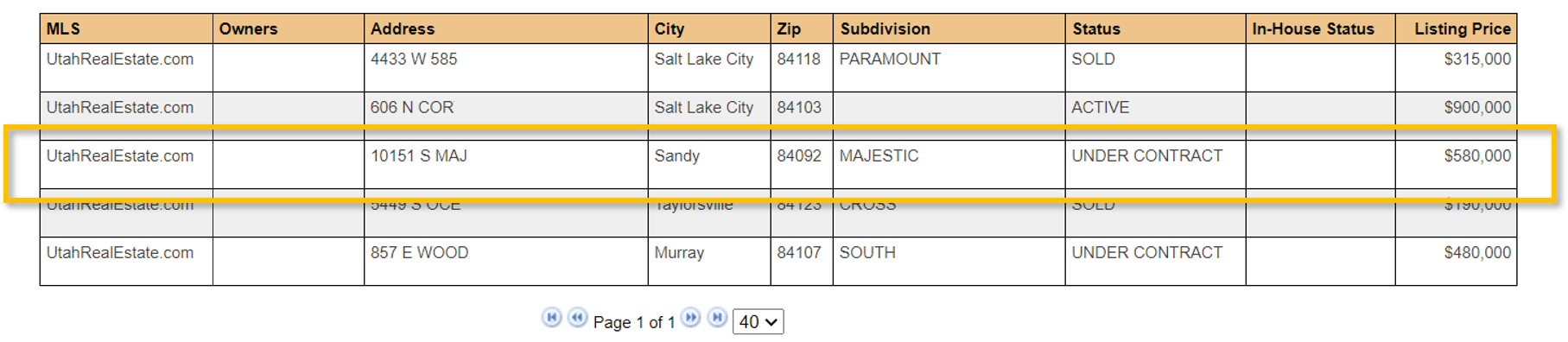
3. On the grid view, find the listing you want to edit, and click anywhere on that row to edit the listing.
4. At the top of the screen you will see an option that says Allow Agents To Request Appointments Online. Select the No option to disable ShowingTime. Making this change will remove the ShowingTime “Request Showing” icon from this listing in the MLS.

5. Last, when you are finished, click Save Changes at the top of the screen.

For Listing Agents – Disable ShowingTime for All Current and Future Listings
1. From the UtahRealEstate.com homepage, click the ShowingTime icon on the left side of the page.
2. Click Edit Profile.
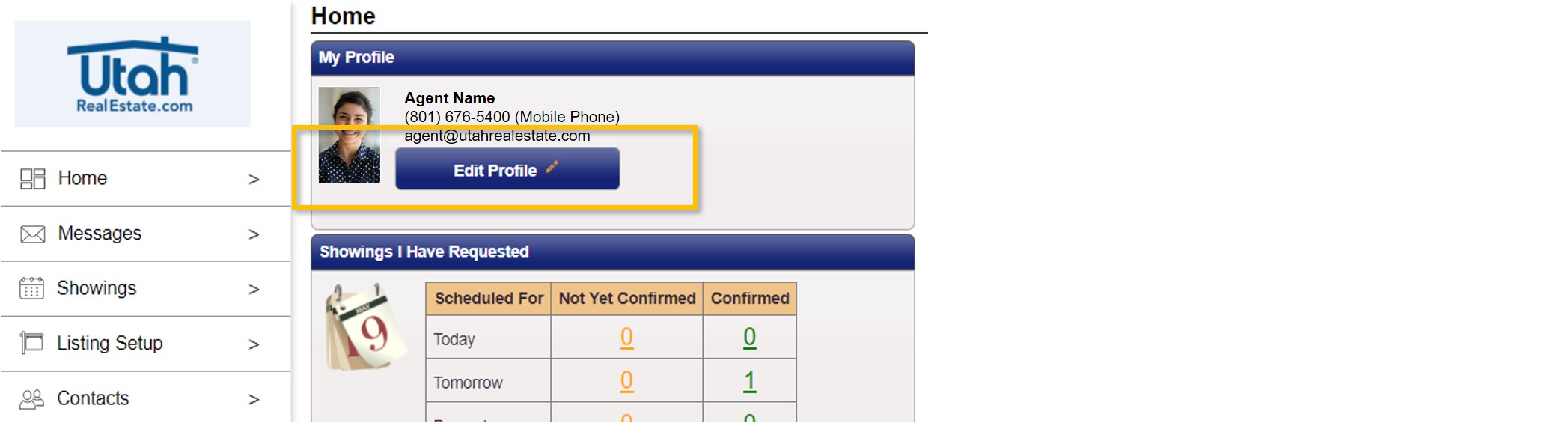
3. Scroll down to the Listing Agent – Showing Preferences section. Next to Allow Agents To Request Appointments Online select the No option. Making this change will remove the ShowingTime “Request Showing” icon from all of your current and future listings in the MLS.

4. Last, when you are finished, click Save Changes at the top of the screen.

For Brokers – Disable ShowingTime for All Current and Future Listings in My Entire Office
1. From the UtahRealEstate.com homepage, click the ShowingTime icon on the left side of the page.
2. Click the Office Setup option on the left side of the page.
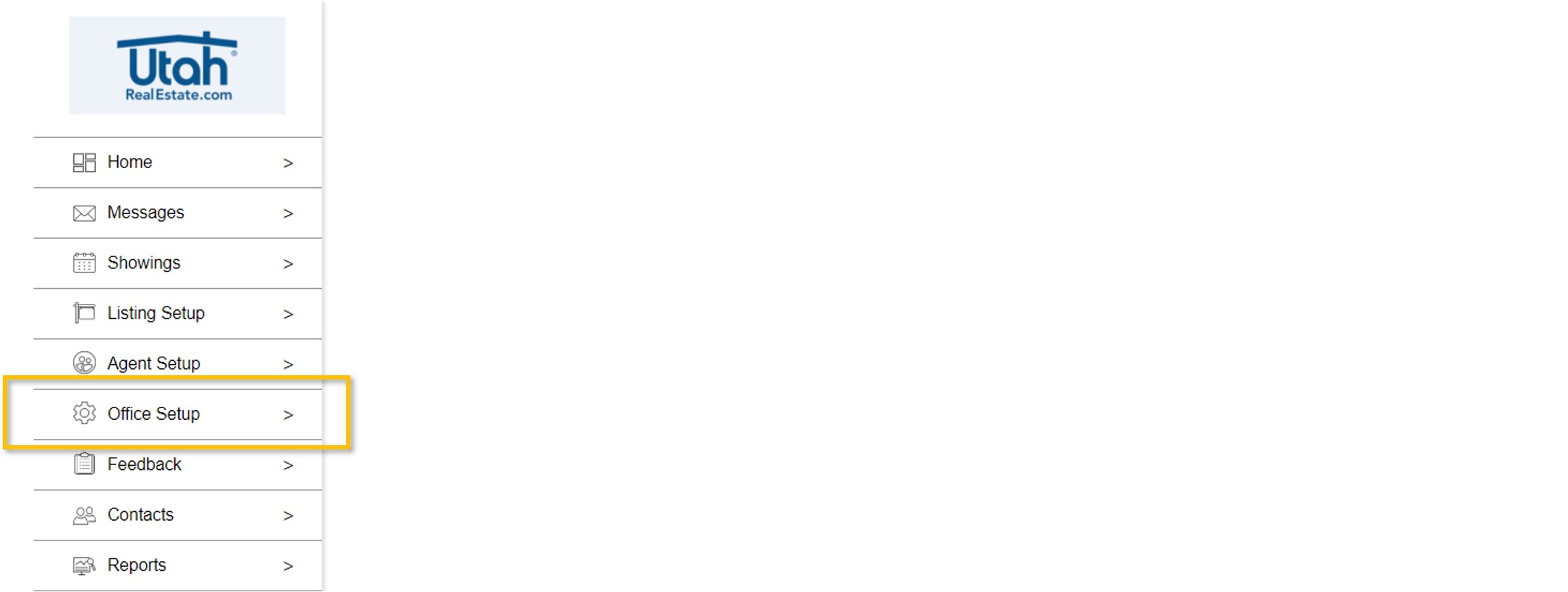
3. At the top of the screen you will see an option that says Allow Showing Agents To Make Requests on My Office’s Listings. Select the No option to disable ShowingTime. Making this change will remove the ShowingTime “Request Showing” icon from all of your current and future office listings in the MLS.

4. Last, when you are finished, click Save Changes at the top of the screen.

If you need any assistance, please contact us at 801-676-5400 or support@utahrealestate.com.