How to Find an Agent’s Transactions on the MLS
To find the transactions of an agent on the MLS, first open a Residential – Full search. Do this by clicking on Search, then under Residential, click on Full. Scroll down to the Listing section (near the bottom).
In the Agent field, type all or part of the agent’s name. Wait a moment, then select the agent and brokerage below. This will show all listings where that agent was the Listing Agent (represented the seller).
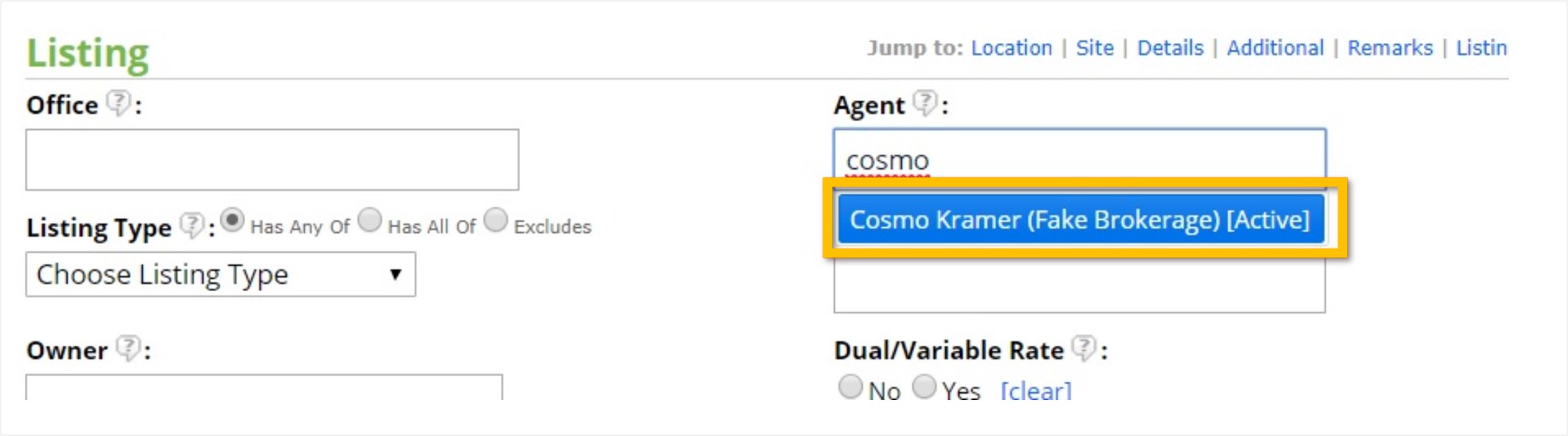
Note: It will show the agent’s current or last known brokerage next to their name. However, the system will show all listings added to the MLS by that agent, regardless of their brokerage at the time of the listing.
To select only the Sold listings of that agent, select Sold in the Status field at the top of the search. You can then click on View Results to view or print those listings.
To find the transactions where an agent represented the buyer, return to the search and remove the agent’s name from the Agent field. Scroll down to the Sold/Date section, and enter the agent’s name in the Sold Agent field. Again wait a moment, then select the agent’s name and brokerage below.
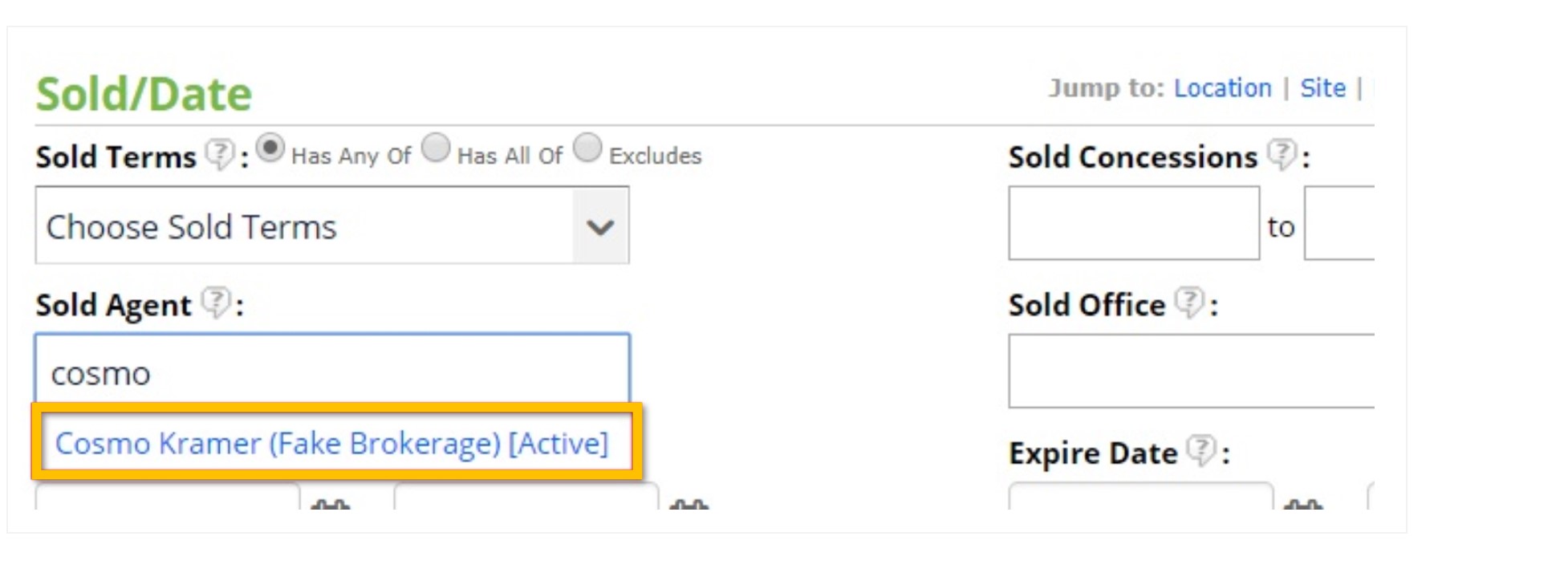
You will need to perform this search in each property class separately (Residential, Multi Unit, Land, Commercial, Farm).
If you need any assistance, please contact us at 801-676-5400 or support@utahrealestate.com.


