Creating a Custom Search
Can I Create a Custom Search Page?
Yes. Custom search pages can be created to search using fields that are not included in a standard search page or to reorganize the search page to your own preference.
How do I Create a Custom Search Page?
Step 1. Open an existing search page such as the Residential Full search page.

Step 2. Select Create Custom Search at the top of the page.

This will open the customize page. The Selected Fields section on the left is for the search fields you want in your custom search. The Available Fields section on the right are all the fields you can add.
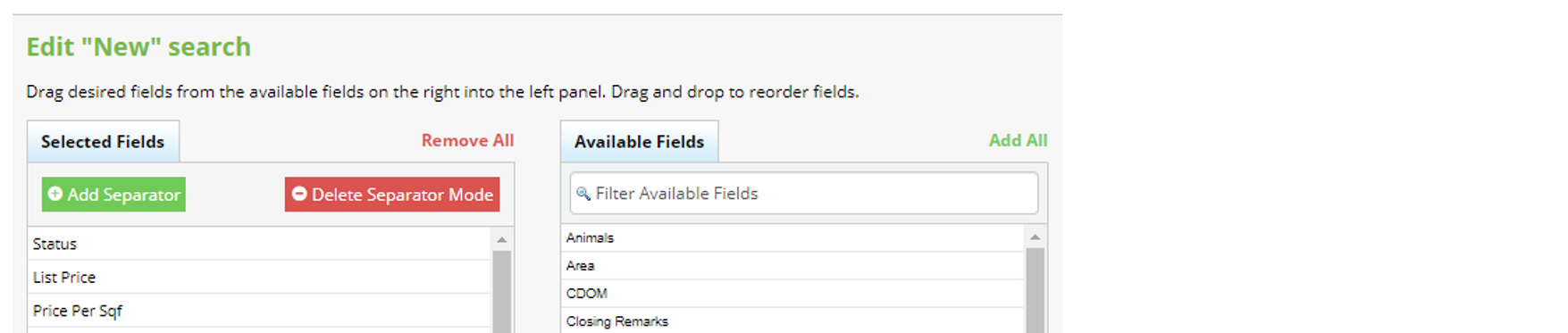
Note: Fields on the search page you started with will automatically appear in the Selected Fields section. To start from scratch, select Remove All. To remove unwanted section headers, use Delete Separator Mode.
Step 3. Build your custom search page. Drag the fields you want included in your custom search to the left and place them in any order you prefer. Remove fields you do not want included by selecting Remove All or dragging individual fields from the left to the right.
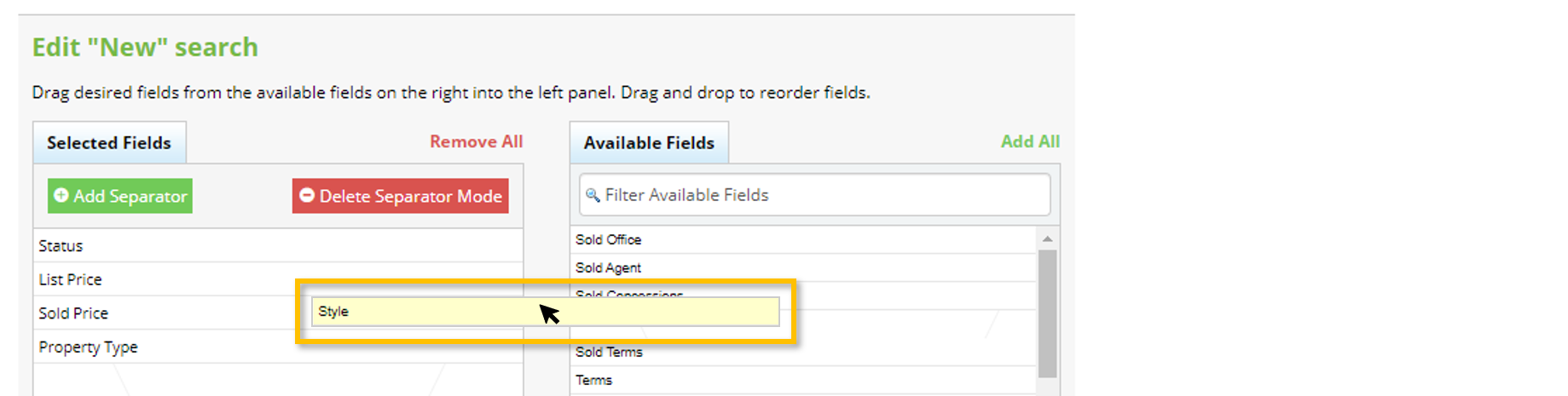
Tip: To find fields more quickly, enter all or part of the field name under Filter Available Fields.
Step 4. When you are finished adding, removing, and rearranging fields, give your custom search a name next to Customized Search Name.

Step 5. Select Save as New Form.

Where Can I Find my Custom Search Pages?
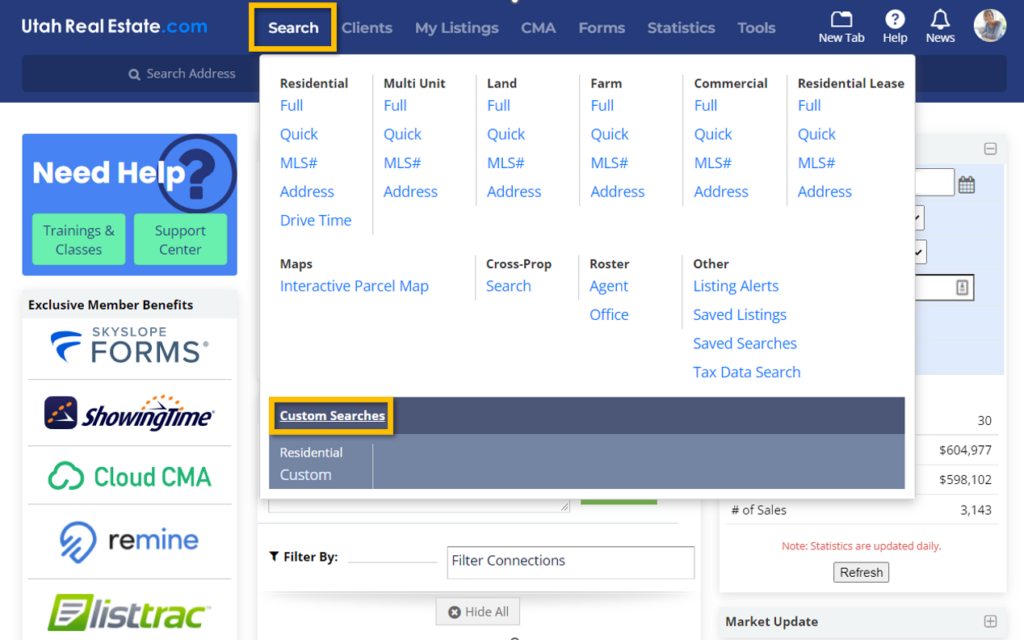
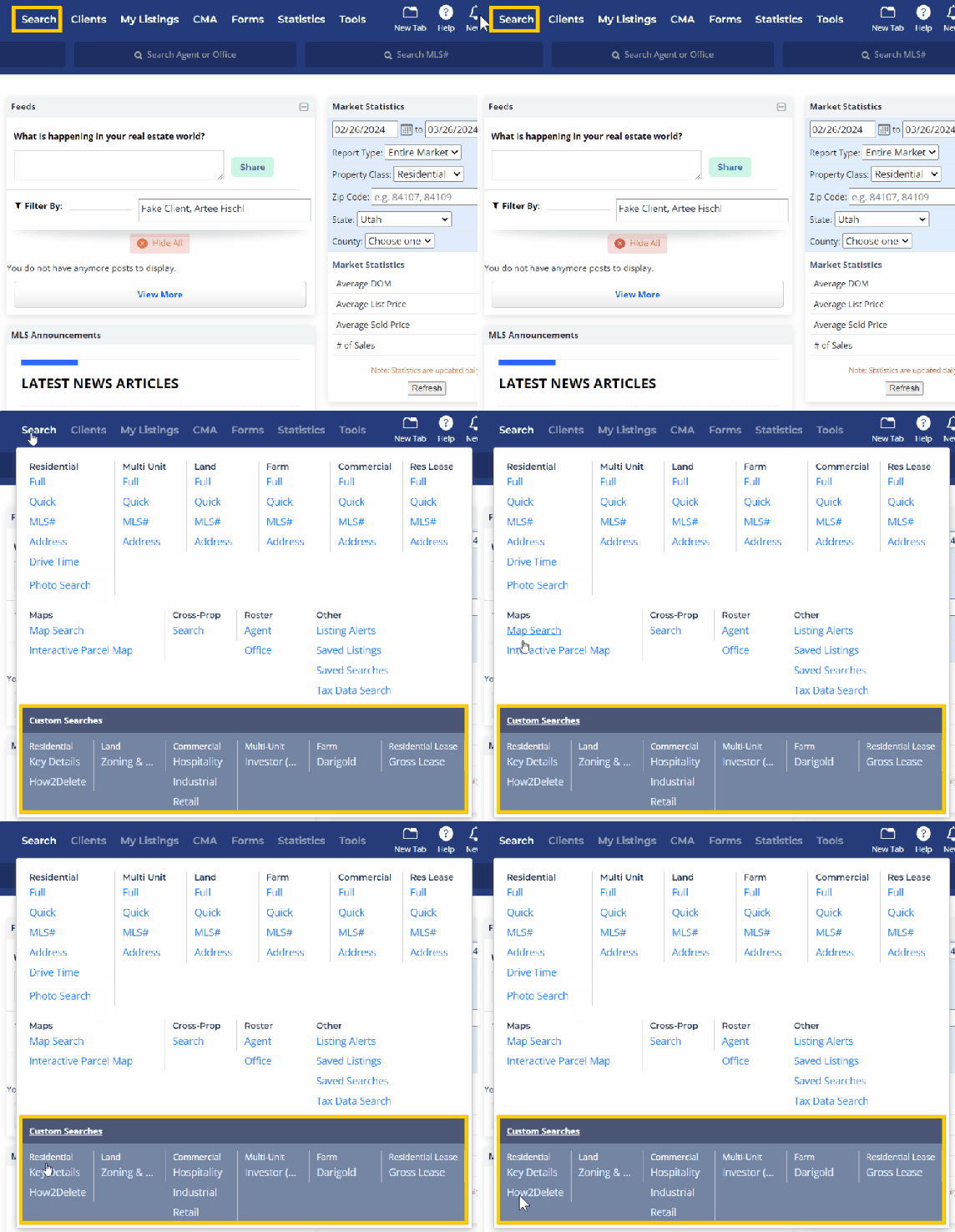
Access your custom searches under the Search Tab of the main navigation menu. All custom search pages will appear at the bottom of the Search drop down under Custom Searches.
Can I Organize my Custom Search Into Sections?
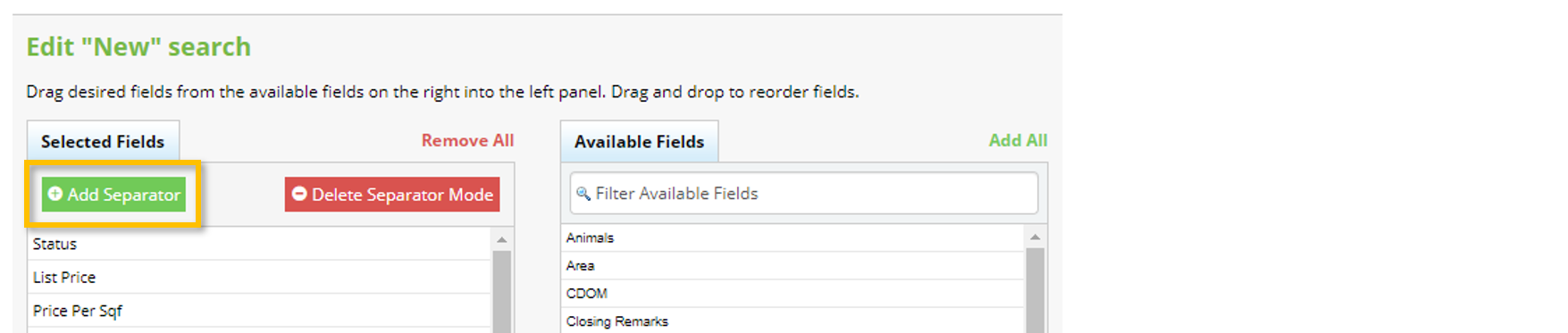
Yes. To organize a custom search page into sections, create section headers using Add Separator at the top of the Selected Fields section. Delete Separator Mode will allow you to remove unwanted section headers.
How to Delete a Custom Search
Over time, agents may no longer have a need to access previously created custom searches. When an agent makes the decision to remove a custom search from the Custom Searches section, they should follow the steps outlined below.
Step 1. Navigate to the Custom Search page to be deleted by selecting it from the Custom Searches section of the Search drop-down menu.
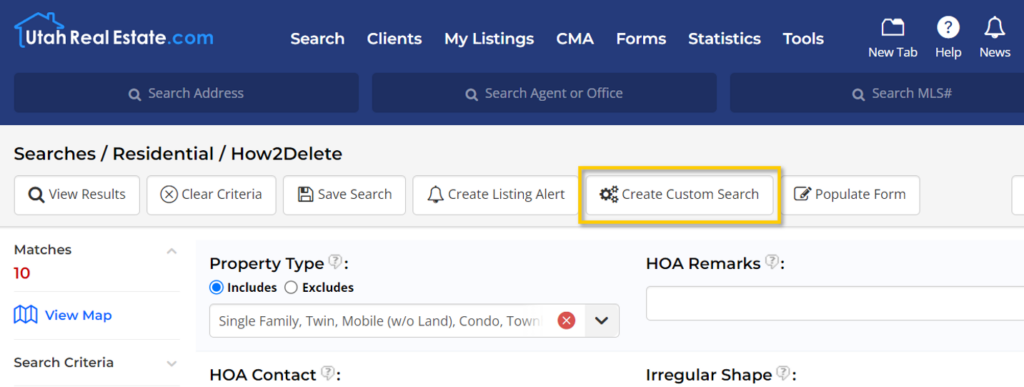
Step 2. Find and select the Create Custom Search option at the top of the search criteria page when it loads.
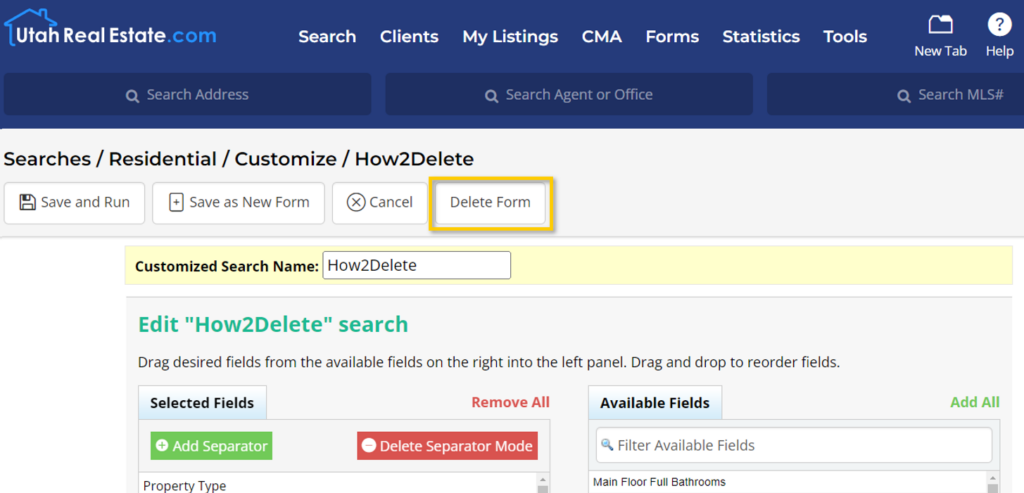
Step 3. Select the Delete Form button from the options at the top of the custom search building page.
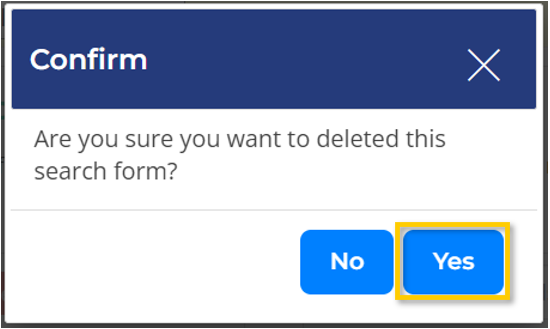
Step 4. Select Yes to confirm deleting your custom search.
When successfully deleted, a banner will appear at the top of your screen temporarily.

If you need any assistance, please contact us at 801-676-5400 or support@utahrealestate.com.


