Saving and Sending RapidStats Reports
RapidStats make it very easy to save reports and send those reports via email to yourself and/or your clients. You can save any standard RapidStats report (i.e. the default reports available in RapidStats) for future use, and you can also save any custom report you create using the My Charts feature. My Reports is where any saved reports will appear.
Once a report has been saved to My Reports, you can re-generate that report at any time which will populate that report with the most current data. You can send these saved reports as a one-time send, or you can setup scheduled recurring reports that will automatically be sent via email to you and/or your clients on a daily, weekly, monthly, or quarterly basis. My Scheduled Reports is where you will find all reports that are setup to be automatically sent to you and/or your clients.
Please see below for additional details on how to use these features.
Saving Reports in RapidStats
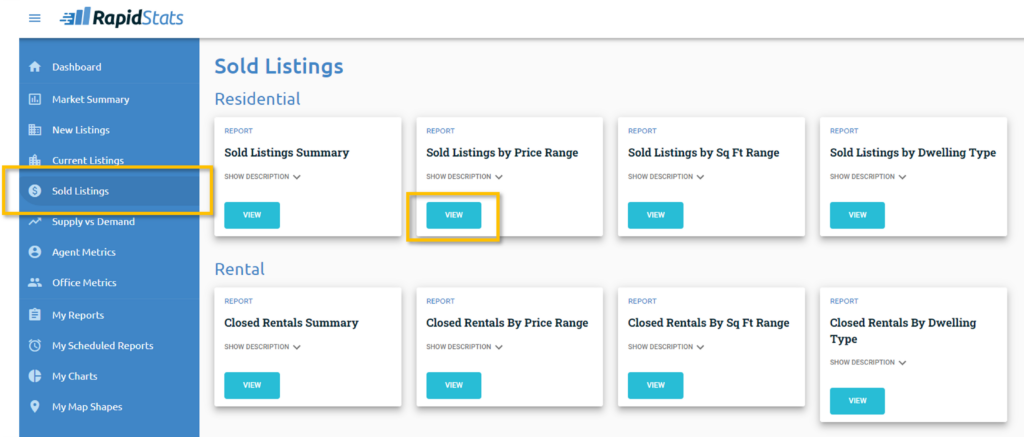
Step 1. Begin by opening any standard RapidStats Report within any of the following Tabs:
- Market Summary
- New Listings
- Current Listings
- Sold Listings
- Supply vs Demand
- Agent Metrics
- Office Metrics
Within each of these tabs are various Residential statistics reports as well as Rental statistics reports. Open the report of your choice by selecting the blue View button.
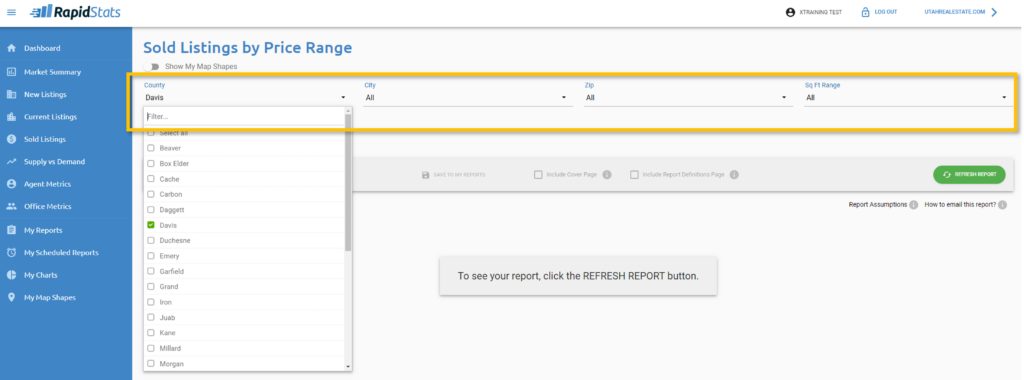
Step 2. Make changes to report filters as desired. By default, all options are selected and the report will display state-wide Residential (or Rental) listing data. Changing report filters allows users to narrow down statistics reports to the locations and property details most relevant to their business. After changing filters, be sure to select Refresh Report.
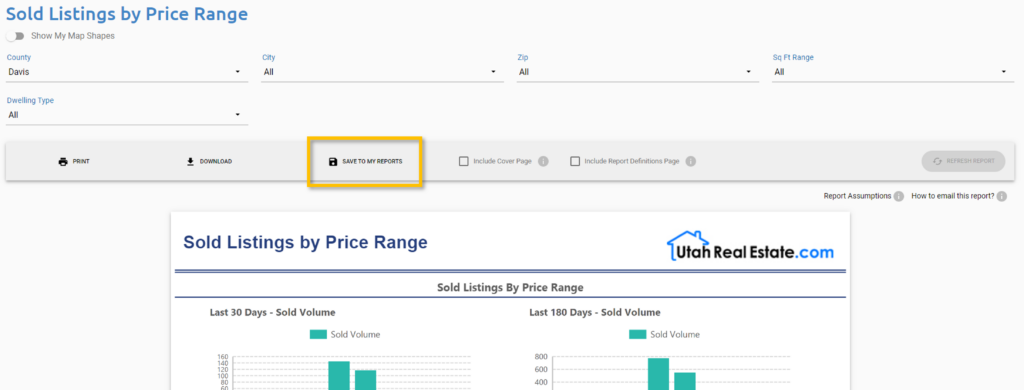
Step 3. Select Save to My Reports. This will save the report search criteria to your account, allowing you to use the report without having to re-enter filter selections in the future.
Step 4. Enter a descriptive Report Name so you can easily identify the report later and select the blue Save button.
How do I Access a Saved Report in RapidStats?
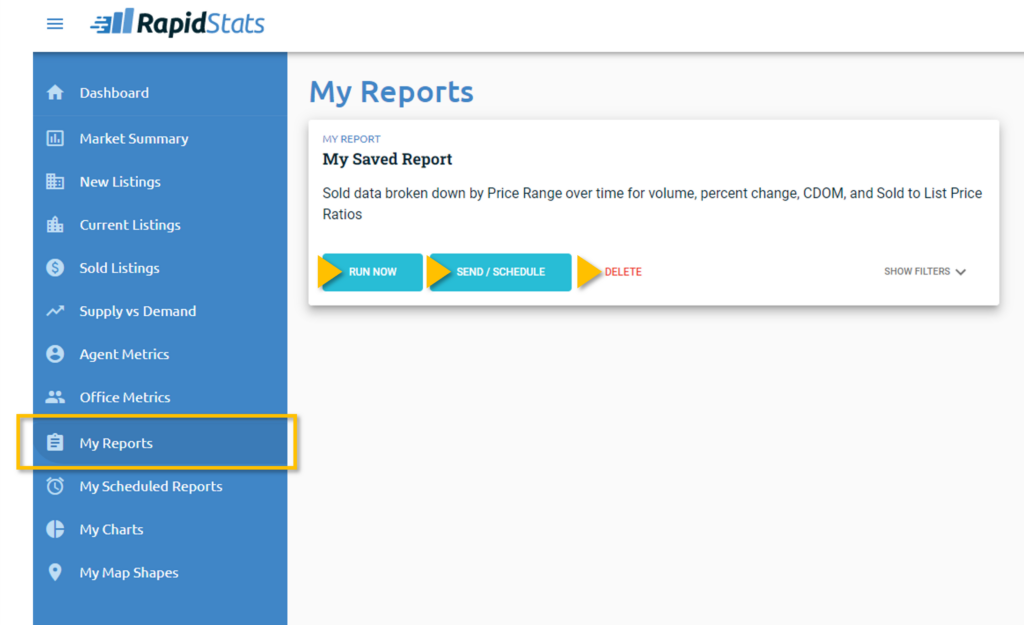
Step 1. Simply open the My Reports tab from the main navigation menu in RapidStats.
Step 2. Select one of the following three actions within your saved report:
- Run Now which will run the custom statistics report any apply any unique filters you may have enabled for that report
- Send / Schedule is used to to send a one-time email of the report, or can be used to setup automated emails that will send the report to you and/or your client on a recurring basis (daily, weekly, monthly, or quarterly)
- Delete will permanently delete the saved report
How do I Send a Report to a Client?
Sending a RapidStats report via email starts within the My Reports Tab. A report must be saved in My Reports in order to send that report via email. If you do not yet have a saved statistics report, follow the steps above.
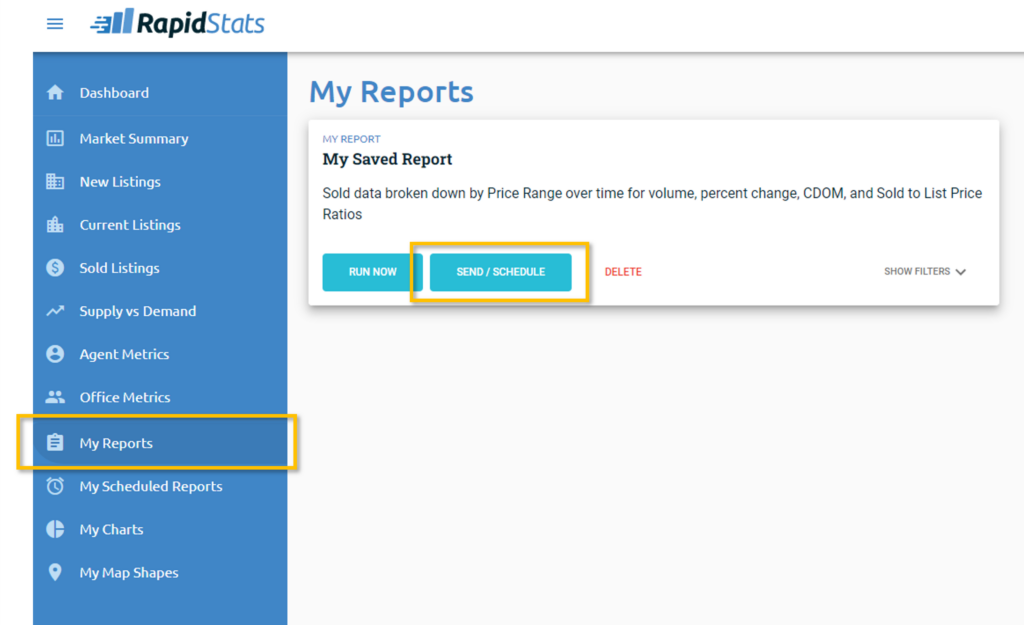
Step 1. Begin by opening the My Reports tab and finding the saved report you would like to send. Select the blue Send / Schedule button.
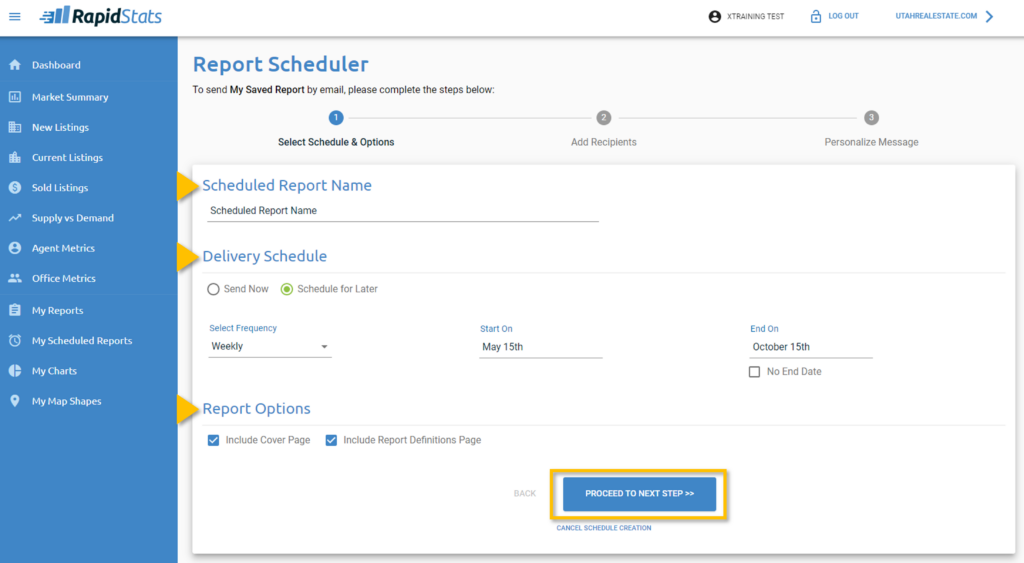
Step 2. Enter a descriptive name for the scheduled report (so you can identify it later).
Step 3. Choose Send Now to send the report now as a one-time send, or select Schedule for Later to setup the report to be sent as an automated recurring email on a daily, weekly, monthly, or quarterly basis. If setting up the report to be sent on recurring basis, make sure to select a start date and end date for sending the report.
Step 4. Choose whether to include a cover page (for branding) or report definitions page. Then, select Proceed to Next Step.
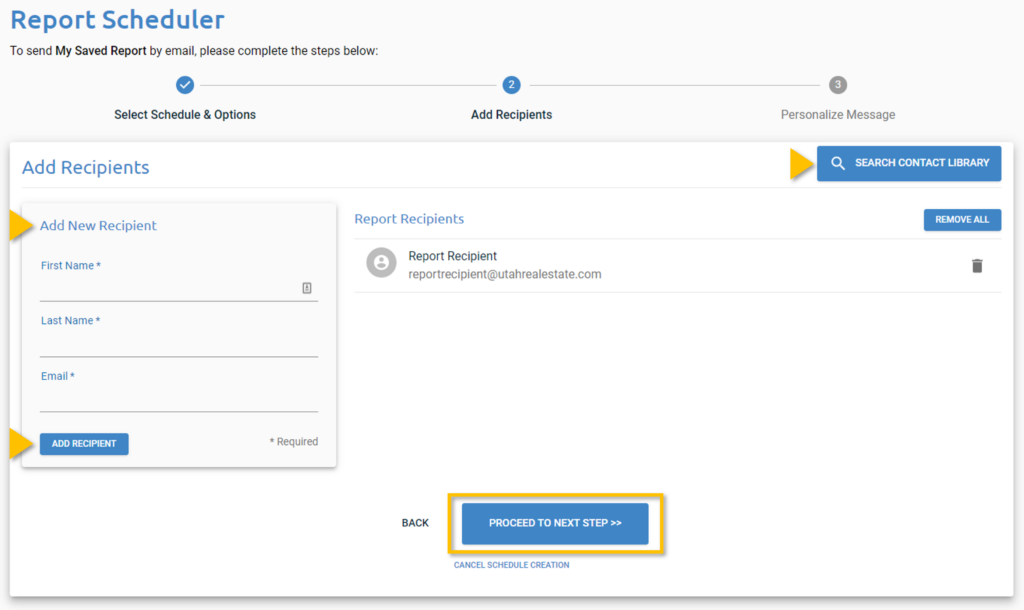
Step 5. Use Add Recipients to enter the name and email address of the person who you want to receive the report. Once you have entered this information, make sure to select the Add Recipient button.
Note: Recipients previously added in RapidStats can be found using the blue Search Contact Library button in the upper-right-hand corner.
Select Proceed to Next Step.
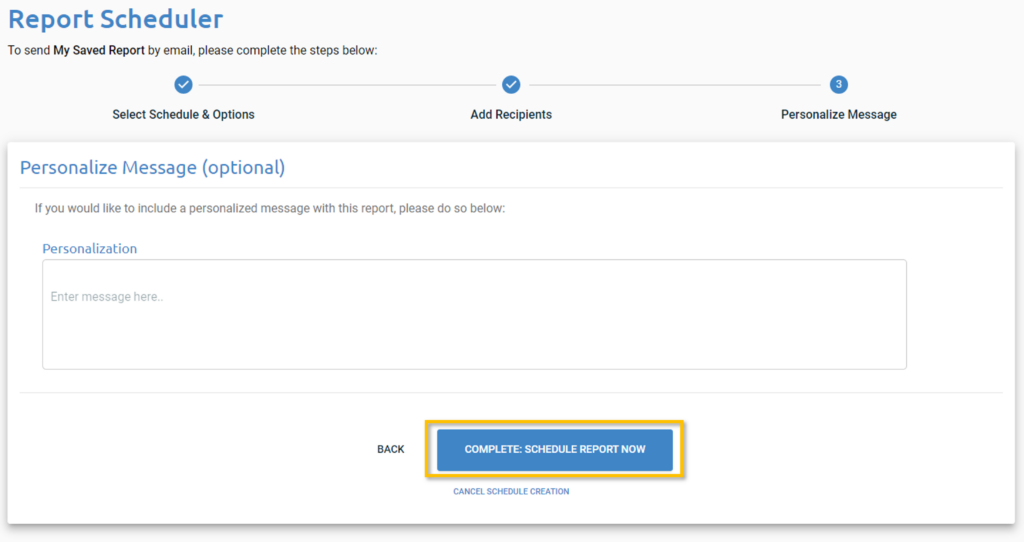
Step 6. (Optional). Enter a personalized message to be included with the email that will be sent with this report.
Step 7. Last, select Complete: Schedule Report Now.
How do I Access a Scheduled Statistics Report?
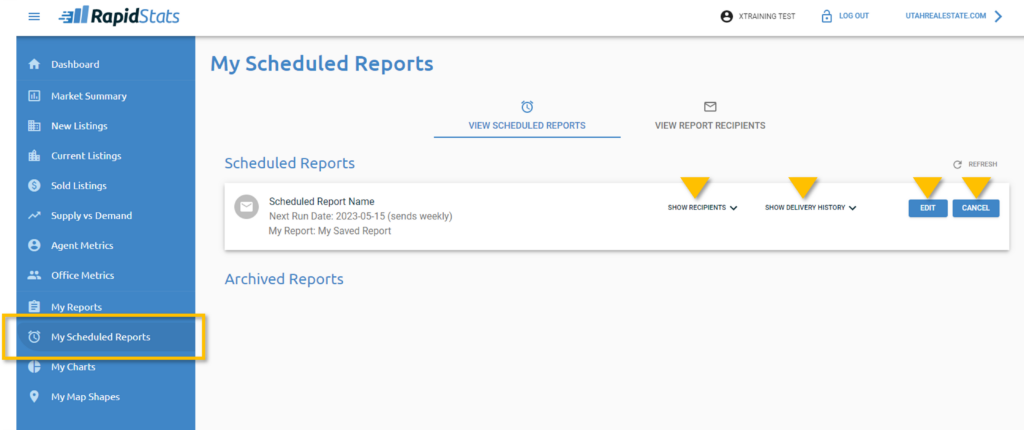
Step 1. Simply open the My Scheduled Reports Tab from the main navigation menu in RapidStats.
Step 2. You will see a list of all of your scheduled reports, and each will have these edit options:
- Show Recipients to see the recipient(s) this report is being (or will be) sent to
- Show Delivery History to see a log of the dates/times this report has been sent
- Edit to make changes to the Scheduled Report
- Cancel to stop sending the Scheduled Report. Canceled reports will appear under Archived Reports for future reference.