Getting Started with CubiCasa
CubiCasa accounts are free to create and you will need to create an account before you are able to use the CubiCasa mobile app, available on iOS and Android devices, to create your floor plans scan. Account creation takes only a few minutes following these simple steps.
Where Do I Go to Start My CubiCasa Account?
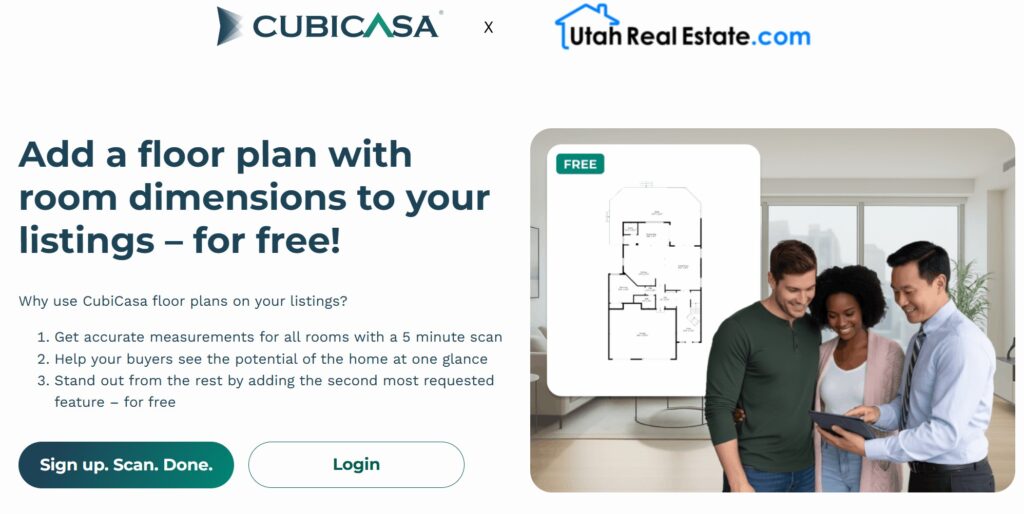
Step 1: To get started, you’ll need to scan the QR code below or go to this website.

Step 2: Click on the Sign up. Scan. Done. button.
Step 3. Enter your preferred email address, create a password, and click the box to agree to CubiCasa’s terms of service and privacy policy. Then, select the Continue button.
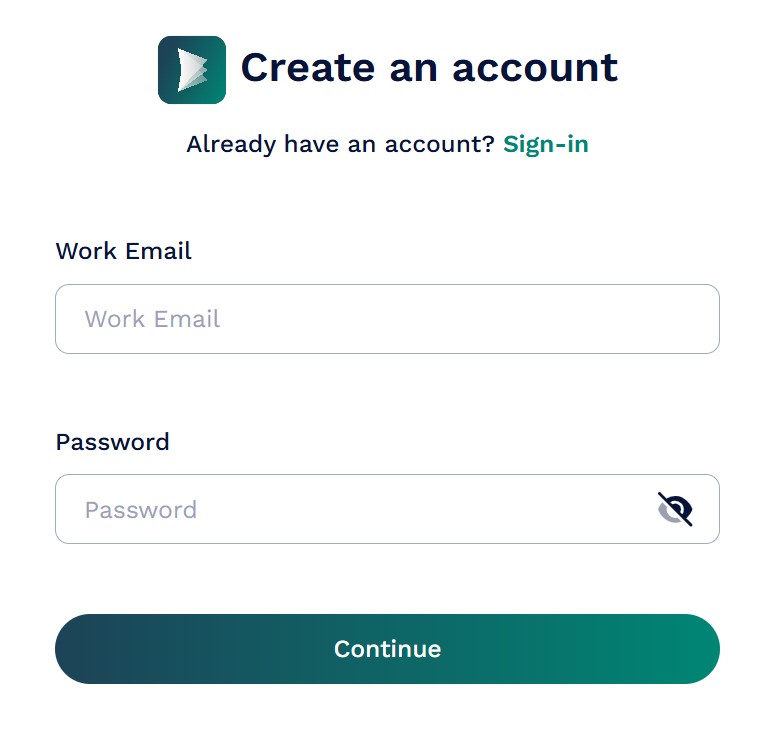
Please note, you can use any email address with your CubiCasa account and this does not necessarily have to be the email you use for UtahRealEstate.com.
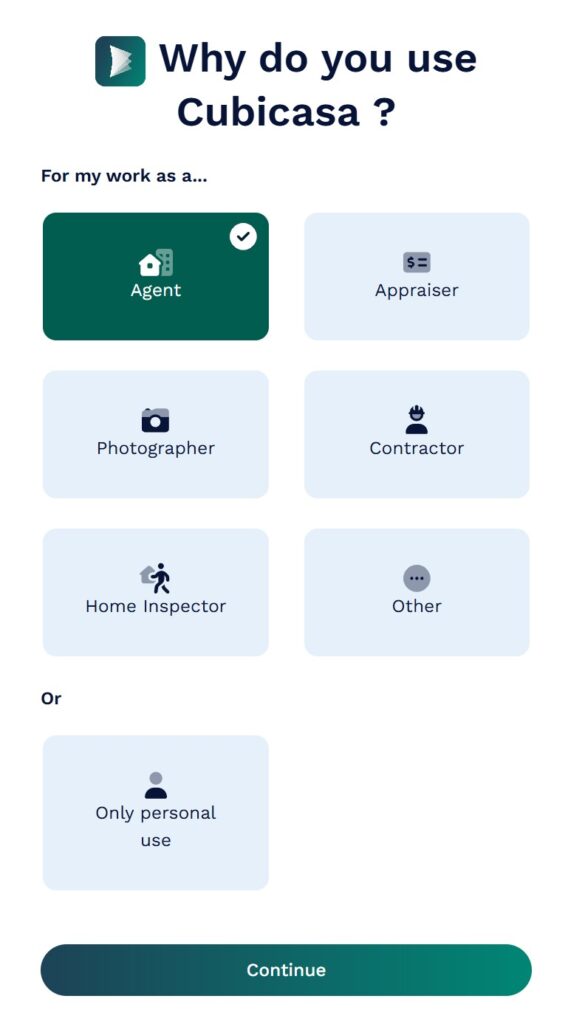
Step 4. Select the account type, and click Continue.
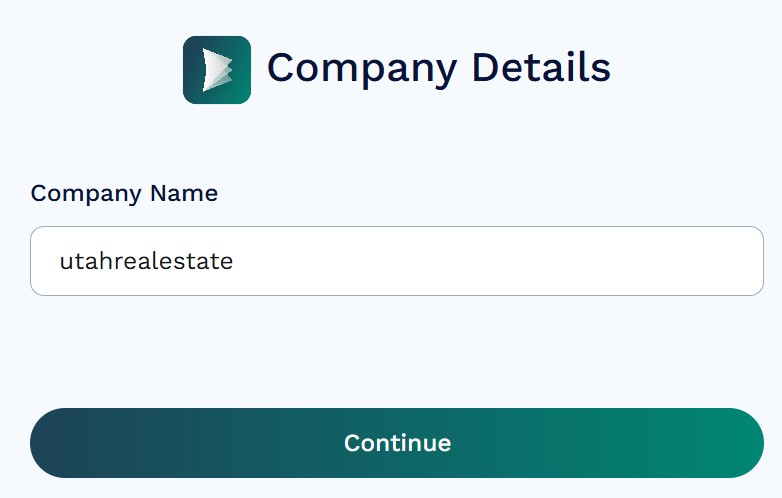
Step 5: Enter your company name, which typically will be the name of your brokerage or branch office. You can also optionally change the language in which your floor plan labels are presented (Spanish, French, etc.). Select Create Account to continue.
Step 6: This step is where you validate you are a member of the UtahRealEstate.com MLS, as you will be asked for your MLS Login ID. This verification also helps apply the MLS member discount you receive on CubiCasa’s paid add-on products (optional). Once you have entered your MLS login ID, select the green Verify this Account button, you will see a message confirming the MLS discount has been applied to your account, and you can then select Add Membership.
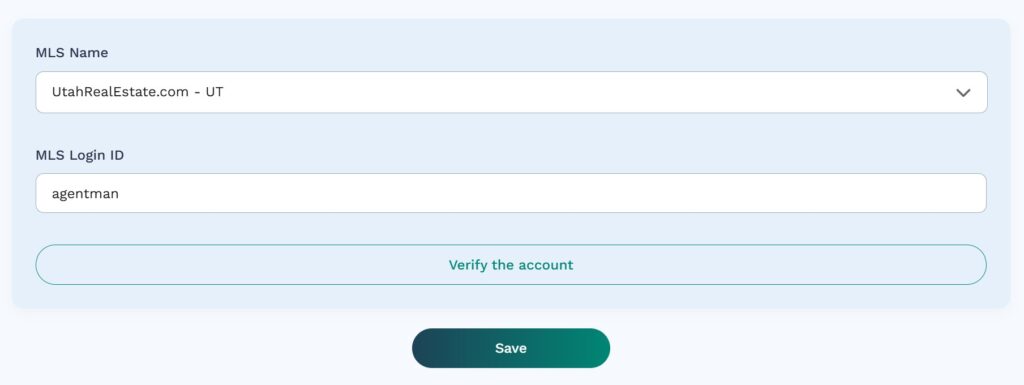
Once verified, your MLS discount will be shown:

Step 6: Select Submit to finalized the creation of your account.
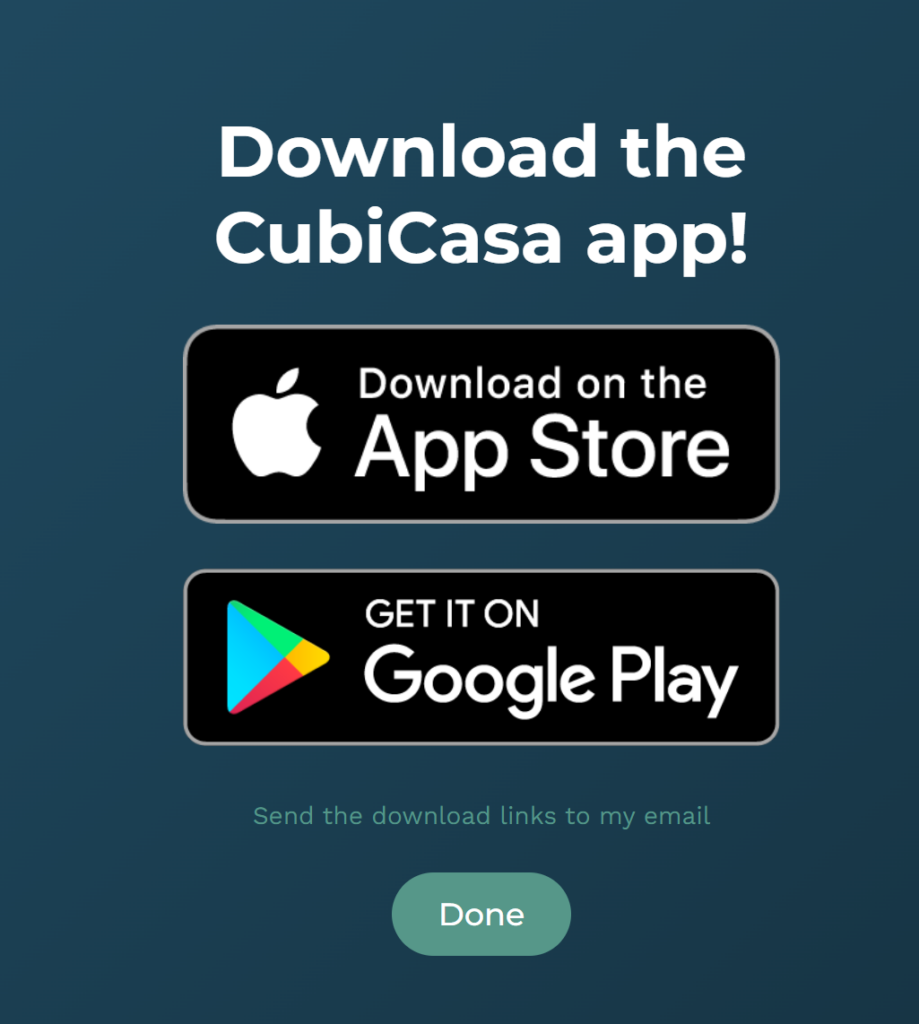
Step 7: Last, once your account has been created, you will be prompted to download the CubiCasa app, or you can simply select Done to access your newly created CubiCasa account.
Where Do I Download the CubiCasa App?
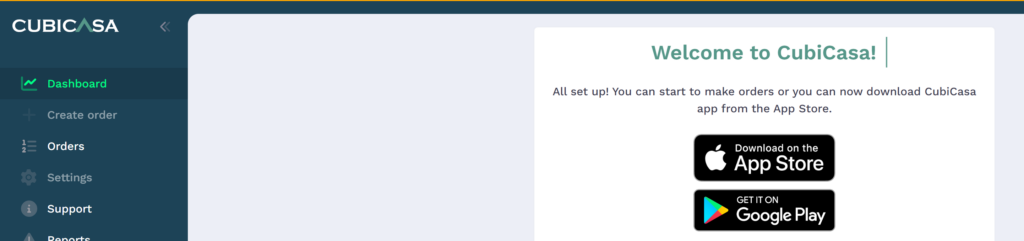
You can find links to download the CubiCasa app on the homepage of your CubiCasa account (shown below), or you can also search the App Store (iPhone) or Google Play (Android) for CubiCasa and download the app there.
How to Get Started with a Floor Plan Property Scan
Start by downloading the CubiCasa mobile app on your mobile device, as your mobile device is what you will use to create a floor plan scan. The CubiCasa desktop website is used only to view the status of a floor plan scan that you have submitted, download your completed floor plans, customize and edit your floor plans, etc.
Here is an overview of how to create a floor plan scan:
Step 1: Download the CubiCasa App
Step 2: Login to the App using the username and password that you created on the CubiCasa desktop website.
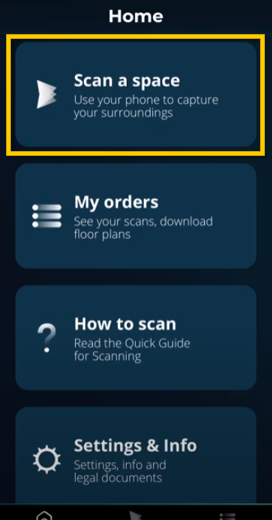
Step 3: Once logged in, select the Scan a Space option
Step 4: Choose your Property Type.
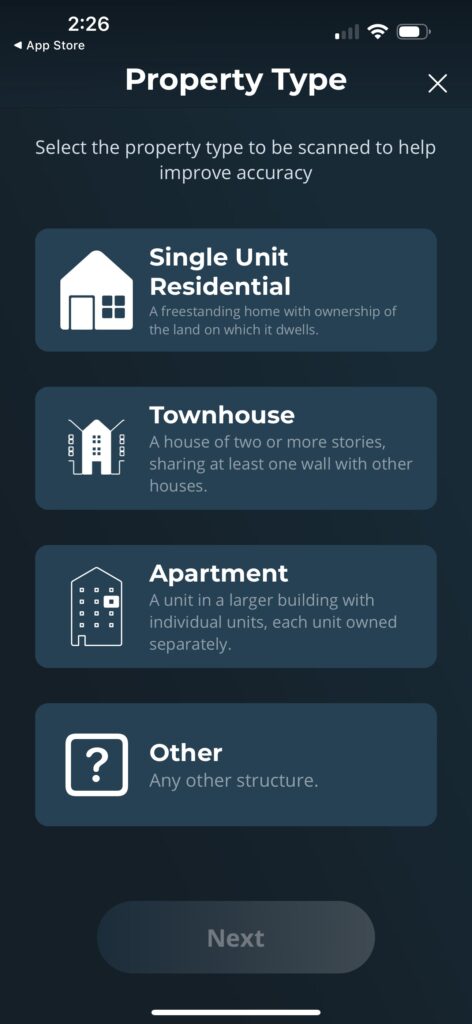
Step 5: Enter the Property Address or select Use Your Location.
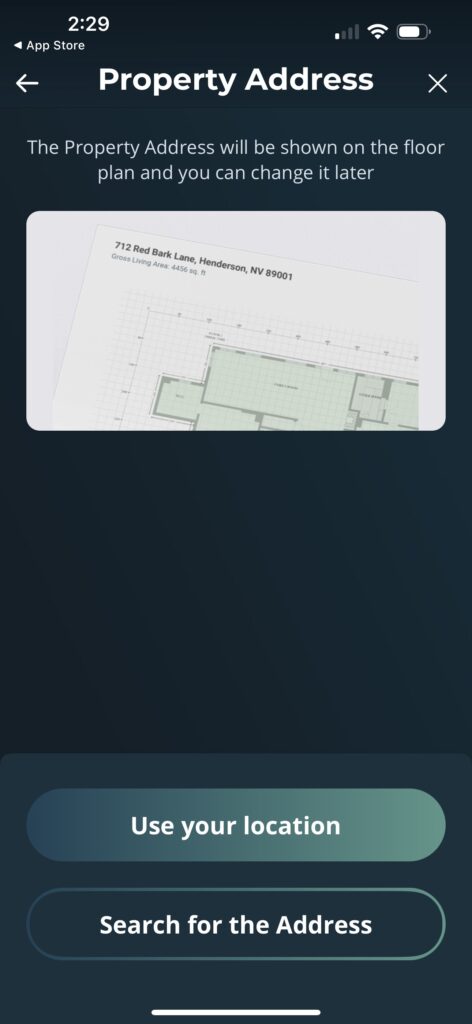
Step 6: Next, make sure you allow CubiCasa access the camera on your mobile device, which you may be prompted to do as your camera loads.
The app takes you step-by-step through the entire scan process, and will provide you with on screen feedback regarding how to ensure your mobile device camera is properly capturing what is needed to create the floor plan.
Step 7: Once your scan has been completed, you then have the option to review your scan. When ready, you can Send for Processing. What this does is send your floor plan scan to CubiCasa where they take your scan and turn that into a floor plan.
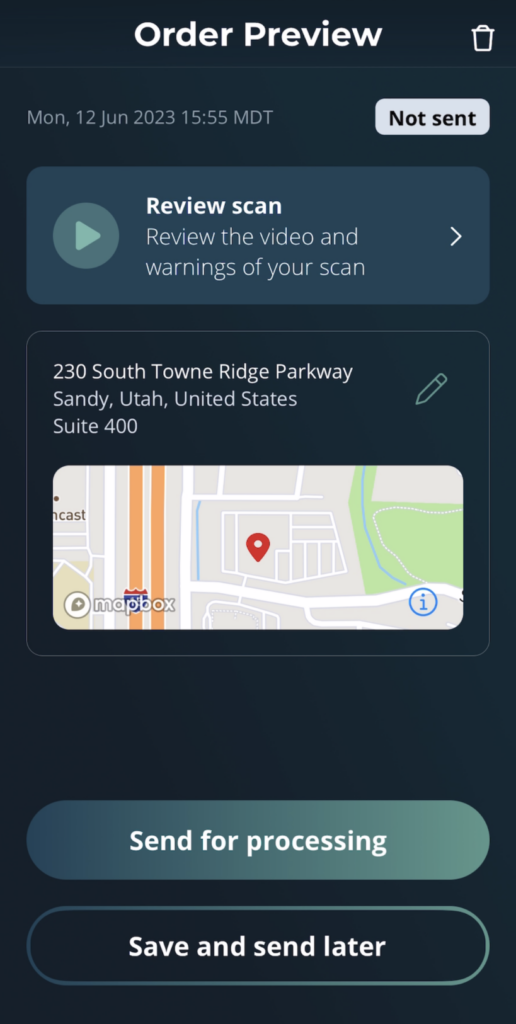
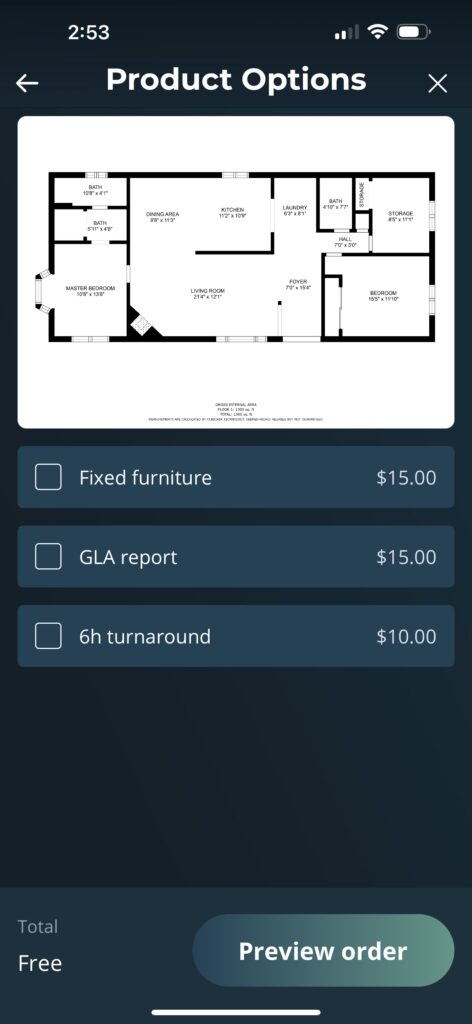
Step 8: You will be asked if you want to purchase any add-on products, which are completely optional. You can also order add-on products for your floor plan at a later time where applicable. You receive a discount on CubiCasa’s add-on products with your UtahRealEstate.com membership. Some products include:
- GLA report formats that calculate square footage for appraisal purposes
- Include fixed furniture (cabinetry, fixtures, appliances, etc.) in floor plans
- 3D floor plans and furniture renderings
- 3D videos
- More information available here
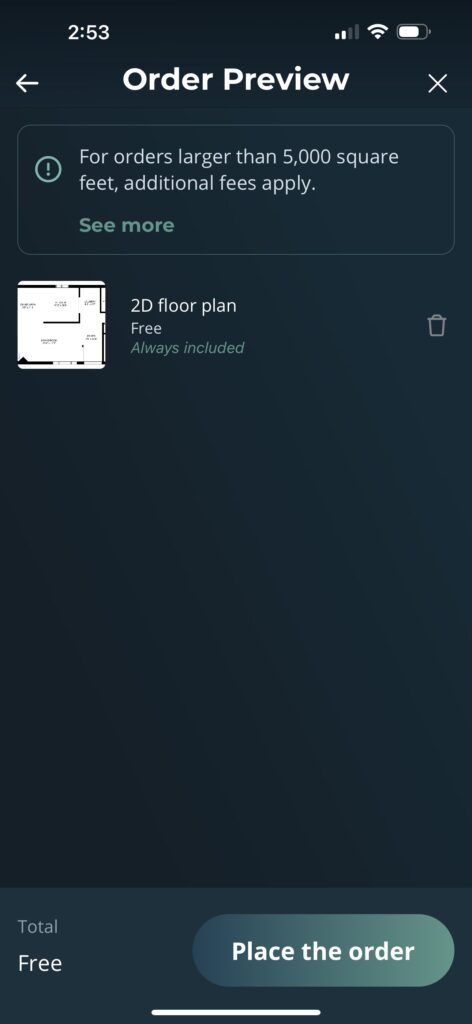
Select Preview order.
Step 9: Last, select Place the Order to submit your floor plan scan to CubiCasa. CubiCasa will review your floor plan scan and use that scan in order to create your floor plan drawings.
Within 24 hours, you will receive an email informing you that your floor plans have been created. Then, you can login to the CubiCasa desktop website or the mobile app where you can download and save floor plans, as well as make any customizations or edits to the floor plans.
Adding Credit Card Information to your CubiCasa Account
After submitting your first floor plan scan, CubiCasa will require you to add your credit card information to your account, as they charge a $11.25 fee for properties that are larger than 5,000 sq. ft.
Even though you are required to add credit card information to your account, it’s important to keep in mind you can create an unlimited number of floor plans for free for properties that are less than 5,000 sq. ft.
Where Do I Add My MLS Membership to My Existing CubiCasa account?
If you already have a CubiCasa account, or if you forgot to add your MLS membership details while creating your account, you can quickly add your MLS membership details to your account.
- Log into your account on CubiCasa.
- Click on Company, in the menu bar on the left.
- Select MLS Membershipat the top of the page.
- Under “MLS Name” select UtahRealEstate.com
- Enter your username or login for the MLS under “MLS Login ID”, then click Validate.
- Your MLS access and discount will be shown at the top.
- Click Save to save the information to your account.


