Uploading Floor Plans
How Do I Add a Floor Plan to My Listing?
Adding a floor plan to your listing is simple and begins in the Floor Plan step when entering or editing a listing in the MLS.
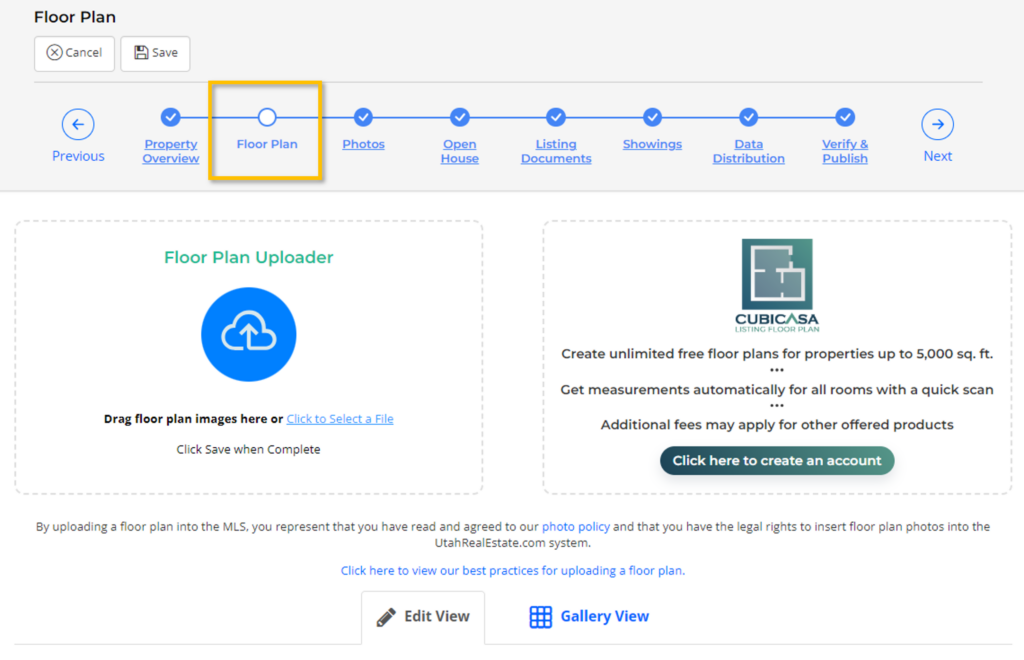
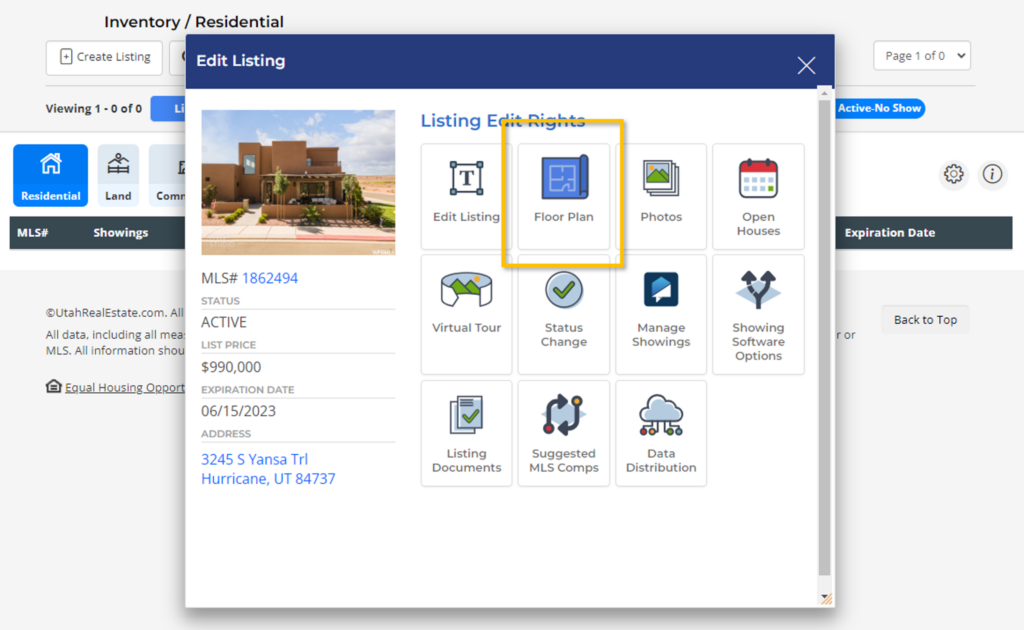
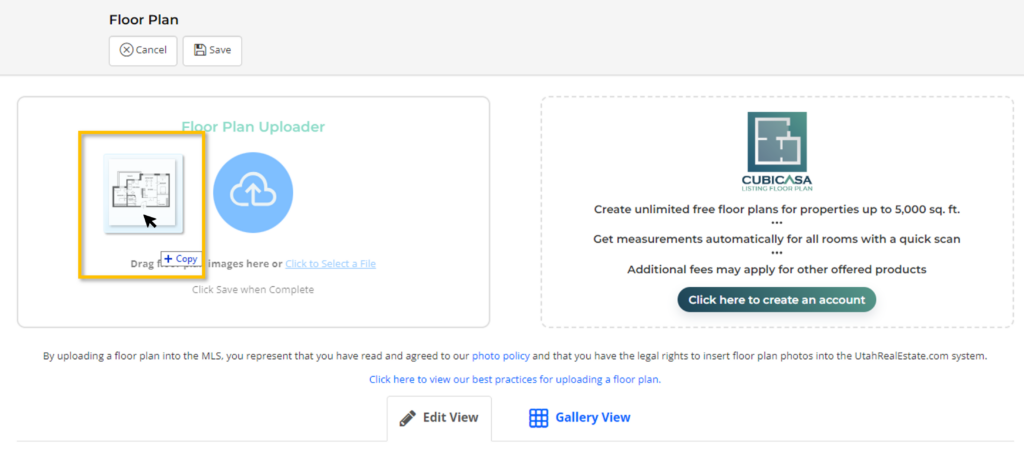
Step 1. From the Floor Plan Page, you can drag and drop floor plans in JPG/JPEG, PNG, or GIF formats to the Floor Plan Uploader.
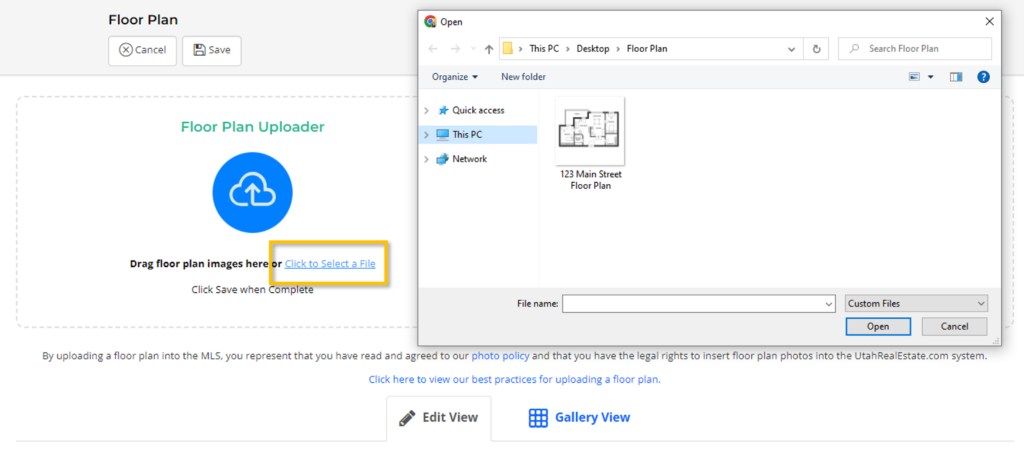
Alternatively, you can use the Select a File option in order to locate the floor plan file on your computer, as seen here:
After uploading, the floor plan will appear below the Floor Plan Uploader in the Edit View section.
Step 2. Make any necessary edits to the floor plan, including adding a description by simply typing in the Enter floor plan description here field. Floor plan descriptions can help convey important information to other agents and potential buyers, such as what is depicted in the floor plan (1st level, 2nd level, basement, etc.).
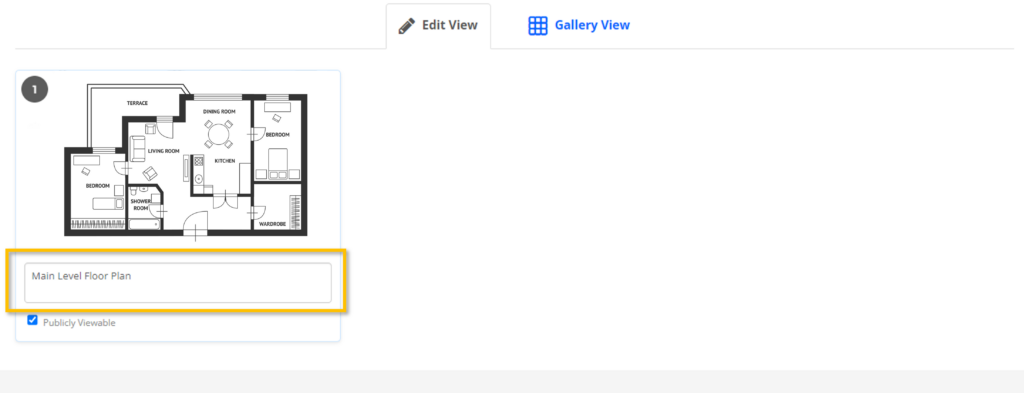
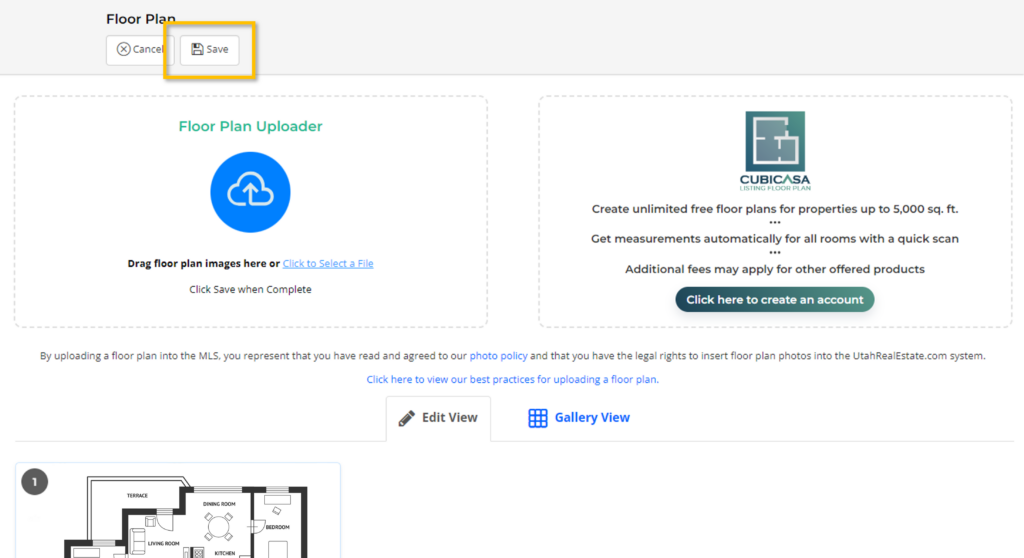
Step 3. Be sure to select the Save button at the top of the page when you are done.
How Can I Create a Floor Plan for My Listing?
Any floor plan generated as a JPG/JPEG, PNG, or GIF file can be added to a listing using the Floor Plan uploader. We do not require the use of a certain floor plan company, however, we encourage the use of a company we have partnered with called CubiCasa.

CubiCasa offers unlimited free floor plans for properties up to 5,000 sq. ft. CubiCasa will produce measurements automatically for all rooms with a quick and easy scan that can generally be completed in about 5 minutes. Click here to learn more about Getting Started with CubiCasa or scan this QR code to create your CubiCasa account, where you will then be prompted to download their iOS or Android mobile app.
Where Are Floor Plans Displayed on a Listing?
Floor plans uploaded to listings are easily-accessible to buyer’s agents and their clients. Floor plans can be seen and accessed in various MLS reports, including the Agent Full Report. Floor Plans are also highlighted in the new MLS Photo Viewer as well as on the public website.
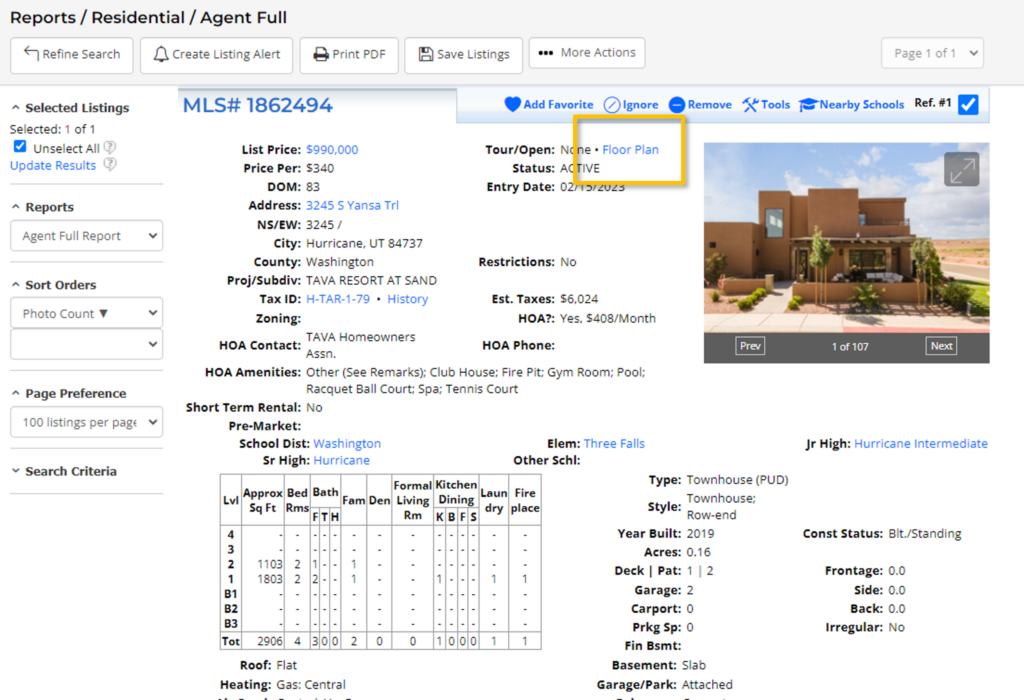
Agent Full Report 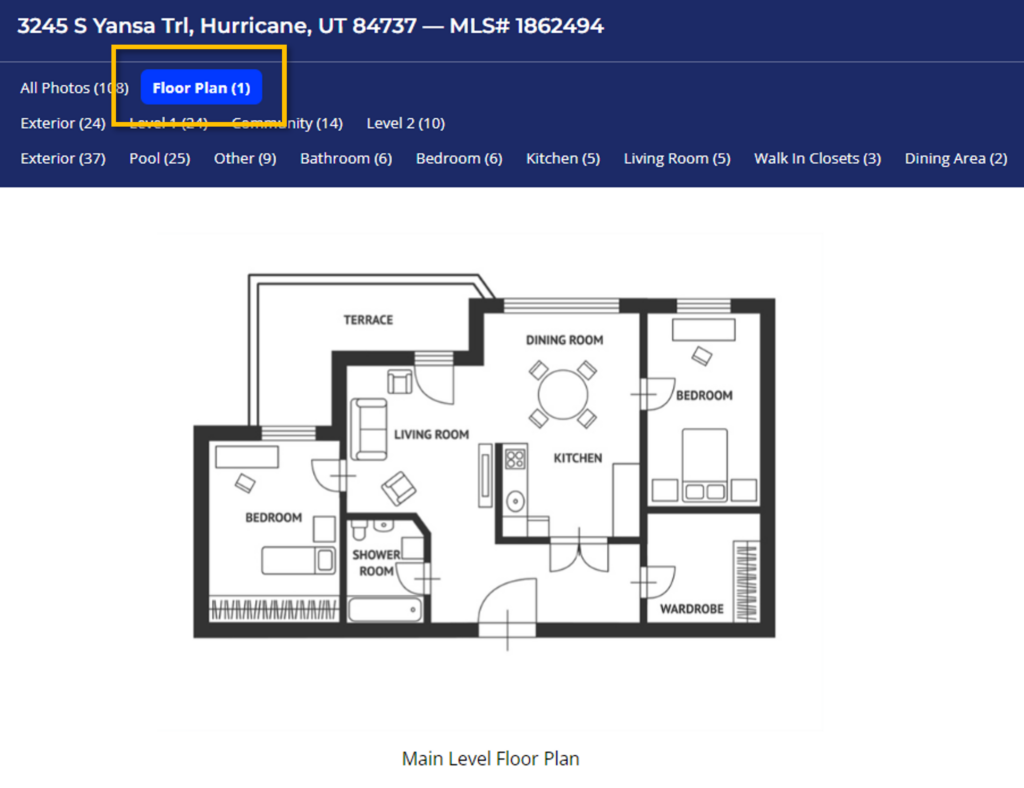
New Photo Viewer 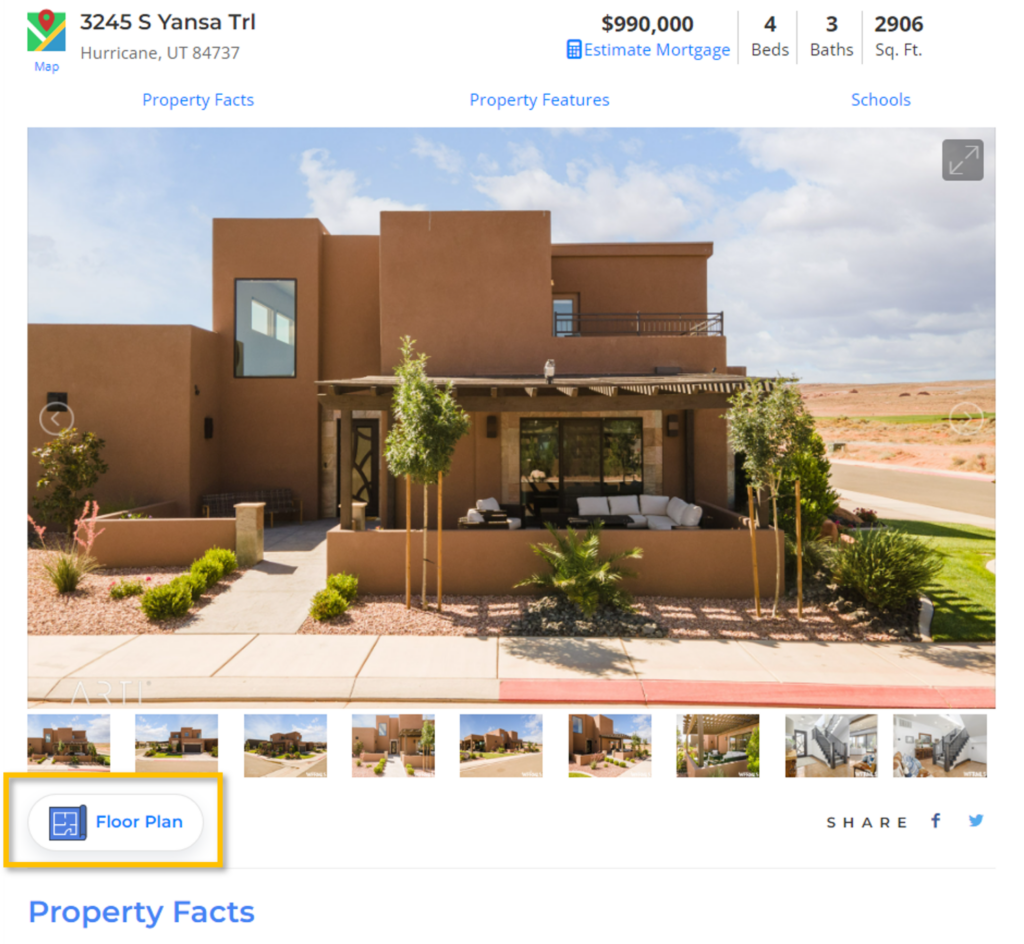
Public Website


