Printing Mailing Labels in Remine
How do I Print Mailing Labels in Remine?
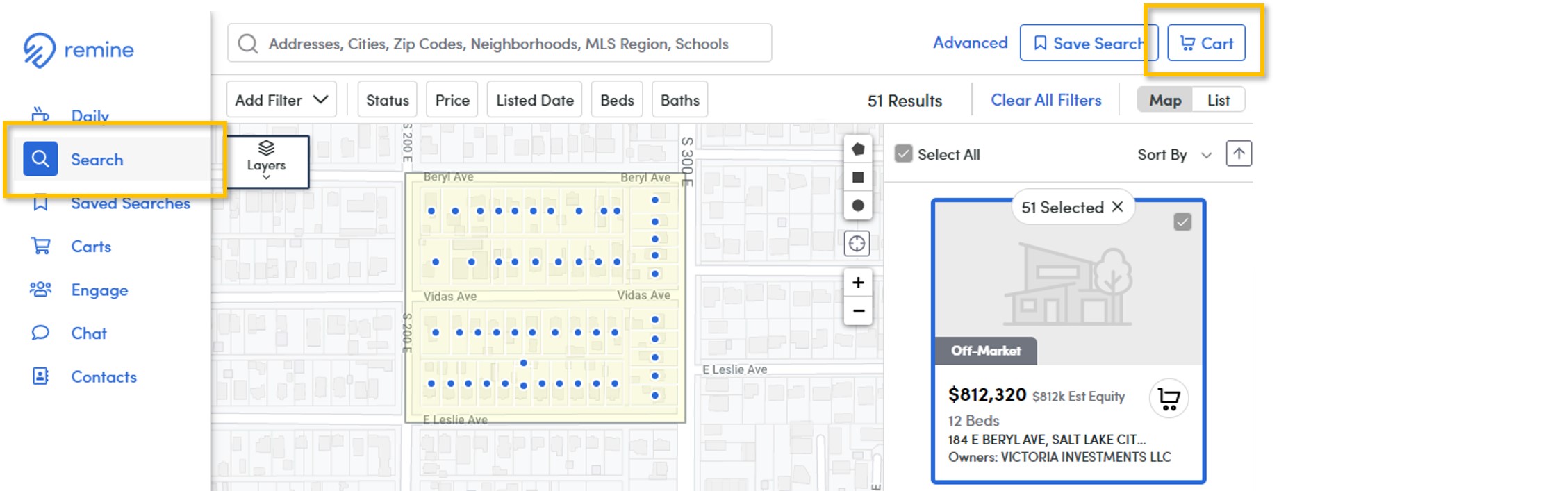
1. Begin with Remine Search to find the properties you would like to send mail to, and then add those properties to a Cart. Learn more about Remine Searches and Carts here.
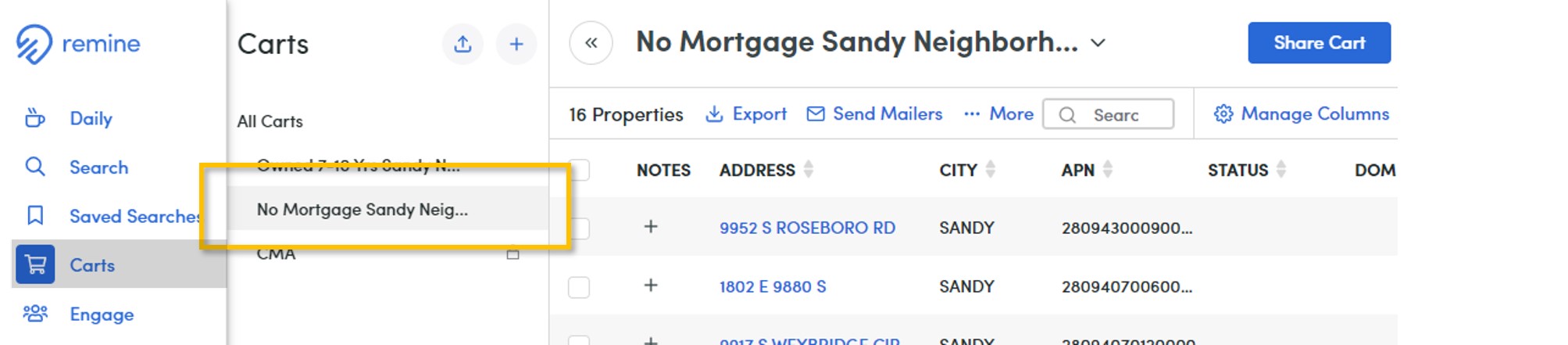
2. Open the Carts Tab from the main navigation menu on the left-hand side. Choose the Cart with the properties you would like to print mailing labels for. You can also select All Carts.
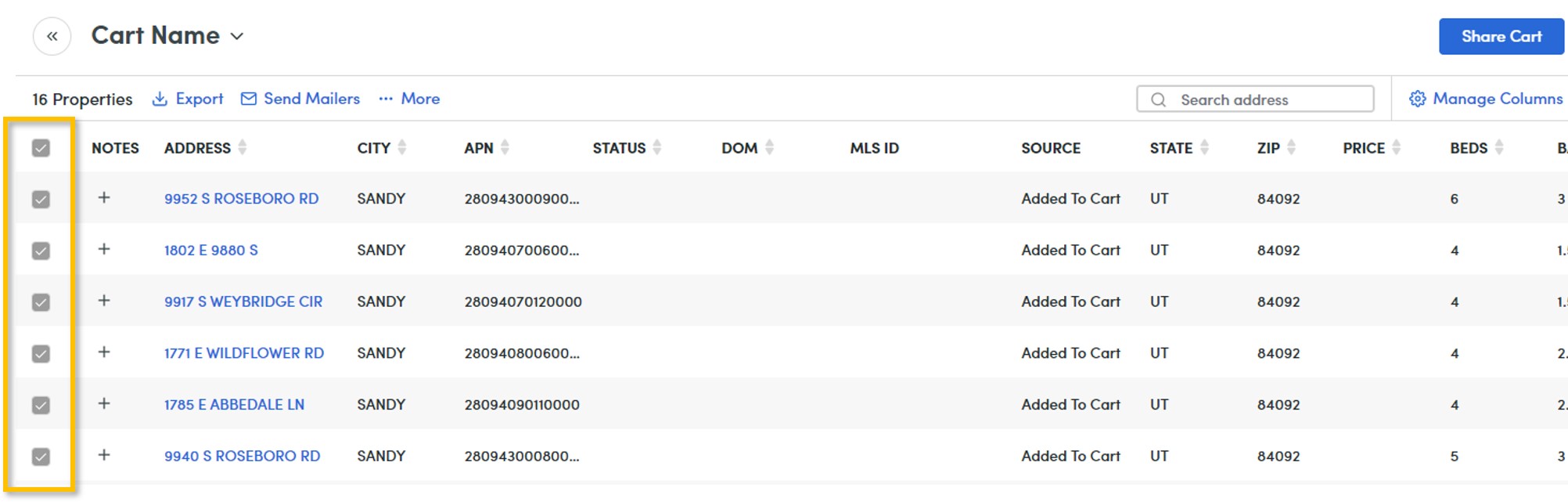
3. Select the properties you would like to print mailing labels for. If you would like to select all properties in the Cart, simply click the checkbox in the column header.
4. Once you have chosen your preferred properties, select More and then Print Mailing Labels.

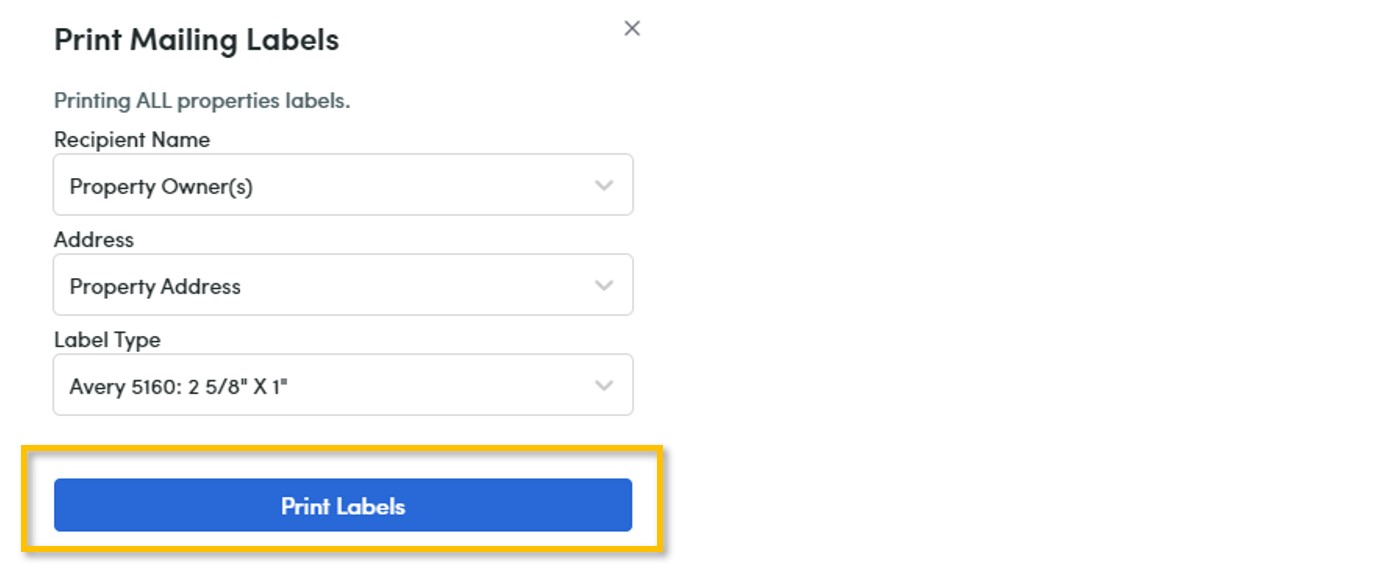
5. Specify Recipient Name, Address, and Label Type. Then select Print.
What are the Mailing Label Options?
When creating mailing labels with Remine, you will make the following selections before printing:
Recipient Name is how you will specify whether to address the mailing label to the property owner(s) or the current resident. Property Owner(s) will address the owner(s) by name, while Current Resident will simply address the recipient as “Current Resident”.
Address is where you will choose between printing the physical address of the property or the current preferred mailing address of the owner.
Label Type is where you will choose between three common label sizes.
If you need any assistance, please contact us at 801-676-5400 or support@utahrealestate.com.


