Email Listings from the Mobile App
How do I Email Listings from the Mobile App?
1. After completing a listing search in the app, choose Select near the top of your screen.
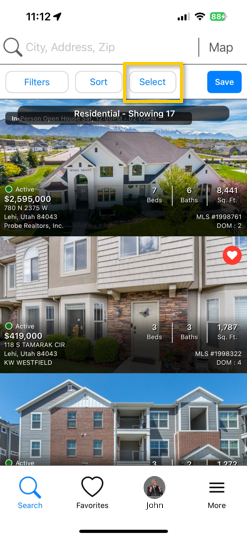
2. Select the listings you would like to send to your client and tap Next near the top of the screen.

3. Enter any email address into the To field and fill out the email subject and message. The Email Message is optional.
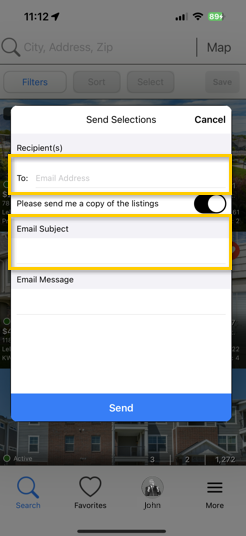
4. Select Send.
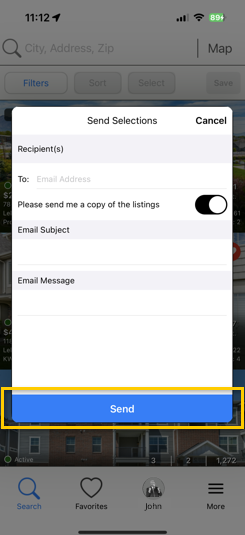
Your recipient will receive an email with links to the listings presented by you.
Tip: If you are emailing listings to a client in your Client Manager, simply begin typing your client’s name in the To field to access the Client Manager drop-down.
Do I Have to Establish a Client Connection to Email listings from the App?
No. Just like the desktop MLS, a Client Connection is only required for automatic emails (Listing Alerts) and proprietary listing data (Sold status, Withdrawn status, Expired status, etc.)
Can I Send Listings to Myself?
To send listings to yourself, simply enter your own email address in the To field.
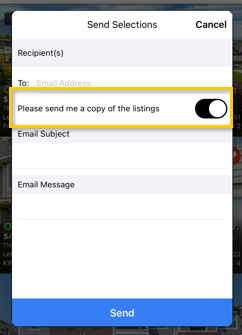
Copy yourself on an email sent to someone else by leaving Please Send me a Copy of the Listings selected.
Be sure to always have the most updated version of the app installed and to sign-in with your agent account.
If you need any assistance, please contact us at 801-676-5400 or support@utahrealestate.com


