New Client Manager
Welcome to the new Client Manager! This new tool replaces what was formerly called the Front Porch feature. Your MLS Address Book and other client-related tools can all now be found within the Client Manager. The Client Manger is one central location where you can do the following:
- Add and edit your client contacts
- Export your Address Book of client contacts, as well as bulk import a list of clients that you want to add to your Address Book
- Check the status of your “Client Connection” requests (Client Connections are where you client creates a consumer account on UtahRealEstate.com that allows them to receive Listing Alerts)
- See a client-specific overview of your Activity with that client, such as listings you’ve sent to the client, properties your client has favorited, etc.
- Detailed history of Listing Alerts sent to clients, as well as properties you have manually sent to your client from the MLS (including timestamps of when you sent listings, and indicators showing whether your client has viewed what you sent them)
- Dedicated page to view your client’s Favorites or listings your client has saved
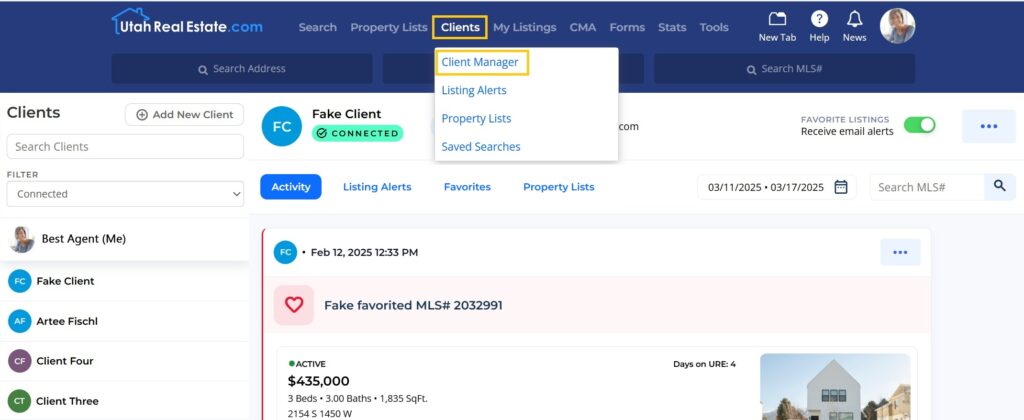
New Features:
- Modernized user interface that consolidates all client-related MLS tools and features (including integration of your MLS Address Book).
- An alert indicator will now appear above the “Clients” main navigation menu option when you have new client activity, such as if a client has accepted your Client Connection invitation, your client has favorited a property. etc.
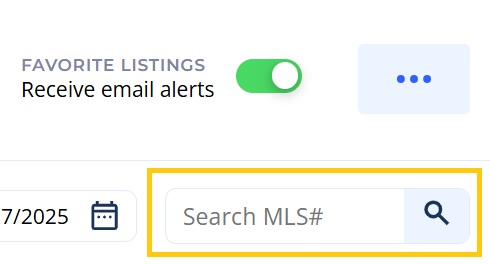
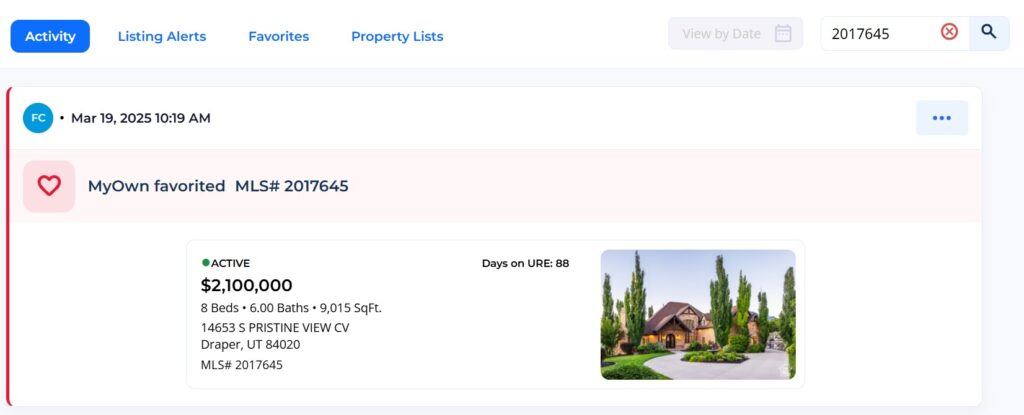
- A new MLS# search has been added to the Client Manager page when viewing a specific client, allowing you to search for specific listings you have sent to that client
- Dedicated page for viewing all listings that you’ve sent to your client, the date and time you sent the listings, and an indicator that clearly tells you whether your client has viewed the listings
- Dedicated page for viewing listings that your client has saved or “Favorited,” as well as the ability to open those listings in a MLS report format, request showings for those listings, etc.
Watch our overview video of this new feature here:
How Do I Access the new Client Manager?
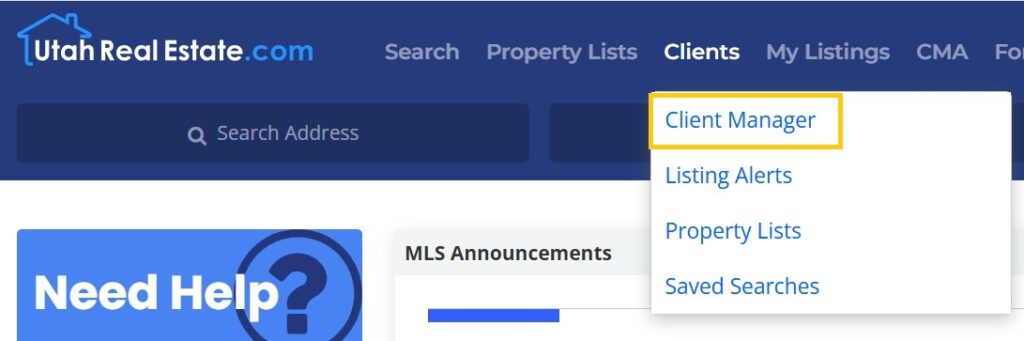
Click on Clients from the main navigation menu within the MLS, then select Client Manager.
How Do I Add a New Client?
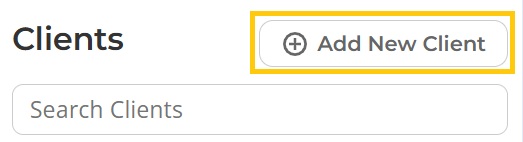
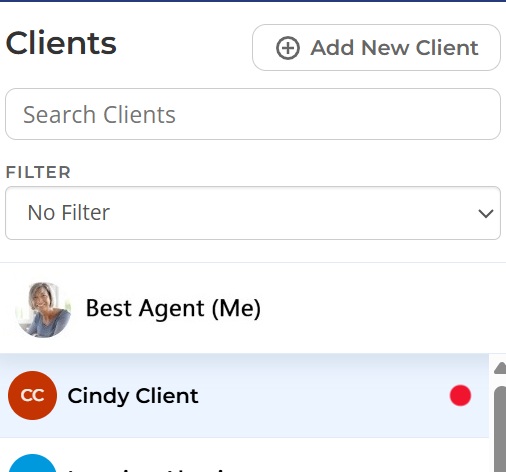
To add a new client to your Address Book (which is now part of the Client Manager), click the Add New Client button found in the Clients panel on the left side of the Client Manager.
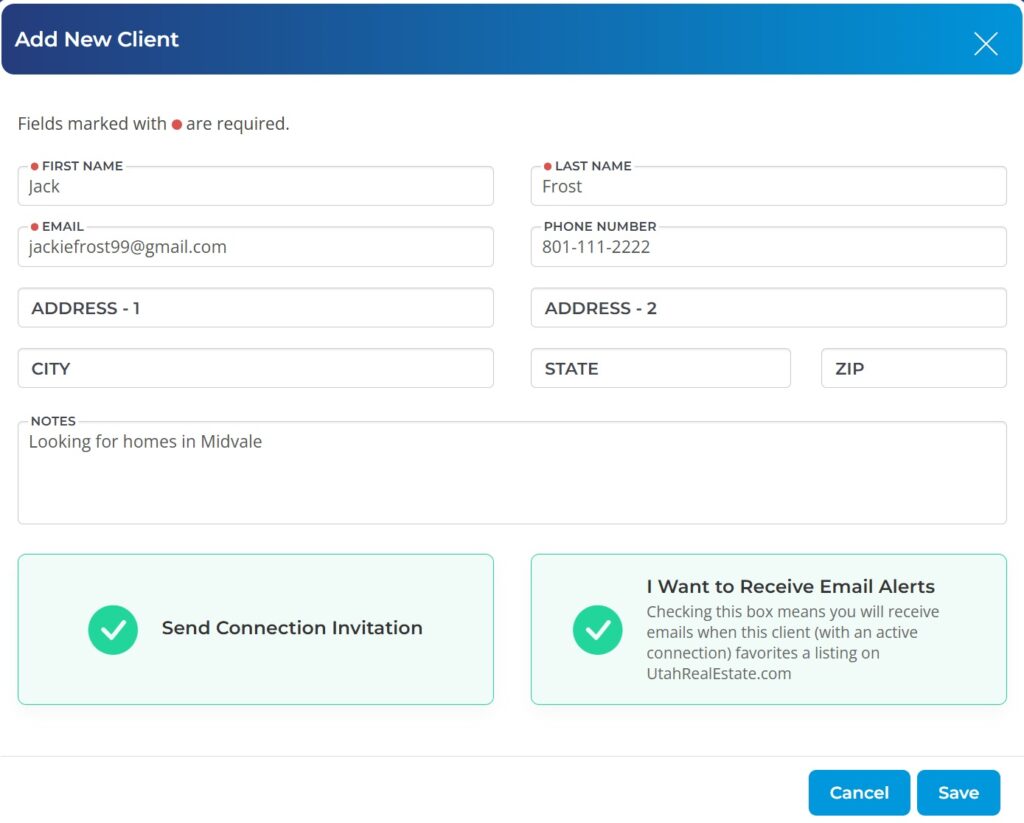
If you intend to send Listing Alerts to your client, make sure the Send Connection Invitation button is selected when adding this client. This will send your client an email with instructions on how to create a consumer account on UtahRealEstate.com and how to approve your connection request.
See more in our short video here.
How Do I Edit My Client’s Information?
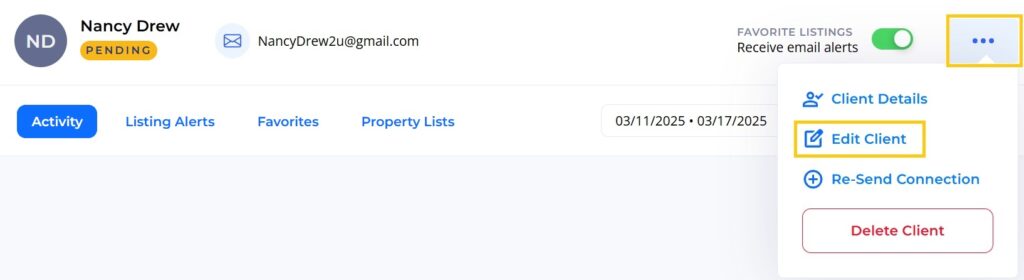
Open the Client Manager, and click on the name of your client on the left side of the page. Then click on the more options button (three dots) in the top right corner, then click on Edit Client.
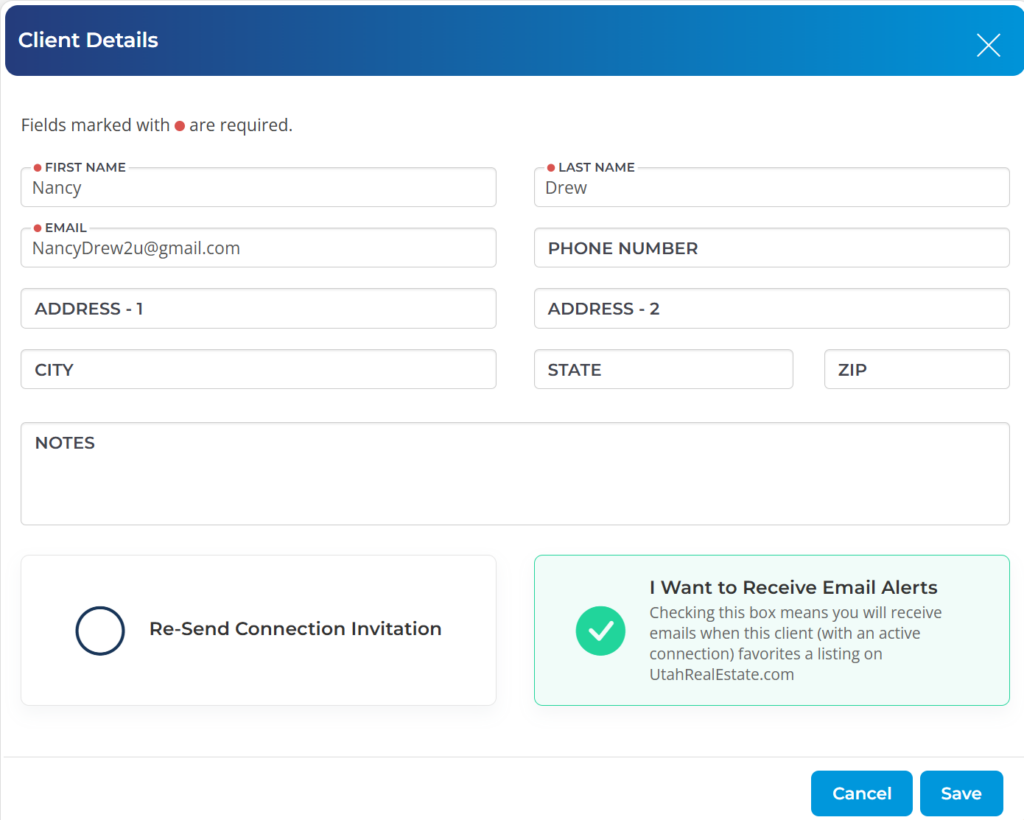
Once there, update any information needed for this client and make sure to click Save when finished.
How Do I Check the Status of a Client Connection Request?
Click on a specific client from the Clients panel on the left side of the screen within the Client Manager. The connection status for that client will be displayed directly beneath the client’s name. The status will either show as “Connected,” “Pending,” or “Not Sent” which mean the following:
- Connected: The client has created a consumer account on UtahRealEstate.com and accepted your connection request. You can now send Listing Alerts to this client, view properties favorited by your client, and view other client-related activity.
- Pending: You have sent a connection invitation to your client, however, they have not created an account on UtahRealEstate.com and/or they have not accepted your client connection request (which they can do within their account once they have created a consumer account on UtahRealEstate.com.).
- Not Sent: You have not sent this person a client connection request. Click the more options button when viewing this client within the Client Manager, and you’ll see an option to Send Connection Request.

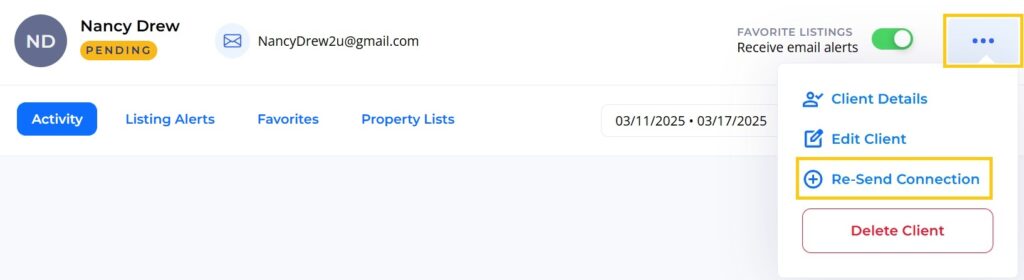
If your client connection is Pending, and you need to resend your client connection request, click the more options button (three dots) in the top right corner, and select Re-Send Connection. What this will do is send your client an email from UtahRealEstate.com (sent from info@utahrealestate.com) with a link they can click in order to create an account on UtahRealEstate.com. Once they have created an account and are logged in to that account, they will prominently see an option to approve your client connection request.
See more in our short video here.
What Information is Shown on the Activity Page?
The Activity page within the Client Manager shows the following information:
- When a connection request has been sent, and when your client confirms the connection.
- History of listings sent to your client (either via a Listing Alert or manually sent listings using the Send Listings feature on the MLS).
- When your client adds a Favorite listing.
See more in our short video here.
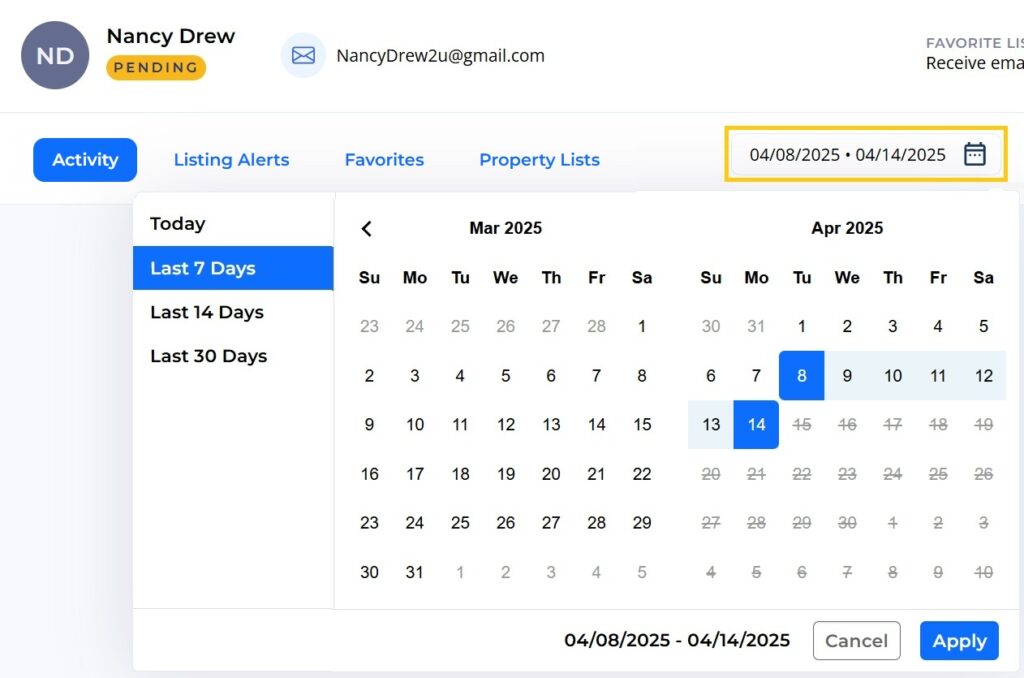
Please note, this page displays the last 7 days of activity by default. To adjust the time span on the Activity page, click on the dates field at the top right. This page will display up to 90 days of activity.
How Do I Turn On Notifications for My Client’s Favorites?
Open the Client Manager, and click on the name of the client on the left. Once there, click on the toggle at the top right. When the toggle is in green, you will receive notifications when your client adds a favorite listing.

What are Activity Alerts (the red button that appears by the “Clients” menu on the MLS) ?
Activity alerts make you aware when (1) a client has accepted a connection invitation request, and (2) a client has favorited or saved a property. When you have a new activity alert, a red dot will be shown next to the Clients menu option on the MLS.
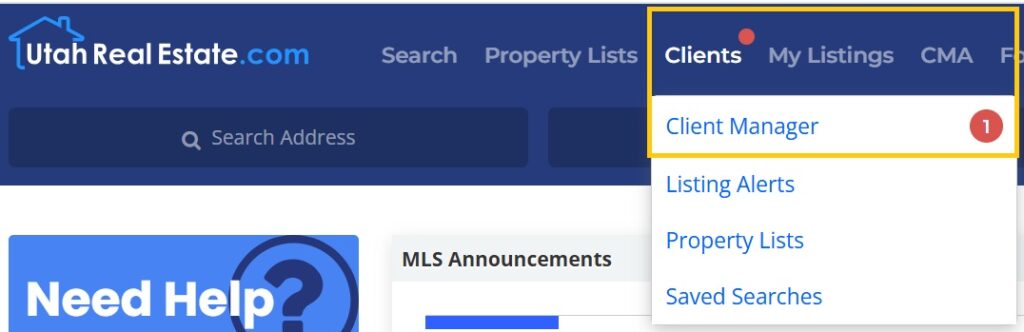
Additionally, when you go into the Client Manager, a red dot will appear next to the client’s name.
See more in our short video here.
Can I See When I Sent a Particular Listing to My Client?
Use the new Search MLS# box on your client’s page to see if you have sent that listing to your client, and if the client has added that listing as a Favorite. This will search for all activity over the last 90 days, and all of your clients’ favorites.
Can I See Listing Alerts I’ve Sent to Myself?
At the top of the Client Manager, your name is shown at the top of the list.
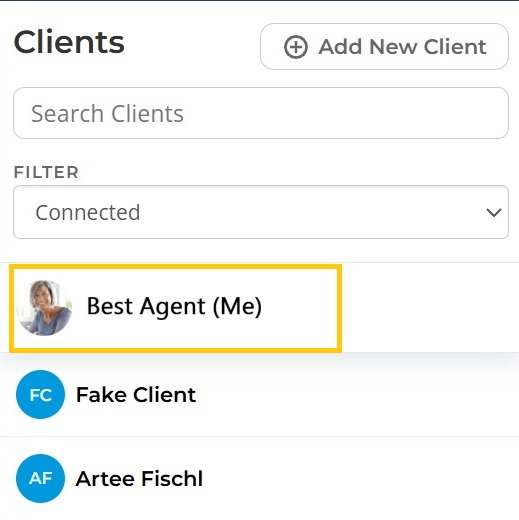
Click on your name to view the Listing Alerts you have sent to yourself (without a client associated).
Sharing Property Lists With Your Client
You can now associate and share your Property Lists (formerly Saved Listings) with your client. To do so, access your Property Lists, then edit the Propery List and add your client. You will see an option to Share the Property List with your client from this section. You can find instructions here.
View all Support Center Articles about the Client Manager here.
If you need any assistance, please contact us at 801-676-5400 or support@utahrealestate.com.


