Creating a Custom CSV File of your Contacts
When do I Need a Custom CSV File?
A comma-separated values (CSV) file is required to import your contacts into the MLS Client Manager. Unless you export your contacts from Gmail, Yahoo, Outlook, or Hotmail, you will need to create a custom CSV of your contacts.
How do I Create a Custom CSV?
A custom CSV can most easily be created using a spreadsheet program. The steps below are for creating a custom CSV using Microsoft Excel. However, similar steps can be used to create a CSV file with a free spreadsheet program, such as Google Sheets.
1. Open a blank spreadsheet in Microsoft Excel or open the existing Excel file you want to convert to CSV format.
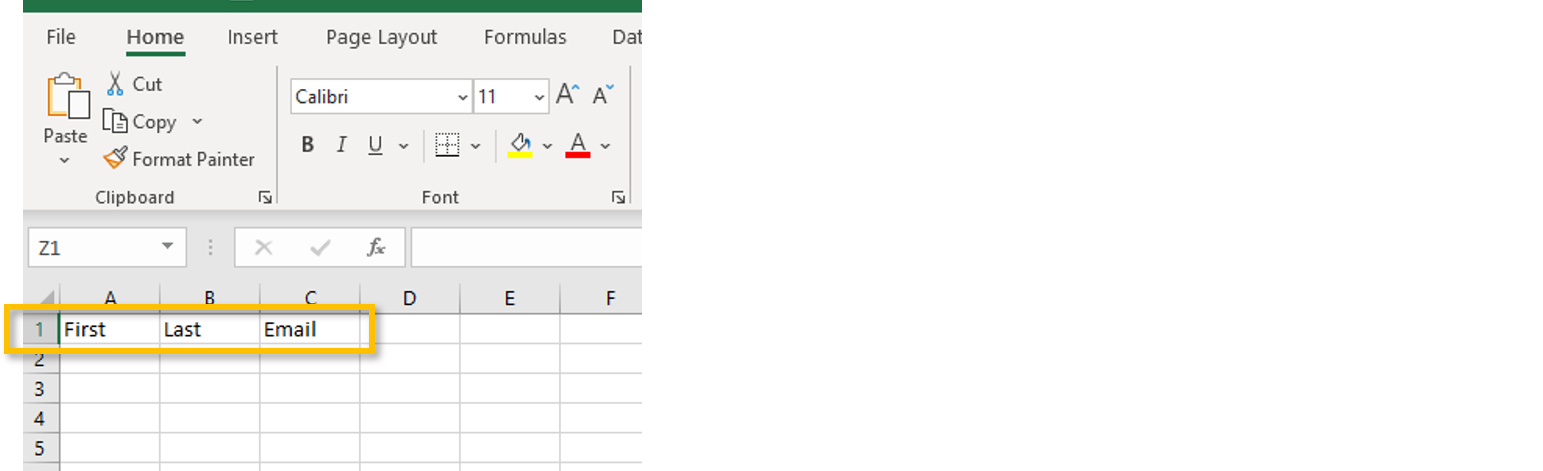
2. The first row of data will be the header of your columns. You must include the following three headers and write them exactly as follows (example below):
- First
- Last
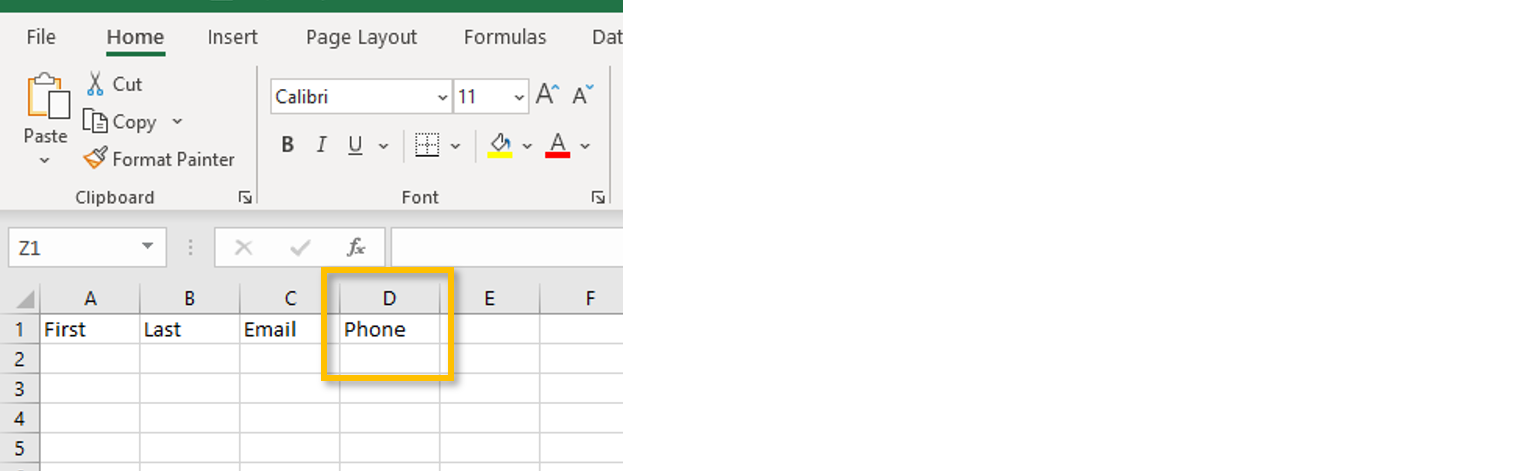
Note: Phone can be added as an optional header.
3. Enter your contacts manually or paste your contacts into the spreadsheet, but ensure that only one contact is listed per row.
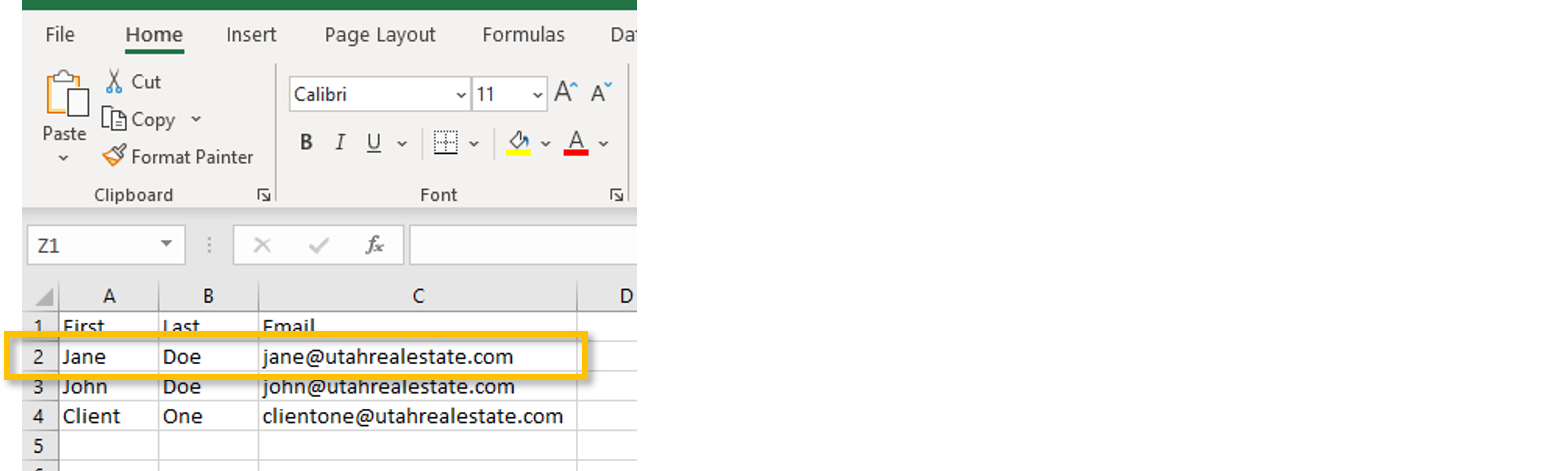
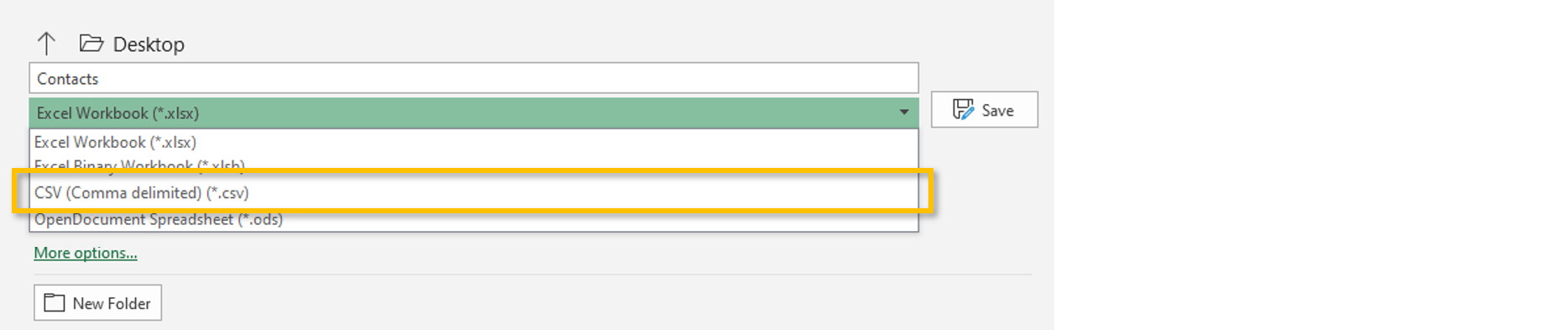
4. Finally, Save your file by clicking the Save As option. We recommend saving the file to your desktop. When saving, make sure the File Type you are saving is a CSV file type. This is commonly displayed as CVS (comma delimited) (*.csv) or CSV (comma delimited). You can use the File Type drop down to change the file type as needed.