Client Connections from a Client Perspective
When you send a connection request to your client, they are sent an email with instructions to create an account (or sign into their existing account) and Confirm the conenction with you.
Ever wondered what UtahRealEstate.com looks like for your client? Below is a guide to understanding the UtahRealEstate.com MLS website from a client perspective.
Client Invitation
Clients’ are sent one of two versions of the connection invitation email. The first is sent if the client’s email address has never been registered under a client account on UtahRealEstate.com:
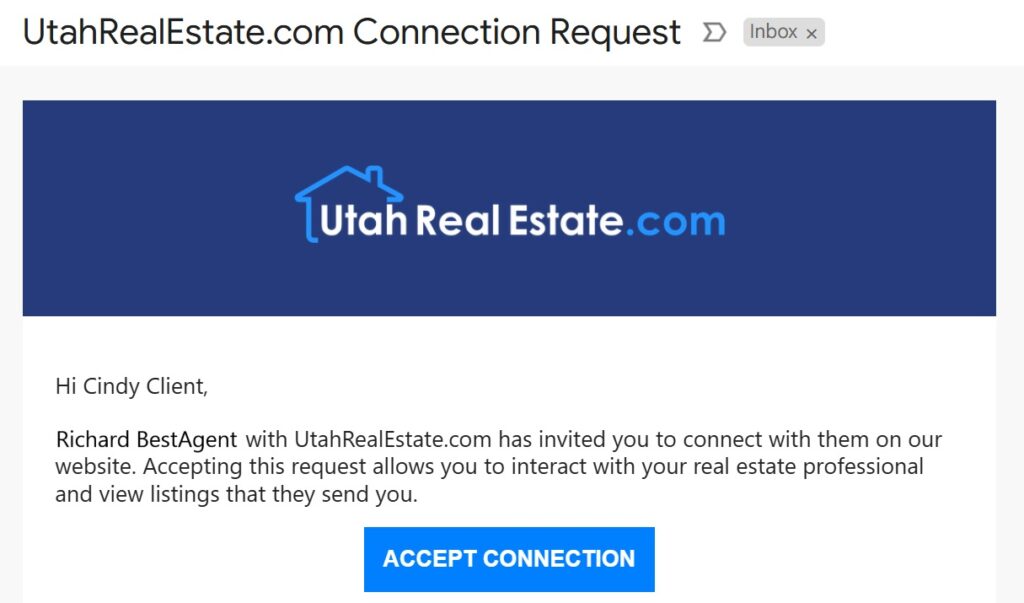
When a client clicks “Accept invitation”, they are prompted to create an account (and set their own password for the account). Once this is done, the connection with you is confirmed.
The second version is sent if the client’s email address has been registered to an account on UtahRealEstate.com in the past.
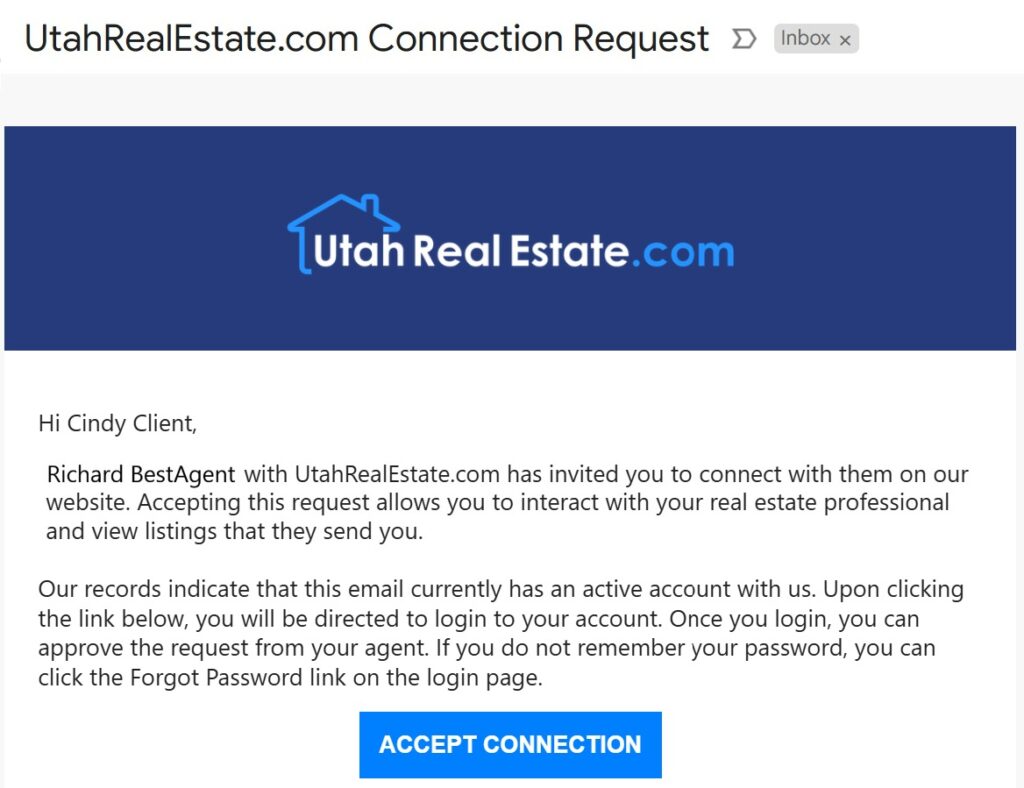
In either version of the invitation, when the client clicks “Accept invitation”, they are brought to the login page where they can log into their client account. Once they log into their account, they will be prompted to confirm the connection with you.
Please note: if your client has forgotten their password, they can click on the “Forgot Password” link to send themselves an email with a link to reset their password.
Pending Client Connections
When your client has a pending connection request, they will see a prompt at the top of the page to manage their connections when they first log into their client account on UtahRealEstate.com:

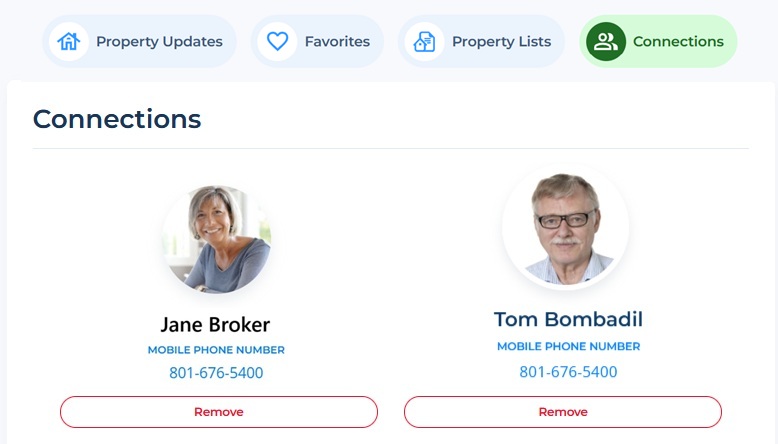
Once on the Connections page, they will see options to either Accept the invitation, or Remove the invitation. This is done with one click.
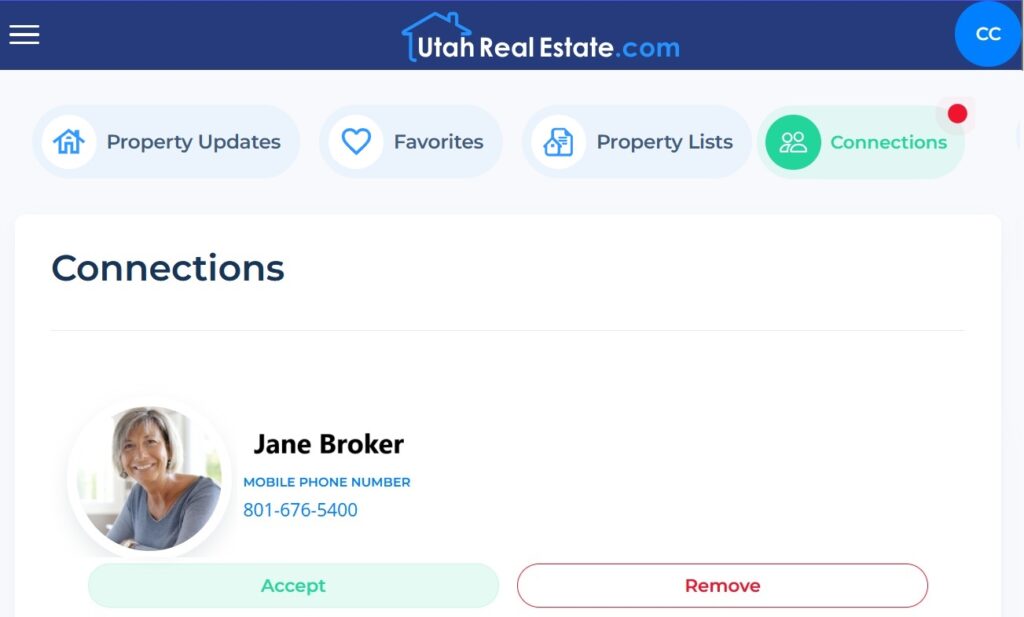
If your client has a previous connection with another agent, they can Remove the connection from this page.
Can My Client Remove Older Connections?
Your clients can confirm or remove connections from within their client accounts. You can send your client the following instructions:
- Log into your account on www.UtahRealEstate.com
- Your login or username is your email address.
- Click on Dashboard at the top of the page.
- Click on the Connections tab.
- This page will show all of your confirmed or pending connections. Click Remove to remove a previous connection, and click Confirm to confirm any new connections.
What Else Does the Client View from Their Account?
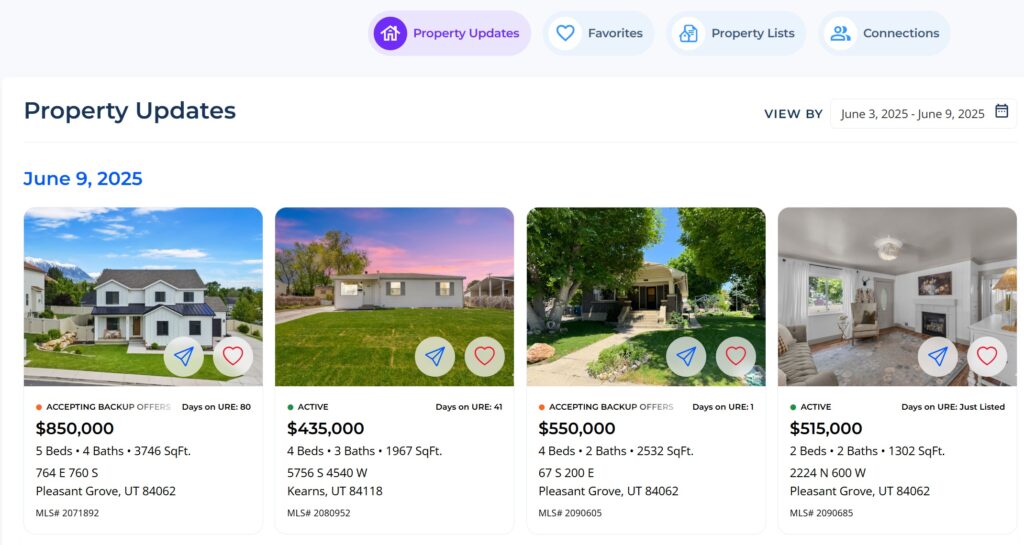
On the Property Updates page, your client will see any listings sent to them via Listing Alerts or Send Listings. This section shows listings sent within the last 90 days. They can click on each listing to get more detail, and click on the heart icon to add that listing to their Favorites. The arrow button will send an email with a link to that listing, where they can share that listing with others.
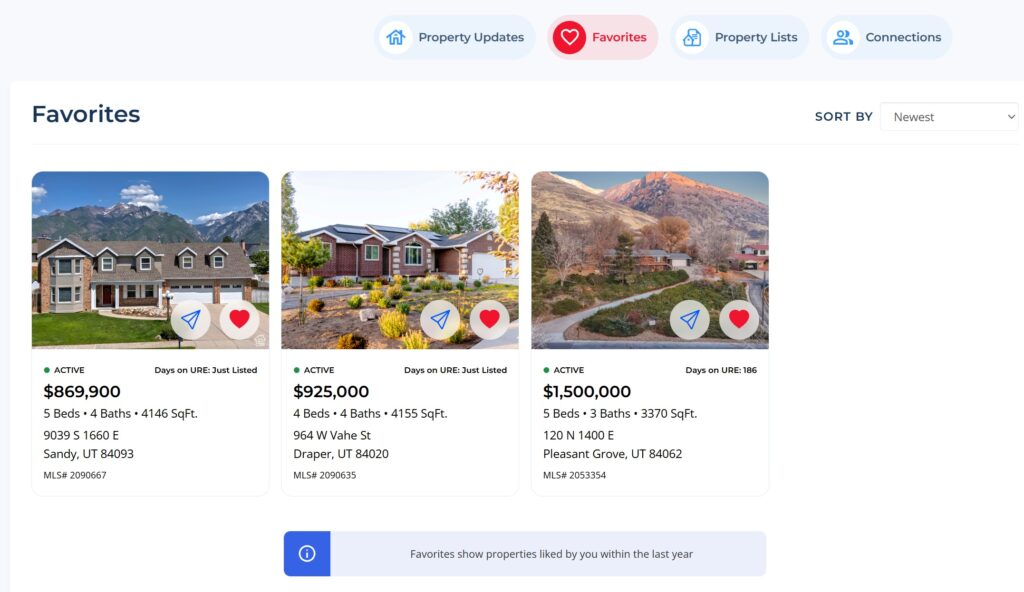
On the Favorites page, your client will see all listings they have added. This section will display all Favorites, regardless of when they were added as a Favorite.
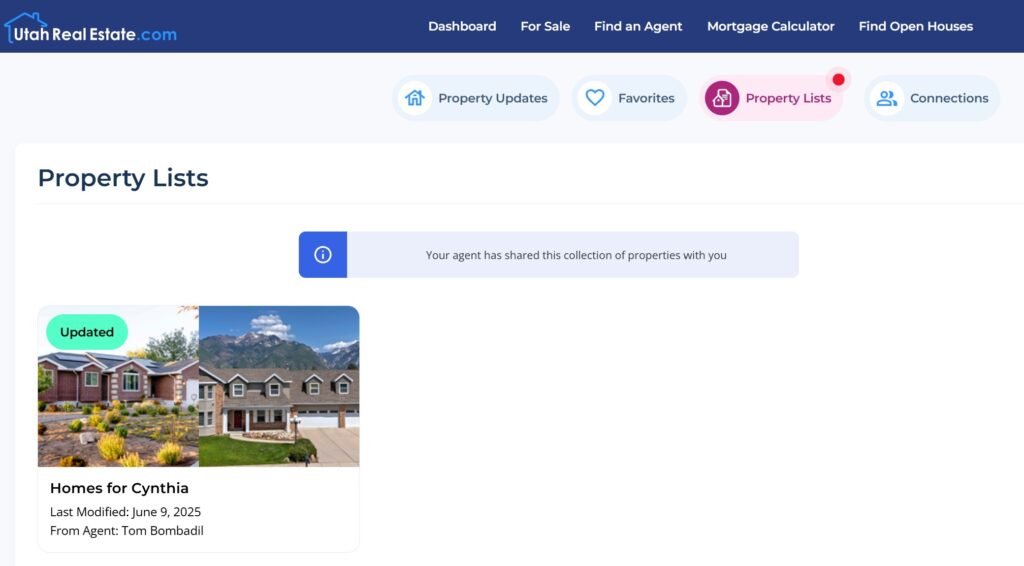
On the Property Lists tab, your client will see the Property Lists you have shared with them, including all of the listings that you have saved to the Property List. This list is updated as you add and remove listings to the Property List.