Custom Feedback Surveys
How to Create Custom Feedback Surveys
Custom Feedback Surveys allow you to determine the specific questions that are sent to agents who have shown your listing. You can create your own multiple choice questions, or ask short answer questions to allow the showing agent to type their own response to your question.
Here is how to create a Custom Feedback Survey in Aligned Showings.
- Within Aligned Showings, select Settings from the main navigation menu, then Feedback Surveys.
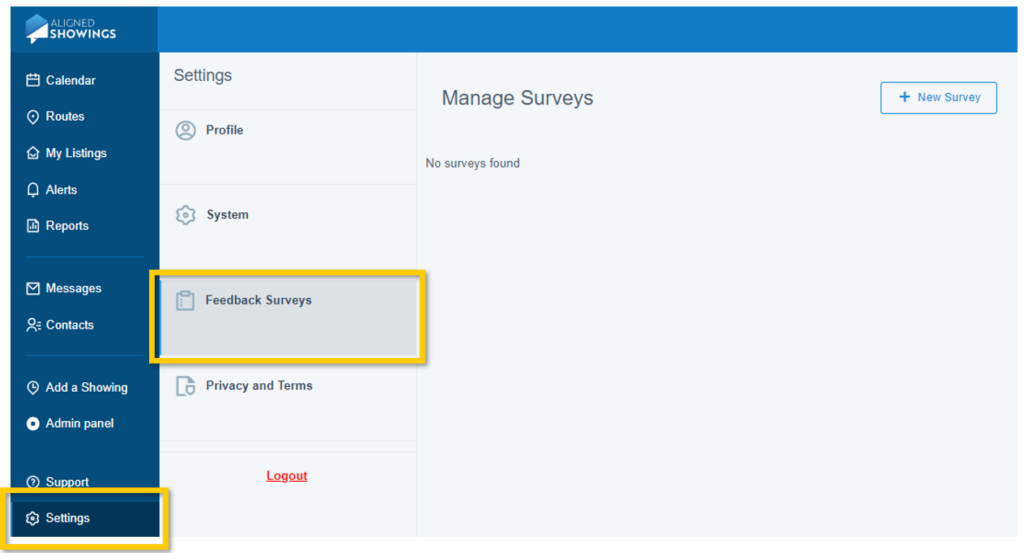
2. Click the New Survey button that appears in the upper-right of the screen. This will open a Create Survey window.

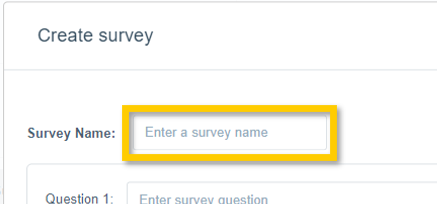
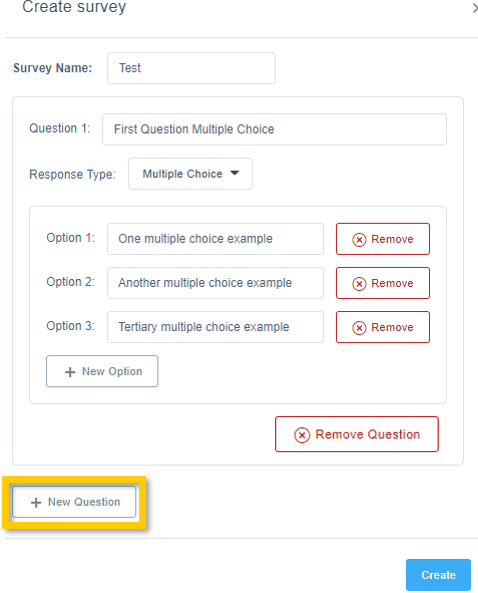
4. Click the Question 1 text field, then enter your first survey question.
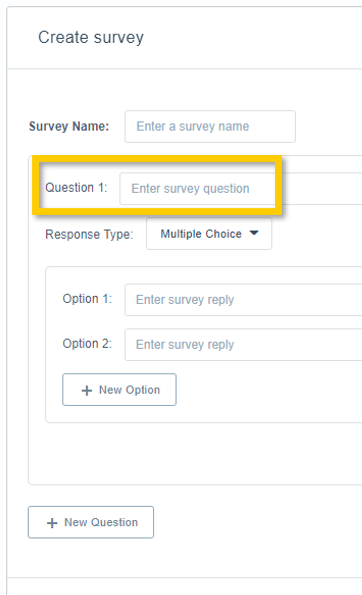
Use the Response Type field to indicate whether you want to ask a Multiple Choice question or a Short Answer question that allows the recipient to type in their own response.
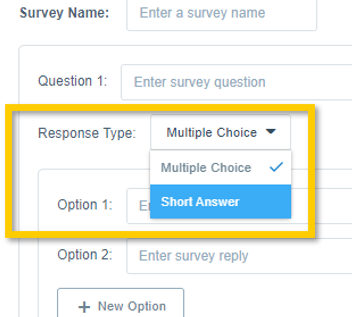
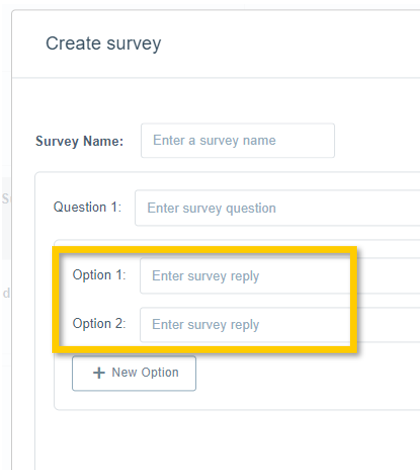
5. If selecting a Multiple Choice question, you can enter your response options in the fields labeled Option 1, Option 2, etc.
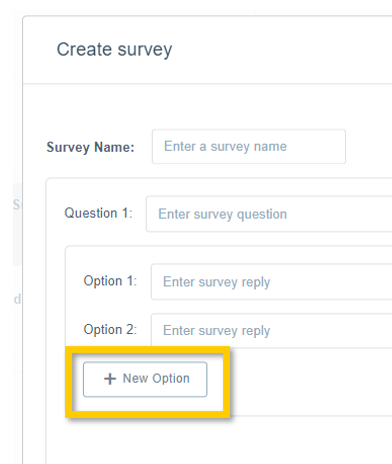
Please note: A red “Remove” option will appear next to all multiple choice response options, which is used to delete unwanted multiple choice options.
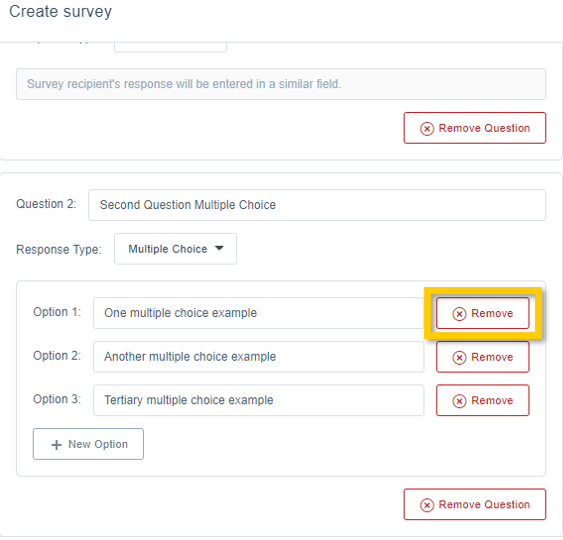
6. Once you have filled out your first survey question (i.e. Question 1), you can add additional multiple choice or short answer questions and their corresponding answer options by selecting the + New Question button on the lower left.
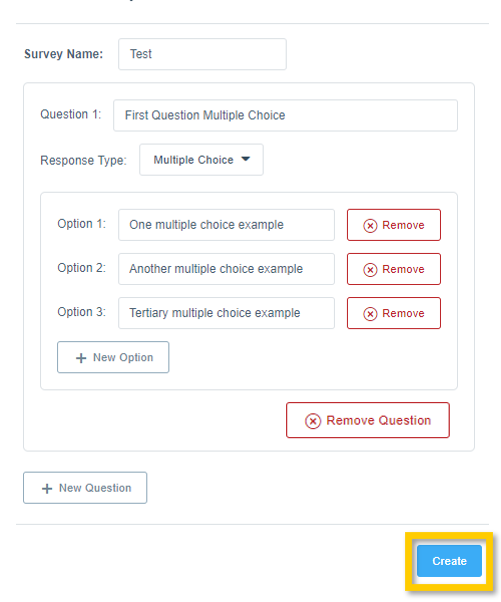
7. Once you’ve completed building your custom survey, save it using the blue Create button on the lower right.
How to Assign Custom Surveys to a Listing
You have the option of assigning a specific Custom Feedback Survey to each individual listing, which is helpful if you want to ask a different series of questions that are tailored to a specific listing. Below are step-by-step instructions for how to assign a Custom Feedback Survey to a specific listing. If you would prefer to set one Custom Feedback Survey as the default survey for all of your listings (including all future listings), please skip to the next section of this article.
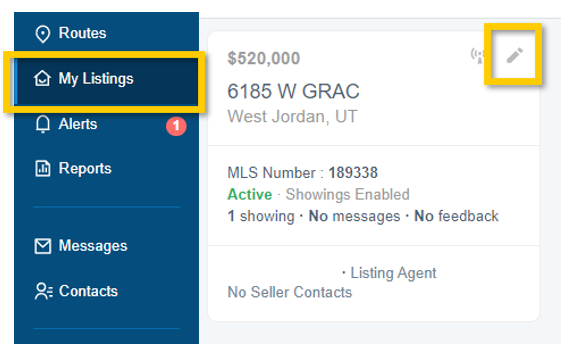
1. Within Aligned Showings, navigate to My Listings and select the Edit icon next to the listing where you want to assign a custom feedback survey.
Note: Feedback surveys are automatically sent to the showing team, via their preferred communications settings, 1 hour after the scheduled showing appointment has ended.
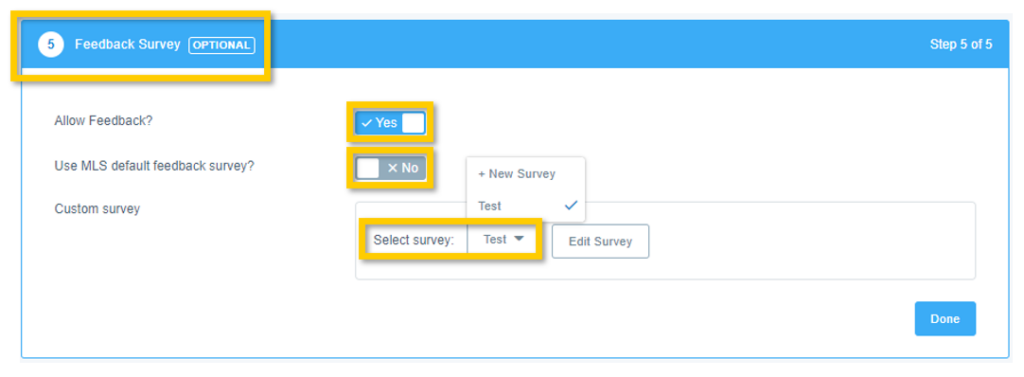
3. Last, select Done.
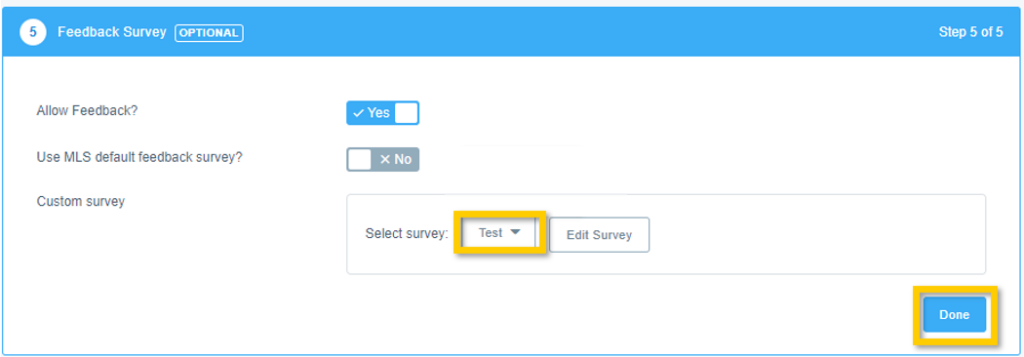
Set a Feedback Survey as the Default Selection in Listing Setup
Default Feedback Surveys allow you to automatically assign a specific Feedback Survey to all future listings. This feature helps save time, as you will not need to adjust Feedback Survey settings for each listing that you add to the MLS. For detailed instructions on how to setup a Default Feedback Survey, click here.
How to Edit an Existing Custom Feedback Survey
Any Custom Feedback Surveys you create in Aligned Showings can be edited or removed from the Feedback Surveys tab in your account’s Settings.
Here is how to edit or remove an existing custom feedback survey in Aligned Showings:
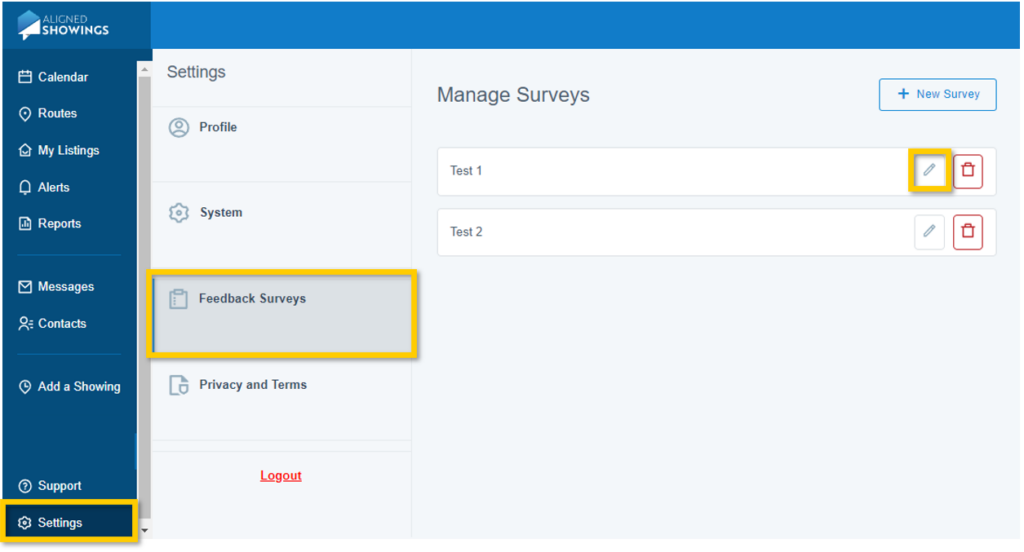
1. Click the Settings option on the lower left section of the Aligned Showings menu, then Feedback Surveys. Next, select the Edit icon which appears next to the custom survey you’d like to edit.
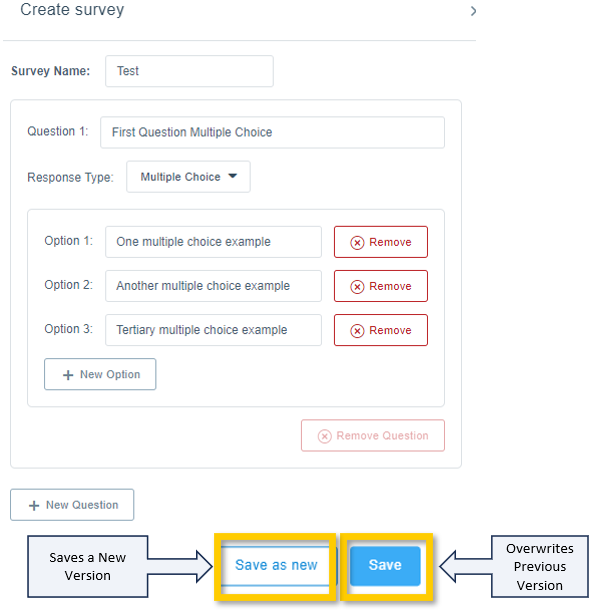
2. Make the changes to the survey you’d like to update. If you’d like to keep the original survey and save the updates as a new survey, select Save as new. To overwrite the original survey with the changes, select Save. Note, overwriting the original survey will automatically update that survey on any listings you currently have set up to use that custom feedback survey.
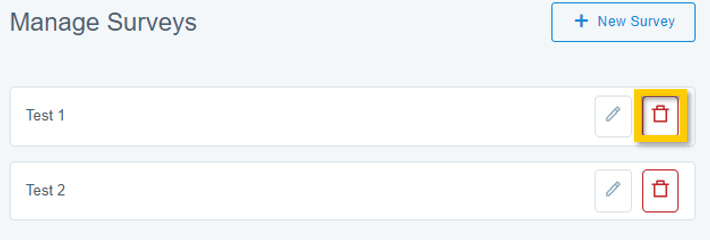
Alternatively, if you need to delete a custom survey you’ve previously created, select the Delete icon that appears next to the survey.