Showing Feedback
Aligned Showings’ Feedback Surveys are used to automatically send feedback requests to agents who have shown your listing. Features of this tool include the following, which are more fully explained throughout this article:
- How to Enable Showing Feedback
- Setting a Default Feedback Survey
- Viewing Feedback Responses
- Sharing Feedback with Sellers
- Responding to Feedback Requests
How to Enable Showing Feedback
Feedback Surveys can be enabled and customized on an individual listing-by-listing basis, which is helpful if you want to solicit feedback that is custom tailored to a specific property. Alternatively, you can setup default Feedback Survey settings that will apply to all of your listings (as explained in the next section). Here is how to enable a Feedback Survey for one specific listing:
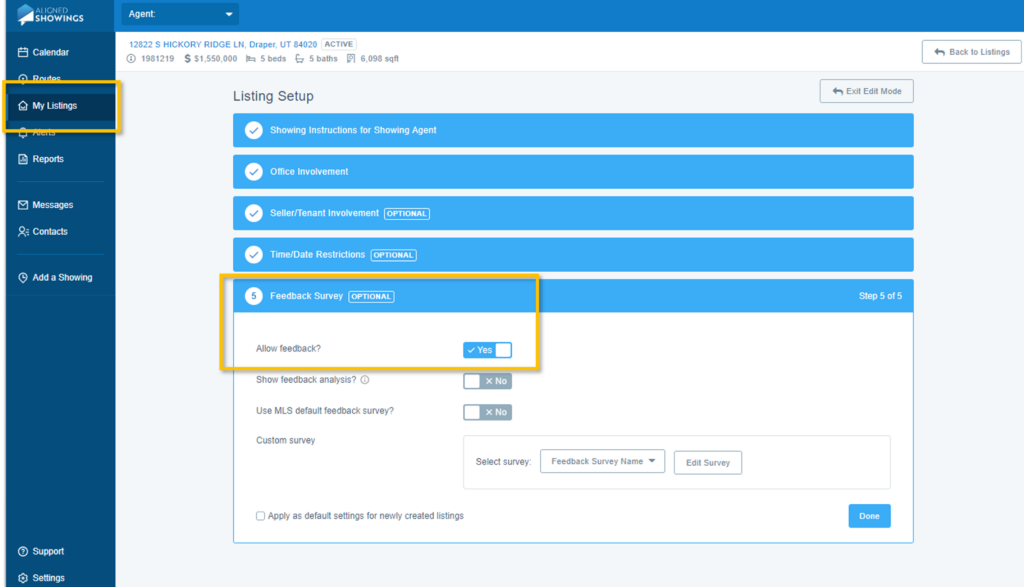
- Select the My Listings tab in Aligned Showings.
- Click the Edit icon next to the subject listing to open the Listing Setup page.
- On the Listing Setup page, go to the section titled Feedback Survey.
- Set the “Allow Feedback?” setting to “Yes.”
- Then, you can choose to use the MLS default feedback survey, you can use a Custom Feedback Survey that you previously created, or you can Create a New Custom Feedback Survey.
- NOTE: Feedback Analysis is an optional feature that can also be enabled. Click here to learn more.
All Feedback Surveys are automatically sent one (1) hour after the showing has ended, and addotonal reminders are sent every 24 hours after the showing has ended (depending on the number of reminders set in the listing in Aligned Showings).
Setting a Default Feedback Survey
Default Feedback Surveys allow you to send automatic feedback requests, with the same series of questions, for all of your listings, including all future listings. This feature helps save time, as you will not need to adjust Feedback Survey settings for each listing that you add to the MLS. Here is how to setup a Default Feedback Survey:
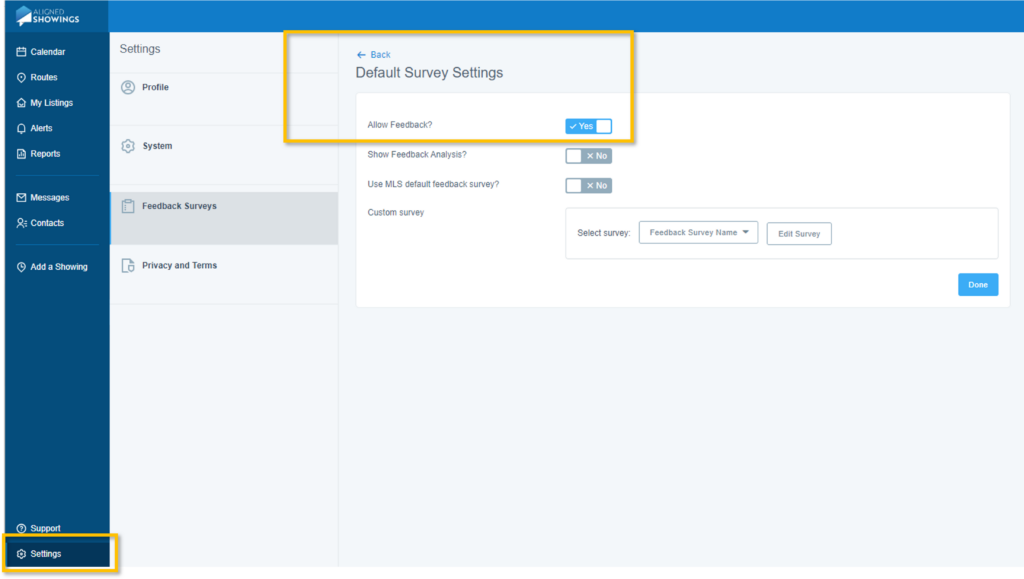
- Select Settings in Aligned Showings.
- Select the Feedback Surveys option.
- Click the Default Survey Settings option.
- Set the “Allow Feedback?” toggle to “Yes.”
- Then, you can choose which Feedback Survey you want to use as your default template. Options include using the MLS default feedback survey, you can use a Custom Feedback Survey that you previously created, or you can Create a New Custom Feedback Survey.
- Select Done to save your changes.
Viewing Feedback Responses
Feedback Surveys are automatically sent one (1) hour after the showing has ended, and a reminder is sent 24 hours after the showing has ended. You will receive a notification from Aligned Showings, via your preferred notification[s] method as established in your Aligned Showings Account Settings, whenever someone has completed your Feedback Survey. That communication will include a link to view the Feedback Survey, however, here is how you can manually access and view all Feedback Survey responses you have received in one place:
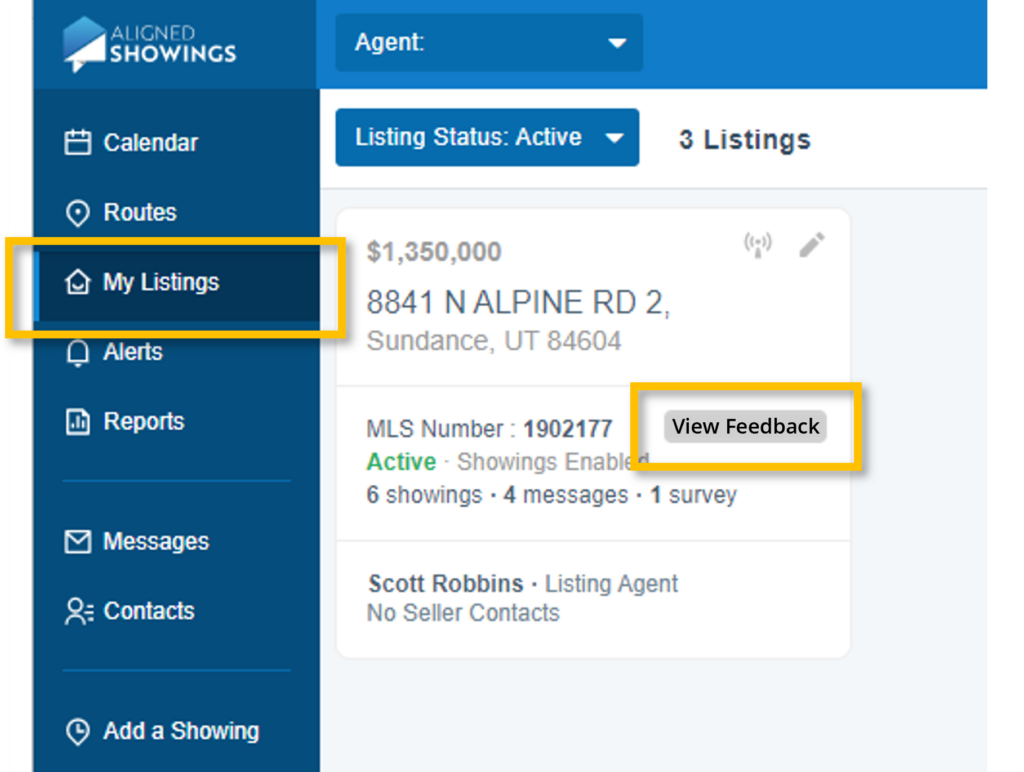
- Select the My Listings tab in Aligned Showings.
- A View Feedback button will appear next to any listing where a Feedback Survey has been completed. If you do not see a View Feedback button, that means you have not received any Feedback Survey responses for that listing.
- Feedback Survey responses will open in a new pop-up window, and you can use the Arrow buttons at the bottom of that pop-up window to navigate between all feedback responses received on the listing.
- Note: Feedback responses for individual listings also appear in the Messages Tab in Aligned Showings.
Sharing Feedback with Sellers
Aligned Showings allows you to share Feedback Survey responses with your seller[s], which is an optional feature that must be manually enabled for each listing. You can have all Feedback Survey responses automatically sent to your seller[s] as soon as feedback is received, or you can review each individual Feedback Survey response and determine which responses you want to share with your seller. Here is how to enable the sharing of Feedback Survey responses with your seller[s]:
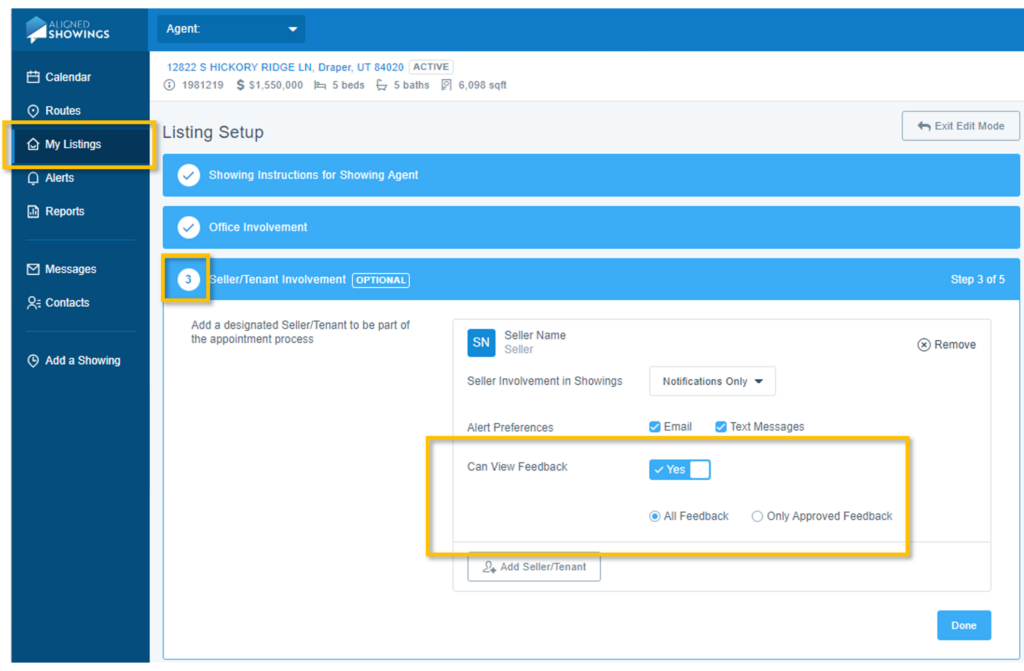
- Select the My Listings tab in Aligned Showings.
- Click the Edit icon next to the subject listing to open the Listing Setup page.
- On the Listing Setup page, go to the section titled Seller/Tenant Involvement.
- Select the Add Seller/Tenant button. If your seller is already added to your Aligned Showings Contacts, you can search for them by name, or you can click Invite New User to add your seller.
- Once your seller[s] has been selected, click the drop down menu next to Seller Involvement in Showings and select either the “Can Approve Showings” or “Notifications Only” option (these options relate to whether a seller can approve showings or if they only receive notifications as showings are scheduled).
- Set the Can View Feedback slider to “Yes.”
- Last, select whether you want your seller to receive All Feedback or Only Approved Feedback (explained below).
- All Feedback: All Feedback Survey responses received will automatically be sent to your seller as soon as feedback is received.
- Only Approved Feedback: Sellers can only see Feedback Survey responses that have been approved by the Listing Agent/Team. Each individual Feedback Survey response must be “approved” by the Listing Agent/Team before that response is shared and made available to the seller.
- Note: To approve feedback for seller viewing, follow the steps in the Viewing Feedback Responses Section of this article above. At the top of each Feedback Survey you will see a button that says Approved for Seller Viewing, and that is where you can indicate “Yes” to share that Feedback Survey response with the seller (By default, all are set to “No”).
Responding to Feedback Requests
If a listing has Feedback Surveys enabled, the Buyer’s Agent/Team will automatically receive a request to provide feedback one (1) hour after the scheduled showing has ended, with a reminder (as needed) sent 24 hours after the scheduled showing has ended. These requests are sent to the Buyer’s Agent/Team via their preferred notification[s] method as established in Aligned Showings Account Settings. That notification will include a link to the Feedback Survey, however, here is how you can manually access a Feedback Survey for a listing you have previously shown:
- Click the Messages tab in Aligned Showings.
- Open the Message thread for the showing in question.
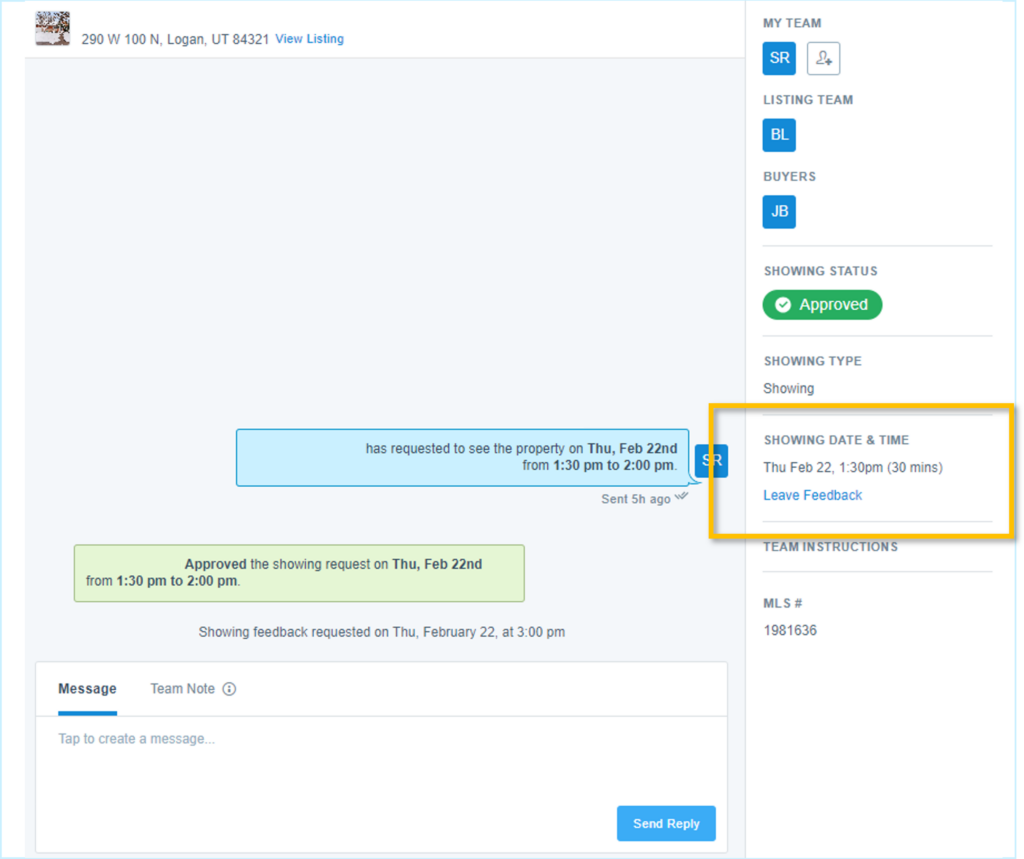
- Click the Leave Feedback link found under the Showing Date & Time section on the right-hand-side of the Message thread.
- Enter your responses and select Submit.