Aligned Showings for Sellers/Tenants
How to Add a Seller/Tenant to Your Listing in Aligned Showings to Receive Showing Notifications and/or Manage Showings
You can add a seller[s] or tenant[s] to your listing in Aligned Showings, which enables them to receive notifications about showing appointments. Optionally, you can also allow your seller or the tenant to approve or decline showing appointment requests submitted on your listing.
Here are instructions to add a seller or tenant to a listing in Aligned Showings.
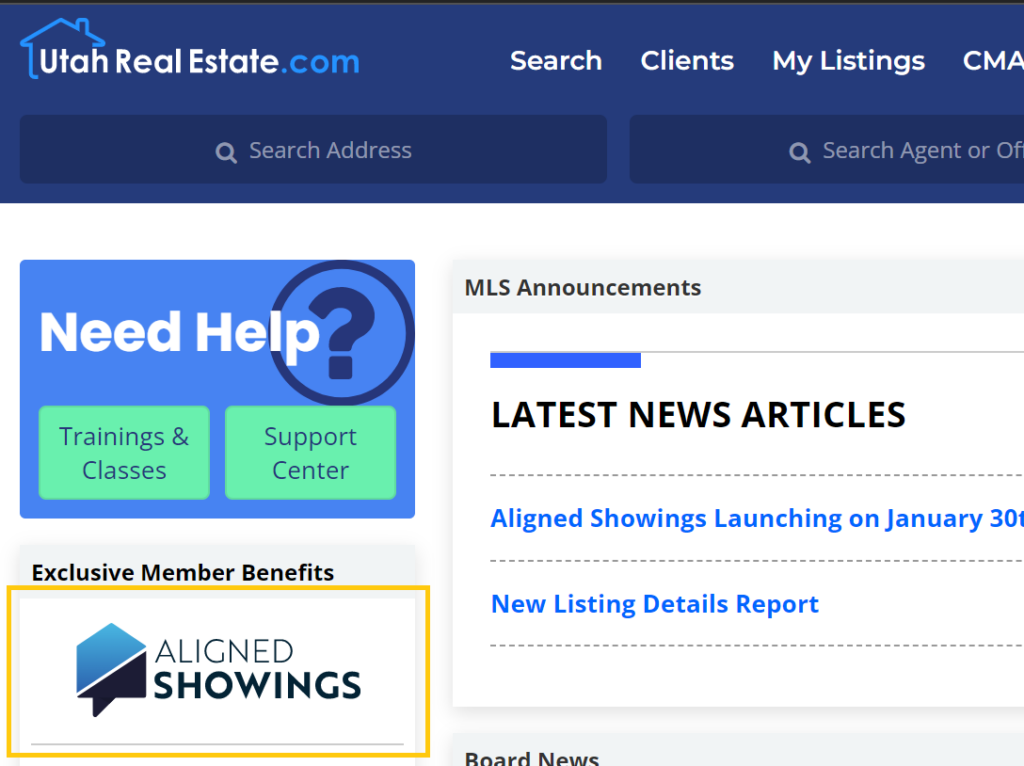
1. Click the Aligned Showings logo that appears on the left side of the MLS homepage to login to your Aligned Showings account.
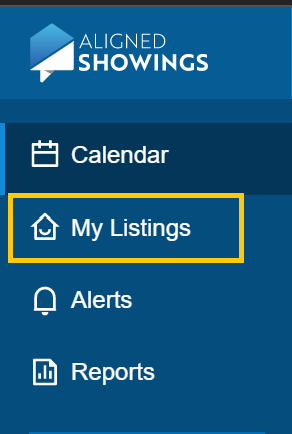
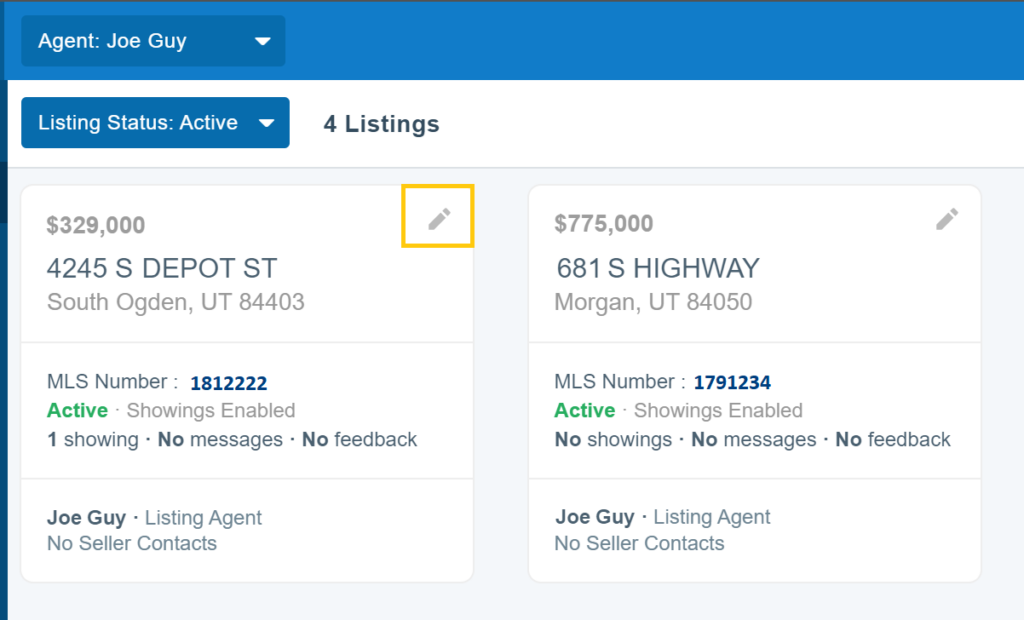
3. Click on the listing you want to edit.
4. Click on Edit Details.
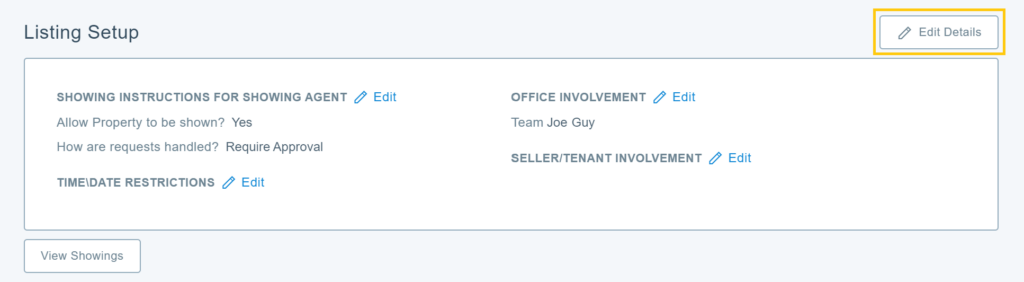
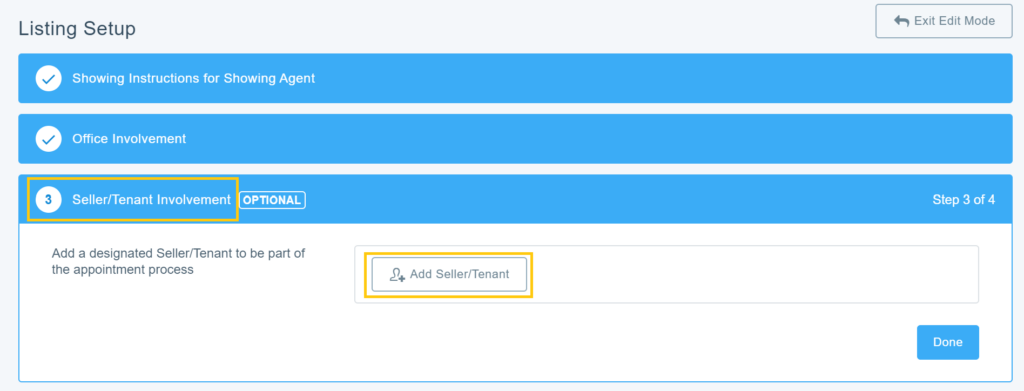
5. Click the Seller/Tenant Involvement section, and click Add Seller/Tenant.
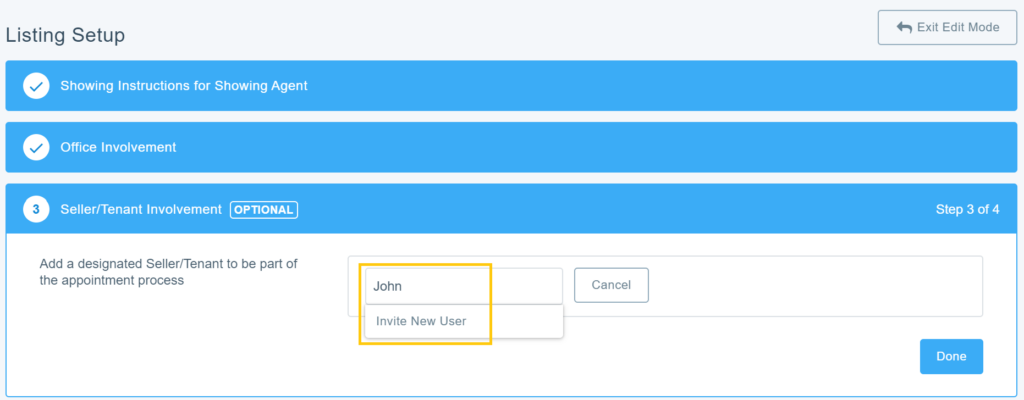
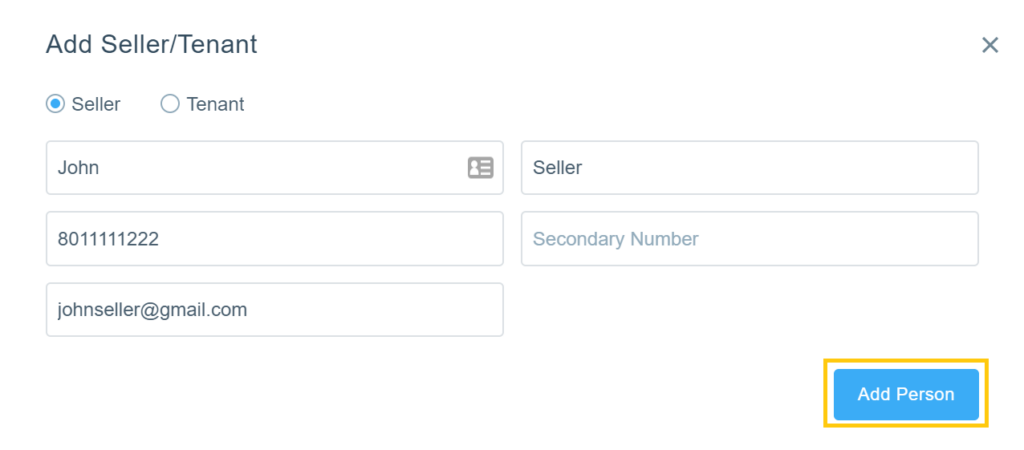
8. Use the drop down menu next to the Seller Involvement in Showings option to determine how you want the seller/tenant to be involved in the showings process. Options include:
- Can Approve Showings: Seller/tenant will receive all showing-related notifications, including showing appointment requests, showing approval notifications, cancelations, etc. The seller/tenant will also be able to approve or decline showing requests.
- Note: If this option is selected, the seller/tenant, along with anyone else who is added to the listing in Aligned Showings (you, your office assistant, co-listing agent, etc.), will have the ability to approve or decline showing requests that are received. Since everyone added to the listing receives the same notifications at the same time, a showing approval or denial will be determined by whichever person responds first to the request.
- Notifications Only: Seller/tenant will receive all showing-related notifications. However, seller/tenant will not be able to actually approve or decline a showing appointment request.
- None: Seller/tenant will not receive any showing notifications and will not be able to approve or decline any showing appointment requests.
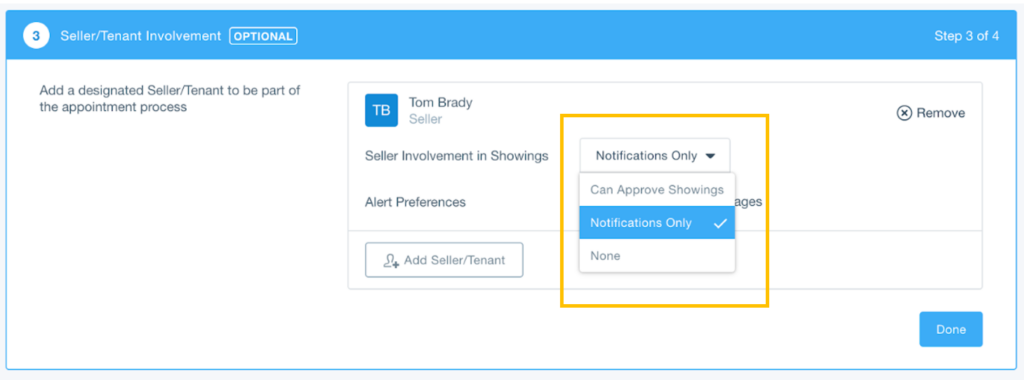
9. Use the check box options in the Alert Preferences section to specify how you want the seller/tenant to receive showing-related notifications. You can enable text message and/or email notifications for the seller/tenant.
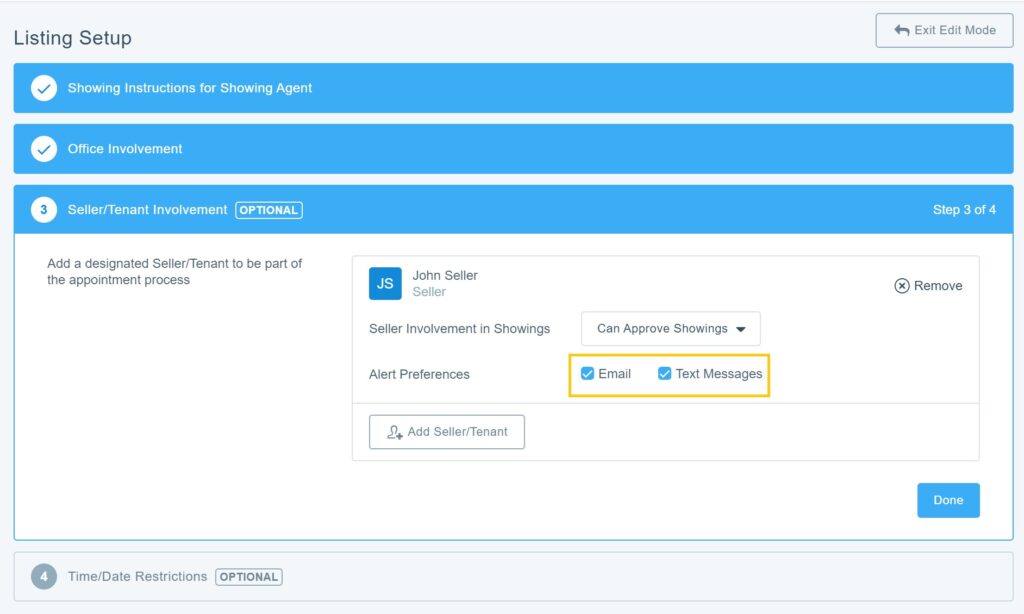
10. Last, click Done when finished.
What Do the Communications Look Like For the Seller/Tenant?
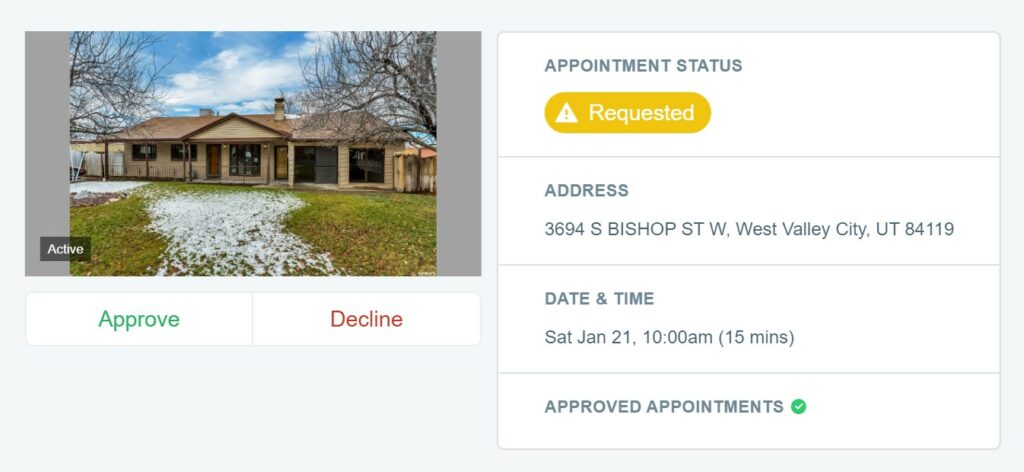
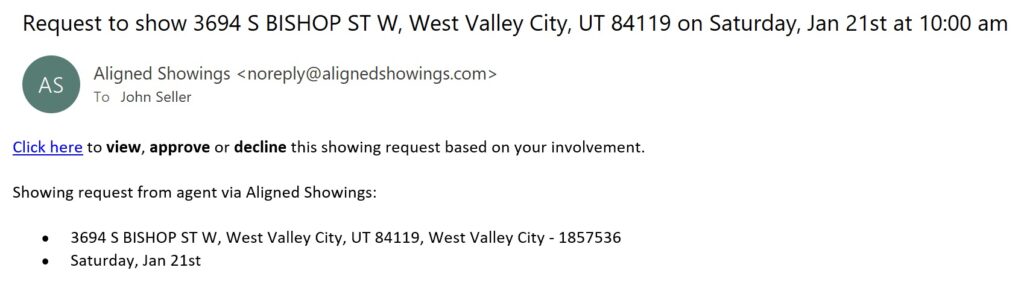
Depending on the notification preferences selected under the “Seller/Tenant Involvement” section of the listing in Aligned Showings, the seller (or tenant) may receive a text message and/or email with information about the showing request. Below are examples of how these requests look to a seller/tenant:
Text Message:

Clicking the link above takes the seller/tenant to this page where they can approve or decline the showing request:
Email:
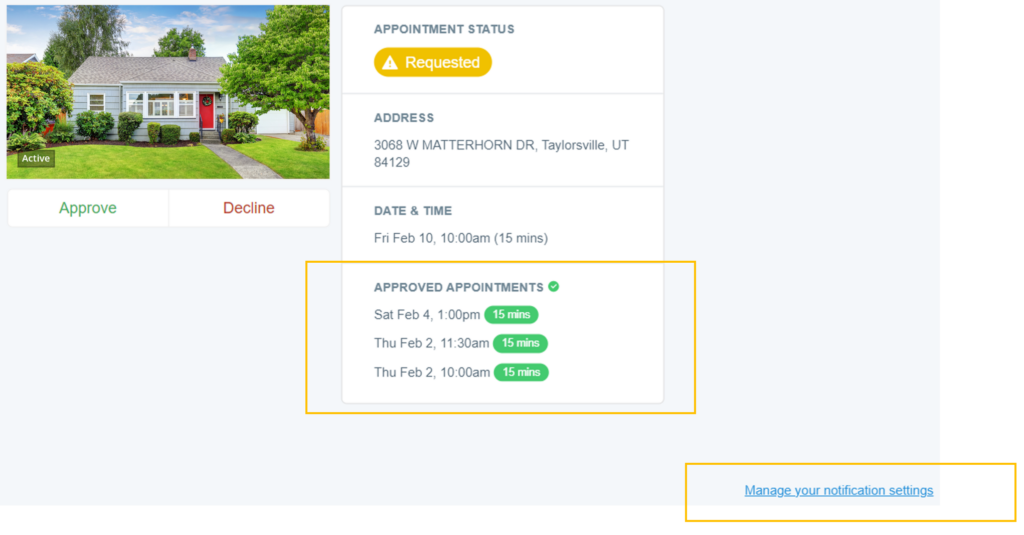
Seller/Tenant Appointments Overview Page
All communications sent to the seller/tenant will also include a link that the seller/tenant can use to see an overview of all Approved Appointments for their property. On this page, sellers/tenants can also manage their notifications preferences for receiving showing-related communications from Aligned Showings.
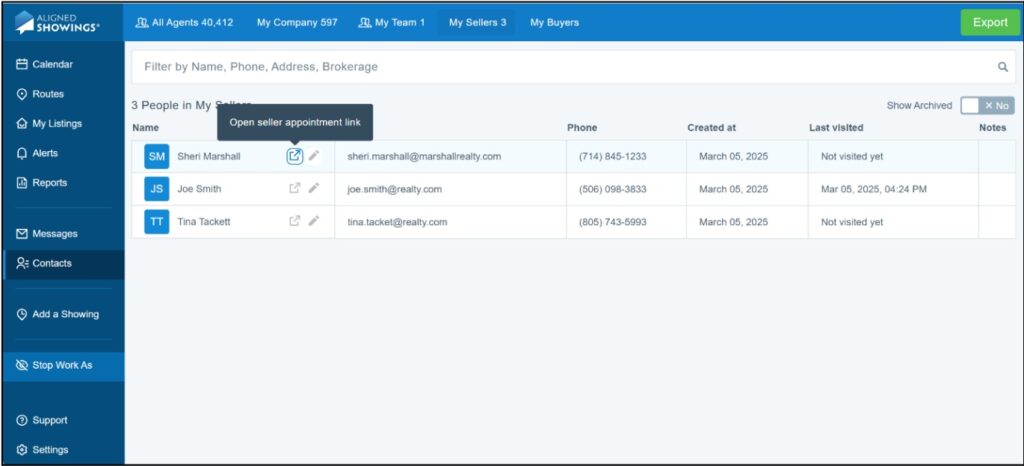
You can also view the link that is shared with your seller in the Contacts section of your Aligned Showings account. Simply click on Contacts, on the left side of the page, then click on the My Sellers tab. An icon is displayed to the right of the name if there are any appointments for the seller. Select the link to open it in a new tab where it can be copied and shared with the seller if needed.
If you need any assistance, please contact us at 801-676-5400 or support@utahrealestate.com


