Notification Preferences
Notification Preferences in Aligned Showings
Notification preferences are important because this is how information will be communicated to you whenever any showing-related actions take place on your listings or on listing where you are representing a prospective buyer. Notification options include email, text message, and push notifications via the Aligned Showings mobile application.
How Do I Update My Notification Preferences in Aligned Showings?
Below are the steps to update your notification preferences in Aligned Showings:
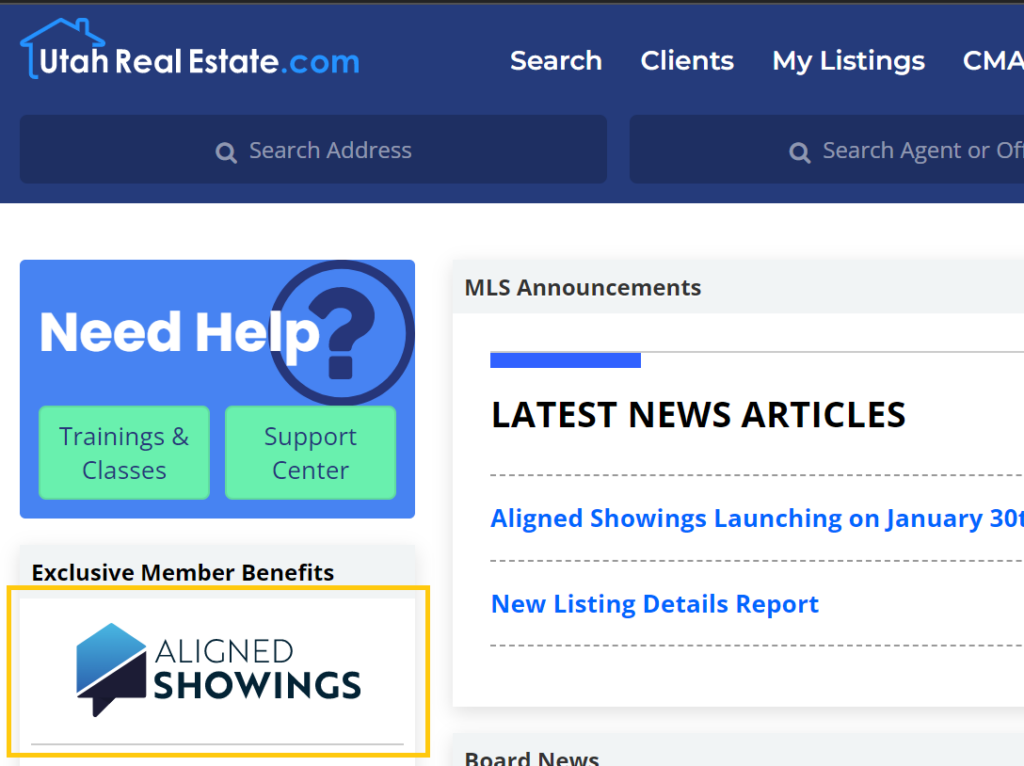
1. Click the Aligned Showings logo that appears on the left side of the MLS homepage to login to your Aligned Showings account.
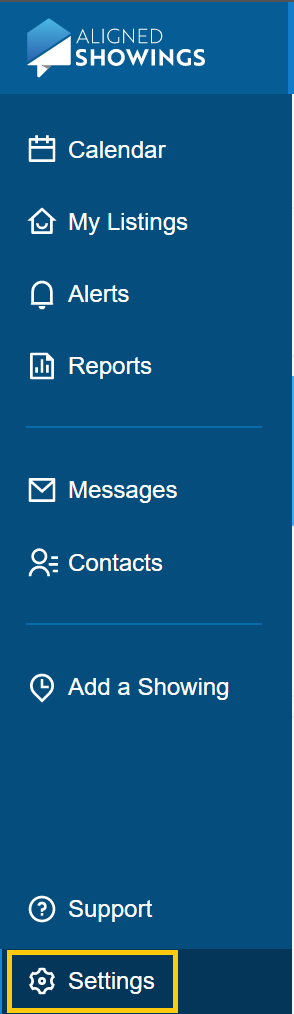
2. Click Settings at the bottom left of the page.
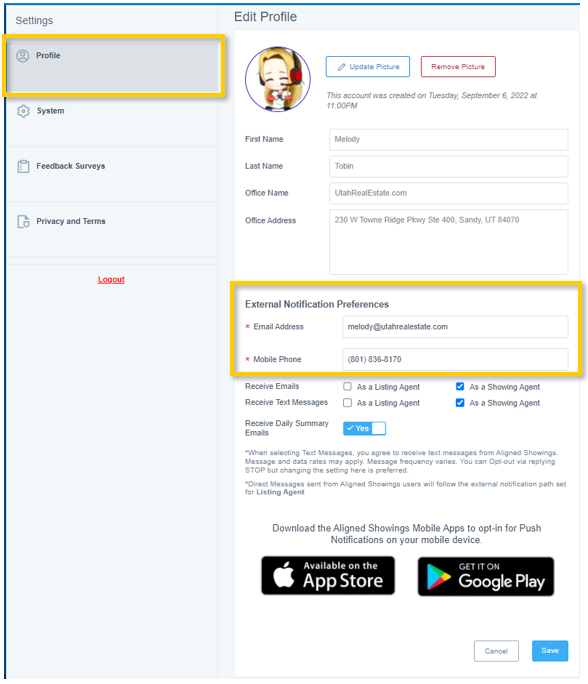
3. Under External Notification Preferences, ensure that your preferred email address and mobile phone number are correct.
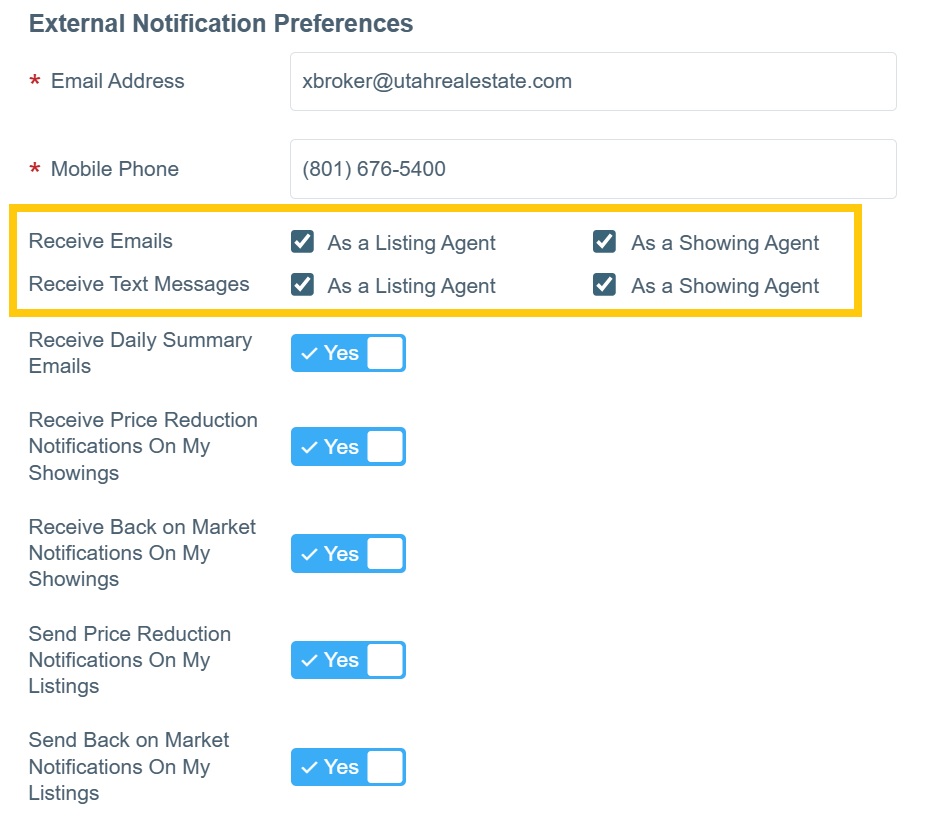
4. Select your preferred notification preferences using the available checkboxes and toggle. Options include email and/or text messages depending on Listing/Showing side, as well as options to receive specific notifications, including:
- Receive Daily Summary Emails
- Price Reduction Notifications On My Showings
- Receive Back on Market Notifications On My Showings
- Send Price Reduction Notifications On My Listings
- Send Back on Market Notifications On My Listings
Make sure to specify how you want to be notified when you are a listing agent vs. how you want to be notified when you are a showing agent.
5. Click Save when finished.
Push Notifications with the Aligned Showings Mobile Application
To receive mobile app push notifications, you will need to download the Aligned Showings mobile app (links below). When you open the mobile application for the first time, you will be asked if you want to receive push notifications. You can opt-in or out of push notifications using the Aligned Showings app settings that can be accessed within your phone’s settings.
Click here to learn more about using the Aligned Showings mobile app
Download the Aligned Showings Mobile App for iOS
Download the Aligned Showings Mobile App for Android
How Do I Opt Myself or My Team Into/Out of Calendar Events
Listing Agents may opt themselves (or any listing team members) into (or out of) receiving an automatic calendar event attachment (also known as an Industry Standard Calendar event or .ICS file) included in email notifications. This provides a way to prevent appointments from being automatically added to the user’s calendar.
If you’d like to change this setting for a specific listing:
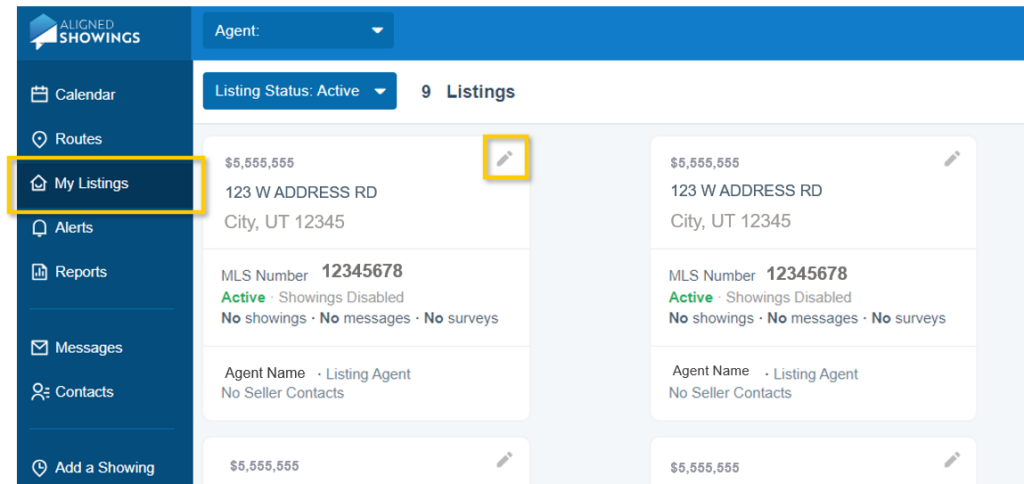
1. Navigate to My Listings and select the Edit icon on the specific listing.
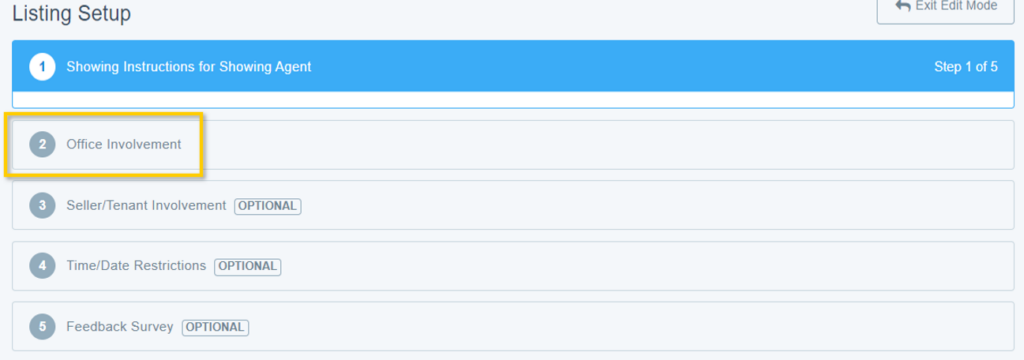
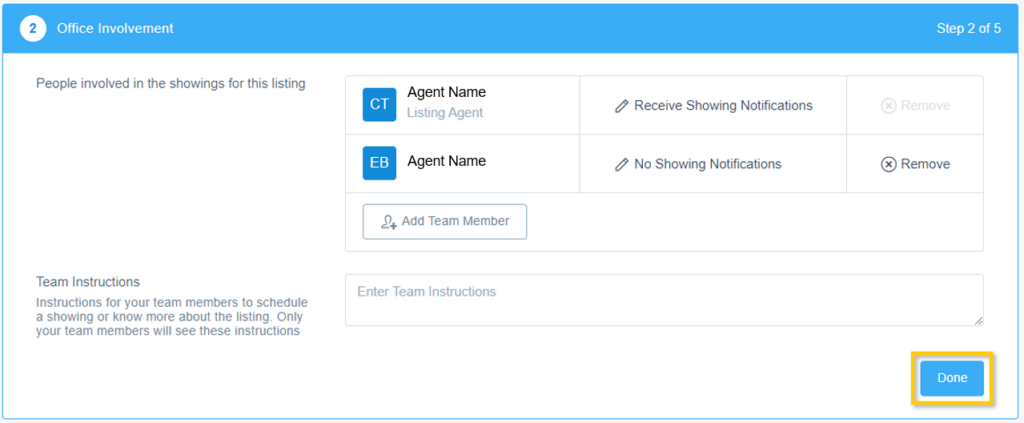
2. Open the Office Involvement (Step 2 of 5) section of the listing setup.
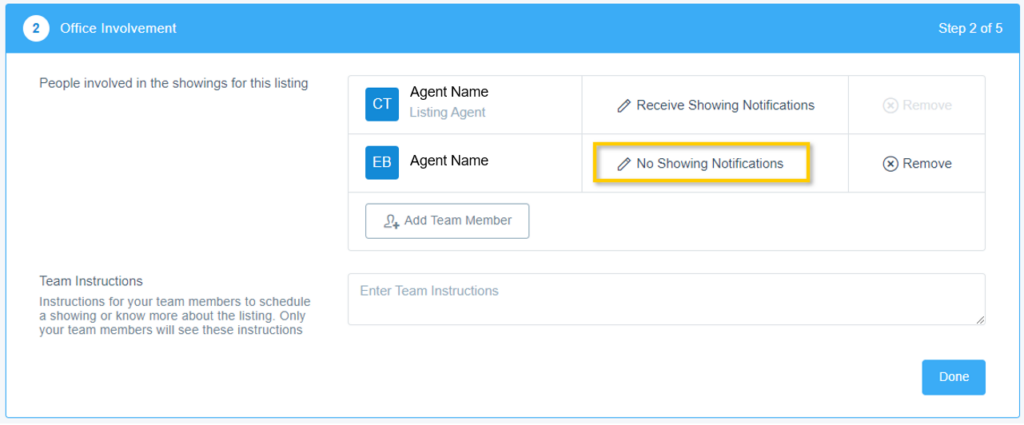
3. Select the Edit icon alongside the name of the Listing Team member you’d like to edit Calendar notifications for.
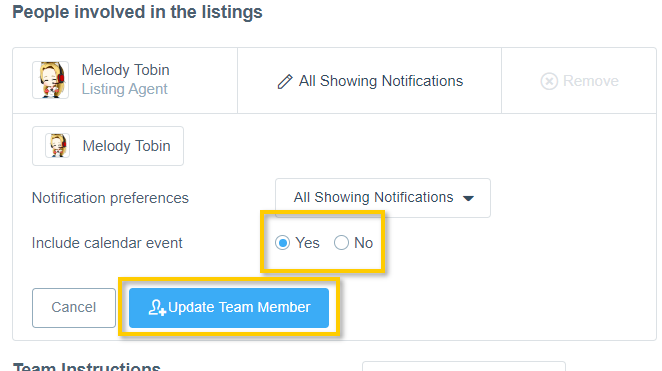
4. Select the preferred options for the Listing Team member. Include calendar event will control whether the team member receives a calendar event file (when they receive new showing notifications about this listing via email). Ensure the changes are implemented by selecting Update Team Member before navigating away.
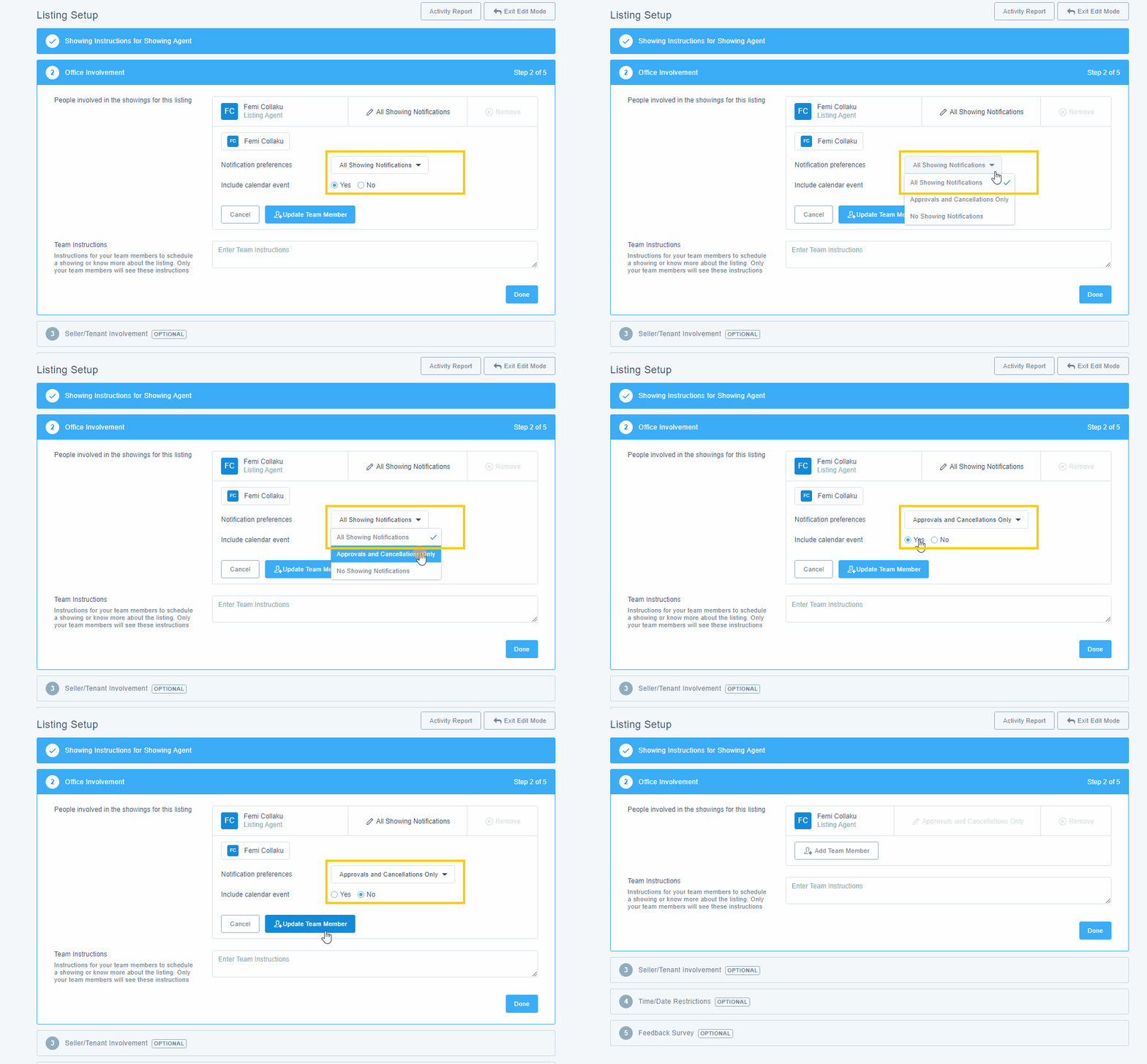
5. Select Done before making other changes to the listing setup or navigating away from the Listing Setup options to ensure your changes are saved.
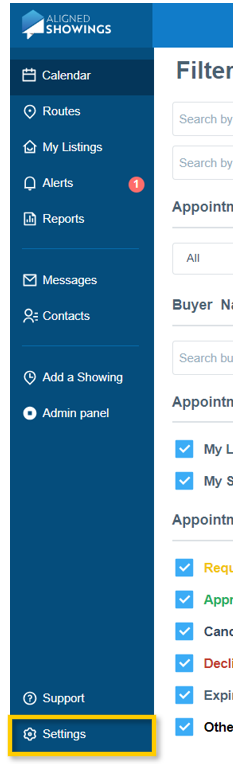
- Navigate to the Settings option in your left sidebar menu near the bottom.
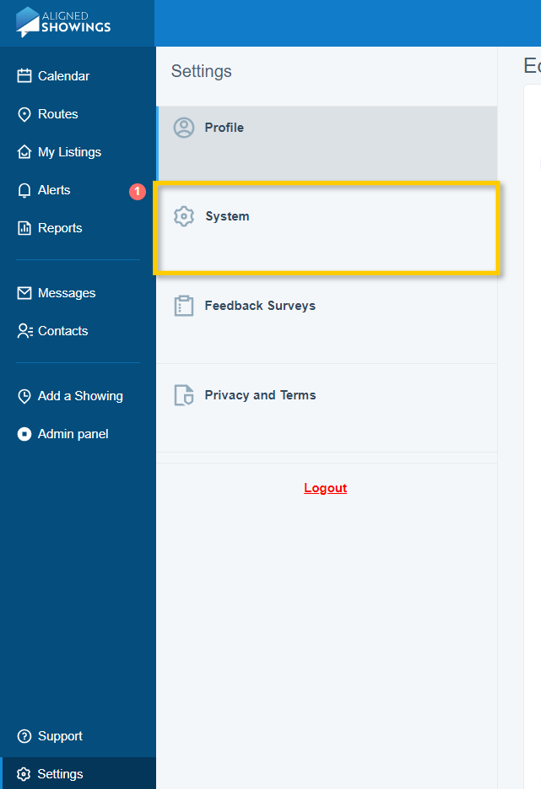
2. Select the System tab from the options in the left menu.
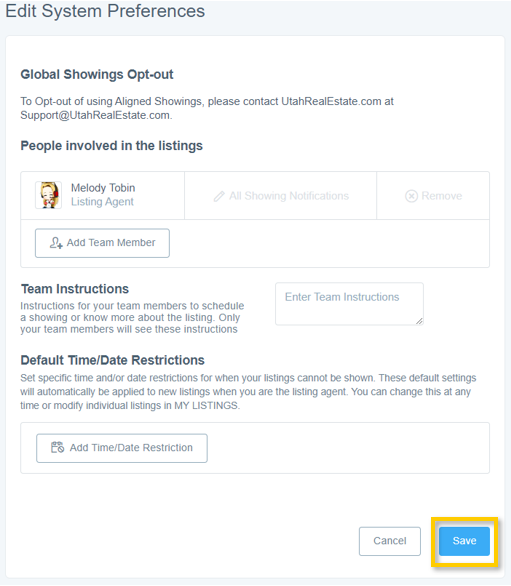
3. Select the Edit System Preferences option from the top of the available options.

4. Select the Edit icon alongside the name of the Team Member you’d like to edit Calendar notifications for.
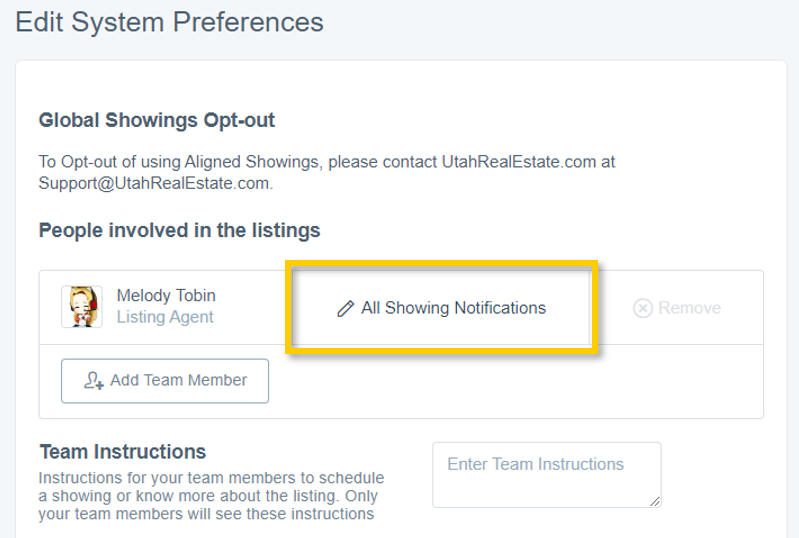
5. Update the preferences under Include calendar event to your preferred settings, then select Update Team Member.
6. Update any other team member preferences and Team Instructions then select Save to ensure changes are implemented.
If you need any assistance, please contact us at 801-676-5400 or support@utahrealestate.com.


