How to Enable Aligned Showings
Aligned Showings is currently integrated into the UtahRealEstate.com MLS system, which means a “Schedule a Showing” button will appear on your listing in the MLS if you choose to use Aligned Showings, allowing buyer’s agents to then click that button to submit a showing appointment request.
About Aligned Showings
Aligned Showings is URE’s member benefit product and all features of this product are available for use at no additional cost with your MLS membership. This product features complete online showing management using the desktop MLS, along with companion mobile applications available in the Apple and Google Play App stores.
How to Enable Aligned Showings
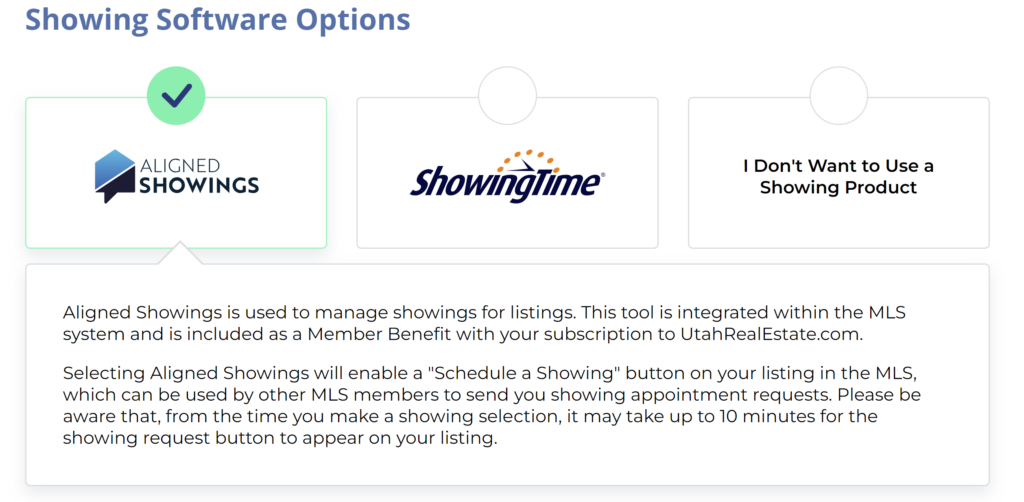
There is a step during Listing Input there called Showings, and this is where you can enable Aligned Showings for a listing. Simply click the Aligned Showings tile, as seen below, and Save.
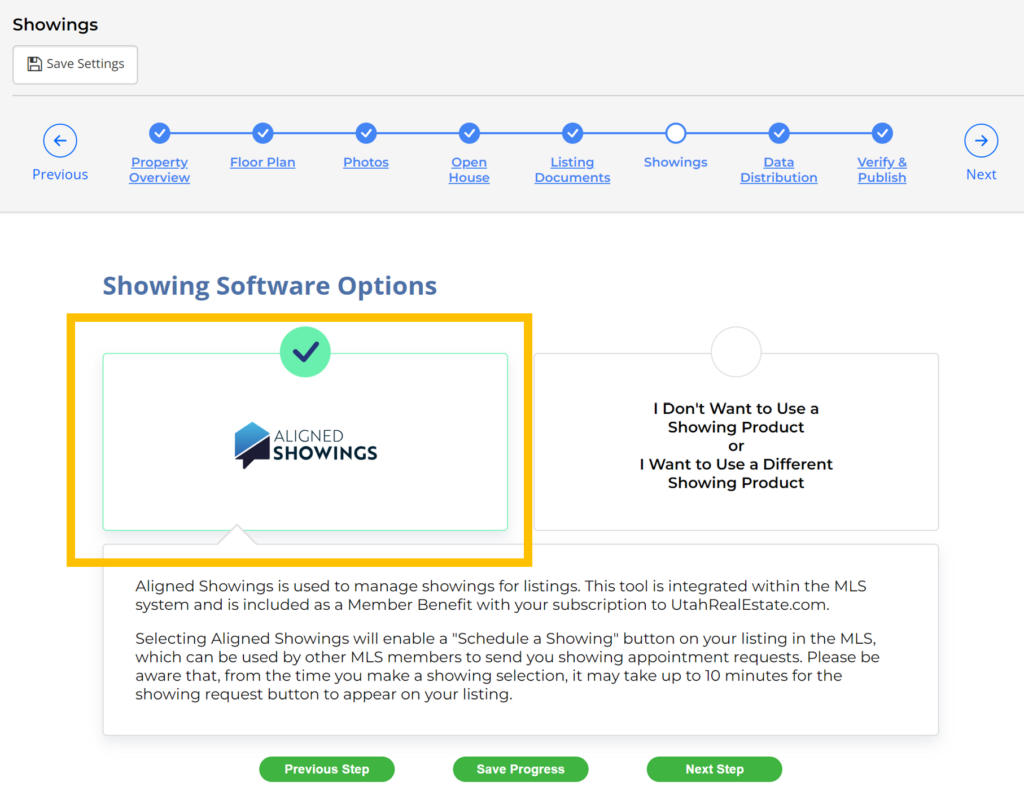
Note: A temporary icon that says “Showings Requests Available Soon” will appear on your listing, as it may take up to 10 minutes for the “Request a Showing” button to appear on your listing.
How Can I Change the Showing Service On My Listing?
You can change the showing software used to manage showings for your listing at any time by following these steps.
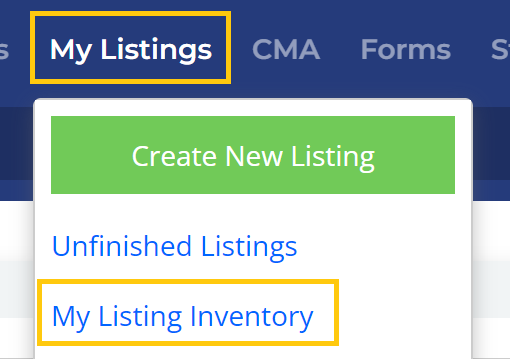
1. Click on My Listings from the main navigation menu within the MLS, then My Listing Inventory.
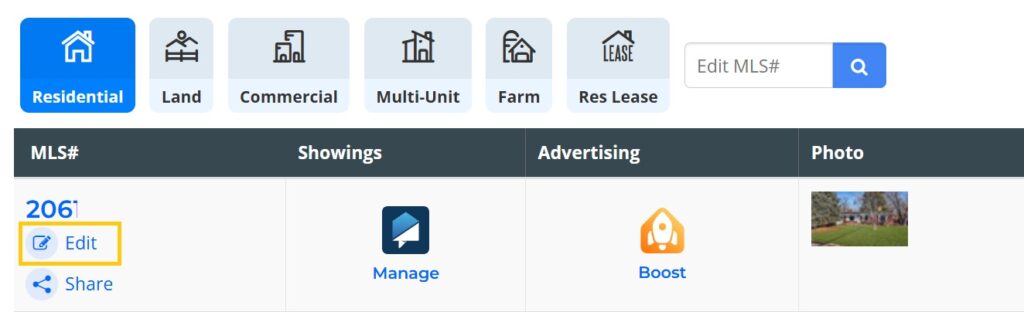
2. Click the Edit button next to your listing. Note: You must have listing input permissions in order to edit a listing. Please speak with your office if you do not have permissions to edit a listing.
3. Click Showing Software Options.
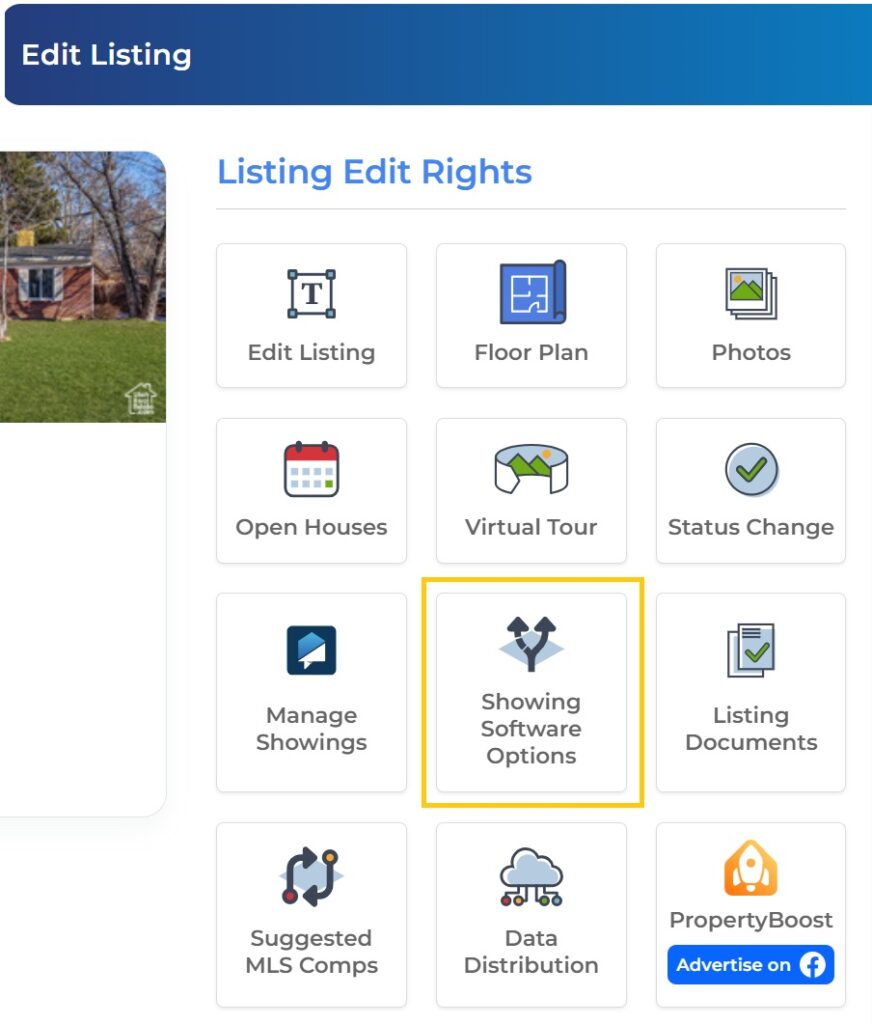
4. On the Showing Software Options page, choose the showing service you want to enable for your listing. There is no need to click any “save” button, as this change takes effect immediatley. Click the Back to Edit Listing button to return to the previous page.
If you need any assistance, please contact us at 801-676-5400 or support@utahrealestate.com


