Calendar Feature
Overview of Aligned Showings Calendar Feature
The Calendar tool in Aligned Showings provides a calendar-based view of all showing requests that have been submitted on your listings, as well as all showing requests you have submitted on other agents’ listings.
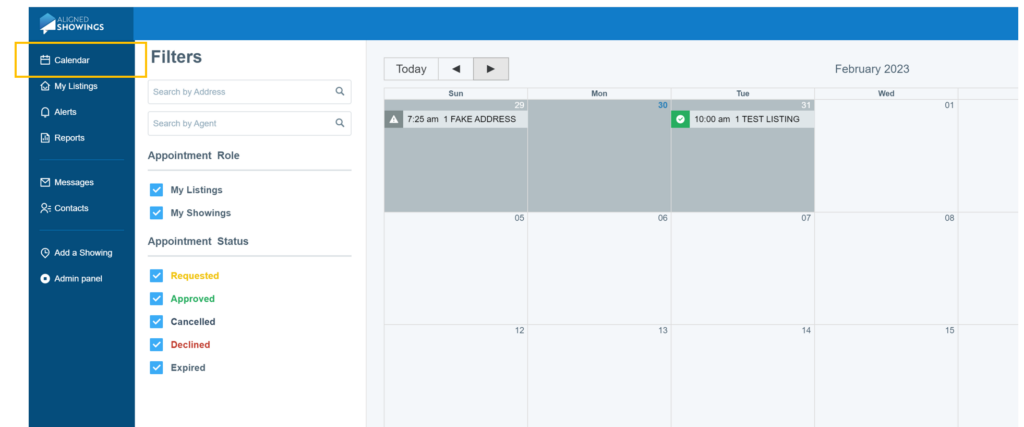
Features of the Calendar Tool include the following:
Filters
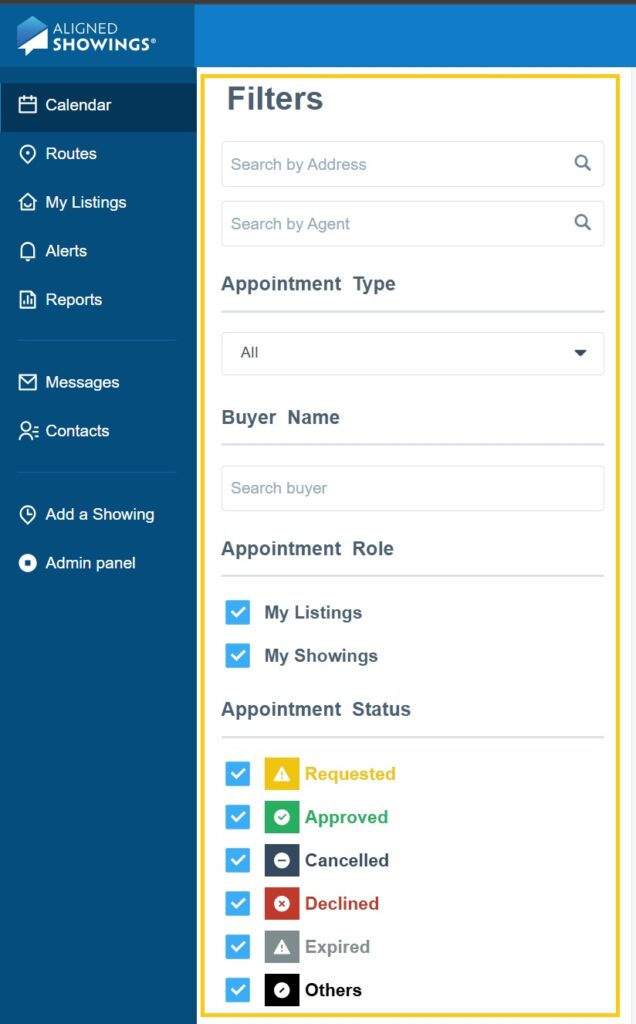
Filters are used to search your calendar and to toggle what information is displayed on your calendar. Features include:
- Search by Address: Enter the address of a listing to search for that listing on your calendar.
- Search by Agent: Enter the first or last name of a listing agent to locate a specific showing request on your calendar.
- Appointment Role:
- My Listings will filter your calendar so only showing requests submitted on your listings will appear on the calendar.
- My Showings will filter your calendar so only showing requests that you have submitted on other agents’ listings will be displayed on the calendar.
- Appointment Status: This filter is used to show/hide showing appointment requests based on the status of the request. Here are definitions of the different showing statuses:
- Requested: A showing request has been submitted, however, the showing has not yet been approved or declined.
- Approved: The showing request has been approved by the listing agent or team.
- Declined: The showing request was declined by the listing agent or team.
- Canceled: A showing request was submitted, but the appointment has since been canceled.
- Expired: A showing request was submitted, the request was never approved or denied by the listing agent or team, so the request has “expired” due to the fact that the time/date of the showing request has passed.
- Other: A showing request in any other status
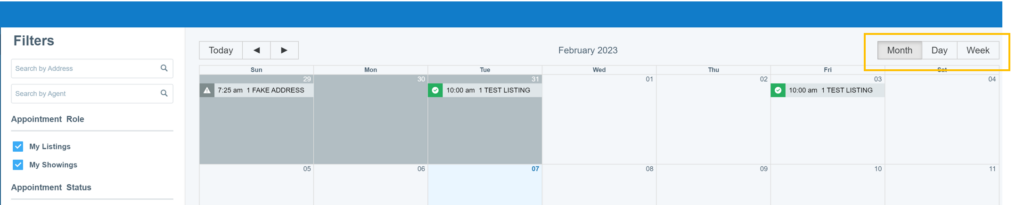
Calendar View Options
Use the Month, Day, or Week, options to change the view of your calendar.
Appointment Details from the Calendar
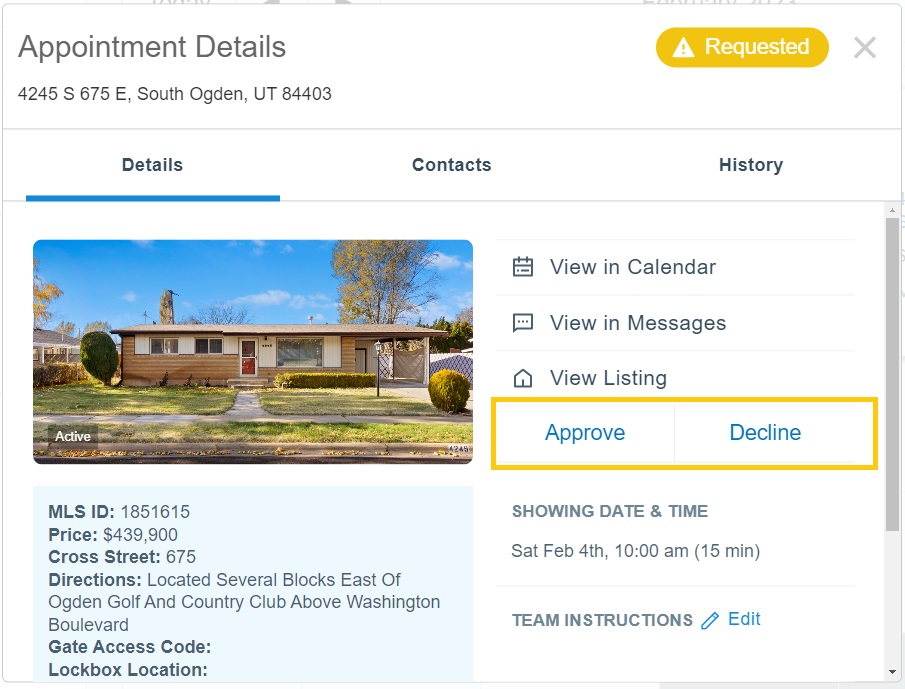
To view or act on the details of a showing event that appears on your calendar, simply click on that event from your calendar.
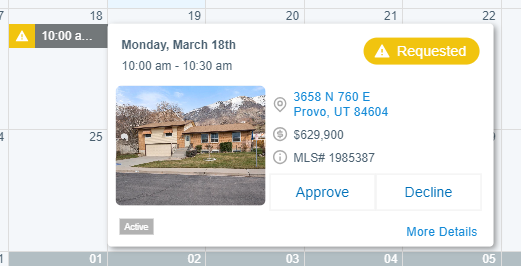
Click More Details to see additional details for the showing appointment.
Where Can I Change the Time of My Showing Appointment?
To change the date and/or time of a showing you have requested, click on the showing event on the calendar, and click on Reschedule. Use the module that appears to select a new date and time, then select Send to cancel the original appointment and send a request for the new date and time.
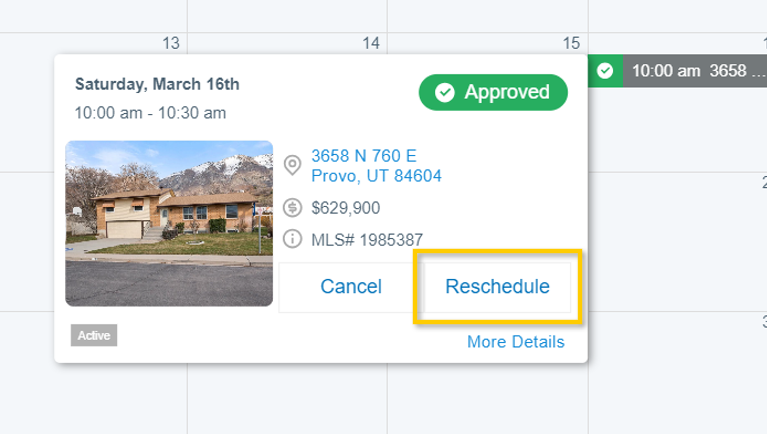
Please note: When you propose a new date/time for a showing, your request is re-submitted to the listing agent, and you will need to wait to receive an approval/denial response from the listing agent before you can show the property.
Where Can I Cancel a Showing Request?
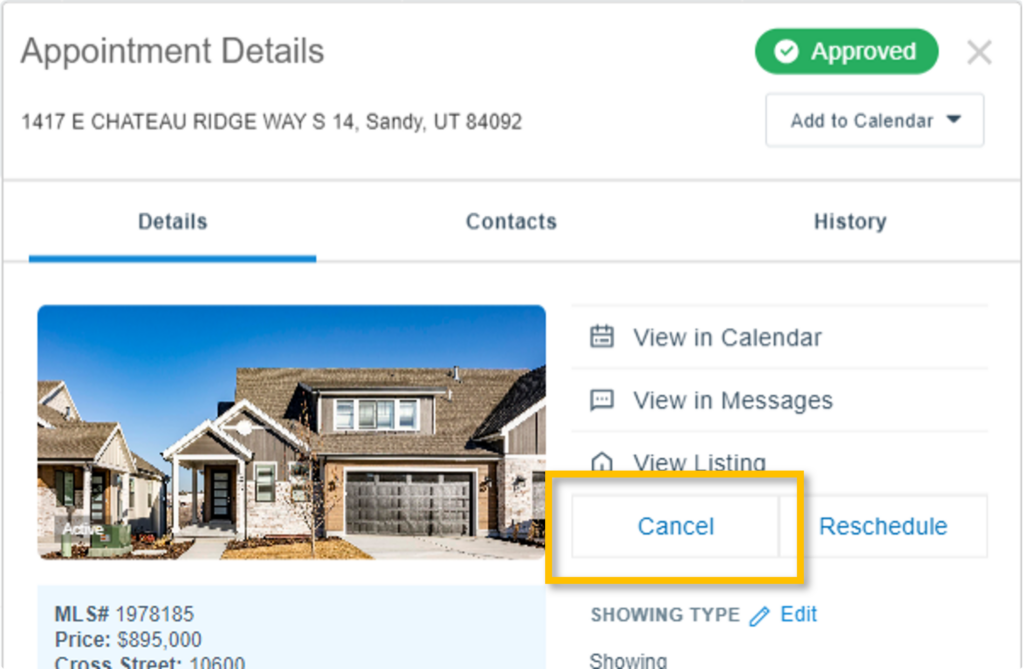
To cancel a showing that you have requested, click on the entry for the showing request in the calendar, and click on More Details. On the right side of the page, click on Cancel Appointment, and follow the prompts to cancel.
How Can I Access the Messages Thread for a Specific Showing?
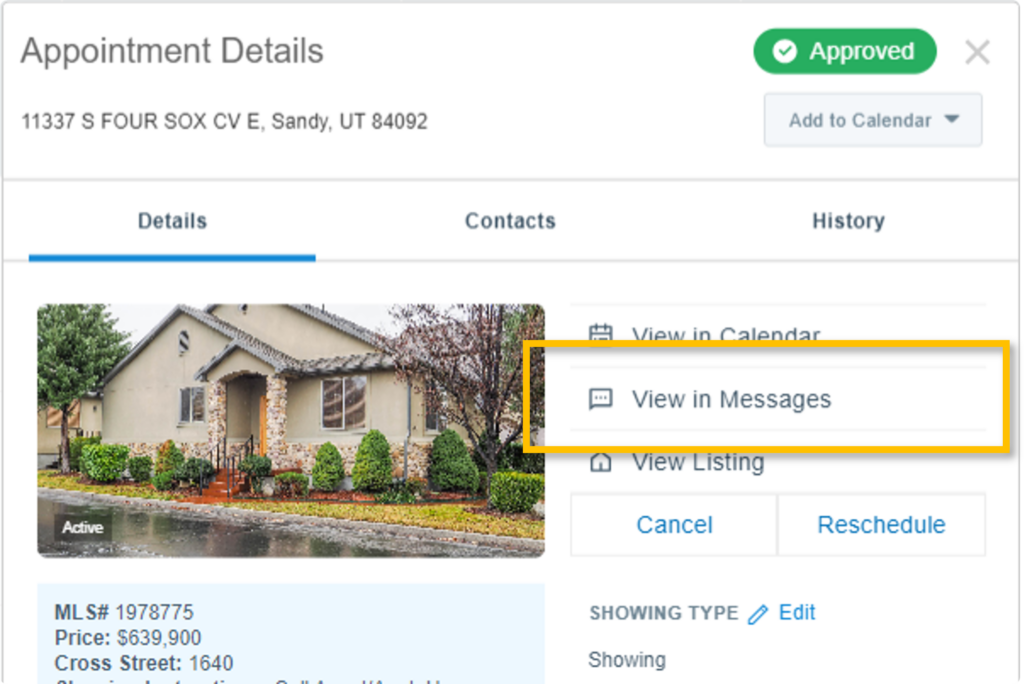
To access the messages thread for a specific showing appointment (a “message thread” in Aligned Showings is the communication history between the listing and showing side), click on the event for the showing request on your calendar, and click on More Details. On the right side of the page, click on View in Messages. You will be brought to the message thread for that specific showing. Click here to learn more about Messages.
Can I Add a Showing Appointment to My Personal Email Calendar?
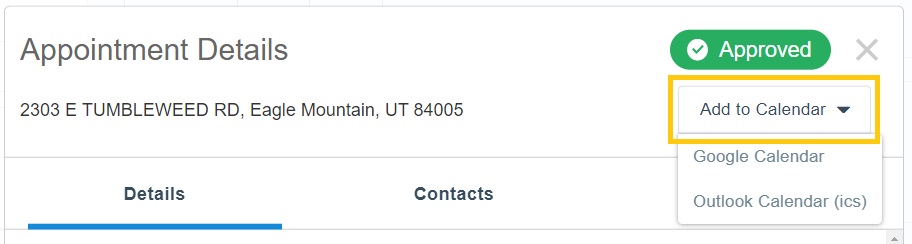
Yes. To add a singular showing appointment to your calendar (Google Calendar or Outlook), click on an approved showing on your calendar in Aligned Showings, and click on More Details. Click on Add to Calendar, then choose the calendar type. Please know, if you are opted-in to email notifications for Aligned Showings, and depending on your email provider and email settings, approved appointments may automatically be added to your personal calendar.
How Can I Sync All of My Appointments to My Personal Calendar?
To create a calendar sync, first set it up in Aligned Showings. This new feature is under Settings > System > Calendar Sync. Select the type of appointments to sync, the time range for past appointments, and then generate the link. Select the icon to copy the link that you will paste into your preferred external calendar program.
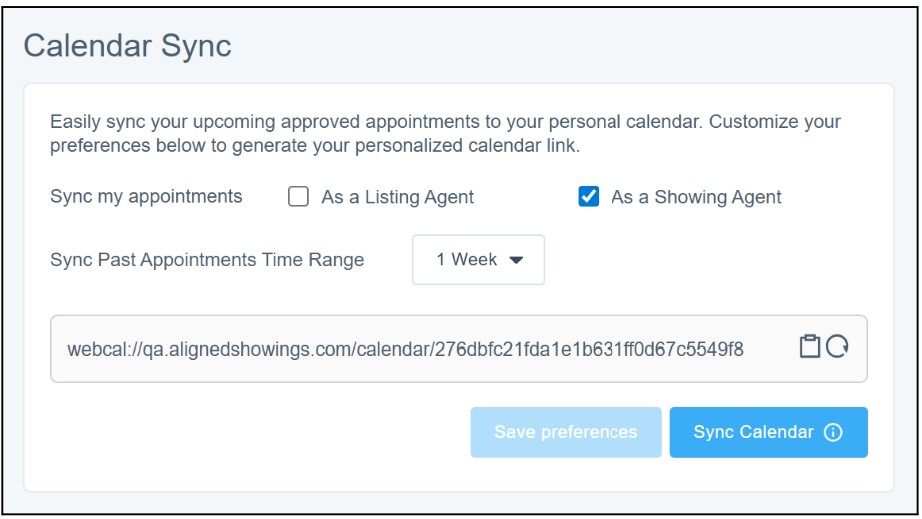
Below are the instructions to sync this calendar with the various calendars online:
Google Calendar
- Open your Google Calendar.
- On the left under Other calendars select the + sign and then select From URL.
- On the From URL screen, paste the URL copied from Aligned Showings into the URL of calendar field.
- Select Add Calendar.
- That will add the past approved appointments you selected as well as all future approved appointments to your Google calendar and update your calendar as new appointments are added to your calendar.
Outlook 365
- Open Outlook.
- Click on the calendar icon on the left.
- Select Add Calendar.
- Select Subscribe from web.
- Paste the URL copied from Aligned Showings.
- Select a calendar name.
- Select Import.
iPhone
- In Calendar, tap Calendars > Add Calendar > Add Subscription Calendar.
- Paste the URL copied from Aligned Showings, then tap Subscribe.
- Enter a name for the calendar and choose a color to help you identify it on your calendar.
- Choose iCloud from the Account menu, then click Add.
Mac
- In Calendar, choose File > New Calendar Subscription.
- Paste the URL copied from Aligned Showings, then click Subscribe.
- Enter a name for the calendar and choose a color to help you identify it on your calendar.
- Choose iCloud from the Location menu, then click OK.
Where Can I View the History of a Showing Request or Appointment?
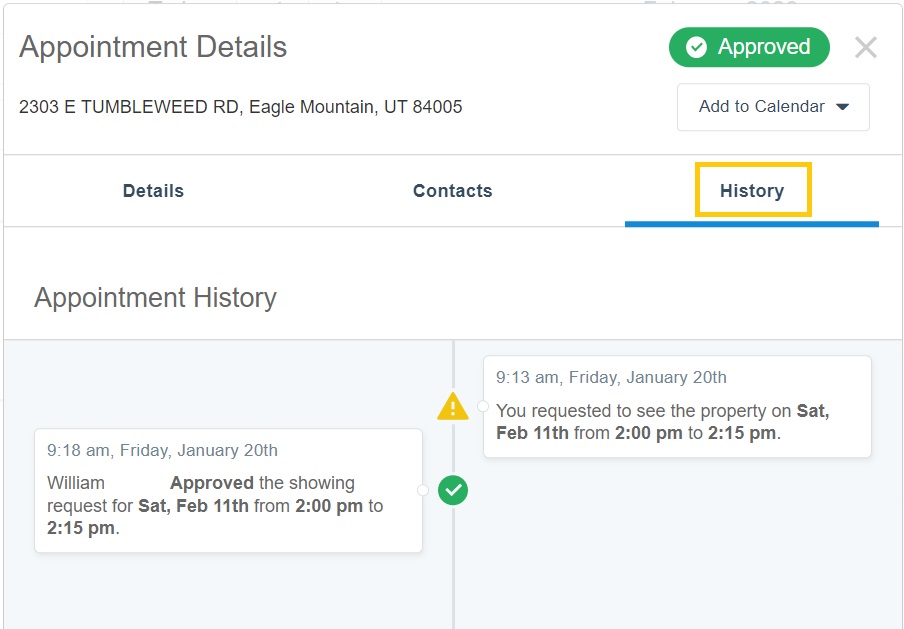
To view the history of a showing appointment, click on the event for the showing request on your calendar, and click on More Details. Then click on the History tab. Here you will see the history for that specific showing request, including the date and time the showing appointment was originally requested, when the appointment was confirmed or declined, and any other details for the history of that showing request.
If you need any assistance, please contact us at 801-676-5400 or support@utahrealestate.com.


