Aligned Showings Mobile App
Aligned Showings Mobile App Overview
Aligned Showings has mobile applications for both iOS and Android devices. Below are links to download the Aligned Showings mobile apps:
Download the Aligned Showings Mobile App for iOS
Download the Aligned Showings Mobile App for Android
How do I Login to the Aligned Showings App?
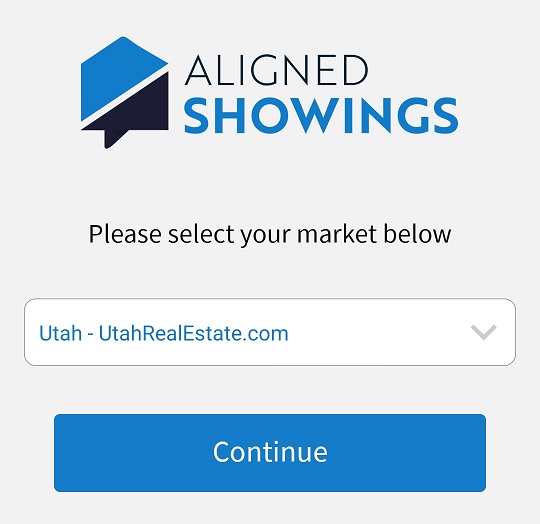
To log into Aligned Showings, choose Utah – UtahRealEstate.com from the market options drop down menu:
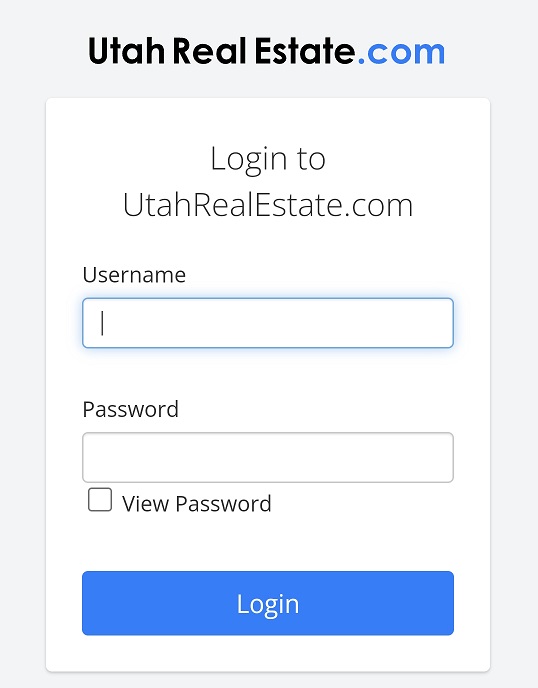
Then enter the same username and password you use to login to the UtahRealEstate.com MLS.
How to Turn on Push Notifications
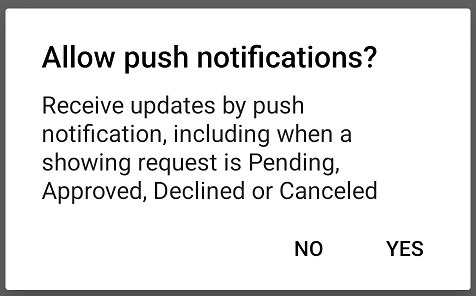
When you first log into Aligned Showings, you will be prompted to allow push notifications.
If you need to change the push notification settings on your mobile devide, you can find instructions for iOS here: https://support.apple.com/en-us/HT201925
And for Android here: https://support.google.com/android/answer/9079661?hl=en
How Can I View the Details of My Showing Appointments in Aligned Showings Mobile ?
The homepage of the Aligned Showings app is a calendar view, which shows all showing requests on your listings, as well as appointment requests you have submitted on other agents’ listings. To view the details for a showing appointment, simply tap on the event from the calendar view.
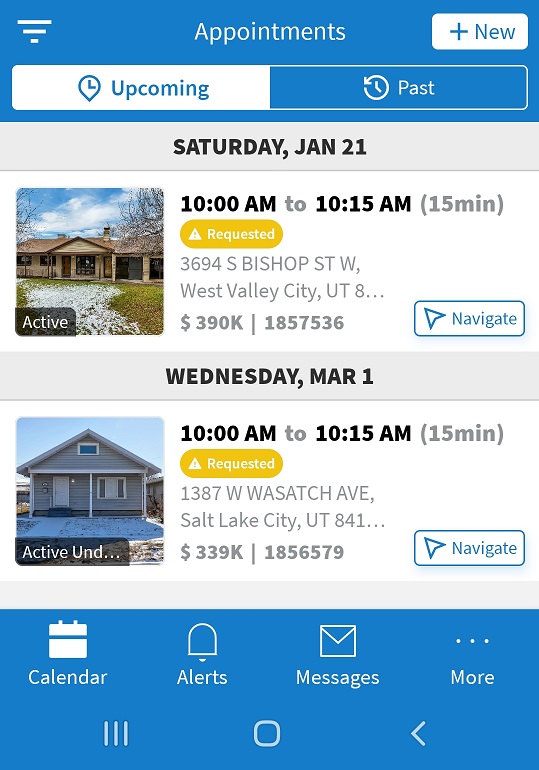
When viewing an event from the Aligned Showings calendar, and as applicable, you will see options to approve or decline a showing request (listing side), cancel a showing appointment or request, change the date/time of the showing appointment, access the messages thread to view the communication history for a specific showing, and view the history of the showing request.
How Can I Submit a Showing Request?
To request a showing on a listing in the Aligned Showings mobile app, tap + New in the top right corner of the app. Once there, search for the listing using the MLS #, address, or the agent name (first and/or last).
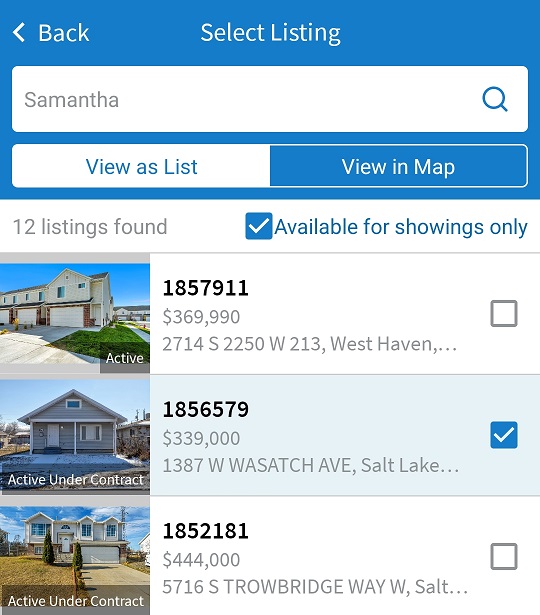
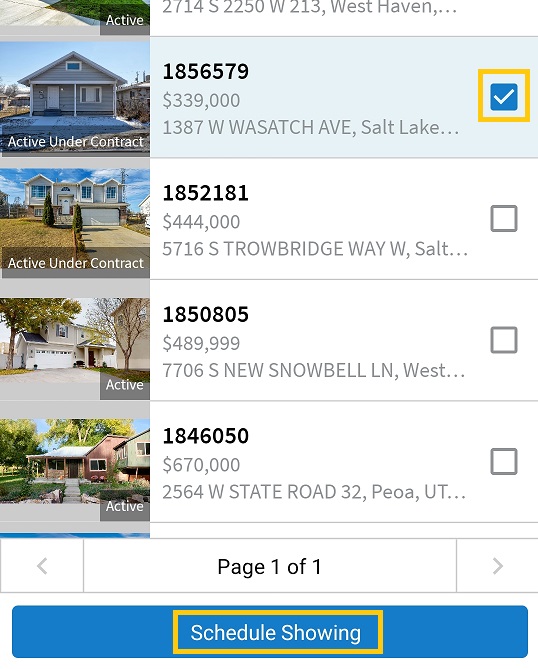
Tap the desired listing below, then tap on Schedule Showing.
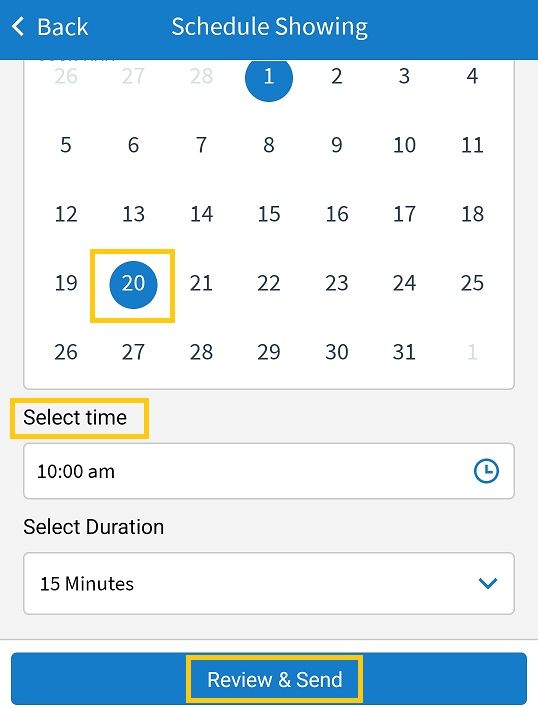
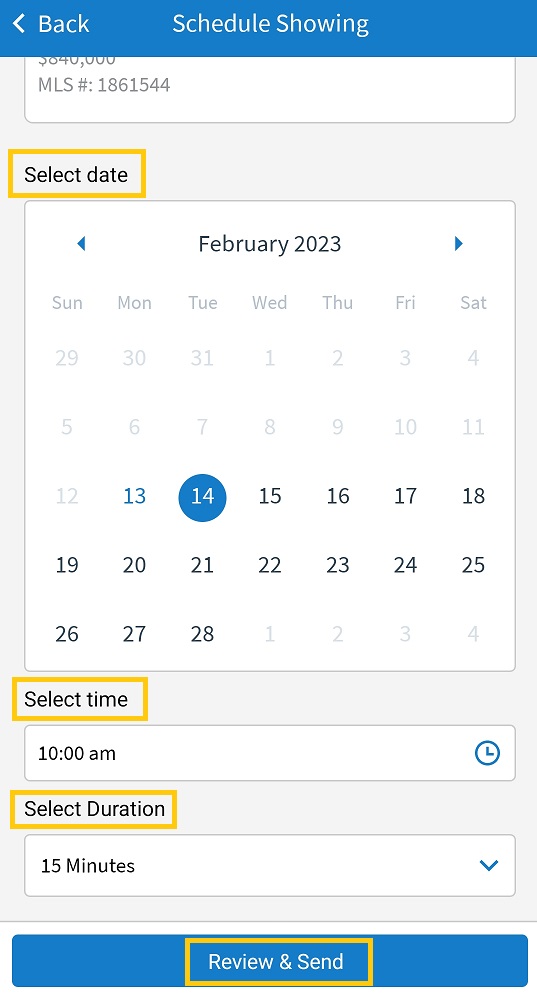
Choose the date and time for the showing request, then tap Review & Send.
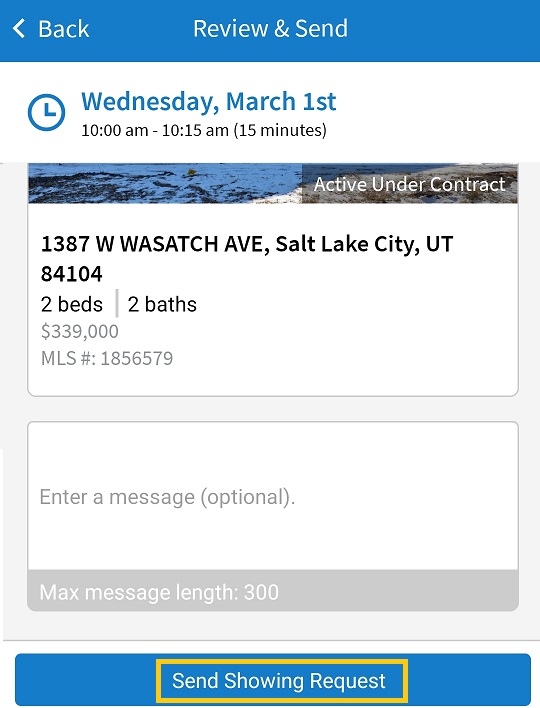
Enter a message to the listing agent, if desired, then tap Send Showing Request.
Submitting a Showing Request from the UtahRealEstate.com Mobile App
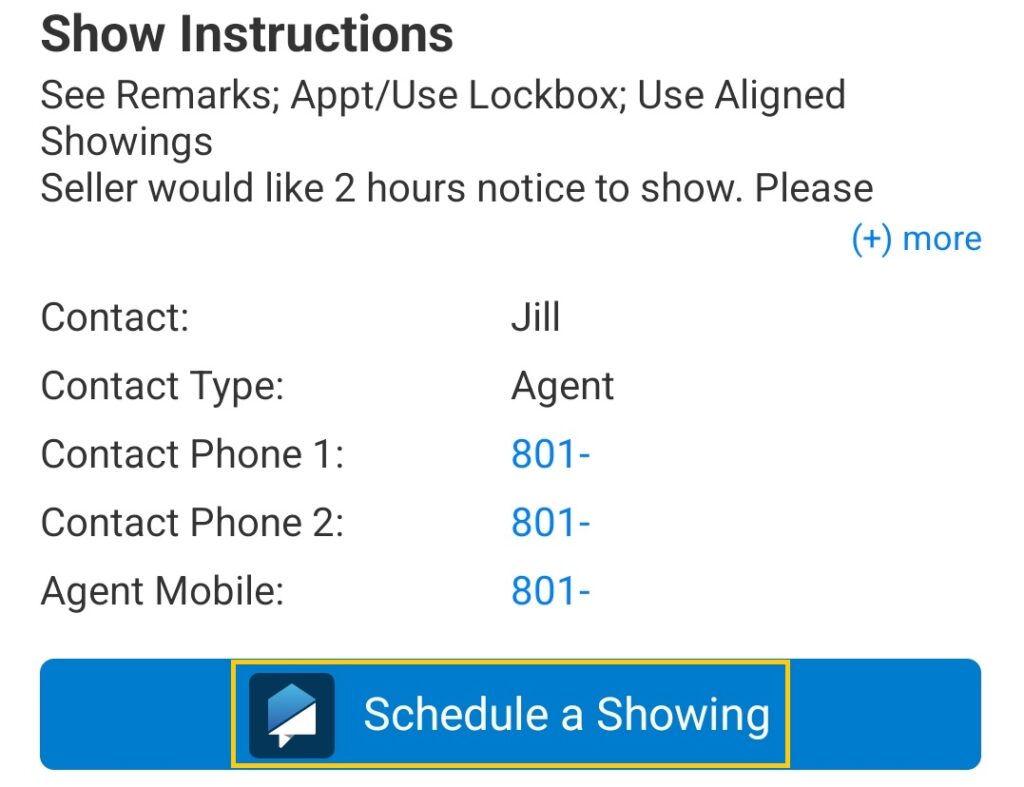
Showing requests can also be initiated from the UtahRealEstate.com iOS or Android mobile applications. Listings that are setup to use Aligned Showings will have an Aligned Showings “Schedule a Showing” button displayed when viewing that listing in the UtahRealEstate.com mobile applicaton.
To submit a showing request for Aligned Showings in the UtahRealEstate.com app, search for and select the listing, and tap Schedule a Showing in the Show Instructions section.
You can then choose the date and time for the showing, and click on Review & Send.
Where Can I Get Driving Directions to a Showing?
To open directions to a property from within the Aligned Showings mobile app, tap on Navigate at the bottom of the calendar entry (on the main page of the Aligned Showings app).
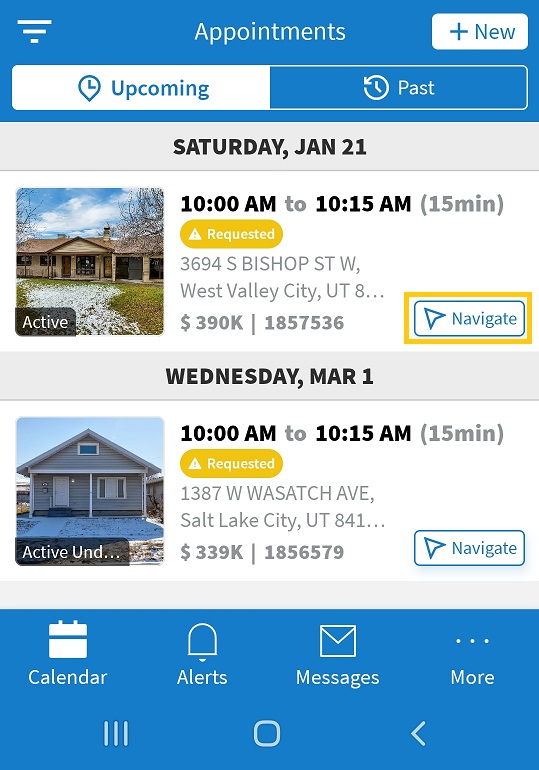
A map with directions to the property will then open in your default Maps application.
Messages in Aligned Showings App
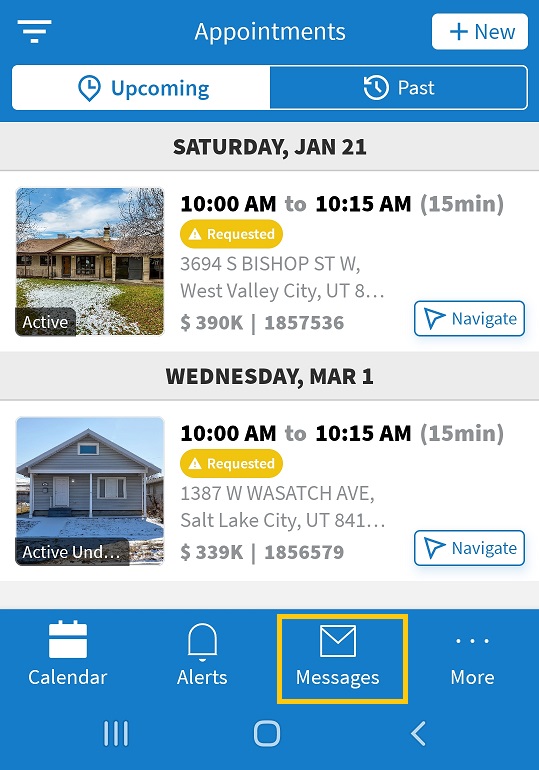
To access the messages section in the Aligned Showings mobile app, open the app and tap Messages at the bottom.
Where Can I Update My Settings in Aligned Showings Mobile?
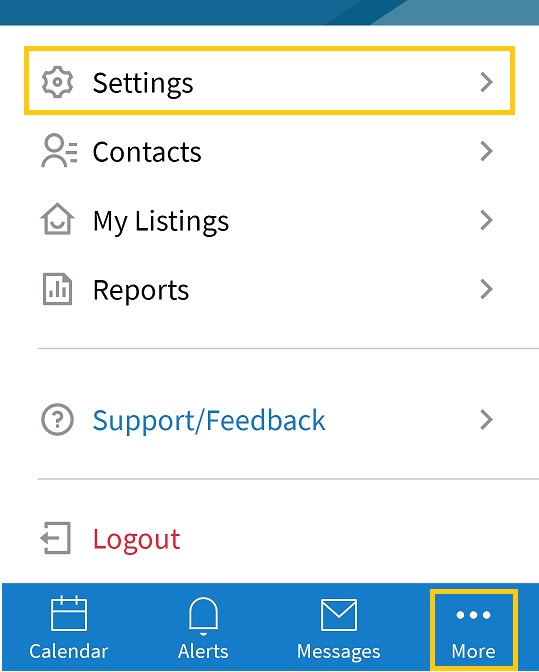
To update your settings in the Aligned Showings mobile app, open the app and tap on More at the bottom right. Then tap on Settings.
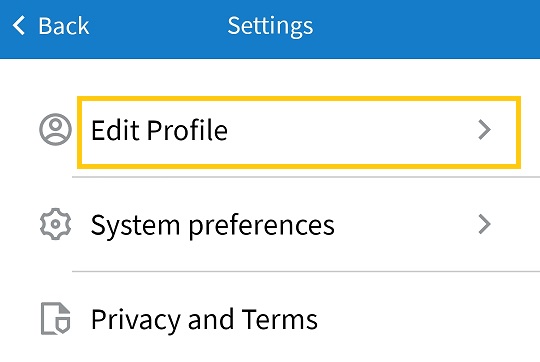
Tap on Edit Profile.
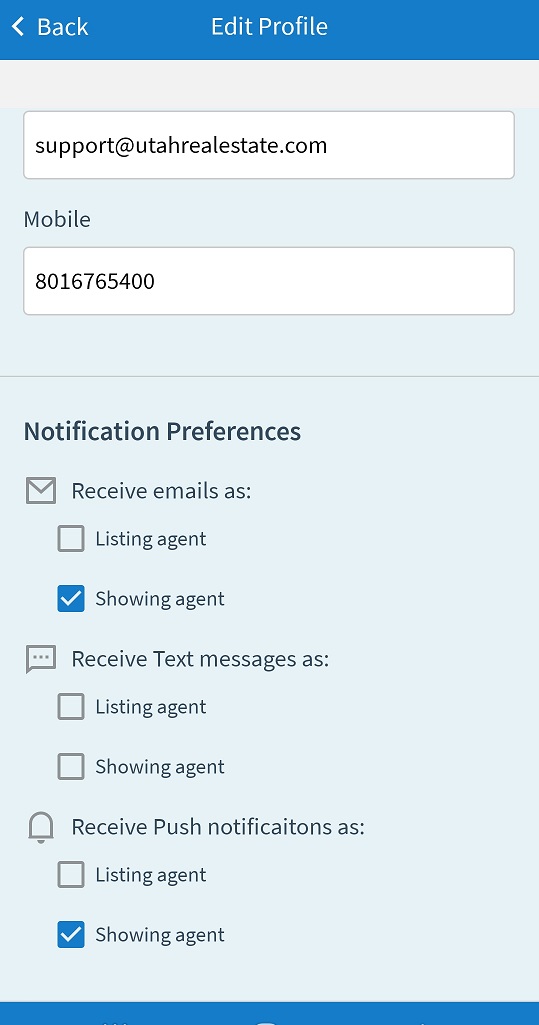
Here you can update your contact information (email address and mobile number), and choose your notification preferences.
If you need any assistance, please contact us at 801-676-5400 or support@utahrealestate.com


