Aligned Showings for Listing Agents
How to Enable Aligned Showings for Your Listing
Click here if you’d rather watch a short video.
You can enable Aligned Showings using the Showing Software Options step during the initial listing input process, or you can edit an existing listing and update your showing software selection to Aligned Showings. Click here for a guide on selecting your preferred showing software.
While you can customize the settings for how you want to manage showings using the Aligned Showings software (see below section for details), it’s important to know that simply selecting Aligned Showings as your showing software selection is all you need to do to activate Aligned Showings for your listing and allow other MLS members to request showings on your listing.
Within about 10 minutes of selecting Aligned Showings as your showing software, a Request a Showing button will appear on your listing in the MLS, and that button is what other MLS members will use to request a showing for your listing using Aligned Showings.

How to Customize Aligned Showings Settings for Your Listing
Click here if you’d rather watch a short video or continue reading below for a detailed breakdown of this feature.
Aligned Showings has various customization settings that allow you to designate how you want to use the software to manage showing appointment requests. In the steps below, you will find a summary of the options for managing your showings using Aligned Showings.
Customizing your settings for a listing in Aligned Showings is an optional setup. If you do not customize your showing settings for a listing, other MLS members will still be able to request showings on your listing, as there are default settings that are applied to all listings that are not customized.
1. Accessing the Manage Settings Page
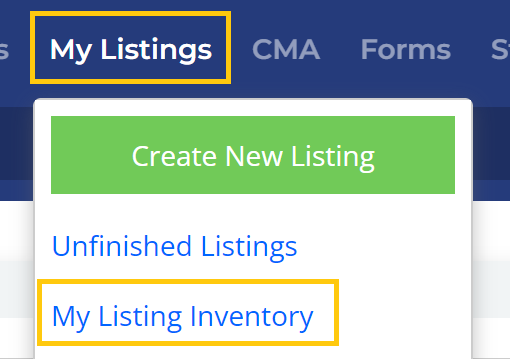
Select My Listings from the main navigation menu, then My Listing Inventory.
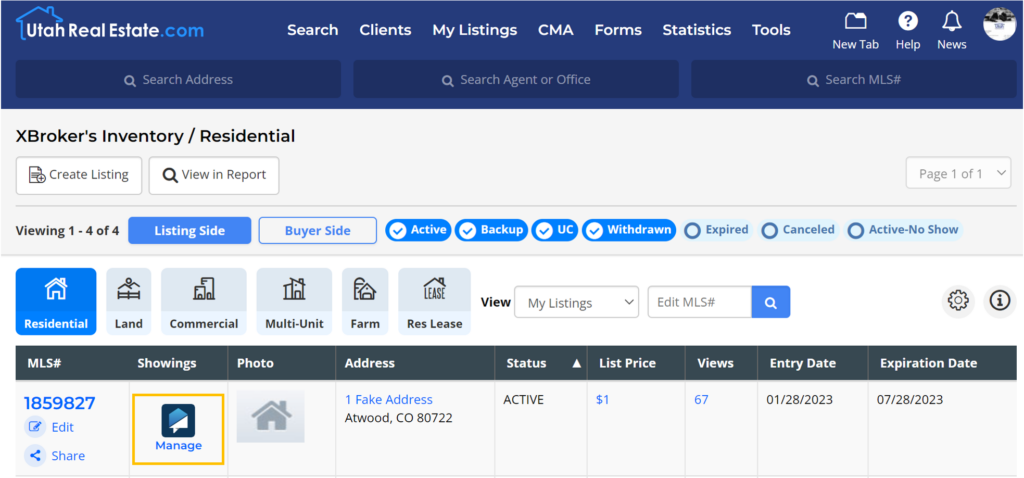
Click the Manage icon that appears next to your listing in the Showings column on the My Listing Inventory page.
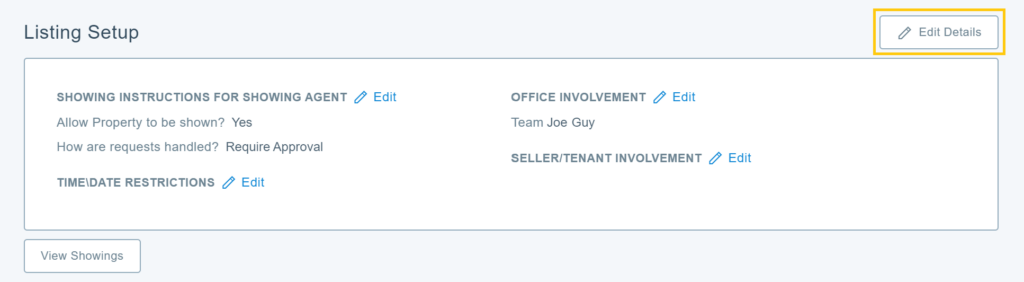
You will then be taken into the Aligned Showings software, which will display your listing. Select the Edit Details option to begin customizing the showing settings for your listing.
Note: You can also access the Aligned Showings settings page immediatley upon publishing a listing to the MLS by selecting the Manage Showings option that appears on the listing publication confirmation page.
2. Showing Instructions for Showing Agent
This section is where you indicate to other agents the parameters for showing your listing.
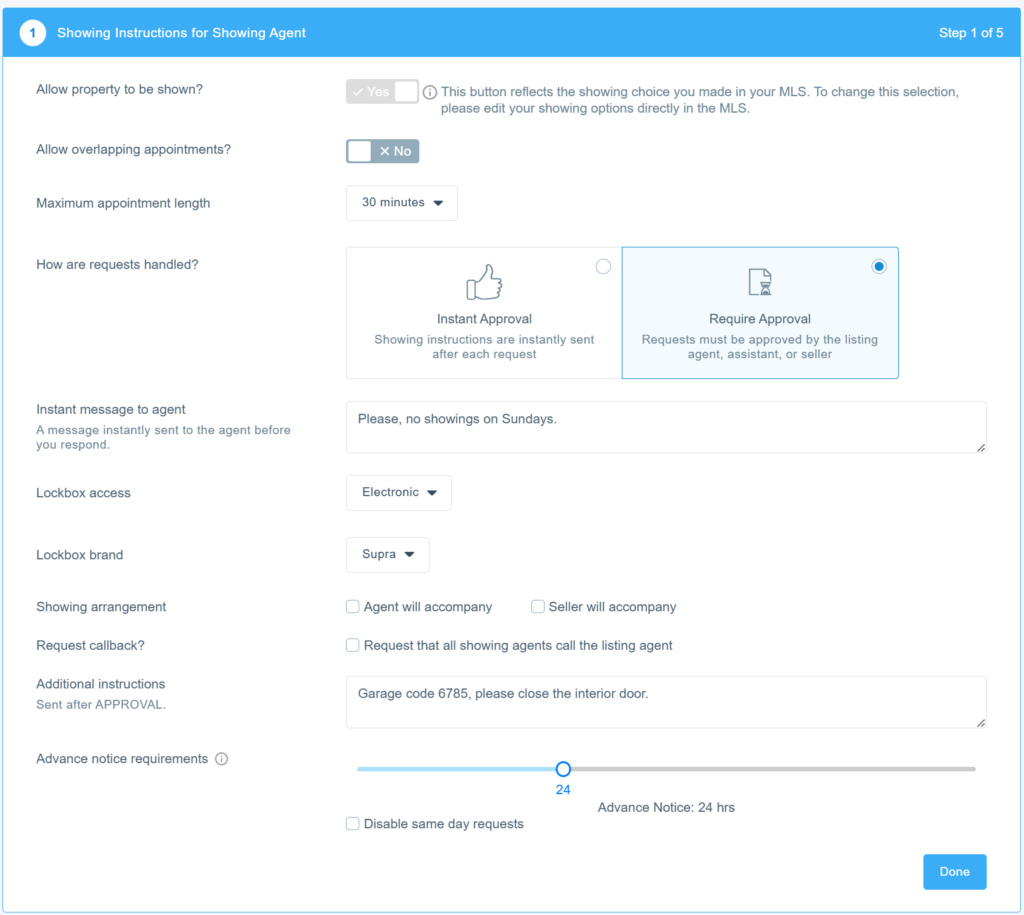
Settings include:
- Allow Property to be Shown: This setting will only be accessible through the UtahRealEstate.com Listing Input Process for new listings or through the Listing Inventory edit options. It will show here to reflect that setting but will not be editable within Aligned Showings.
- Allow Overlapping Appointments: Used to allow or prohibit showing appointment requests from being sent in cases where another showing appointment request has already been approved for a given date and time. When “No” is selected, showing appointment requests cannot be submitted for any dates/times where other showing appointment requests have already been scheduled and approved.
- Maximum Appointment Length: Specify if there is a maximum amount of time that you are allowing for the duration of a showing appointment.
- How are Requests Handled?:
- Require Approval means that any showing appointment request that is submitted must manually be approved. This is the default setting.
- Instant Approval means that any showing appointment request that is submitted will automatically be approved. You will still receive notifications when showing appointment requests are submitted, however, you will not need to approve/decline those requests, as the showing agent will receive an instant alert notifying them that their showing request has been approved. This is a good option in cases where a property may be vacant, or you are otherwise ok with the property being shown at any time.
- Instant Message to Agent: Use this feature to send an automated message to any agent who requests a showing on your listing. This message is sent as soon as a showing appointment request is submitted on your listing. For example, you might add a message that says “allow 2-3 hours for a response” if you want to notify prospective showing agents that you may not immediatley be able to respond to their showing request.
- Lockbox Access: Used to indicate how to obtain a key to the property.
- Lockbox Brand: Specify the type of lockboc used.
- Showing Arrangement: Used if you want to specify that the listing agent and/or the seller will be at showings.
- Request Callback?: This setting allows you to instruct showing agents to call you prior to showing the property.
- Additional Instructions: Use this feature to send an automated message to anyone whose showing appointment request is approved. The message is sent as soon as the showing appointment in approved. For example, you could use this tool to add a message that says “Thanks for showing. Please do not let the cat outside.”
- Advance notice requirements: Specify if advanced notice is required for showings. Please note: if the “Disable same day requests” option is selected, the slider above will be disabled.
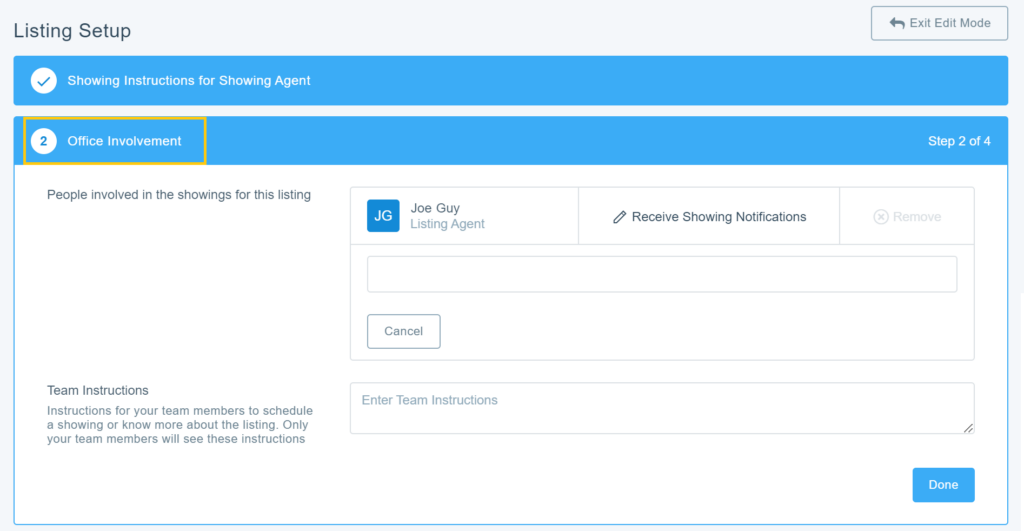
3. Office Involvement
This setting is used if you want to authorize members of your team (i.e. an assistant, co-listing agent, transaction coordinator, etc.) to be involved in the management of showings for a specific listing. Anyone you add to this section will (1) receive all notifications about showing requests (including calendar events), (2) will be able to approve or decline any showing requested on your listing, and (3) will be able to change the showing settings for your listing in Aligned Showings.
Click here for detailed instructions on how to add a team member to a listing to help manage showings.
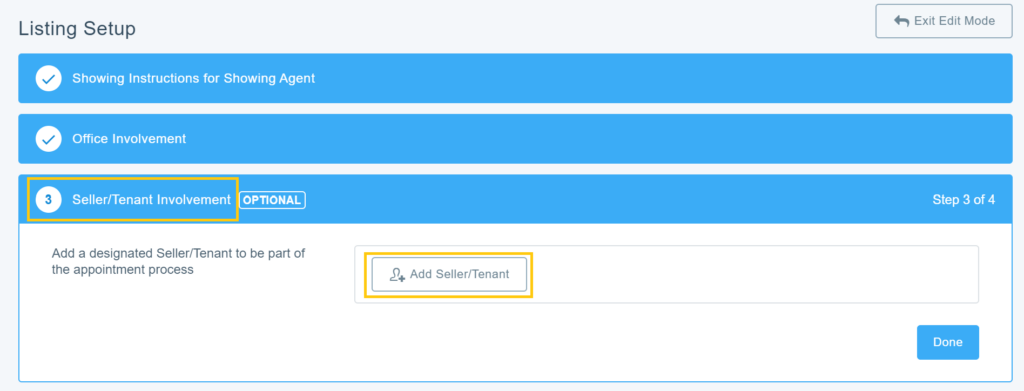
4. Seller/Tenant Involvement
This feature allows you to enable a seller[s] or tenant[s] to receive notifications about showing appointments. Optionally, you can also allow your seller or the tenant to approve or decline showing appointment requests submitted on your listing.
Click here for detailed instructions on setting up seller/tenant showing notifications and management.
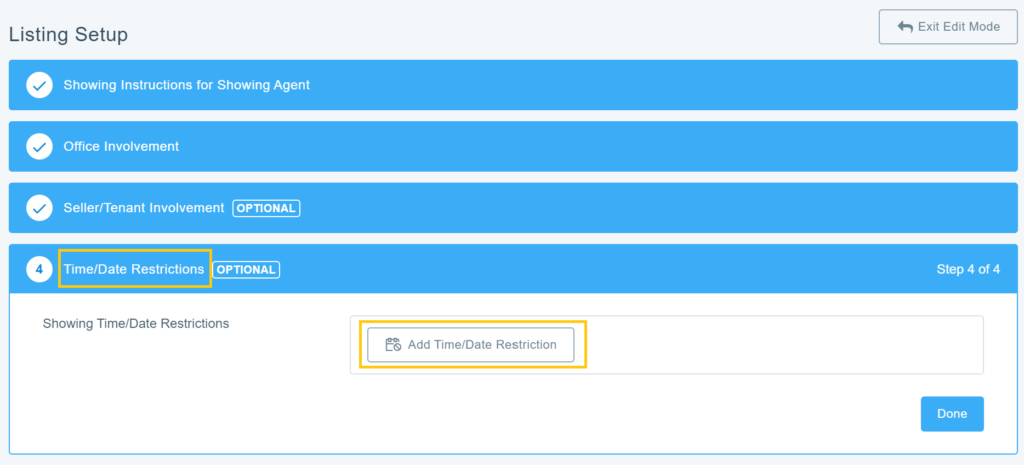
5. Time/Date Restrictions
This tool is used to block out times, dates, and/or specific days of the week when the property cannot be shown. When enabled, other agents attempting to request a showing on your listing will see any blocked out times as “unavailable” and will not be able to send you a showing appointment request for those times.
The ability to block out times for no showings is very customizable, as you can block out specific dates, recurring days of the week, specific times vs. an all day no showing restriction, etc.
Start by selecting Add Time/Date Restriction
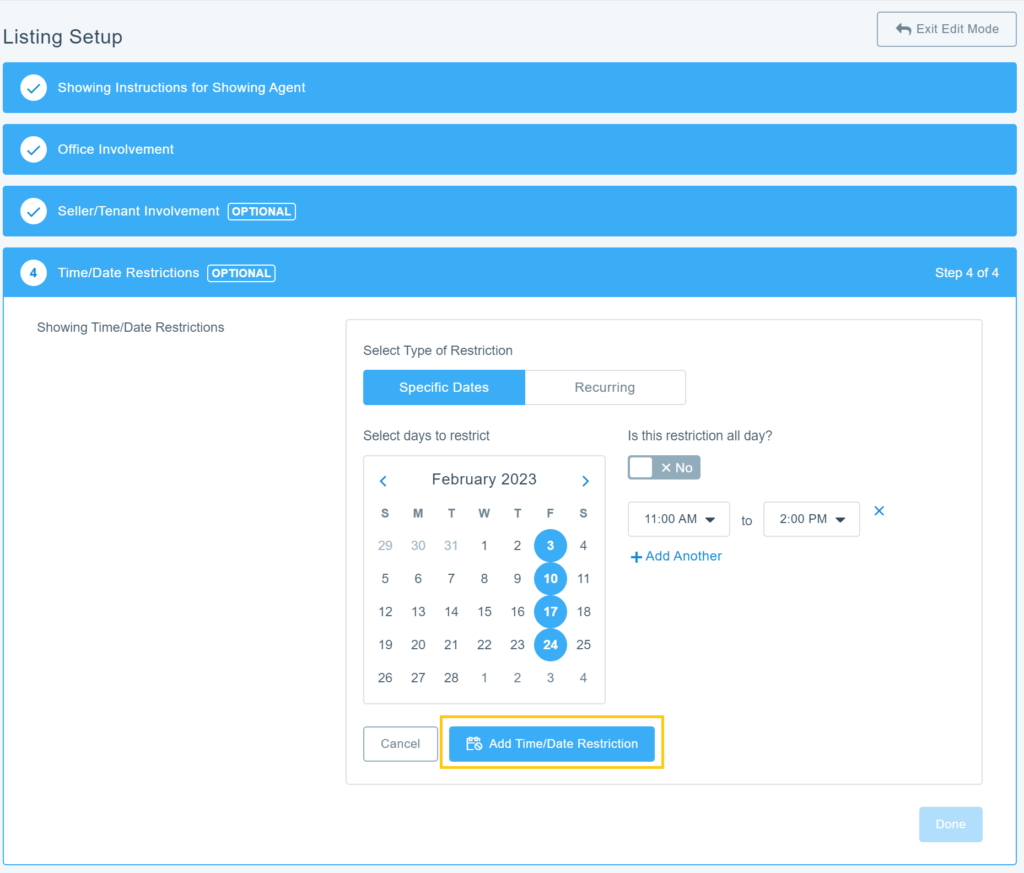
Features include:
- Type of Restriction
- Specific Dates is used if you want to add a showing restriction to a specific date. For example, no showings on May 4th.
- Recurring is used to specify a recurring restriction for a specific day of the week. For example, no showings on Sundays.
- Is This Restriction All Day?: This tool is used to designate whether the restriction applies to the entire day or only applies to certain hours during the day. You can block out one or more timeframes within a given day. For example, no showings on Fridays from 9:00 AM to 10:00 AM or from 5:00 PM to 6:00 PM.
6. Feedback Survey
Feedback Surveys are used to automatically send feedback requests to agents who have shown your listing. Features of this tool include:
- Allowing Showing Feedback
- Choosing the setting for feedback reminders
- Allowing feedback analysis
- Choosing either the Default of a Custom Feedback Survey
Click here for detailed instructions on using the Feedback Surveys in Aligned Showings.
Listing Agent Reports: How Can I Find the Number of Showings on My Listings?
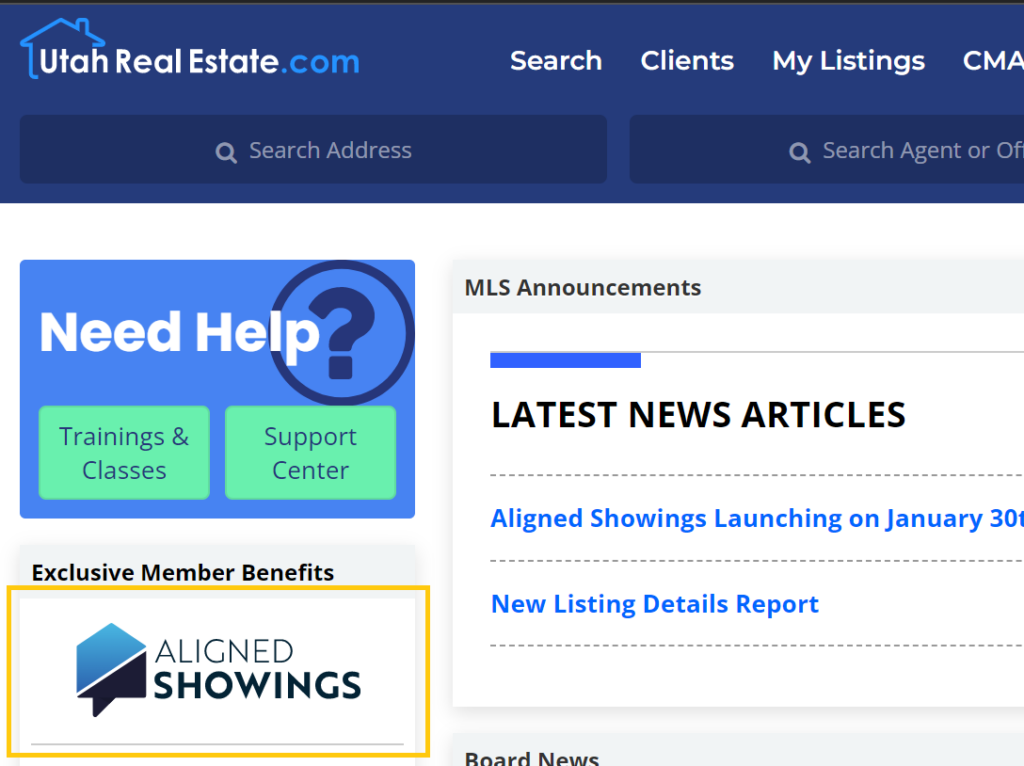
The Reports page in Aligned Showings is where you can see statistics related to the number of approved showings on your listings. To access this reporting, click the Aligned Showings logo that appears on the left side of the MLS homepage to login to your Aligned Showings account.
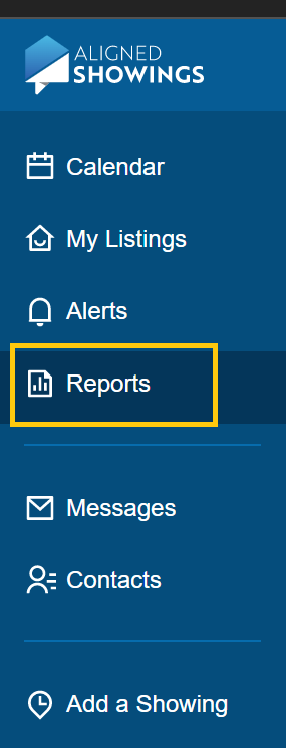
Click on the Reports menu on the left side of the page within Aligned Showings.
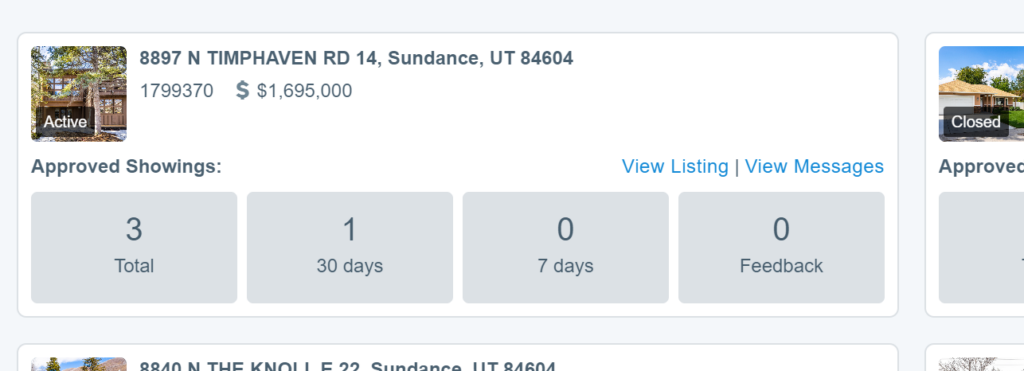
The Reports section will show all of your listings that are or were enabled to use Aligned Showings, and a breakdown of the total number of approved showings for those listings.
If you need any assistance, please contact us at 801-676-5400 or support@utahrealestate.com


