Aligned Showings for Buyer’s Agents
Click here if you’d rather watch a short video.
How to Request a Showing Using Aligned Showings
There are several places within the MLS where you can request a showing using Aligned Showings. Here is an overview:
Search Results Page: If Aligned Showings is enabled on a listing, an Aligned Showings logo will appear in the Links column on the Search Results page. Simply click the Aligned Showings logo to start the process of requesting a showing.

Agent Full & Medium Reports: When Aligned Showings is enabled on a listing, a Schedule a Showing button will appear on the Agent Full Report and the Agent Medium Report. This button will appear at the bottom of the reports, near the contact information for the listing agent.

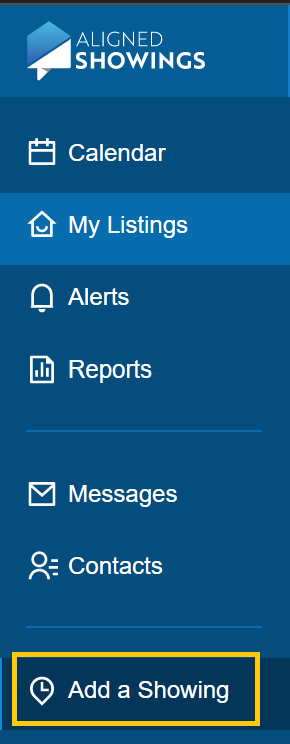
From Within Aligned Showings: From within Aligned Showings, accessible via the Aligned Showings icon on the MLS homepage, click Add a Showing on the left side of the page.
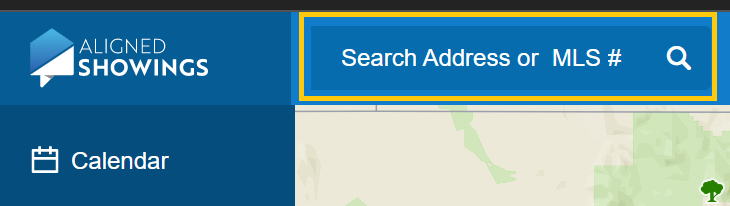
Enter the MLS# or address for the listing in the “Search Address or MLS #” box at the top of the page, and press enter to search.
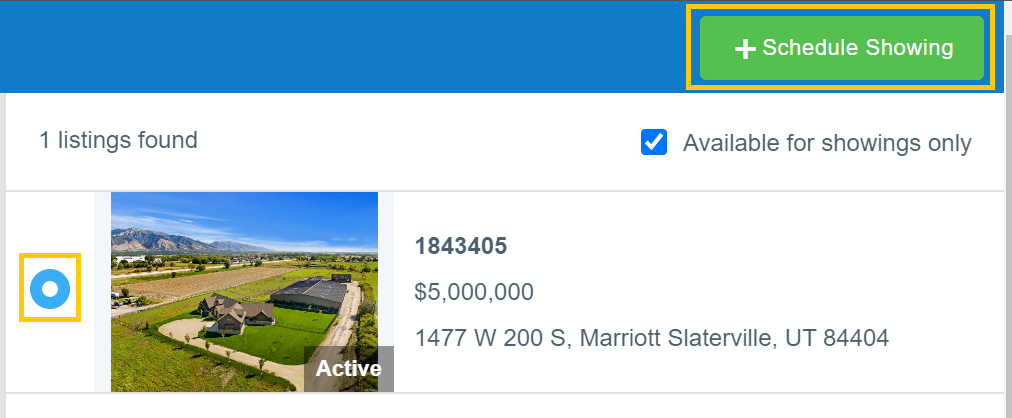
Select the listing on the right side of the page, then click on Schedule Showing.
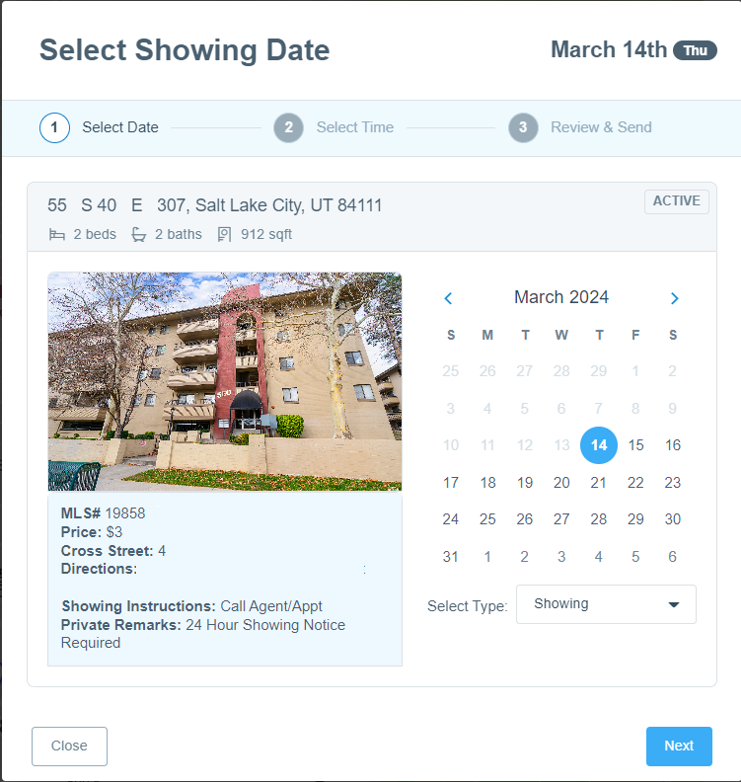
Once the showing request has been initiated (using any of the methods above), choose the date for the showing request using the calendar tool, then select Next.
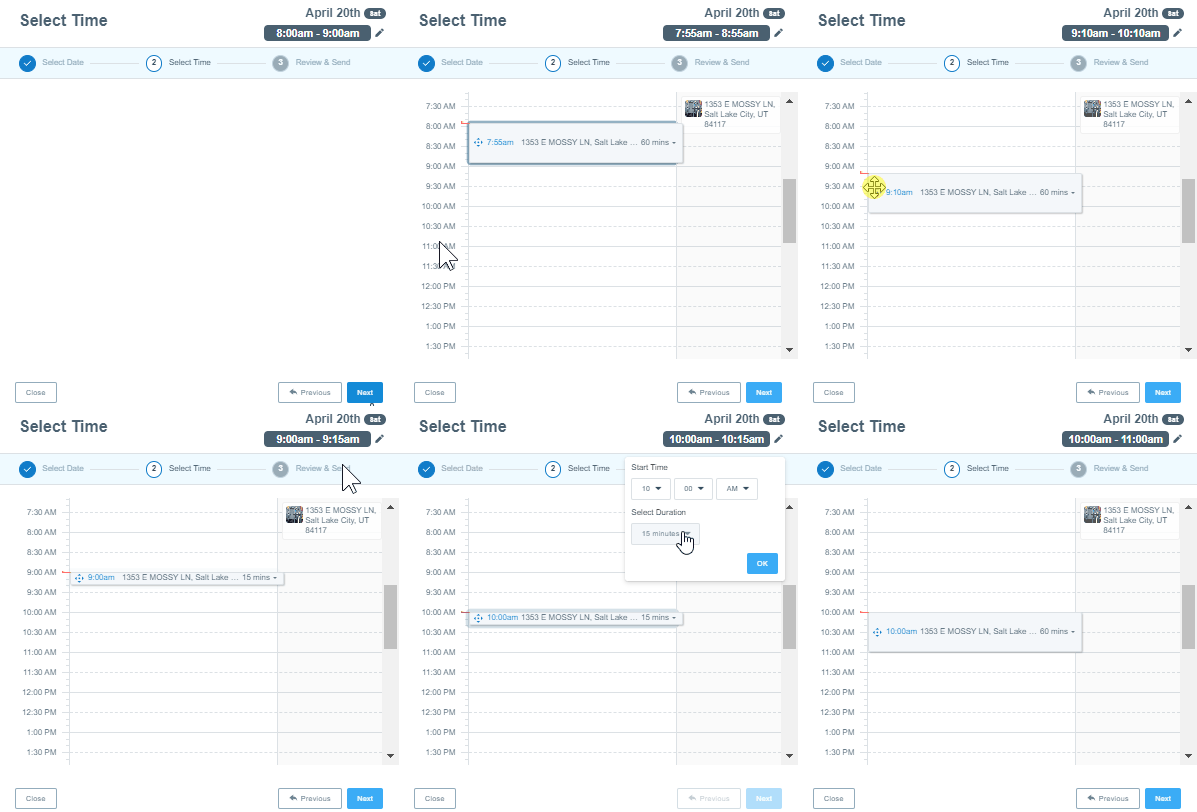
Next, either click or drag the gray timeframe bar that appears on the calendar to the time that you are requesting the showing, select the start time from the left column, or select the Edit icon next to the time currently selected in the top right. Click the right side of the timeframe bar (shown as “15 mins” in the image below) to change the duration of your showing (for example, a 30 minute showing, 60 minute showing, etc.), or when choosing a time in the upper-right Edit option, select the duration from the duration drop-down menu. When you are satisfied with your selection, choose Next.
On the right side of the window (in light gray below), you will see any times that the listing is unavailable for showings, and you will also see your other personal showing appointments you may have previously scheduled for other listings.
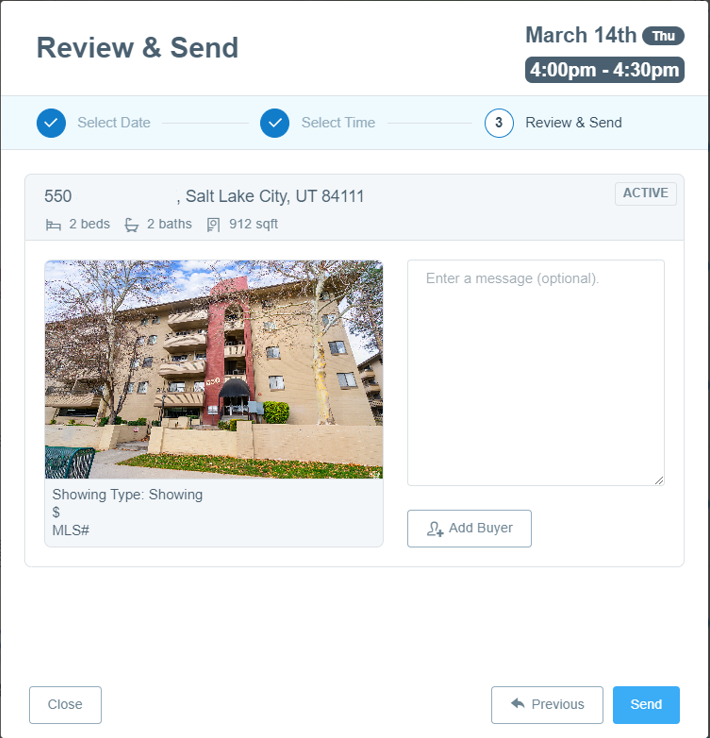
Enter a message (optional) to be sent the listing agent, then click Send.
How Can I See the Status of My Showing Requests in Aligned Showings?
Whenever a showing request is approved or declined, you will receive a notification via your preferred Aligned Showings notification settings. Click here to learn more about notification preferences.
If you have not received a notification or if you want to check the status of a showing appointment request, please follow these steps:
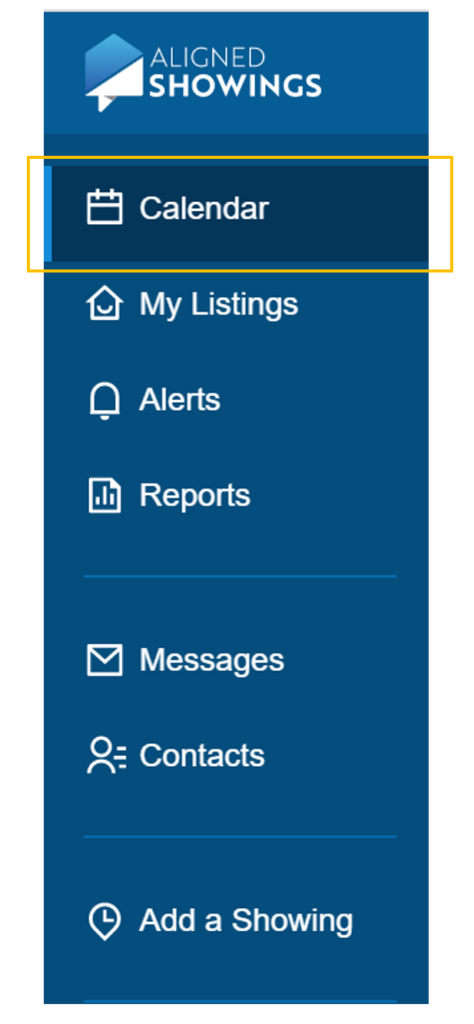
Within Aligned Showings, accessible via the Aligned Showings link on the MLS homepage, click Calendar.
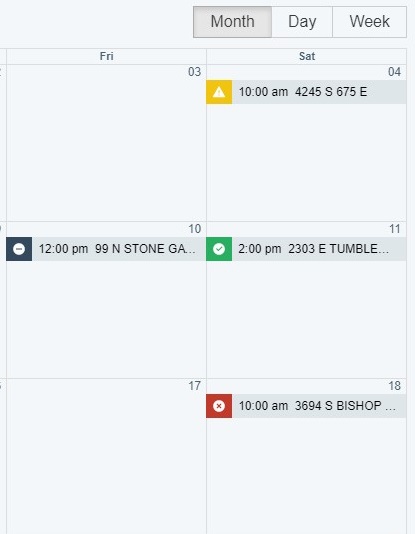
Use the calendar to navigate to the showing appointment in question. There is a legend on the left side of the page that indicates the color-coded status of a showing appointment. Those statuses are as follows:
- Requested: Requests that have been submitted, but have not yet been approved or declined by the listing agent are shown with a yellow warning symbol.
- Approved: Showings that have been approved are indicated with a green check symbol.
- Declined: Requests that have been declined by the listing agent or team are shown with a red “x” symbol.
- Canceled: Appointments that you have canceled are shown with a black minus sign.
- Expired: Expired requests are showing requests that you submitted, that were neither approved or denied by the listing agent, but which have “expired” due to the fact that the time/date of the showing request has passed.
How do I Change the Date/Time of a Showing Request?
Showing agents can modify the date and time of a showing request that was previously approved or which is still pending review by the listing team. Here is how to change the date/time of a showing request:
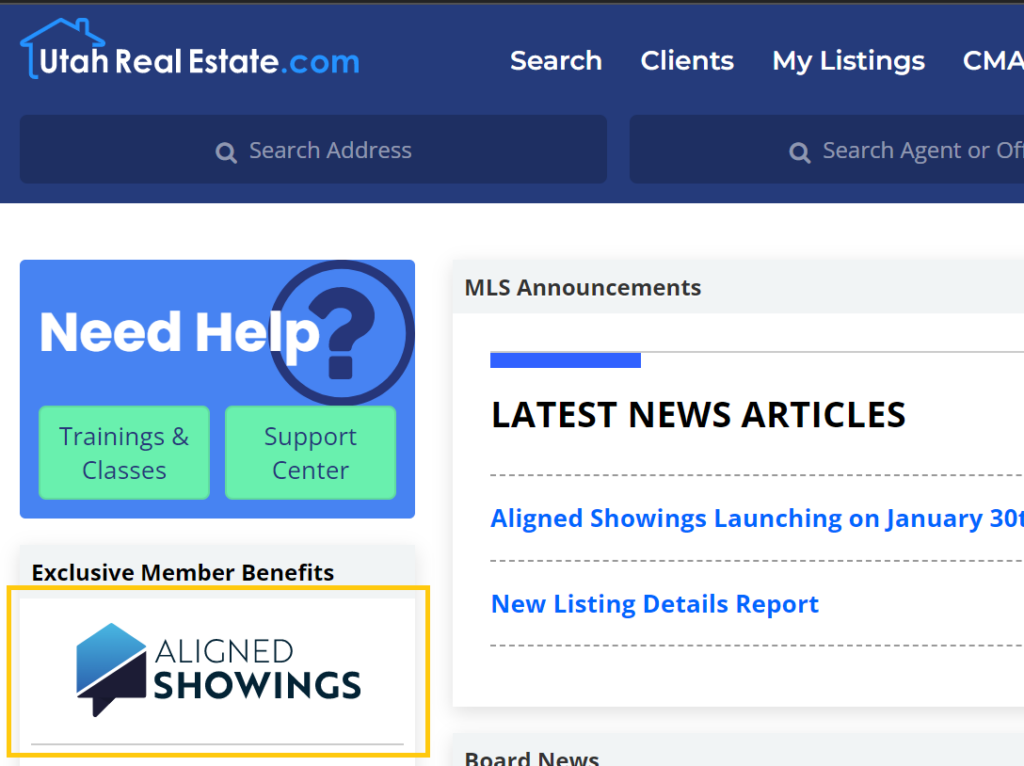
1. Click the Aligned Showings logo that appears on the left side of the MLS homepage to login to your Aligned Showings account.
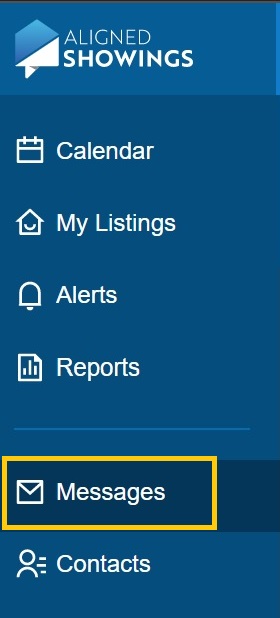
2. Click on Messages, on the left side of the page.
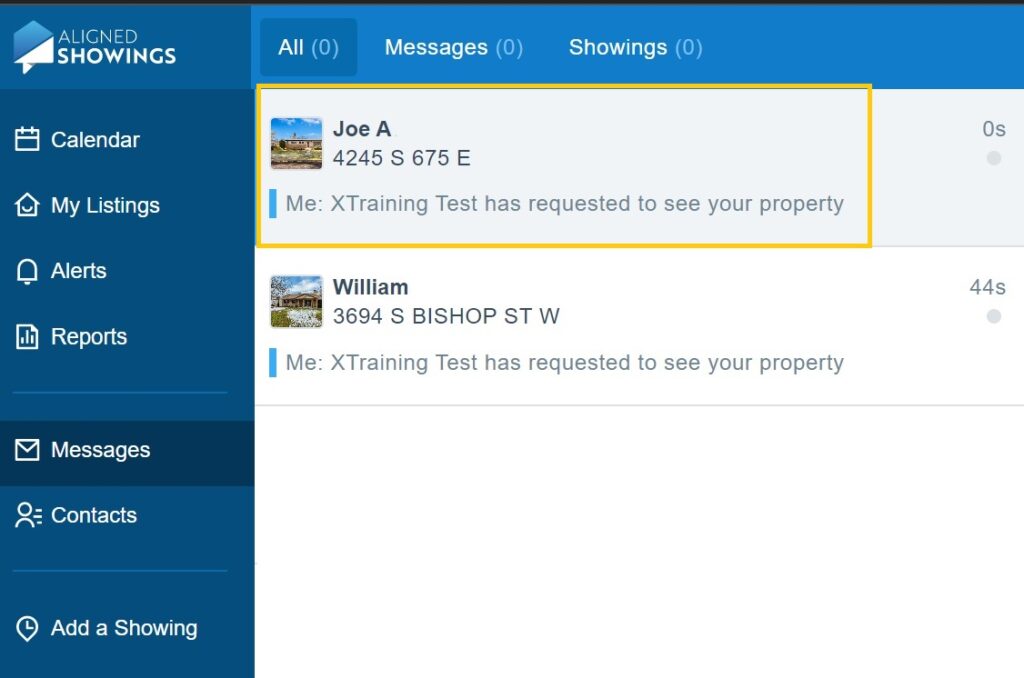
3. Click on the Message thread associated with your showing request.
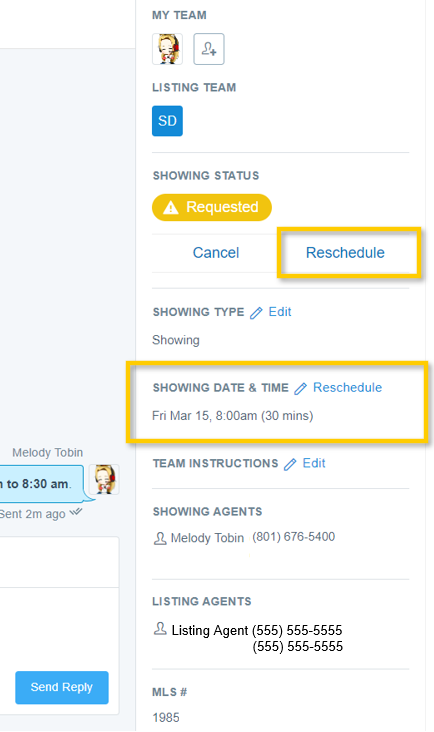
4. To change the date/time of your showing request, click the Reschedule option in the Showing Date and Time section of the message thread and follow the prompts to submit a revised date/time for your showing request.
Please know, when you propose a new date/time for a showing, your request is re-submitted to the listing agent, and you will need to wait to receive an approval/denial response from the listing agent before you can show the property.
As a Showing Agent, How Can I Add a Team Member to a Requested Showing?
You can add a member of your team (an assistant, co-listing agent, transaction coordinator, etc.) to a showing you have requested so that they can help manage that showing. Below are the steps to add a showing team member to a showing.
1. Click the Aligned Showings logo that appears on the left side of the MLS homepage to login to your Aligned Showings account.
2. Click on Messages, on the left side of the page.
3. Click on the Message thread associated with your showing request.
4. At the top right, under My Team, click on the plus sign.
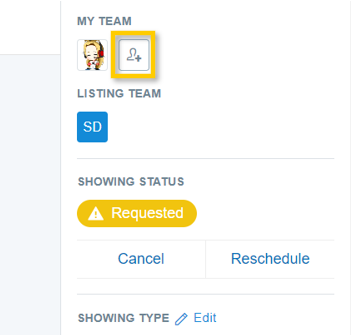
5. Type the name of the team member in the box, using either their first or last name, and click on the name match below. Please Note: To add someone as a team member, that person must have their own MLS account and be listed in the same office as you on the MLS.
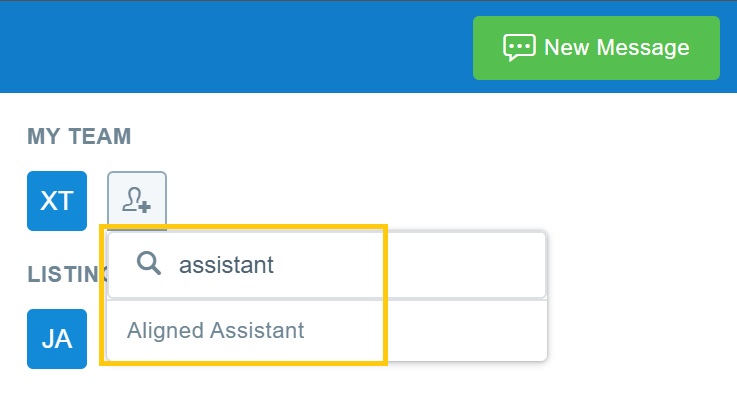
Anyone added to your showing team will receive all showing-related notifications associated with the showing requests, can request to change the time/date of the showing, and also has the ability to cancel a showing appointment.
If you need any assistance, please contact us at 801-676-5400 or support@utahrealestate.com


