Aligned Showings for Buyers
When submitting a showing appointment request in Aligned Showings, you can now optionally associate your prospective buyer client (i.e. the “Buyer”) with that showing. This can be done for individual showings and when creating Routes of multiple showings. Here are some benefits of noting your Buyer client on showing appointments:
- Agents can keep an internal record of the specific properties shown to a Buyer. It’s important to note, listing agent information is not visible to your Buyer, and your Buyer’s information is not visible to the listing agent.
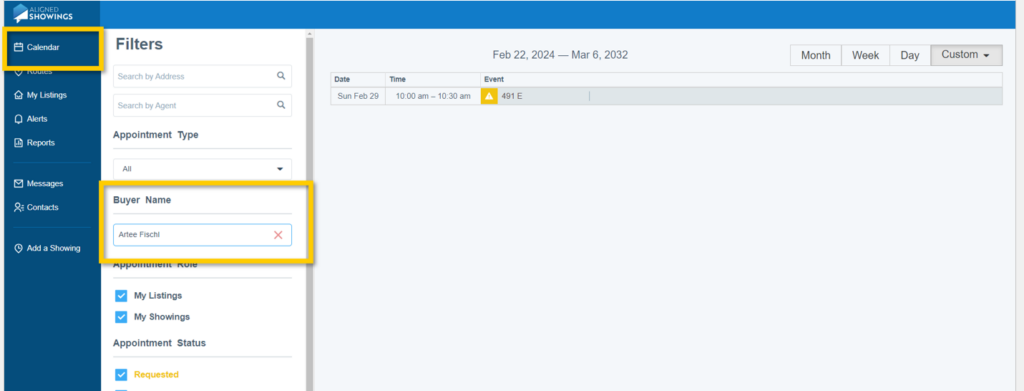
- Using the Calendar feature, agents can filter to view all showing appointments (past showings and future showings) associated with a specific Buyer[s]
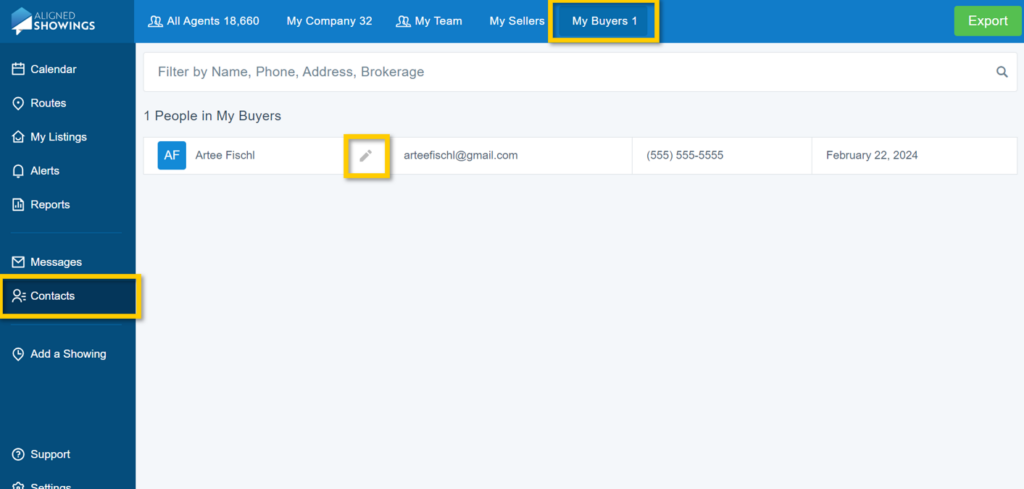
- Buyer contact information is saved in the My Buyers section of the Contacts page, allowing for one central place to see all Buyers you’re working with. From that page you can update buyer contact information, export your Buyer contacts, etc.
- Buyers can receive showing-related notifications, such as showing confirmations, appointment time changes, showing cancelations, etc.
- Buyers can receive calendar invitations for showing appointments
How to Add a Buyer to a Showing
Here are step-by-step instructions for adding a Buyer to a showing:
1. Initiate a showing using the “Schedule a Showing” button that appears on listing reports in the MLS.
2. On the last step of scheduling a showing, you will see an option to Add Buyer.
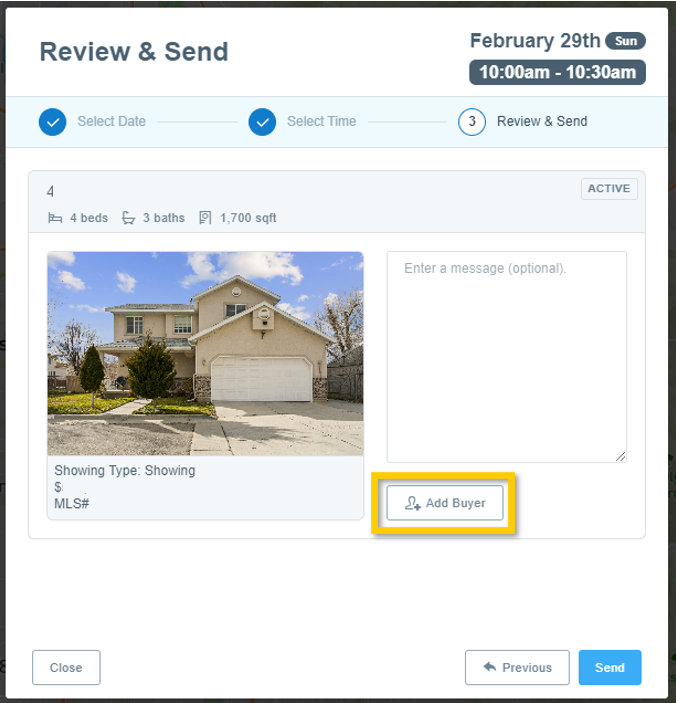
2. Start typing the name of the Buyer you’d like to add to the appointment in the Search Buyer text field.
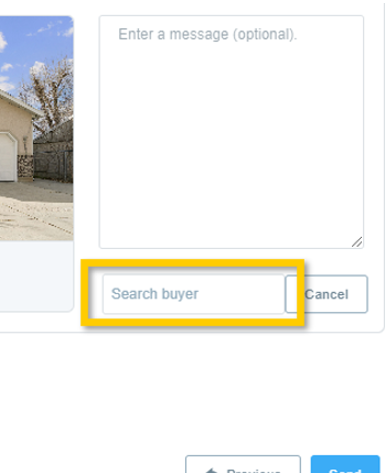
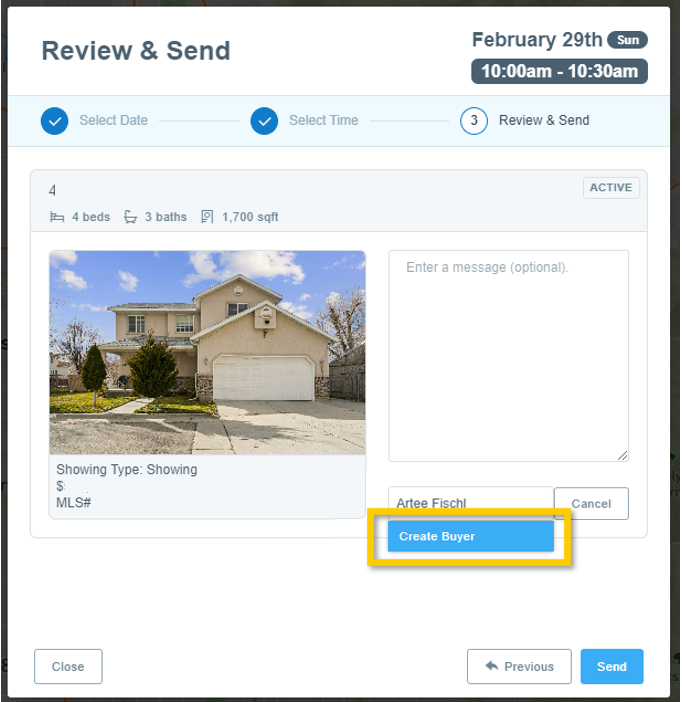
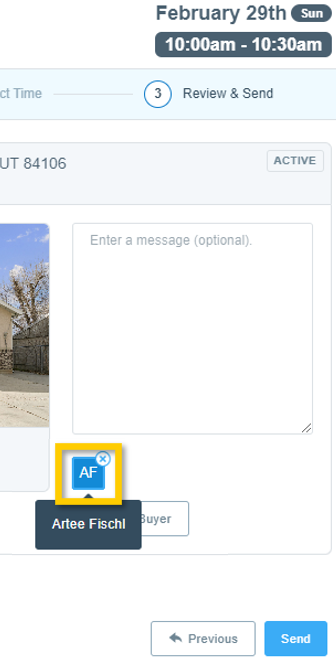
4. When your Buyer has been selected, the Buyer’s initials will appears on the screen as seen below.
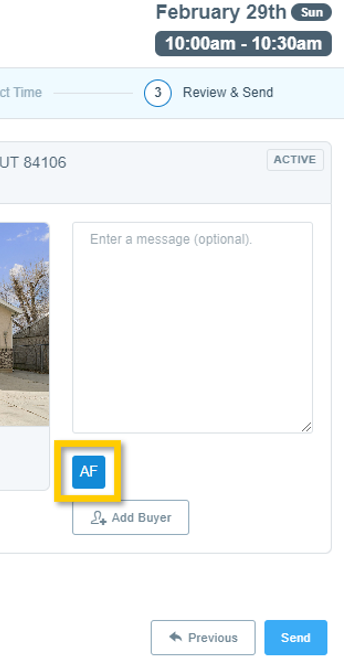
Buyers can be removed by mousing over the Buyer’s initials and selecting the “X” that appears.
5. Last, select Send to send your showing appointment request.
How to Edit Buyer Information
Buyer information can be edited by going to the Contacts page in Aligned Showings, selecting the My Buyers tab, and clicking the edit icon that appears next to the Buyer’s name.
Filtering Calendar by Buyer
Aligned Showings’ Calendar feature includes the ability to filter by the Buyer associated with a showing, which includes prior showings and upcoming showing appointments. Simply go to the Calendar page in Aligned Showings, and use the Buyer Name field to filter your calendar appointments by a specific Buyer.
Do Buyers Receive Notifications From Aligned Showings?
Yes, currently any Buyer added to a showing appointment will automatically receive email notifications regarding showing activity, including showing confirmations, appointment changes, and appointment cancelations. Aligned Showing is currently building out this feature to allow for more granular notification settings for Buyers, such as the ability to enable or disable appointment notification emails.
If you need any assistance, please contact us at 801-676-5400 or support@utahrealestate.com.


