Aligned Showings for Admin Staff
Broker and Office Assistant Access to Other Agents’ Listings in Aligned Showings
Brokers and office assistants can use their personal MLS accounts to help setup and manage showing settings for other agents’ listings in their office. This feature in Aligned Showings is called Work As, and here is how it works:
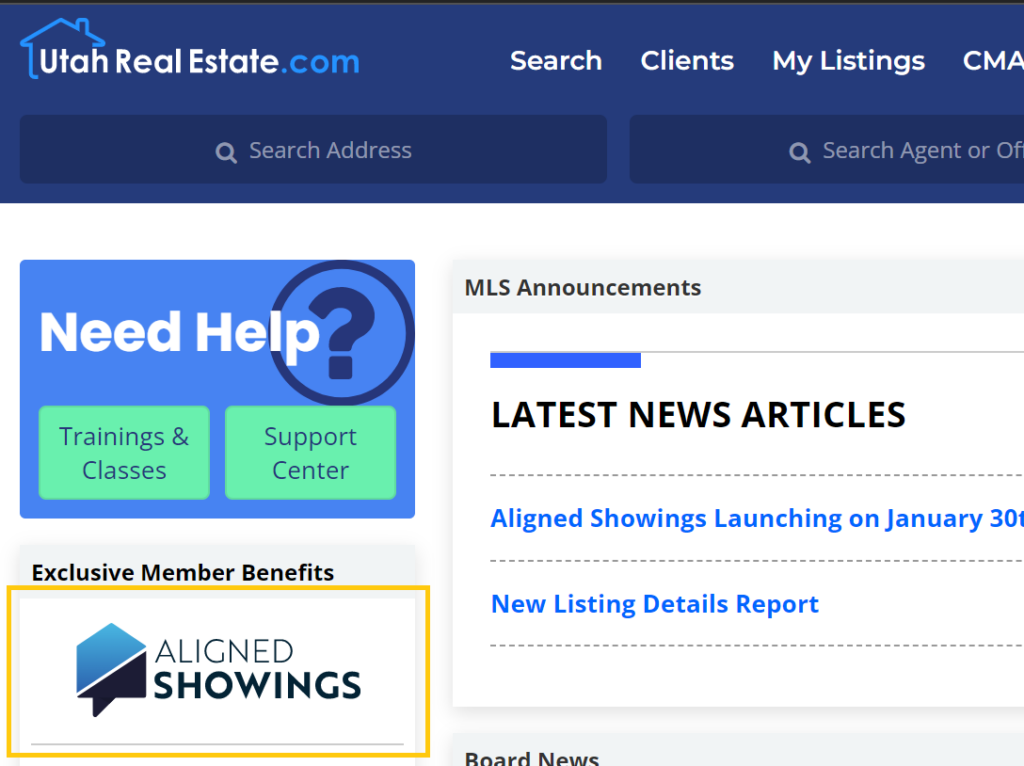
1. Click the Aligned Showings logo that appears on the left side of the MLS homepage to login to your Aligned Showings account.
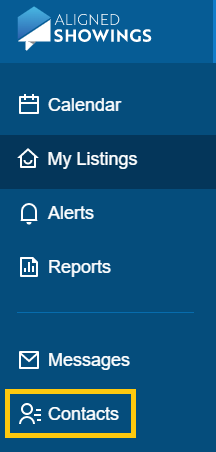
2. Click on Contacts, on the left side of the page.
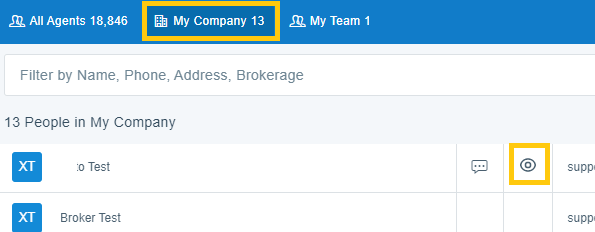
3. Click on My Company, at the top. This will show all of the agents in your office. Once there, click on the eye icon next an agent’s name, then click Yes, Work As.
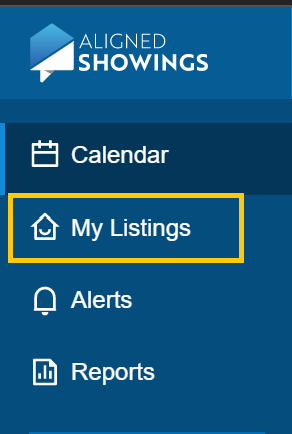
5. You will then be taken into the Aligned Showings account for that agent. You can then click on My Listings on the left to view and manage that agent’s listings.
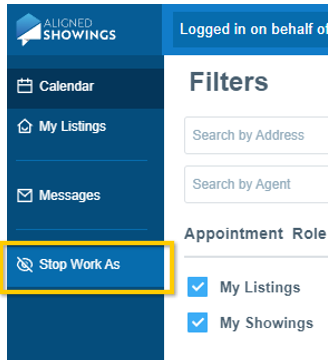
6. Click Stop Work As on the left to return to your Aligned Showings account.
Please note: If you do not have a broker or office assistant MLS account, but you need the ability to edit showing settings or otherwise manage showings for another agents’ listing, you can do this using the “Work As” feature in the MLS by working as a broker or office assistant in your office (Click here for information on how to use “Work As”). Once you are “working as” either a broker or office assistant in the MLS, you can follow the steps above and use Aligned Showing’s Work As feature to manage showing settings for another agent’s listing.
If you need any assistance, please contact us at 801-676-5400 or support@utahrealestate.com


