Adding a Team Member to Help Manage Showings
How to Add a Team Member to Your Listing in Aligned Showings to Help Manage Showings
Members of your team (i.e. an assistant, co-listing agent, transaction coordinator, etc.) can approve showing requests on your behalf and receive notifications about your showing appointments if you add them to your listing setup in Aligned Showings.
Here are instructions to add a team member to your listing in Aligned Showings.
1. Select My Listings from the main navigation menu, then My Listing Inventory.
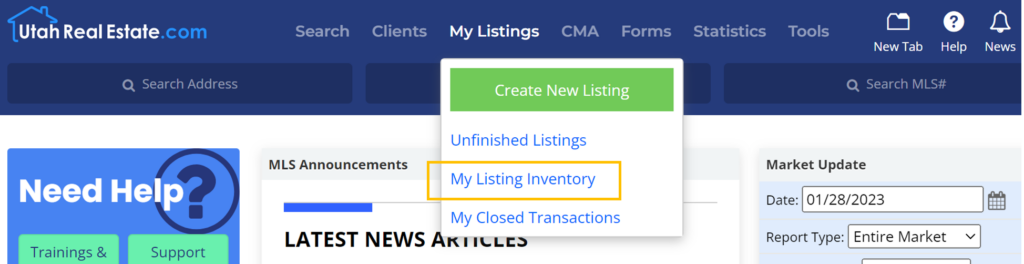
2. Click the Manage button that appears in the Showings column on the My Listings grid. This will open the listing in Aligned Showings.
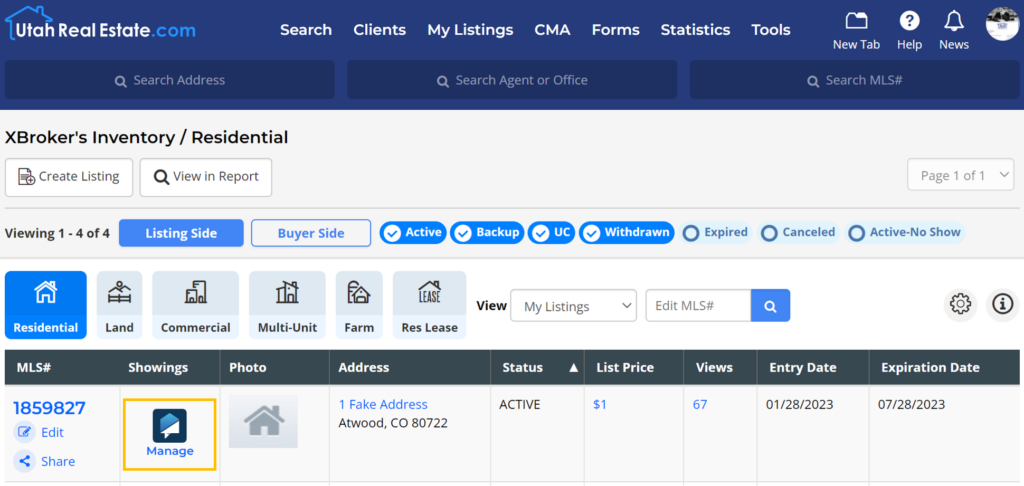
3. Click Edit Details.
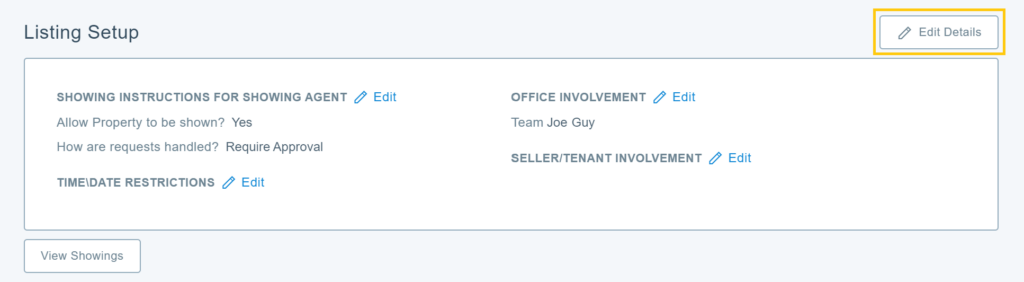
4. Click the Office Involvement section, then, select Add Contact.
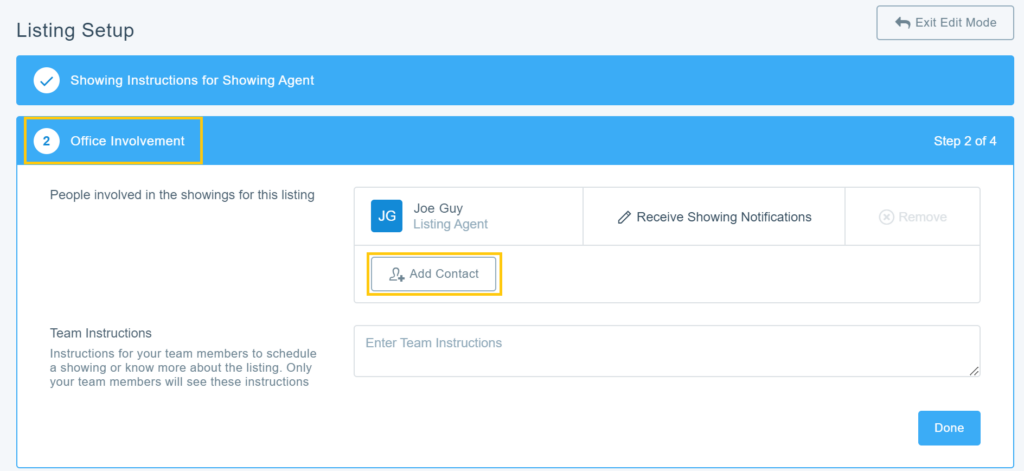
5. Type the name of the team member you would like to add to the listing, by either entering in their first or last name. When the team member’s name appears in the results, click on their name to add them to the listing.
Please note: A team member must have their own MLS account and be listed in your same office in order to be added to your listing. If you are attempting to add someone who is not in your office, their name will not appear when searching for them.
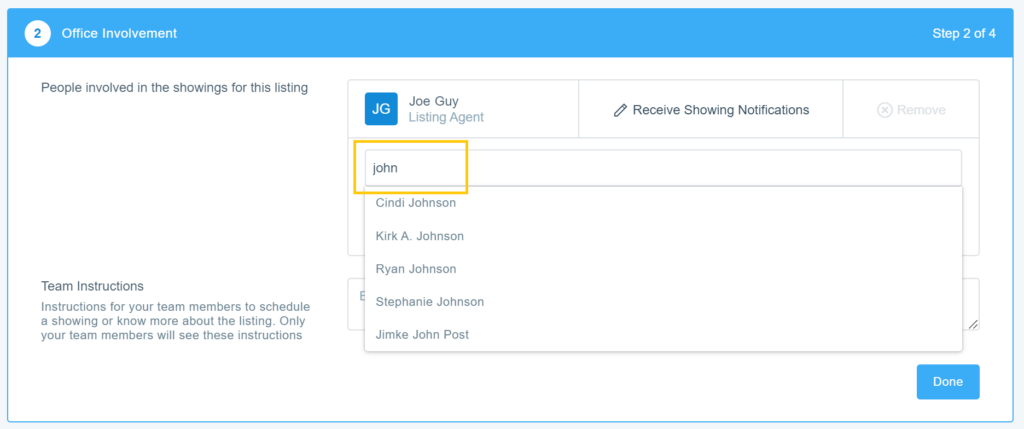
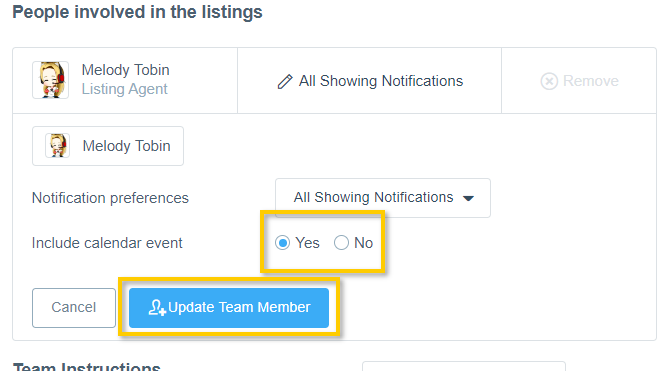
6. Select the Yes button next to “Notify this user of showing requests”, choose whether the system should include calendar event attachments with notifications, then click on Update Team Member.
Please know that anyone you add to your listing in Aligned Showings will (1) receive all notifications about showing requests, (2) will be able to approve or decline any showing requested on your listing, and (3) will be able to change the showing settings for your listing in Aligned Showings.
How to Add a Team Member to All of Your Listings in Aligned Showings
Your Aligned Showings account can be setup to automatically add team members (i.e. an assistant, co-listing agent, transaction coordinator, etc.) to all of your future listings. This feature is useful if you work with the same people on a regular basis who assist with the showing management process on all of your listings. Enabling this feature allows your team members to (1) receive all notifications about showing requests for all of your listings, (2) approve or decline any showing requests for any of your listings, and (3) change the showing settings for your listings in Aligned Showings.
Here is how to add a team member to all of your listings in Aligned Showings:
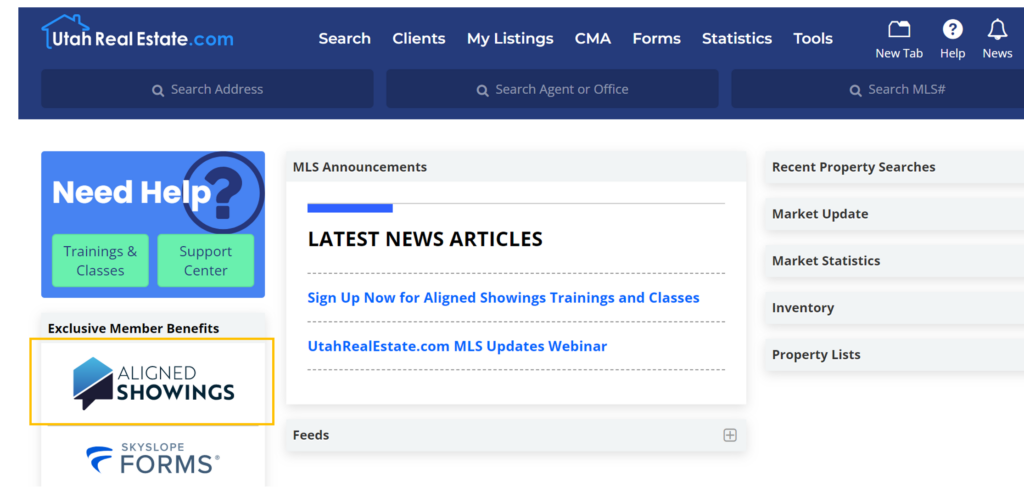
1. Click the Aligned Showings logo that appears on the left side of the MLS homepage to login to your Aligned Showings account.
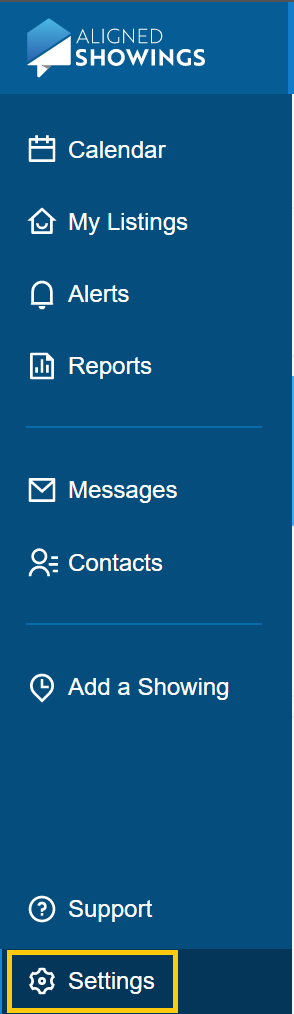
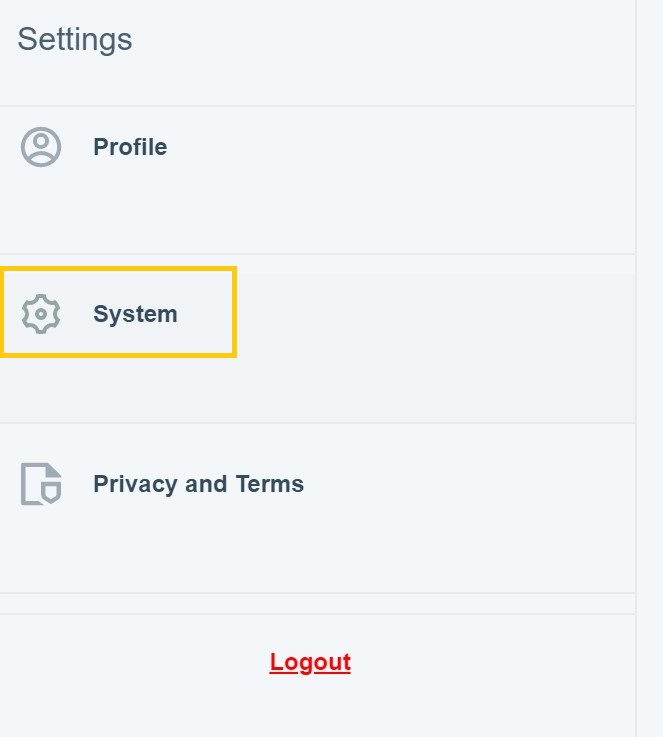
2. In Aligned Showings, click on Settings in the bottom left side of the page.
3. Click System.
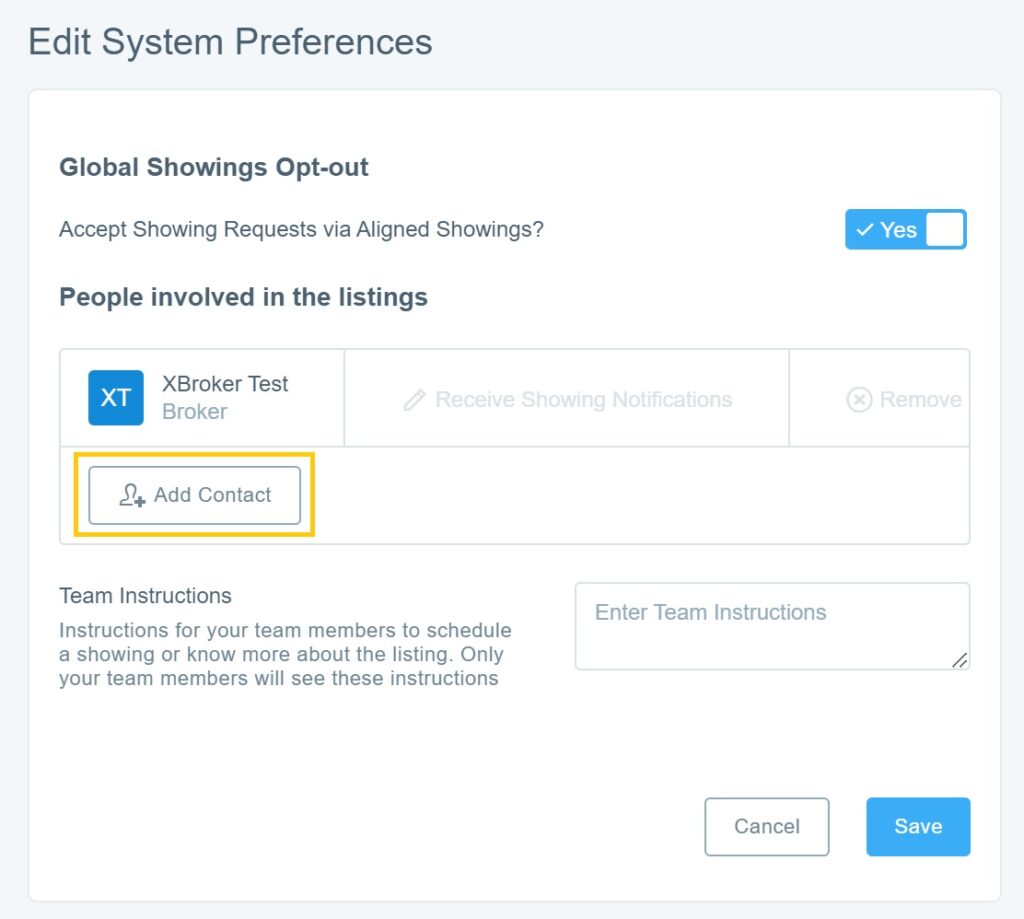
5. Type the name of your team member, by either entering in their first or last name. When the team member’s name appears in the results, click on their name to add them.
Please note: A team member must have their own MLS account and be listed in your same office in order to use this feature. If you are attempting to add someone who is not in your office, their name will not appear when searching for them.
6. Next to “Notify this user of showing requests” select Yes, choose whether they should receive calendar event attachments, then click on Update Team Member.
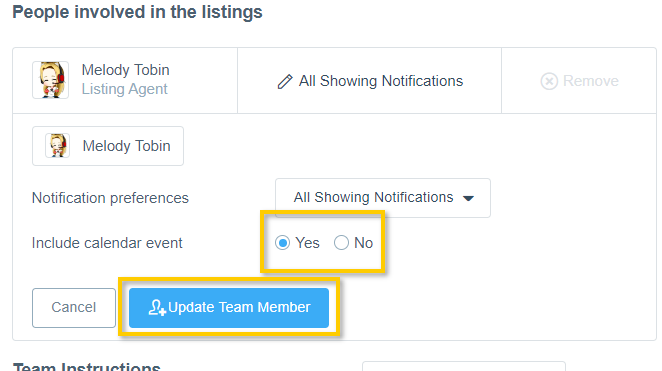
7. Last, make sure to click on Save when finished.
How Does Aligned Showings Work When Multiple People Are Setup to Manage Showing Requests?
Every person who is added to a listing in Aligned Showings to be involved in the showing management process will all receive copies of the same notifications about showing requests. Additionally, every person will also have the ability to approve or decline showing requests that are received. Since everyone added to the listing will receive the same notifications at the same time, a showing approval or denial will be determined by whichever team member responds first to the request.
- Example:
- You edit your Aligned Showings account following the steps in the section above and you add your assistant to your account, so that your assistant is automatically added to all of your listings that are setup with Aligned Showings
- A new showing appointment request is submitted on one of your listings.
- You and your assistant will receive the same showing request notification.
- In that showing request notification, there is an option to approve or decline the showing appointment request. Either you or your assistant can act on that request and approve or decline the showing request.
- If you respond to the request before your assistant and approve the showing request, then all involved in the showing request (you, your assistant, the other agent who submitted the showing request) will all receive a notification informing everyone that the showing request was approved by you.
If you need any assistance, please contact us at 801-676-5400 or support@utahrealestate.com


