Office Management Tools for Multi-Office Principal and Branch Brokers
Principal and Branch Brokers who manage multiple offices can manage those offices using one MLS account. Below is a list of the features and settings within the MLS where brokers can manage their multiple offices.
Office Settings
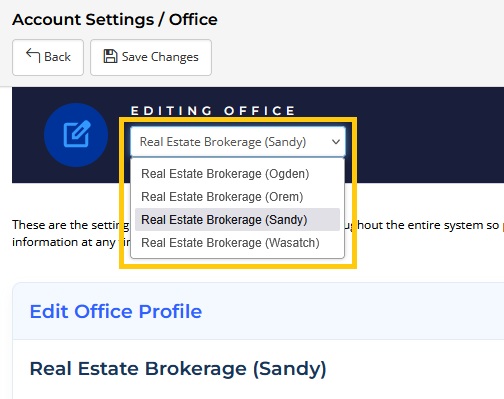
When modifying Office Settings under the Account Settings page, select the office name in the dropdown menu to adjust settings for that office. As an example, this is where you can update the office contact information, company logos, social media links, etc.
Note: Branch Brokers can only view the offices for which they are the managing broker.
Listing Input
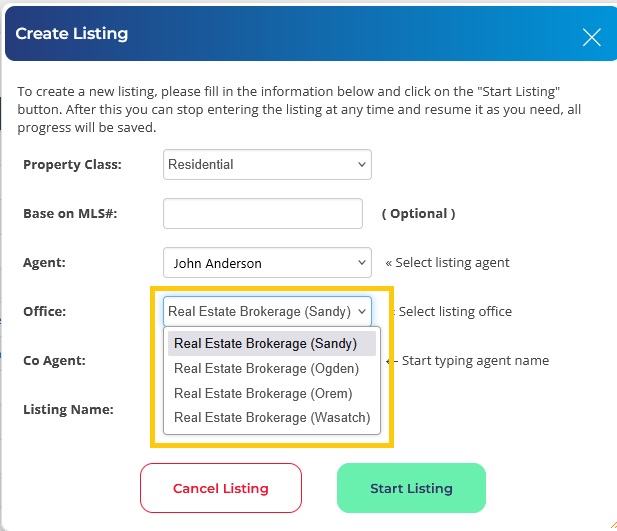
If you are a broker who lists properties, you can now select which office you want displayed on that listing. Simply select your name as the Agent, then select the preferred Office under which you want the listing shown.
Listing Input Permissions Management
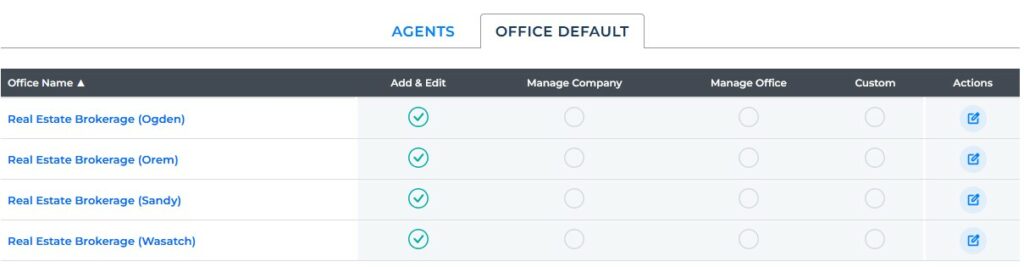
Listing Input Permissions determine each MLS user’s ability to publish and edit listings on the MLS. Both Principal and Branch Brokers can modify these permissions for all agents in their company. These permissions can be set on an agent-by-agent basis, or you can also specify office default settings for each individual office.
Default Listing Input Permissions are applied to all MLS users who are newly associated with an office, whether those users are entirely new MLS members or are transferring into your office.
For detailed information on setting Office Default Listing Input Permissions, click here.
My Listings
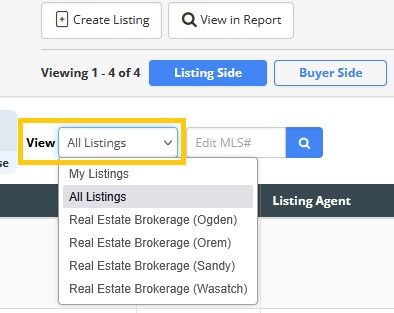
On the My Listings page, you can use the dropdown menu to view (1) “My Listings” or listings where you are the listing agent, (2) all listings in your company, or (3) specific listings for one of your offices. These filters can be applied to listings where your company is the listing brokerage, as well as Under Contract/Backup status listings where your brokerage is representing the buyer.
Note: Branch Brokers can only view the offices for which they are the managing broker.
My Closed Transactions
The My Closed Transactions page works very similar to the My Listings page. You can view (1) listings you have personally sold, (2) all listings sold by your company*, or (3) specific listings sold by one of your offices*.
*Note: With the exception of listings you personally sold, all other sold listings are limited to sales within the last 12 months. Additionally, Branch Brokers can only view the offices for which they are the managing broker.
Brokerage Report
The Brokerage Report, found under the Account Settings page, is a quick and easy way to view and export details about all agents in your company. For example, the details of each user include First and Last Names, User ID, Office Name, Office ID, and the State License Number.
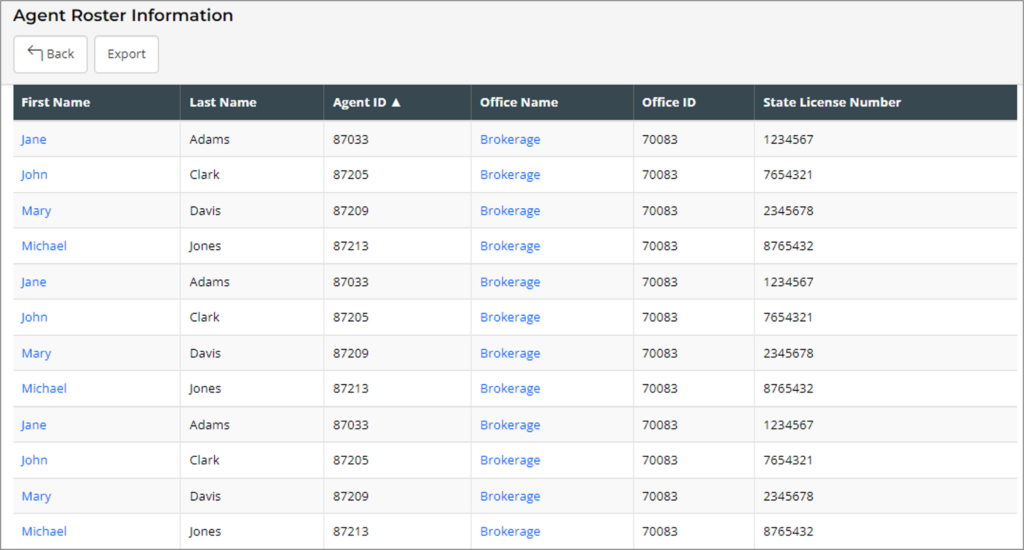
For more detailed information about the Brokerage Report, on, click here.
Work As Permissions
Brokers can grant “Work As” Permissions to any MLS user (agents, office assistants, etc.) across their entire company. Anyone who has been granted “Work As” permissions to work as a Principal or Branch Broker have access to several key broker-only features that are described in this article including:
- Office Settings
- The Brokerage Report
- Listing Input Permissions
For detailed information on granting “Work As” permissions click here.
Data Licensing
Use the dropdown menu at the top of the Data Licensing page to quickly switch between your offices in order to manage IDX approvals, “Send My Listings,” syndication settings, and IDX/VOW contact information preferences for each individual office.
Note: Branch Brokers can only view the offices for which they are the managing broker.
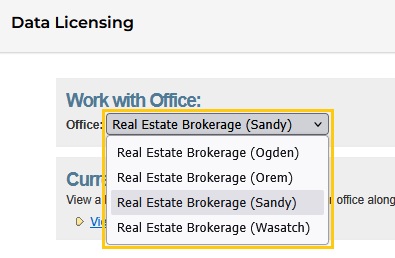
For more detailed information about listing syndication for brokers, click here.
URE Legacy Forms
When auto-filling URE Legacy Forms, you can use the dropdown menu to select which office information you want populated on the forms you are filling out.
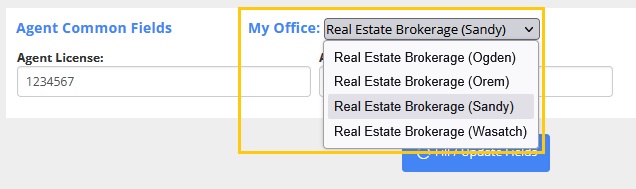
Note: Branch Brokers can only view the offices for which they are the managing broker.
Manage Billing for your Offices and Agents
Brokers can view billing information for all agents in their company by going to the Billing page, and then scrolling to the My Offices and Agents section.
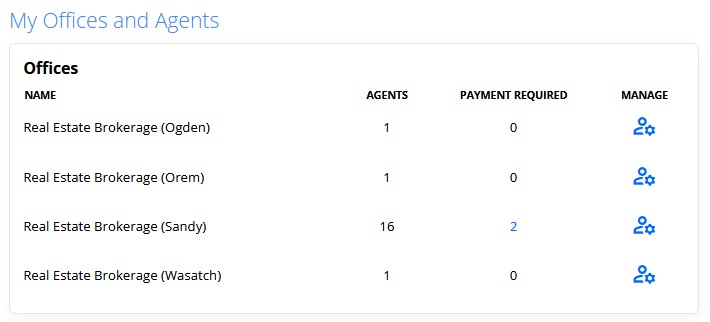
Autopay Preferences
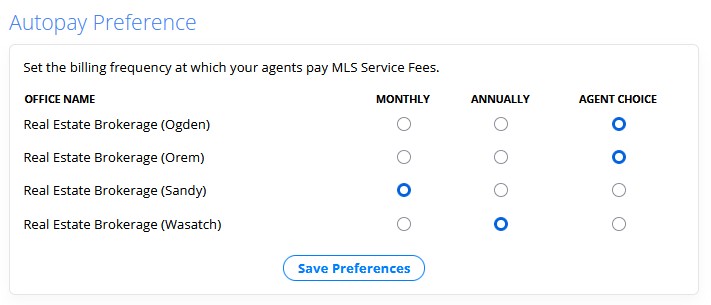
Autopay Preferences are used if a broker wants to require their agents to pay MLS service fees on either an annual or monthly basis, and this can be set on an office-by-office basis. By default, all offices are set to “Agent Choice” which allows agents to choose their billing frequency. This setting can be adjusted on the Billing page, under the Autopay Preference section.
If you need any assistance, please contact us at 801-676-5400 or support@utahrealestate.com.


