New MLS Improvements and Features for Brokers
In the first quarter of 2023, UtahRealEstate.com has developed and released several high-impact improvements and features for our broker members including the expansion of Work As capabilities, an all-new Brokerage Report, and the highly-anticipated ability to set Default Listing Input Rights for brokerages. Below is more detailed information about each of these exciting improvements.
Work As Expansion
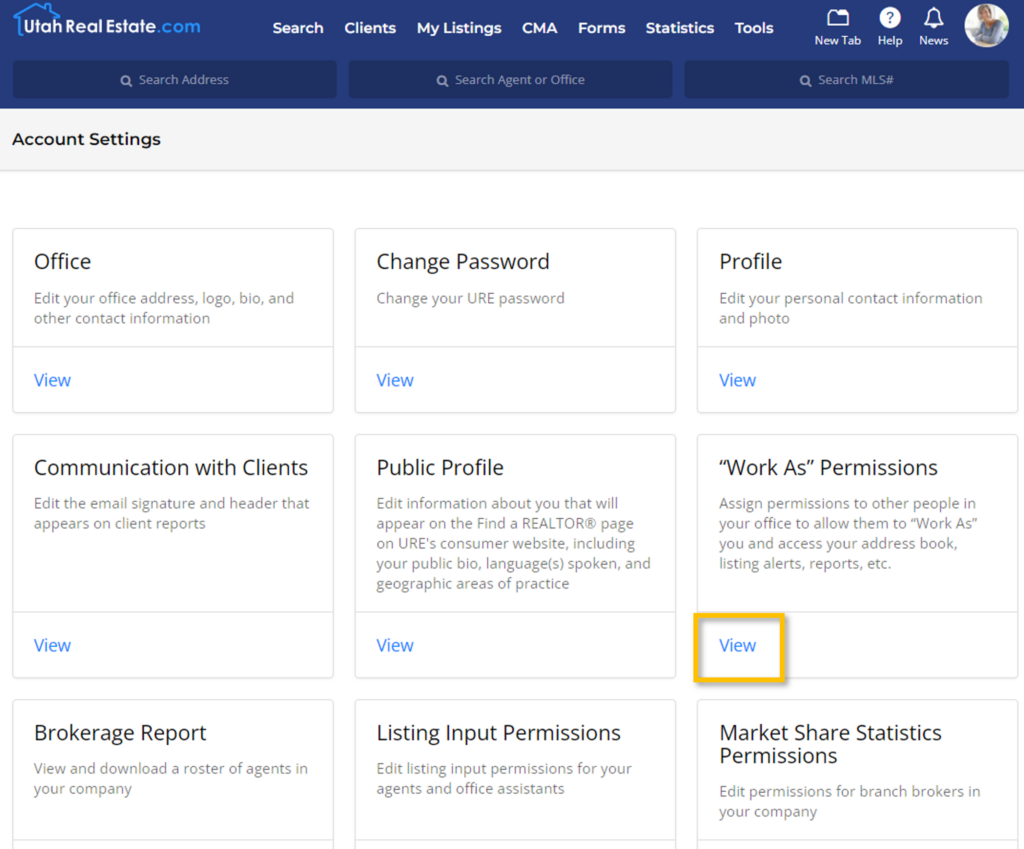
The ability to grant “Work As” permissions to another MLS user has been an essential feature for teams and brokerages using the MLS for many years. In the first quarter of 2023, UtahRealEstate.com delivered the following improvements requested by our diverse community of brokers:
- Any MLS user, including Principal Brokers and Branch Brokers, can now grant “Work As” Permissions to any MLS user across their entire company.
- Previously, “Work As” permissions could only be granted to another MLS user in the same branch office. This critical expansion will allow every MLS user in a company with more than one branch to more seamlessly and effectively work together.
- MLS users (including Office Assistants, Associate Brokers, and Sales Agents) with permissions to “Work As” any Principal or Branch Broker now have access to several key broker-only features including:
- Office Settings, including the office address, phone number, and logo on file with the MLS)
- The all-new Brokerage Report
- Listing Input Permissions, including the highly-anticipated brokerage default settings
For detailed information on the simple process for granting “Work As” permissions to team members in your company, click here.
Brokerage Report
The new Brokerage Report is a quick and easy way for Principal Brokers, Branch Brokers, and those “Working As” Principal or Branch Brokers to see and even export the details of MLS users in their company or office. The details of each user include:
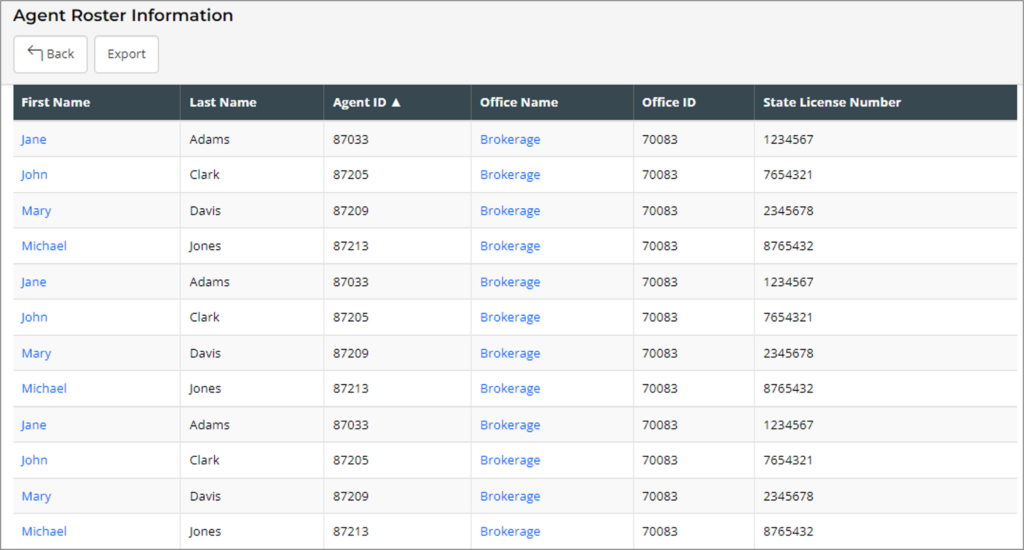
- First and Last Names
- First Names link to the full UtahRealEstate.com profile of each user
- User ID
- User ID is a unique identifier in the UtahRealEstate.com MLS system and may be used for IDX, VOW, and syndication purposes.
- Office Name of the specific branch office the user is associated with
- Office Names link to the full UtahRealEstate.com profile of each office
- Office ID
- Similar to User ID, Office ID is a unique identifier in the UtahRealEstate.com MLS system and may be used for IDX, VOW, and syndication purposes.
- State License Number
How Do I Access the Brokerage Report?
Principal Brokers, Branch Brokers, and those “Working As” Principal or Branch Brokers can access the Brokerage Report by following these simple steps:
- When logged-in to the MLS, hover over the Profile Icon in the upper-right-hand corner of the main navigation menu in UtahRealEstate.com which will initiate a dropdown menu
- From the dropdown, select Account Settings
- In Account Settings, scroll down to the tile labeled Brokerage Report
- Select View
Default Listing Input Rights
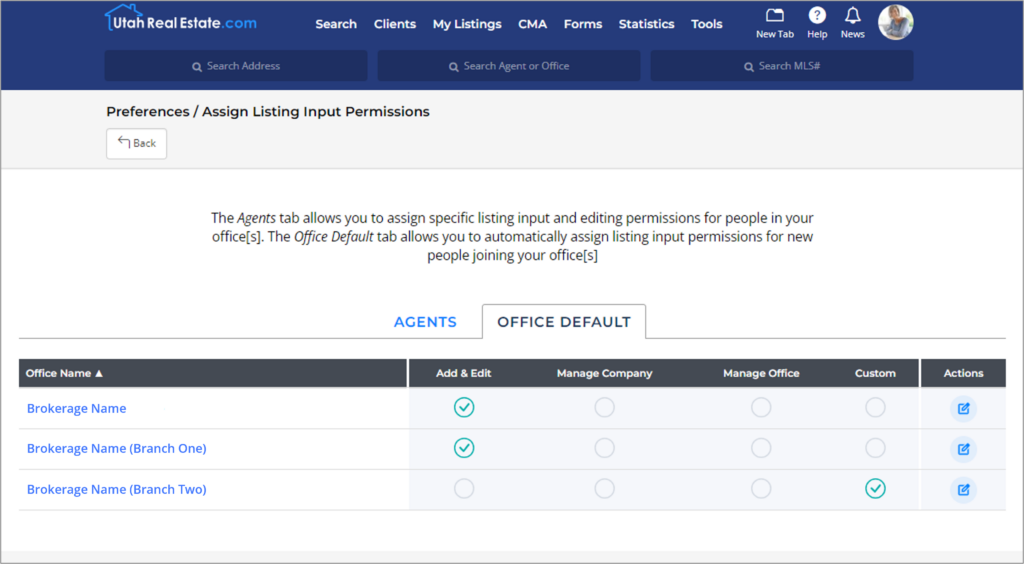
The access for individual MLS Users to enter, publish, edit, and manage listings is always determined by the Branch and/or Principal Broker. These rights are now easier than ever to assign to the MLS users in your company, due to the recent release of the highly-anticipated new tool for setting Default Listing Input Permissions on an office-by-office basis.
Default Listing Input Permissions will be applied to all MLS users newly associated with an office, whether those users are entirely new MLS subscribers or transferring offices. As always, the rights of each individual MLS user in the company can be expanded or reduced at any time.
Options for Office Default Permissions range from low-level permissions (such as the ability only to Edit and Manage Open Houses on the user’s own listings) to the highest-level permissions possible (which is the ability to enter, publish, edit, and manage every listing across the company with no restrictions).
For detailed information on the simple process of setting Office Default Listing Input Permissions, click here.