Listing Input Permissions for Brokers
Listing Input Permissions determine every MLS user’s ability to publish and edit listings on the MLS. These permissions are always determined by the head broker of each office (the Branch Broker or Principal Broker) and can be set by default as well as on a case-by-case basis.
What listing Input Permissions are Available?
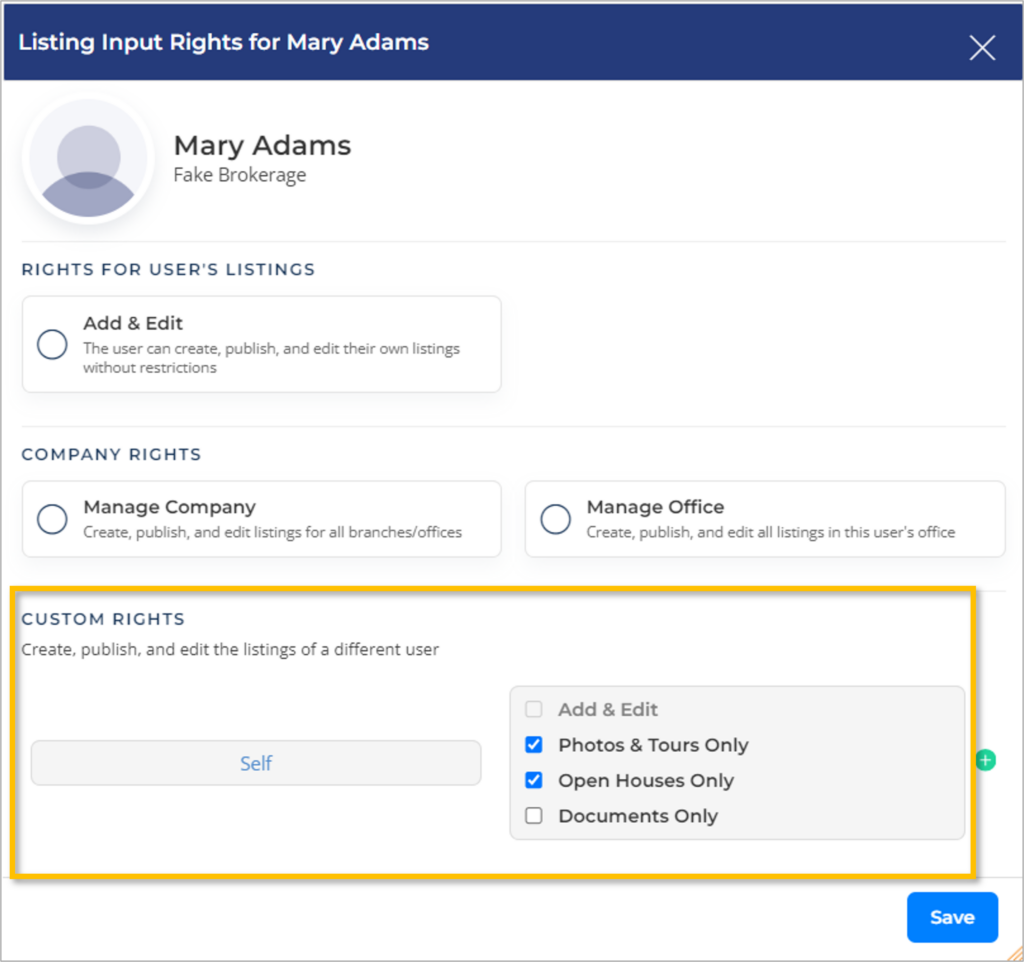
The Listing Input Rights which can be assigned to any MLS user in a broker’s office(s) are as follows:
- Add & Edit
- Selecting Add & Edit will grant the user full access to create, publish, and edit their own listings without restrictions. This includes the ability to edit listing status, photos, virtual tours, open houses, etc.
- Manage Company
- Selecting Manage Company will grant the user full access to create, publish, and edit all listings in their entire company (including their own) without restrictions.
Note: when this option is selected, the Custom Rights section will disappear as all Custom Rights are included with Manage Company Rights.
- Selecting Manage Company will grant the user full access to create, publish, and edit all listings in their entire company (including their own) without restrictions.
- Manage Office
- Selecting Manage Office will grant the user full access to create, publish, and edit all listings in their specific office (including their own listings) without restrictions.
- Custom Rights
- Custom Rights can be used to grant limited rights for the user to edit their own listings (If the user has not been granted full Add & Edit rights for their own listings).
- When granting rights to individuals, Custom Rights can also be used to grant the user full or limited access to adding and editing the listings of specific users across the company.
As a Broker, How do I Assign Rights to People in my Office(s)?
Principal and Branch Brokers can set up a variety of Listing Input Permissions for MLS users in their office(s) using two different methods. Brokers can:
- Assign default Listing Input Rights which will be applied to all MLS members transferring to / joining their office(s)
- Customize the Listing Input Permissions for individuals in their office(s)
Follow the steps below to access Listing Input Permissions:
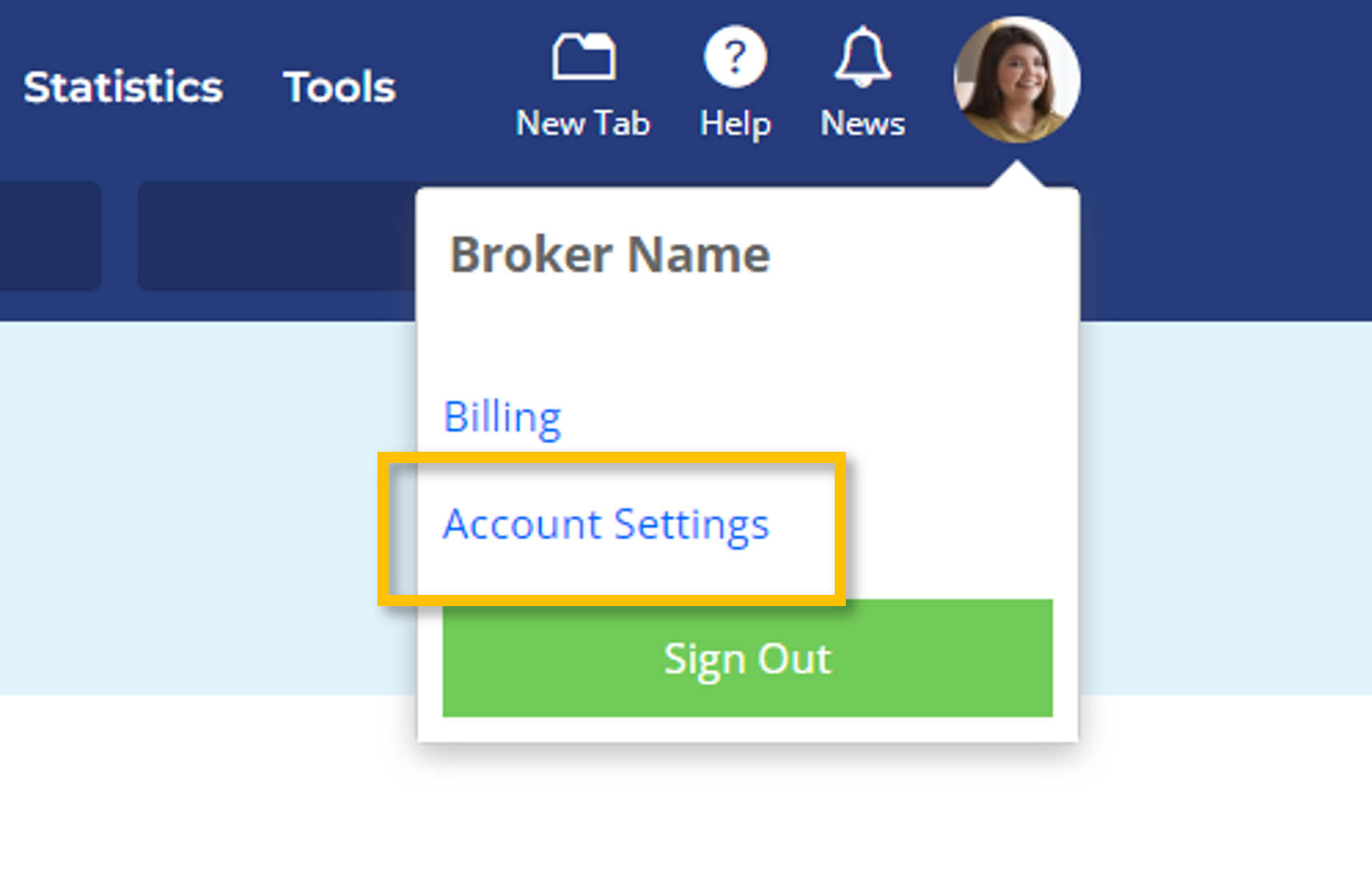
- When logged-in to the UtahRealEstate.com MLS, hover over the profile icon in the upper-right-hand corner. This will open a dropdown menu
- Select Account Settings in the dropdown menu
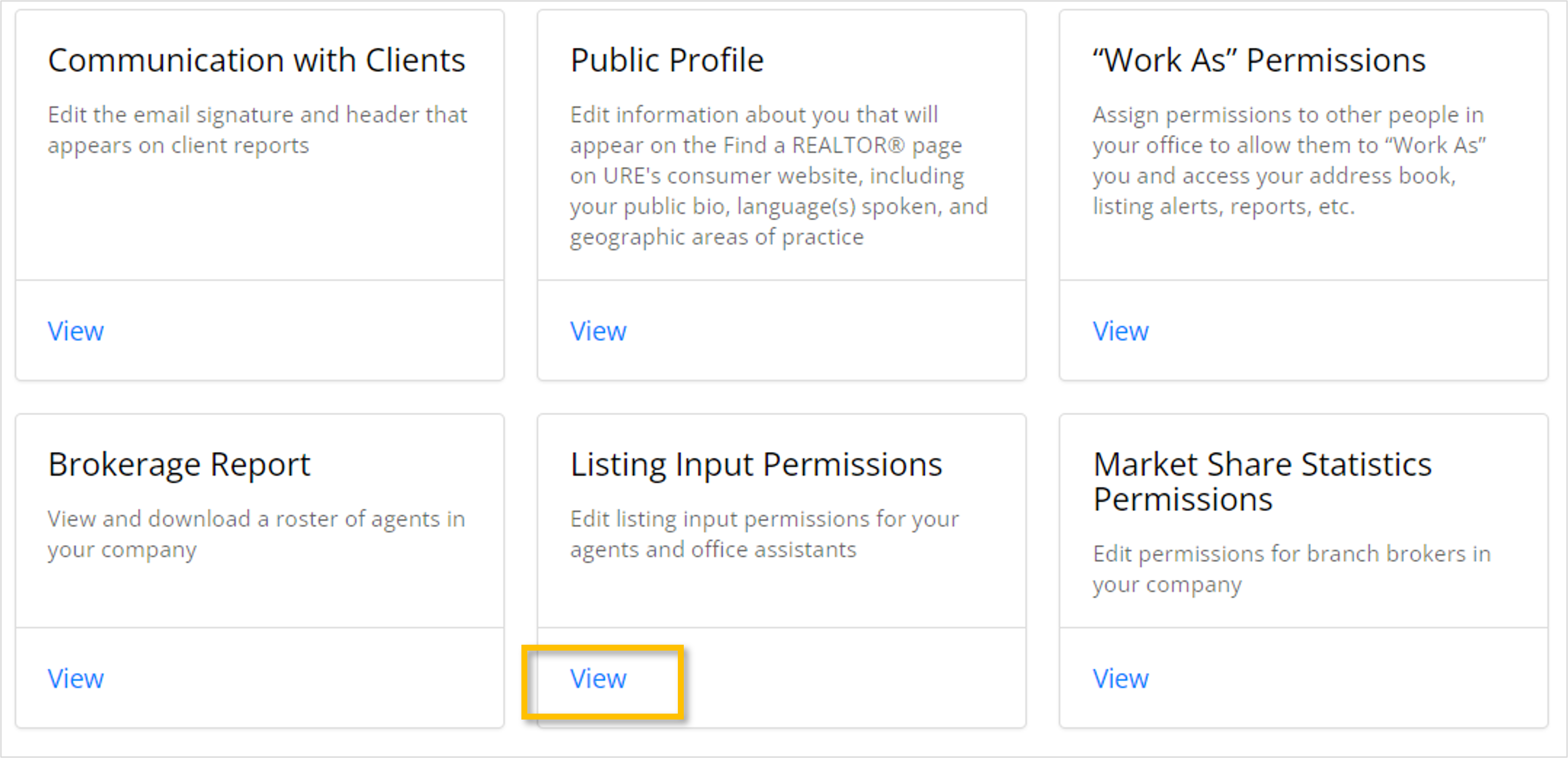
- Locate the Listing Input Permissions tile and select View
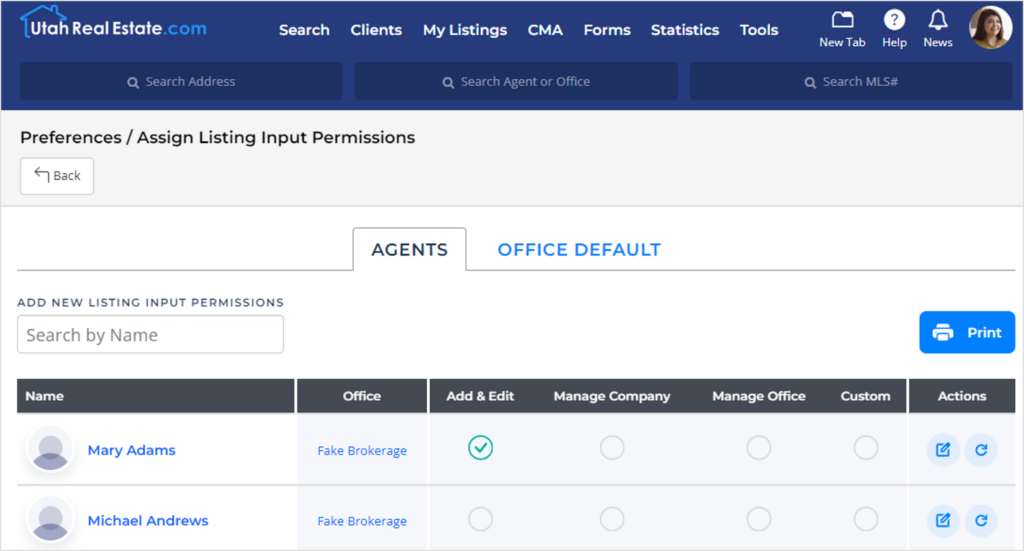
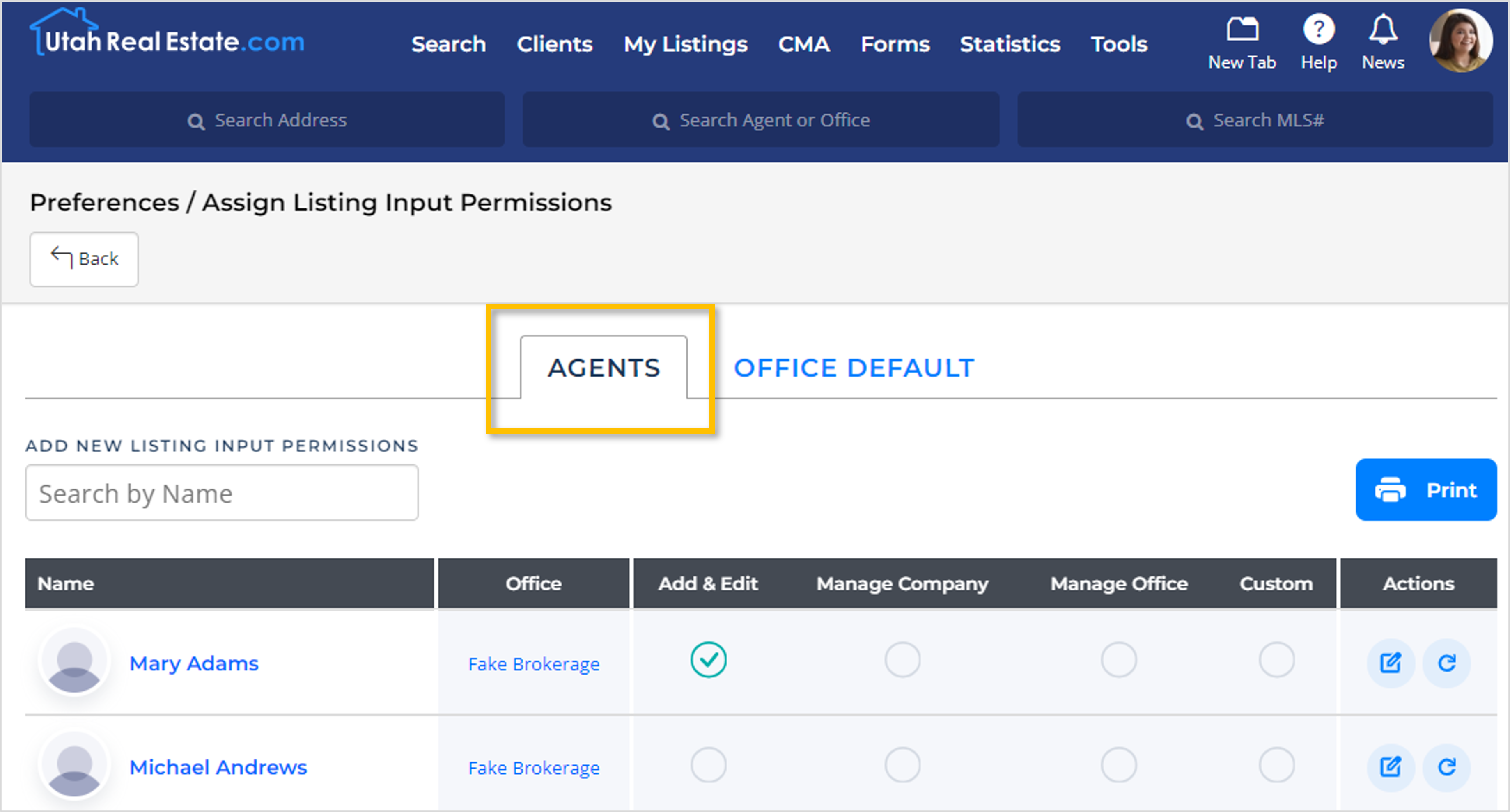
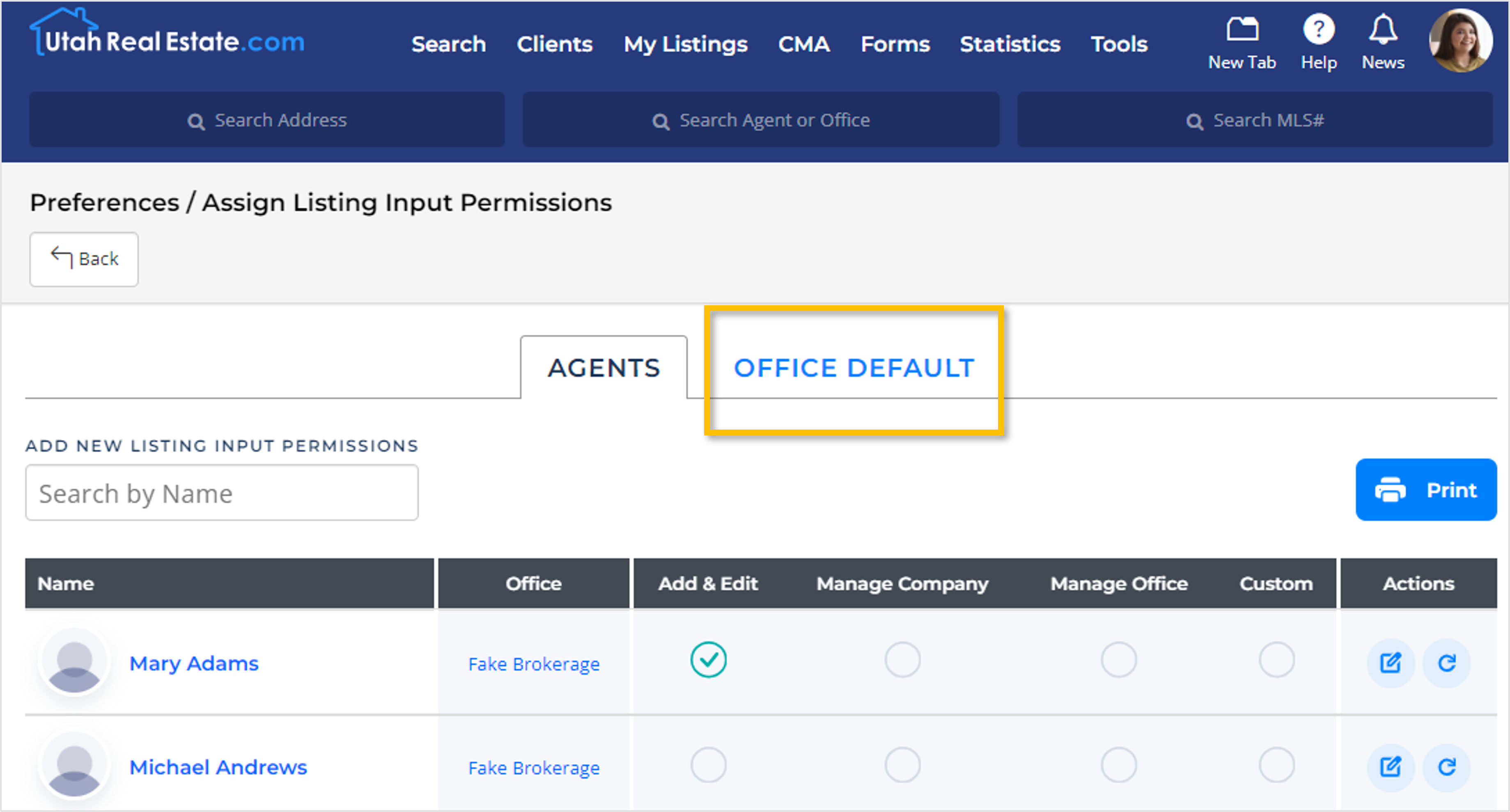
In Listing Input Permissions there are two tabs: Agents and Office Default.
To manage the Listing Input Permissions of individual agents:
To manage the Default Listing Input Permissions for an office:
4. Remain on the Agents Tab
5. Locate the MLS user whose Listing Input Rights you would like to change
6. Select the Edit Icon in the Actions column located to the far-right side. This will launch a pop-up window.
7. Select the right(s) you would like to assign to the individual
8. Select Save
4. Navigate to the Office Default Tab
5. Locate the office for which you would like to assign Default Listing Input Permissions
6. Select the Edit Icon in the Actions column located to the far-right side. This will launch a pop-up window.
7. Select the right(s) you would like to set as the Default Listing Input Rights for all new users joining the office
8. Select Save
Note: When reducing a user’s Listing Input Permissions (e.g. reducing a user’s Listing Input Permissions from Manage Company to Add & Edit), Higher-level rights must be deselected before granting lower-level rights.


