Using “Work As” Permissions
What are “Work As” Permissions?
“Work As” permissions allow you to grant another MLS user access to perform work in your MLS account, on a limited basis. As an example, if you are granted “Work As” permissions for another agent in your office, you would be able to access that user’s Listing Alerts, Saved Searches, etc.
MLS members have the ability to grant “Work As” permissions to any other user with an MLS account, such as a team member, office assistant, etc., provided that both users are in the same office or the same company (if your brokerage has multiple offices). Below is a list of tools and features you can access when “Working As” another user:
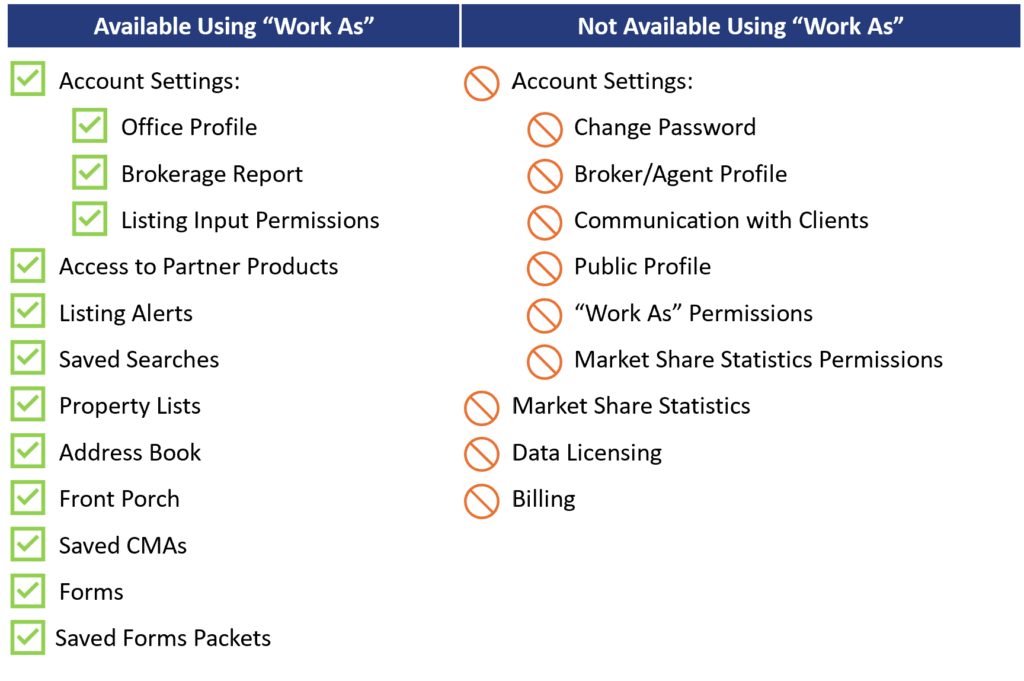
Note: Account Settings can only be accessed when “Working As” another user if that user is a Principal or Branch Broker.
How do I Grant “Work As” Permissions?
Here are the steps to grant “Work As” Permissions to someone in your company:
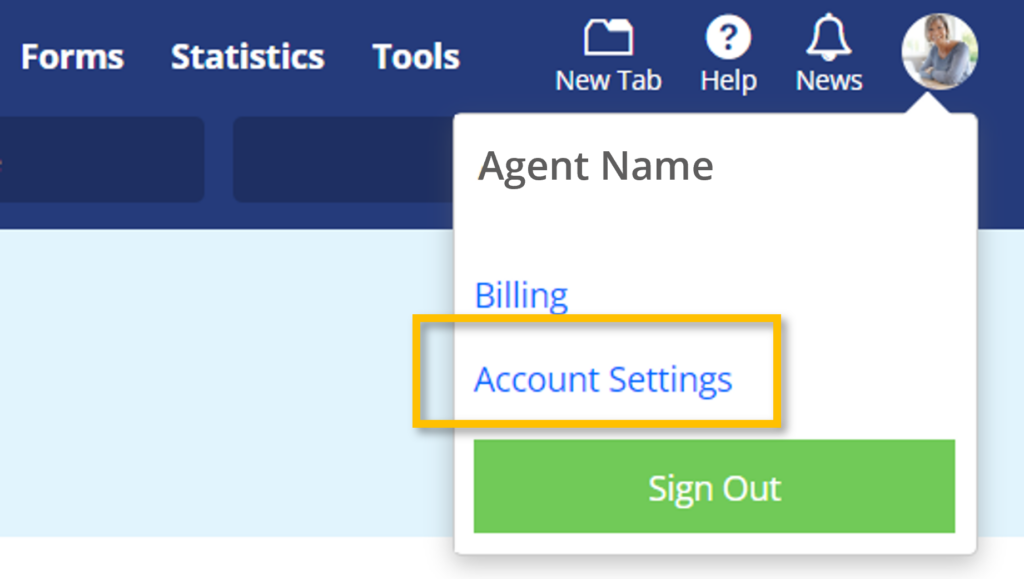
Step 1. Click on the Profile Icon in the upper-right-hand corner of the main navigation menu of the MLS, and select Account Settings.
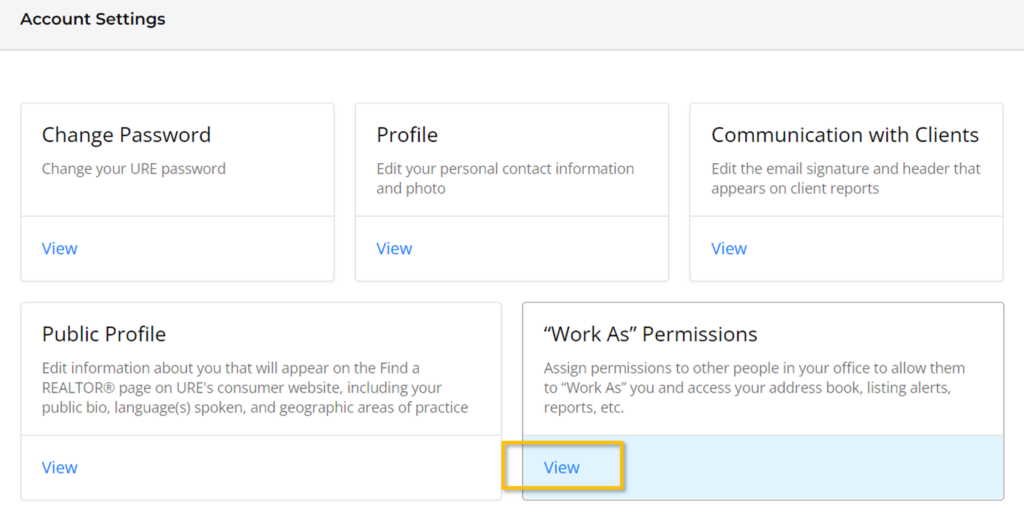
Step 2. Under “Work As” Permissions, select View.
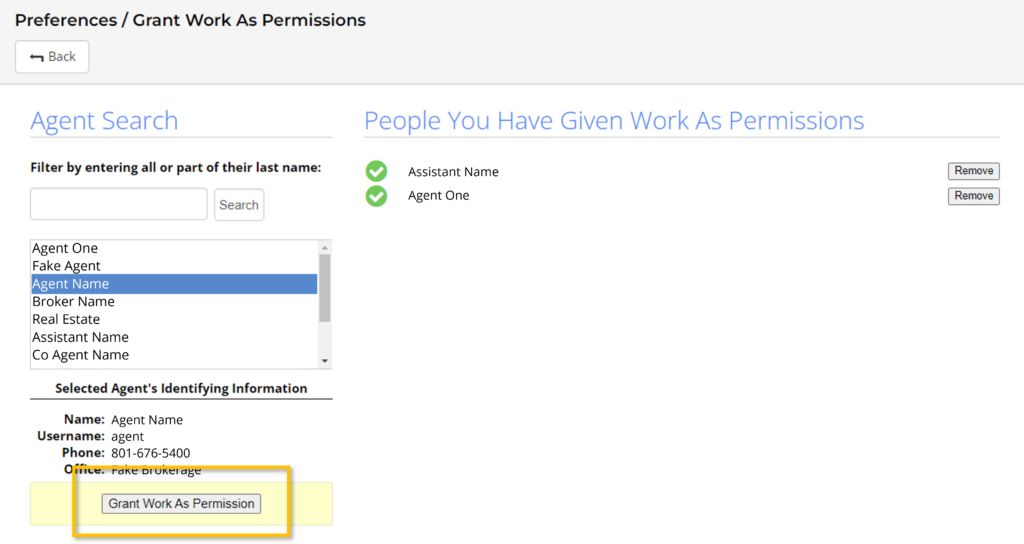
Step 3. Under Agent Search, select the name of the person to whom you would like to grant “Work As” permissions.
Step 4. Click on Grant Work As Permission at the bottom.
Note: Once granted, this person will need to sign out of, then back into their MLS account.
How Do I Use “Work As” Once Permission Has Been Granted?
Step 1. Click on the Profile Icon in the upper-right-hand corner of the main navigation menu of the MLS, and select Self.
Step 2. Click on the name of the person you need to Work As.
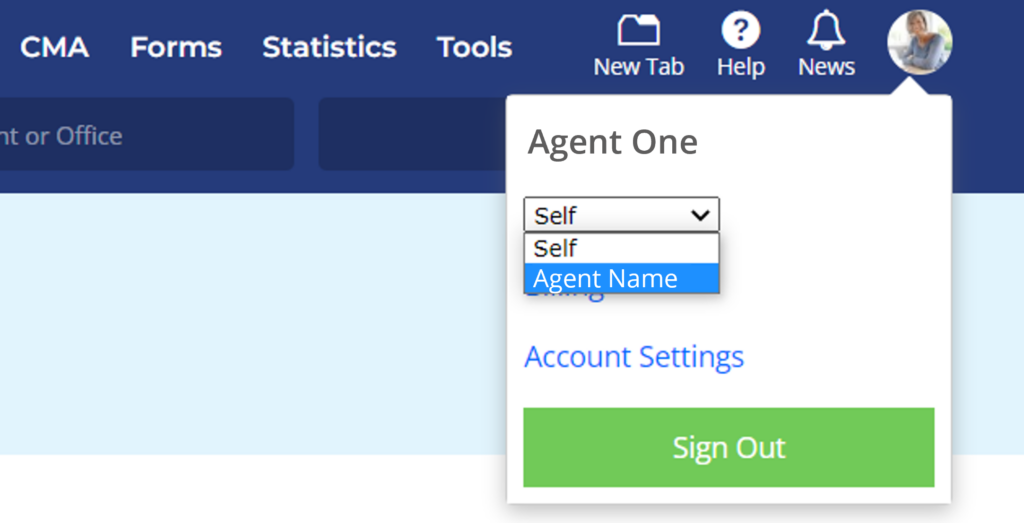
Tip: Don’t forget to switch back to your own account once you are done working as another user. Simply Select Self from the dropdown menu under the Profile Icon in the upper-right-hand corner of the main navigation menu of the MLS.


