Aligned Showings Mobile App for Buyer’s Agents
How to Request a Showing
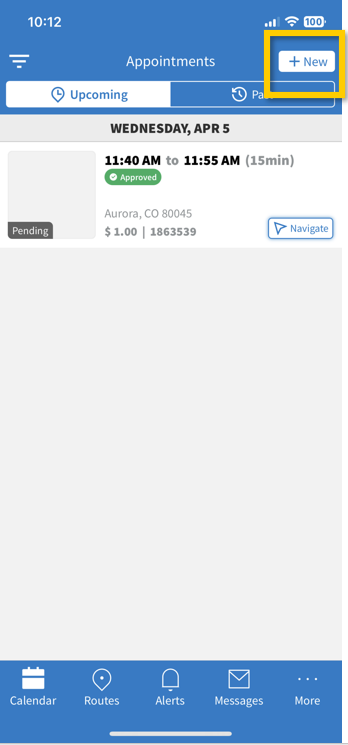
Open the Aligned Showings mobile app, then navigate to the Calendar and in the upper right select + New.
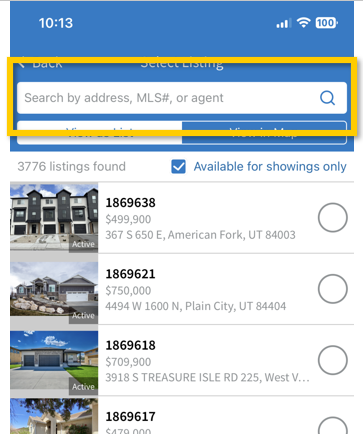
Enter the MLS# or address for the listing in the “Search Address or MLS #” box at the top of the page, and press the magnifying glass icon to bring up search results.
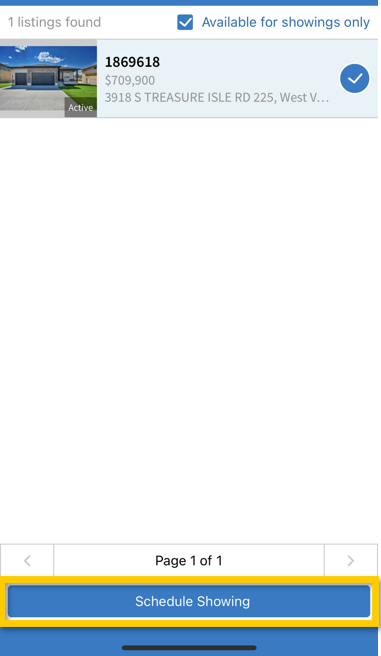
Select the listing from the available results, then click on Schedule Showing at the bottom of the screen.
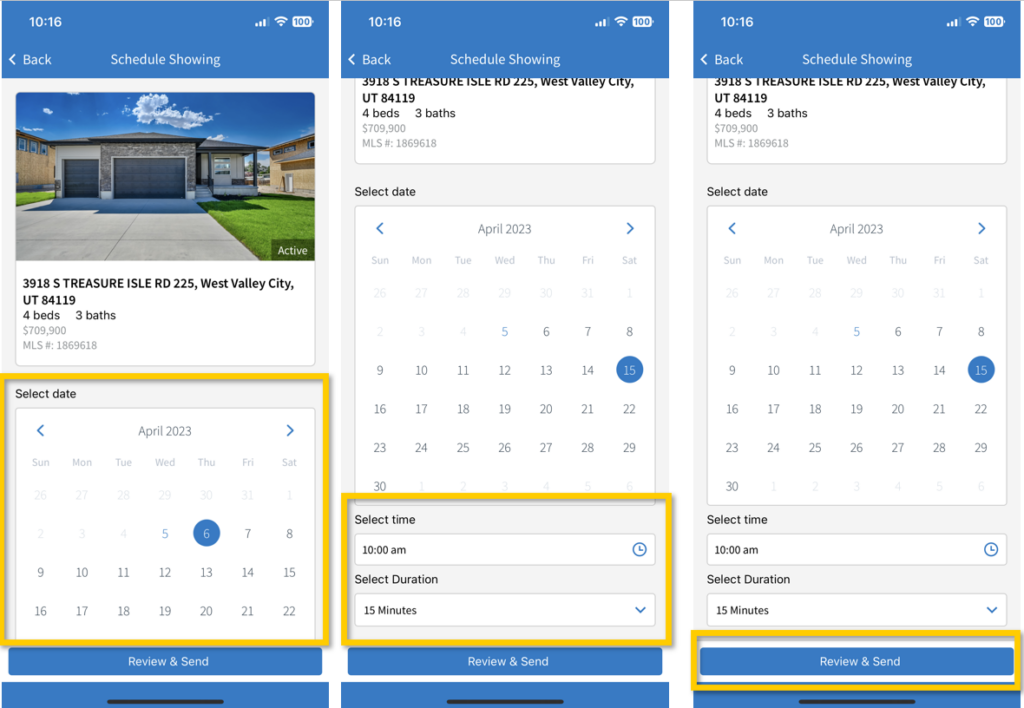
Once the showing request has been initiated, choose the date, start time, and duration for the showing request using the calendar tool, then select Review & Send.
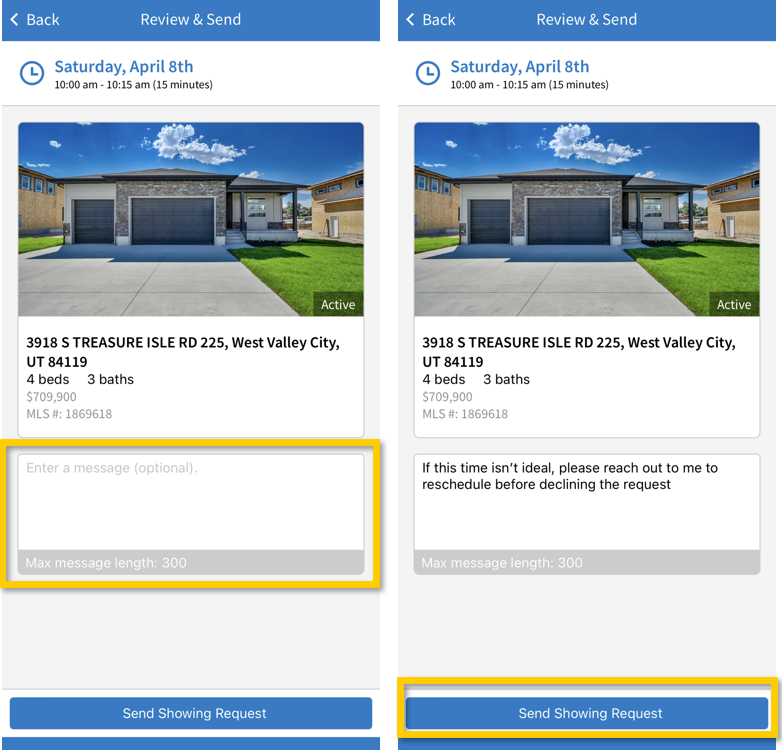
Enter a message (optional) to be sent to the listing agent, then click Send Showing Request.
How Can I See the Status of My Showing Requests in Aligned Showings?
Whenever a showing request is approved or declined, you will receive a notification via your preferred Aligned Showings notification settings.
If you have not received a notification or if you want to check the status of a showing appointment request, please follow these steps:
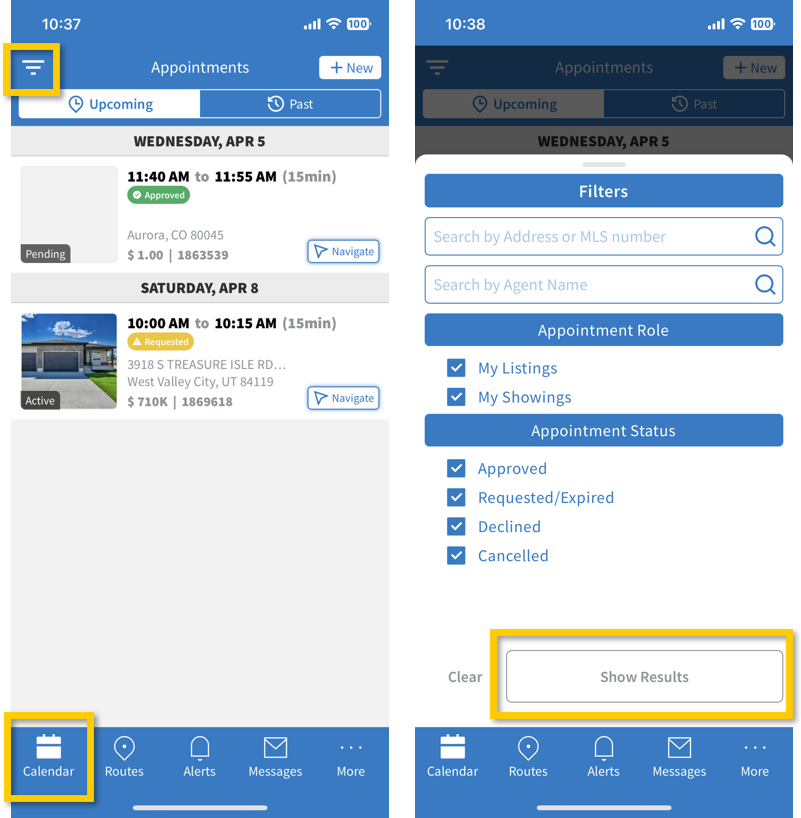
Within the Aligned Showings mobile app, click Calendar.
Use the calendar to navigate to the showing appointment in question. To navigate to a specific appointment, you can use the Filter option in the upper left corner that appears as a triangle made of 3 horizontal lines. There is a tag/marker that indicates the color-coded status of a showing appointment. Those statuses are as follows:
- Requested: Requests that have been submitted, but have not yet been approved or declined by the listing agent are shown with a yellow warning symbol.
- Approved: Showings that have been approved are indicated with a green check symbol.
- Declined: Requests that have been declined by the listing agent or team are shown with a red “x” symbol.
- Canceled: Appointments that you have canceled are shown with a black minus sign.
- Expired: Expired requests are showing requests that you submitted, that were neither approved or denied by the listing agent, but which have “expired” due to the fact that the time/date of the showing request has passed.
How do I Change the Date/Time of a Showing Request?
Showing agents can modify the date and time of a showing request that was previously approved or which is still pending review by the listing team. Here is how to change the date/time of a showing request:
1. Open the Aligned Showings mobile app.
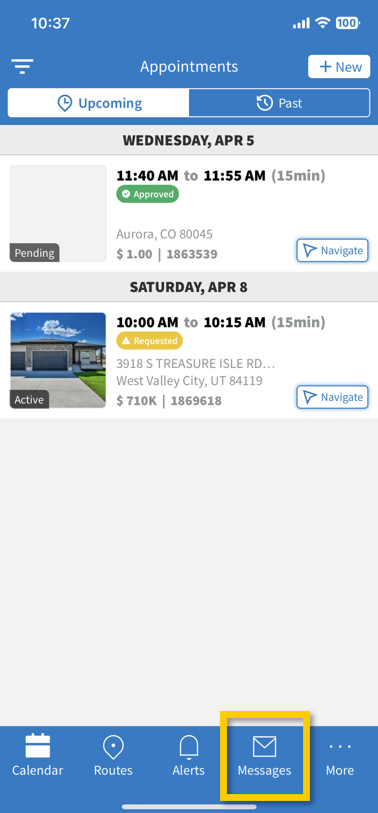
2. Click on Messages from the options at the bottom of the screen.
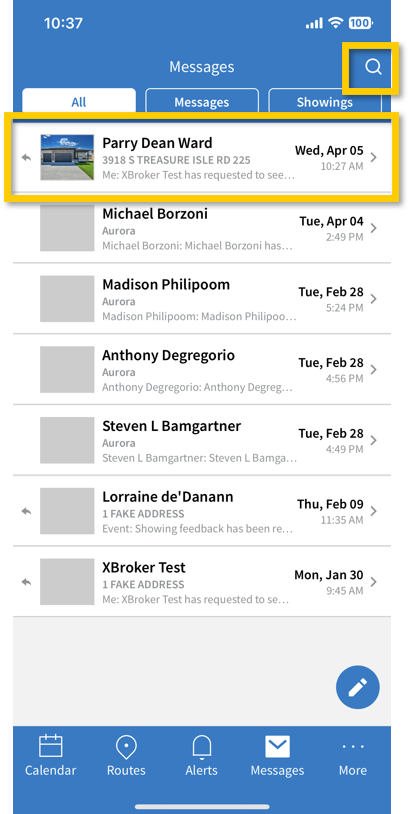
3. Click on the Message thread associated with your showing request (a search option is available in the upper right to sort through messages).
4. To change the date/time of your showing request, click the View/Edit Details option at the top of the message thread and follow the prompts to submit a revised date/time for your showing request.
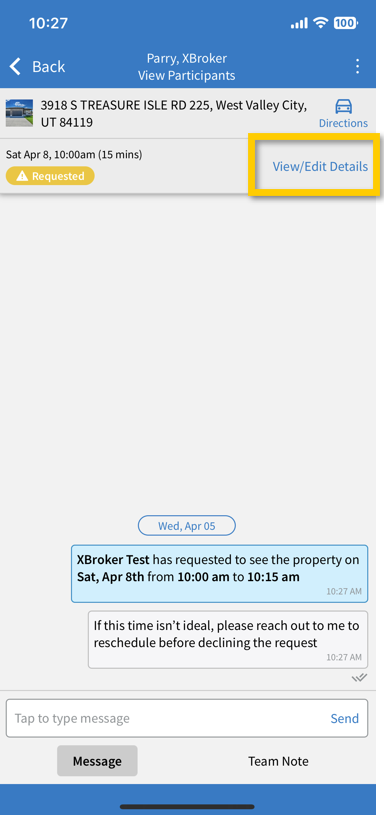
Please note, when you propose a new date/time for a showing, your request is re-submitted to the listing agent, and you will need to wait to receive an approval/denial response from the listing agent before you can show the property.


