Creating Custom CMA Adjustment Templates
UtahRealEstate.com’s CMA Report tool enables users to save their own custom adjustment factors and corresponding values to use in CMAs. Save multiple CMA adjustment templates to use in the markets where you sell real estate. Additionally, you can choose which specific adjustment template you’d like to use as your default if you find yourself using the same template on a regular basis.
Step 1. To create a custom adjustment template, you’ll need to first navigate to a CMA Report. There are two ways you can navigate to a CMA report.
- The fastest way to navigate to a CMA report is to open a previously Saved CMA. Select the CMA option from the main navigation menu from within the MLS, then the Saved CMAs option.

- Then, select the Edit icon next to any one of your Saved CMAs.
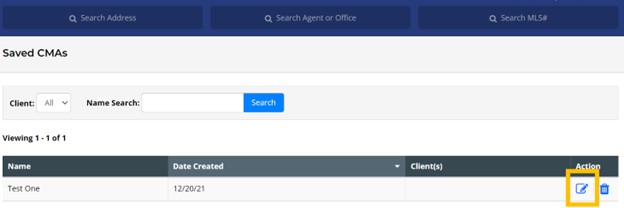
- Last, select View/Edit CMA

- If you do not have a previously saved CMA, you can access the CMA Report from any search results page or listing report by selecting CMA Report as the report type.

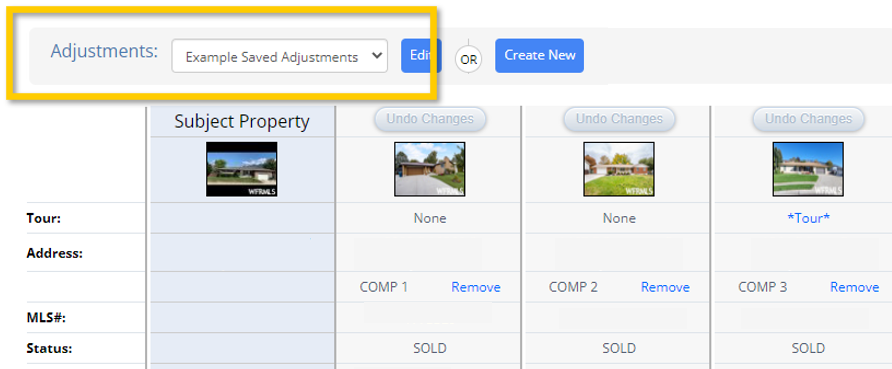
Step 2. Once in a CMA Report, select the Create New option that appears next to the Adjustment drop down menu.

The Available Adjustment Factors and Custom Factors tables show CMA adjustment factors that you can add to your custom adjustment template. The Selected Adjustment Factors table shows adjustment factors that you have added to your custom adjustment template, which can be done by clicking the green + icon that appears next to an adjustment factor option.

Step 3. As you add adjustment factors to your custom template, you will see a Value ($) field appear next to each adjustment factor, and that is where you can designate a specific dollar amount for each specific adjustment factor. These values will automatically apply whenever this custom CMA adjustments template is used moving forward.
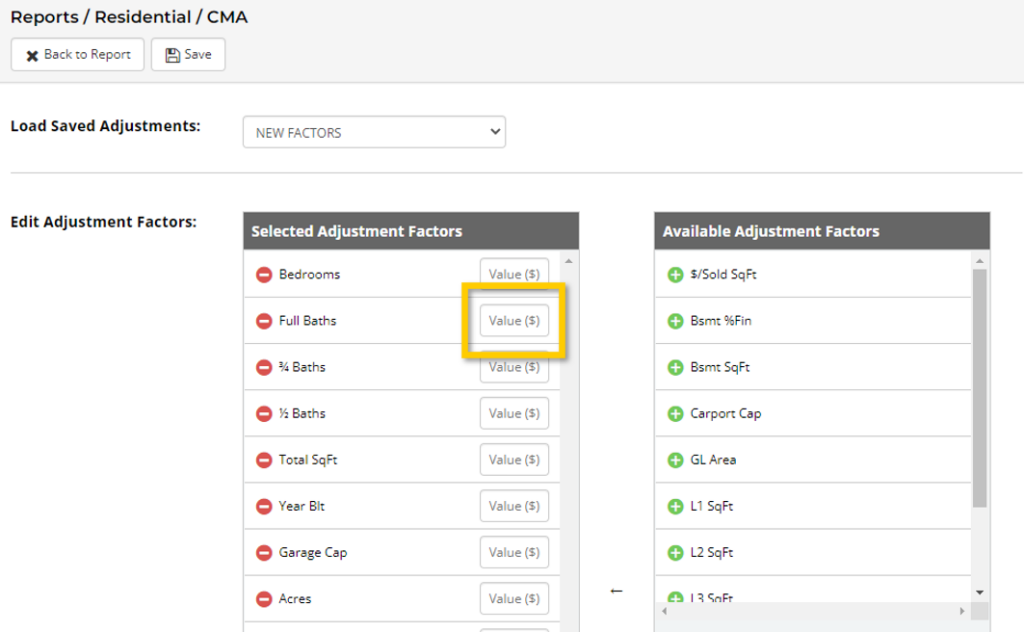
Here is an example of selected adjustment factors that have been assigned specific values (provided as a sample only).

Please keep in mind that you can leave the adjustment value field blank for any factors if you would prefer to enter adjustment value amounts on a case by case basis. If you leave adjustment value fields blank, know that the actual adjustment factor will still be saved as part of your template, but will simply appear with no saved adjustment value when you use the template.
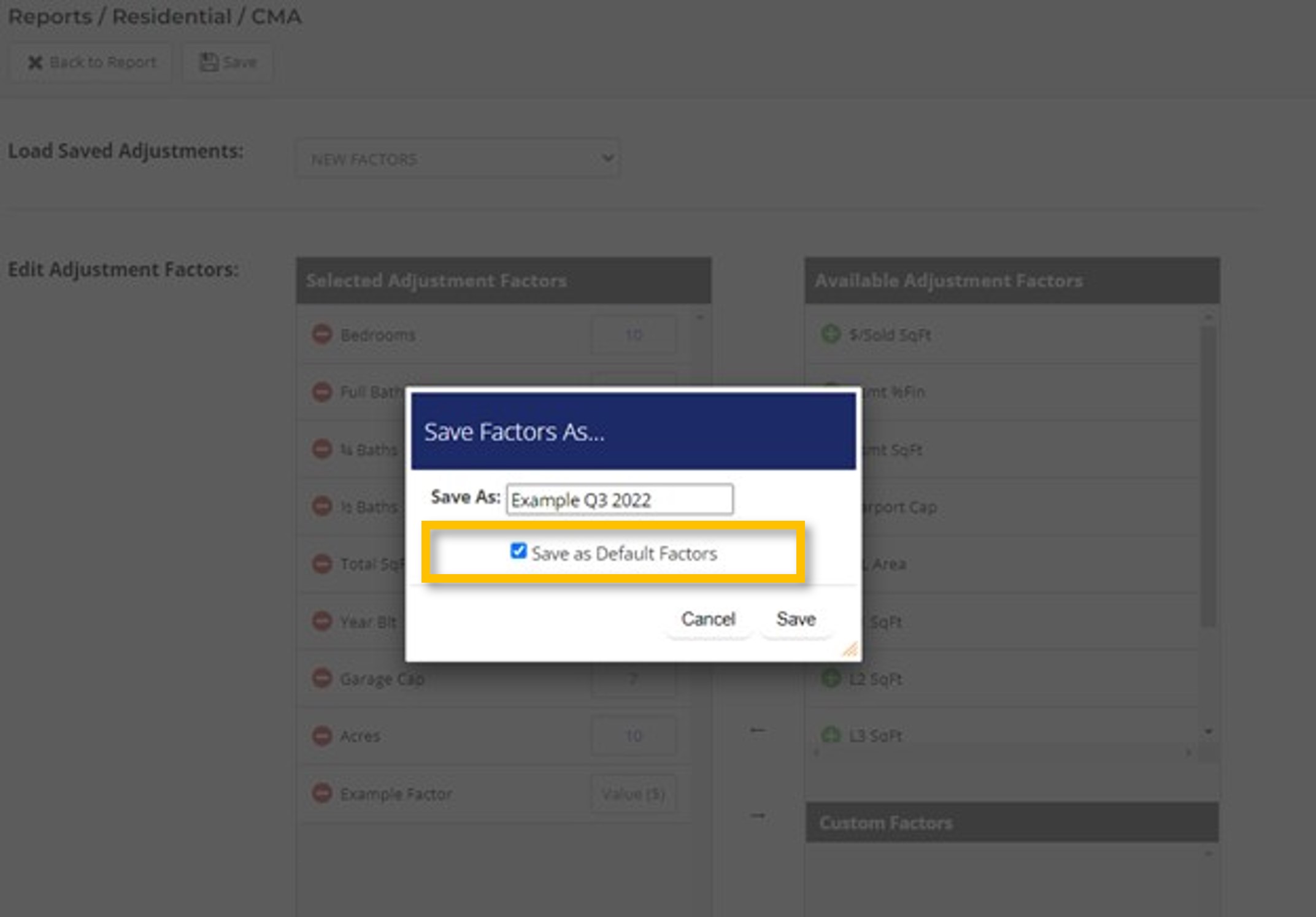
Step 4. Once you have created your custom template, select the Save option and enter a name for your template. When saving your template you will also see an option that says Save as Default Factors, which you can select if you want this specific adjustment template to be your default CMA adjustment template (i.e. this template will load automatically every time you go to create a new CMA report).
Step 5. You will see a confirmation once your new adjustment factor template has been successfully saved.

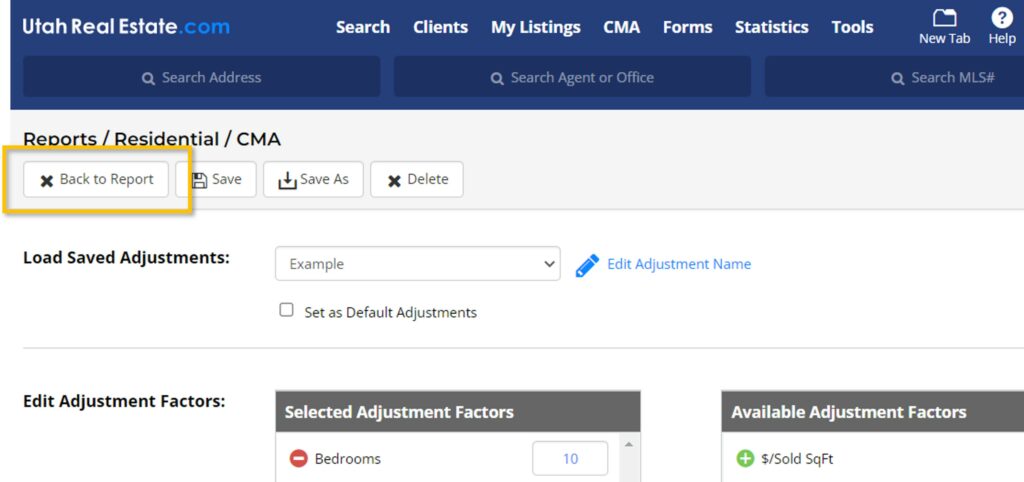
Step 6. Select Back to Report to go back to your CMA Report.
Step 7. When you are on the CMA report, you can load a previously saved CMA adjustment template by selecting your saved template from the drop down menu next to the Adjustments option.