CMA Steps
What are the Steps of a CMA?
A Comparative Market Analysis, or CMA, is a tool used to obtain the estimated market value of a subject property by comparing that subject property to other comparable or similarly situated properties (i.e. location, property characteristics, etc.). Every CMA is different. Below are the steps for using UtahRealEstate.com’s CMA Tool:
Step 1. Search the MLS for properties similar to your subject. This search can begin in any of our residential search pages. However, for a search page created with CMAs in mind, open Create New from the CMA tab.

Step 2. Qualify your search results by reviewing them in the Agent Full Report. We recommend finding comparable properties that are as similar as possible to the subject property, so that few adjustments are necessary. Deselect any listing you do not wish to include as a comparable property.
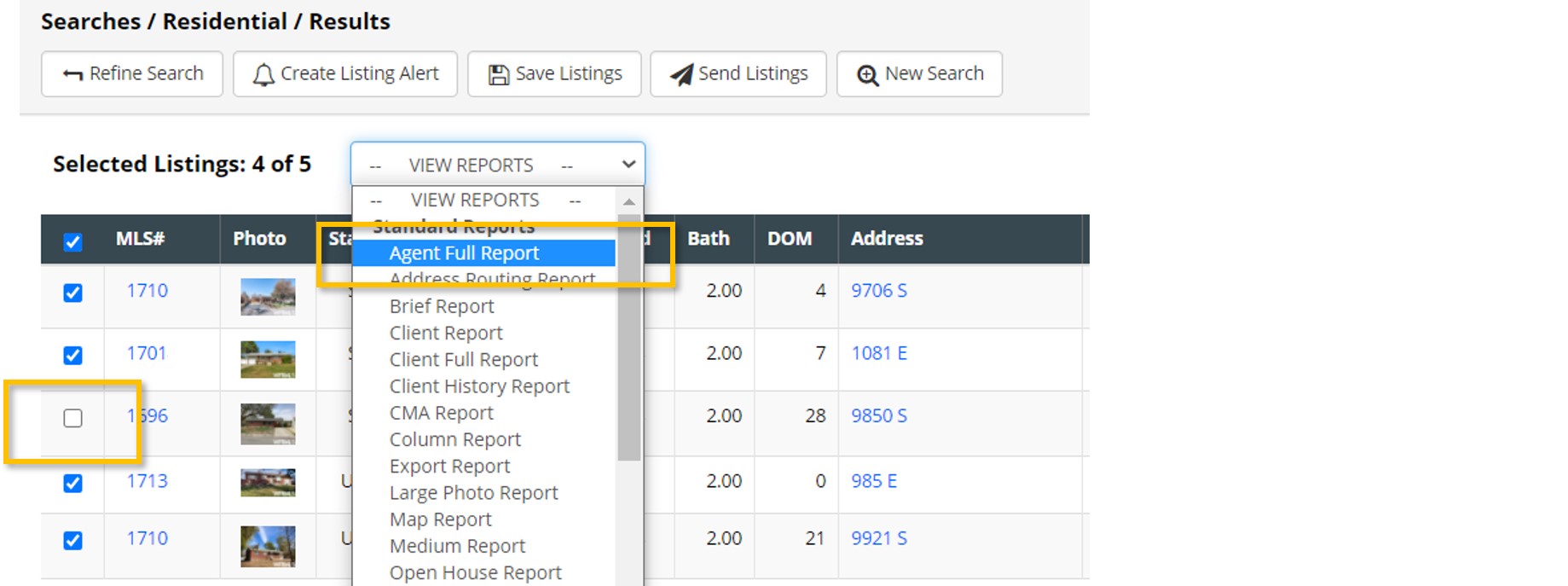
Step 3. Take your chosen comparables into the CMA Report. The CMA Report will calculate the average price of your chosen comps which will be displayed under Subject Range.
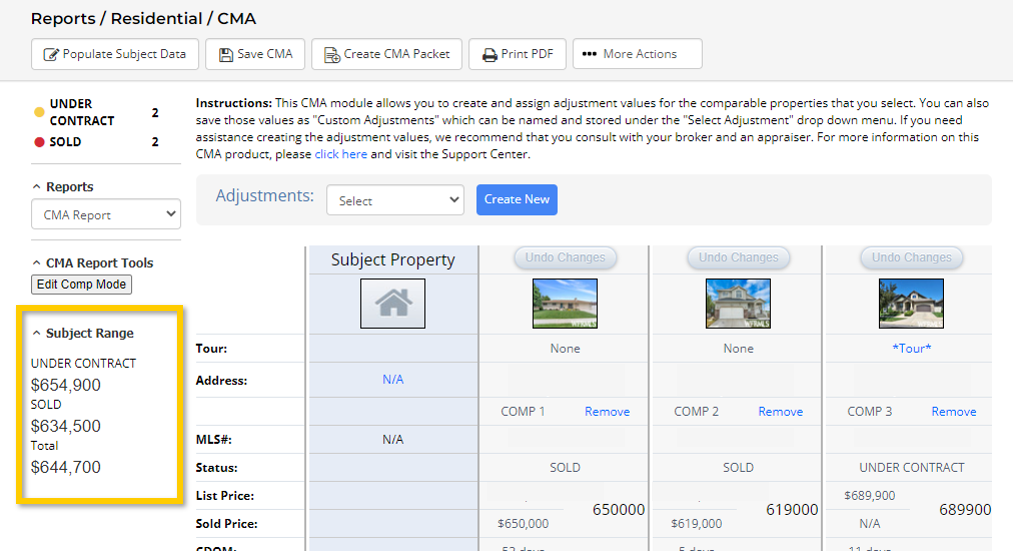
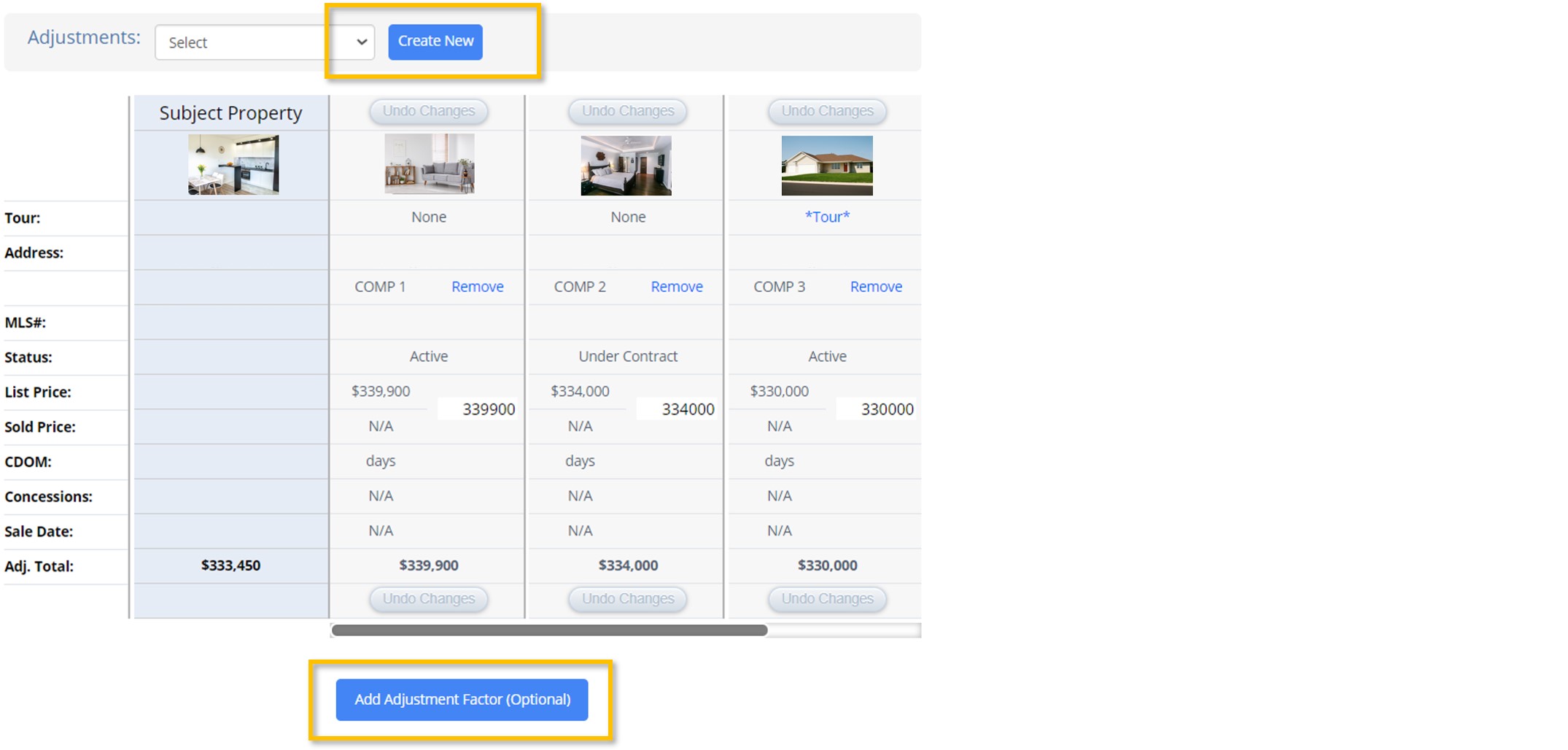
Step 4. Make price adjustments to the comparable properties you selected. These adjustments help account for the differences between your comparable properties and your subject property (such as a difference in number of bedrooms). Adjustments can be created in one of two ways:
- Create a set of custom adjustment factors for repeated use by selecting Adjustments: Create New at the top of the CMA report.
- Quickly assign individual adjustment factors by selecting the Add Adjustment Factor button at the bottom of the CMA report. These factors will be used for this CMA only and will not be saved to your account.
Read more about the CMA Report and Adjustment Factors here.
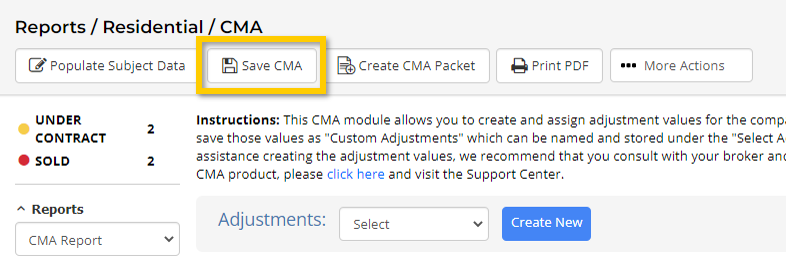
Step 5. Save your CMA by selecting Save CMA at the top of the page. Your CMA can be accessed any time under the CMA tab.
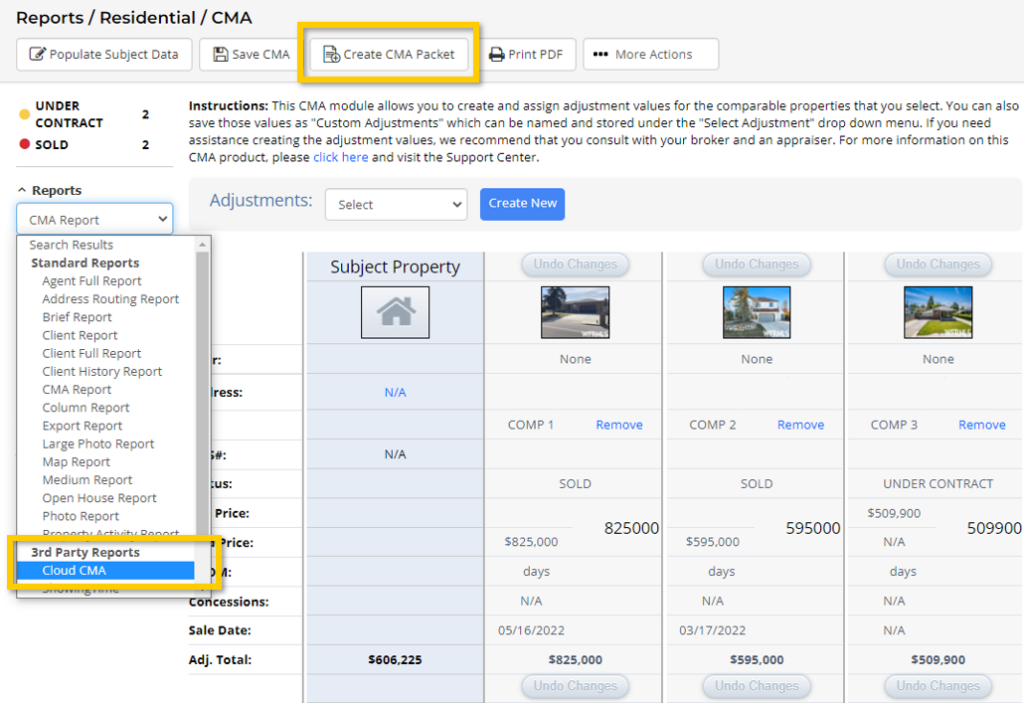
Step 6. Finally, create a presentation to convey your CMA findings to your client. A basic presentation of your CMA findings can be created by selecting Create CMA Packet at the top of the page. A more robust and branded CMA presentation can be created with Cloud CMA which is included in your MLS membership. Take your chosen comps into Cloud CMA by selecting Cloud CMA from the Reports dropdown menu on the left-hand side of the page.
If you need any assistance, please contact us at 801-676-5400 or support@utahrealestate.com.


