Creating a Custom Report
Can I Create a Custom Report?
Yes. Custom reports allow you to hand-select the data displayed in a report. Like standard reports, they can be viewed, emailed, and printed. Custom reports can even be exported into an Excel spreadsheet or any program that can read TAB, CSV, PSV, or XLS format.
How do I Create a Custom Report?
Step 1. View your search results from any Search page.
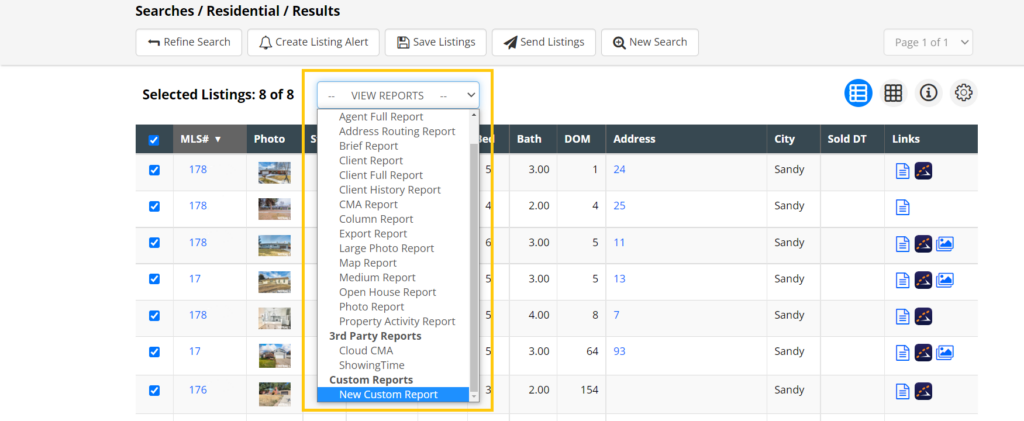
Step 2. Select one or more results, then select View Reports from the drop-down menu, and then New Custom Report.
Step 3. Now build your custom report. All available fields are on the right. Drag the fields you want included in your custom report to the left and place them in any order you prefer.
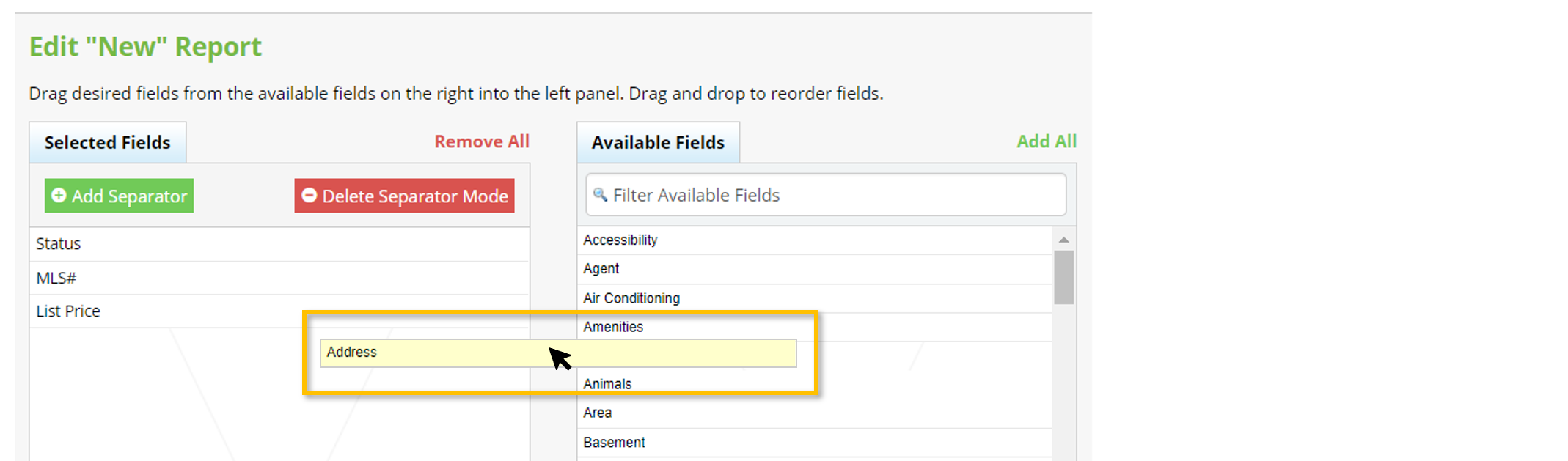
Tip: To find fields more quickly, enter all or part of the field name under Filter Available Fields.
Note: You may want to consider including the MLS # field as a point of reference. If you need the full address of the properties in your export, include: Address, City, State, and Zip.
Step 4. When you are finished adding and rearranging fields, give your report a name next to Customized Report Name.

Step 5. Select Save as New Report.

Saved custom reports appear at the bottom of the Reports dropdown menu. They can also be selected as a data set when using the Export Report.
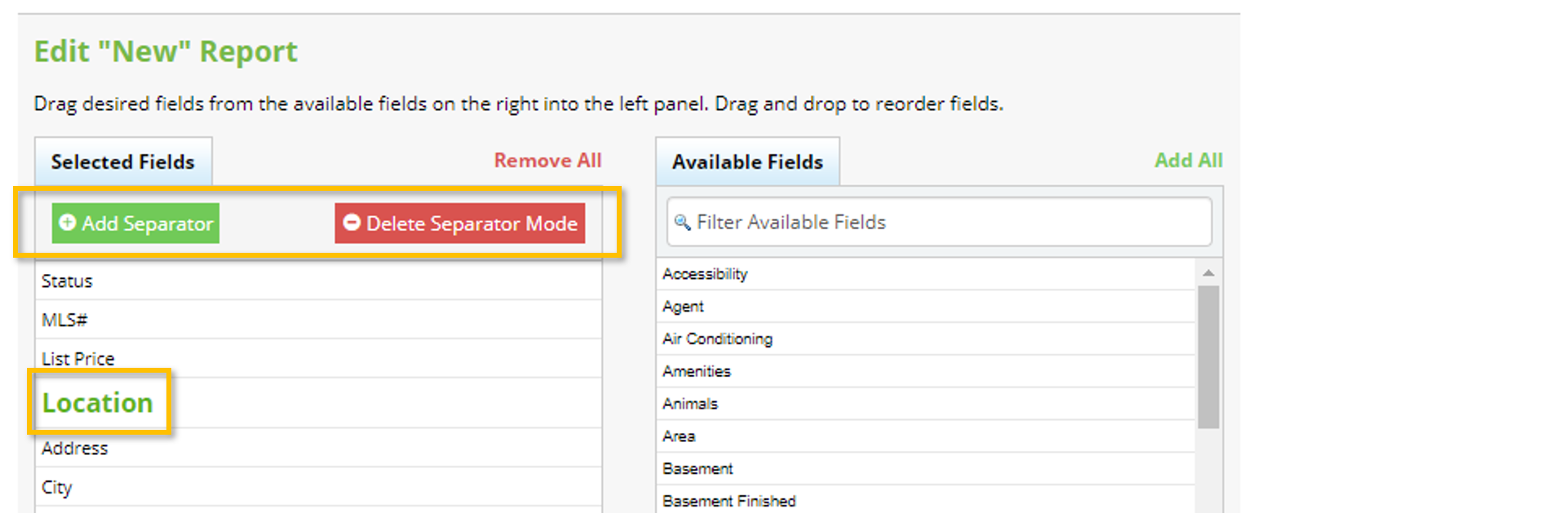
Can I Organize my Custom Report Into Sections?
Yes. To organize your custom report into sections, create section headers using Add Separator at the top of the Selected Fields section. Delete Separator Mode will allow you to remove unwanted section headers.